Téléversement groupé des notes d'examen
La page Téléversement groupé des notes d'examen vous permet d'importer les notes pour une combinaison entière classe-section-matière à l'aide d'un fichier CSV au lieu de saisir les notes élève par élève.
Quand utiliser le téléversement groupé
Utilisez-le lorsque vous avez des notes dans un tableur et que vous souhaitez les importer rapidement — particulièrement utile pour les grandes classes comptant de nombreux élèves.
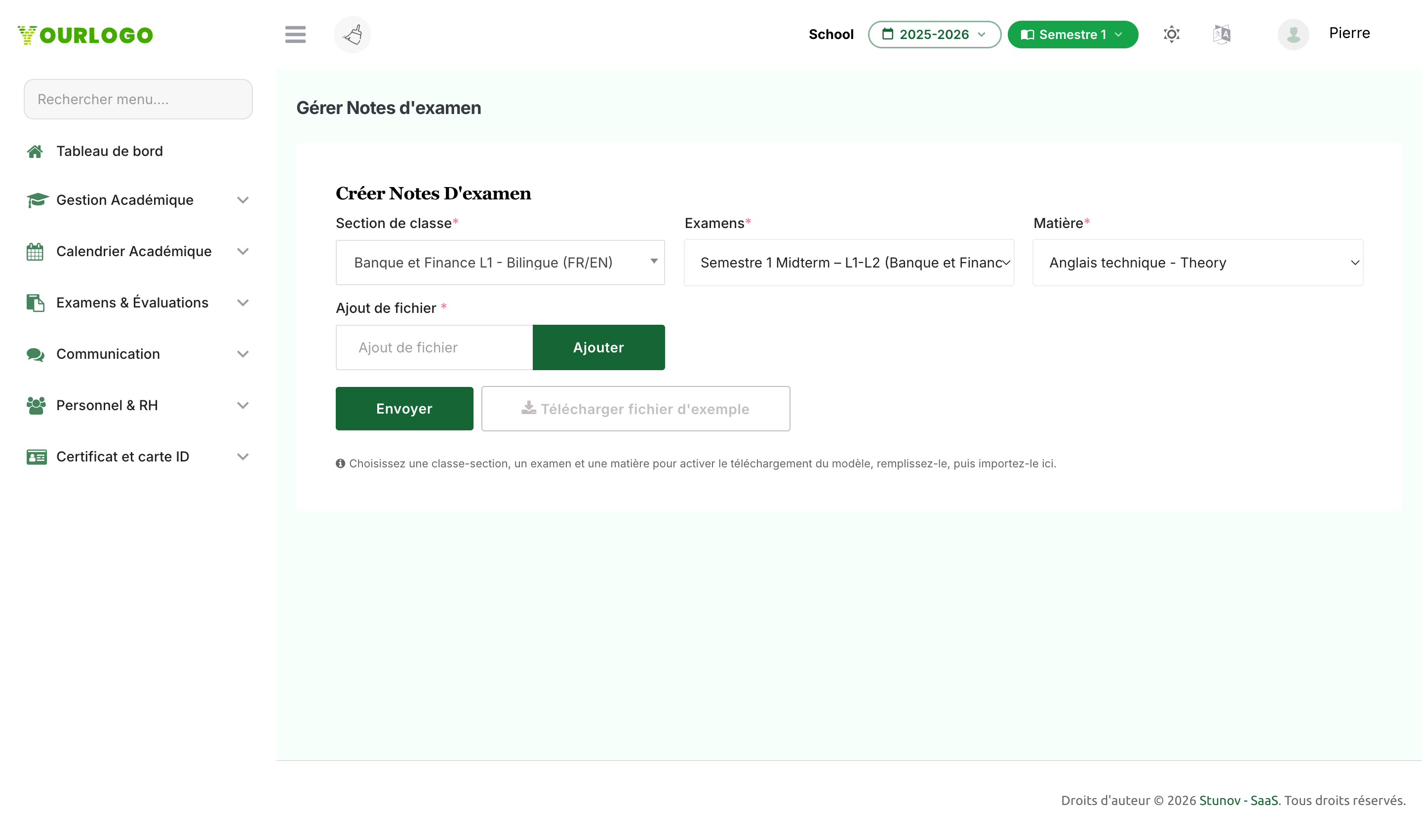
Téléversement groupé des notes d'examen — sélectionner la classe, l'examen, la matière, puis téléverser le CSV
Flux de travail du téléversement groupé
1
Accéder à Examen & Évaluation → Examen hors ligne → Téléversement groupé des notes d'examen
Dans la barre latérale, développez **Examen & Évaluation → Examen hors ligne** et cliquez sur **Téléversement groupé des notes d'examen**.
2
Sélectionner la section de classe
Choisissez la **Section de classe** dans le menu déroulant.
3
Sélectionner l'examen
Choisissez l'**Examen** dans le menu déroulant. Seuls les examens terminés et non publiés sont disponibles.
4
Sélectionner la matière
Choisissez la **Matière** pour laquelle téléverser les notes.
5
Télécharger le fichier exemple
Cliquez sur **Télécharger le fichier exemple** pour obtenir un modèle CSV pré-rempli contenant les identifiants et noms des élèves pour la combinaison classe-examen-matière sélectionnée.
6
Renseigner les notes
Ouvrez le fichier téléchargé dans Excel ou tout éditeur de tableur. Saisissez les **Notes obtenues** pour chaque élève dans la colonne prévue. Enregistrez au format CSV.
7
Téléverser le fichier
Cliquez sur le champ **Téléversement de fichier** et sélectionnez votre fichier CSV complété.
8
Soumettre
Cliquez sur **Soumettre** pour importer toutes les notes en une seule fois. Le système valide chaque ligne et affiche des messages de réussite ou d'erreur.
Champs du formulaire
| Field | Type | Required | Description |
|---|---|---|---|
| Section de classe | Select | Required | La classe et la section pour lesquelles téléverser les notes. |
| Examen | Select | Required | L'examen pour lequel téléverser les notes. Doit être terminé et non publié. |
| Matière | Select | Required | La matière pour laquelle téléverser les notes. |
| Téléversement de fichier | File (CSV/TXT) | Required | Le fichier CSV contenant les notes des élèves. Doit respecter le format du fichier exemple. |
Format du fichier CSV
Le fichier exemple contient les colonnes suivantes :
| Colonne | Description |
|---|---|
| student_id | L'identifiant unique de l'élève (pré-rempli dans l'exemple) |
| student_name | Le nom de l'élève à titre de référence (non importé) |
| obtained_marks | Les notes à attribuer — remplissez cette colonne |
Règles de format du fichier
- Le fichier doit être au format CSV ou TXT (séparé par des virgules)
- Ne modifiez pas la colonne student_id
- Les notes obtenues ne doivent pas dépasser les Notes totales définies dans l'emploi du temps
- Laissez obtained_marks à 0 pour les élèves absents
- Enregistrez au format CSV depuis Excel (pas .xlsx)
Pages associées
- Téléverser les notes d'examen — Saisir les notes manuellement, un élève à la fois
- Suivre les notes d'examen — Vérifier que les notes ont bien été soumises
- Emploi du temps — Vérifier les notes totales et de passage par matière
- Résultat d'examen — Consulter les résultats après publication