Announcement
Announcements let you broadcast important messages to students and parents in specific class sections. Each announcement can optionally target a subject, include file attachments or URL links, and automatically triggers a push notification to all students in the selected classes.
- School Admins can create announcements for any class section and optionally assign a subject
- Teachers can create announcements for their assigned class sections and must select one of their subjects
- Marketing Managers can view and manage announcements for communication purposes
- Announcements are tied to the active Session Year — switching session years shows that year's announcements
- Students and parents receive announcements via the Student App with push notifications
When you create or update an announcement, the system automatically sends a Firebase push notification to all students in the targeted class sections. Students see the notification on their mobile devices immediately.
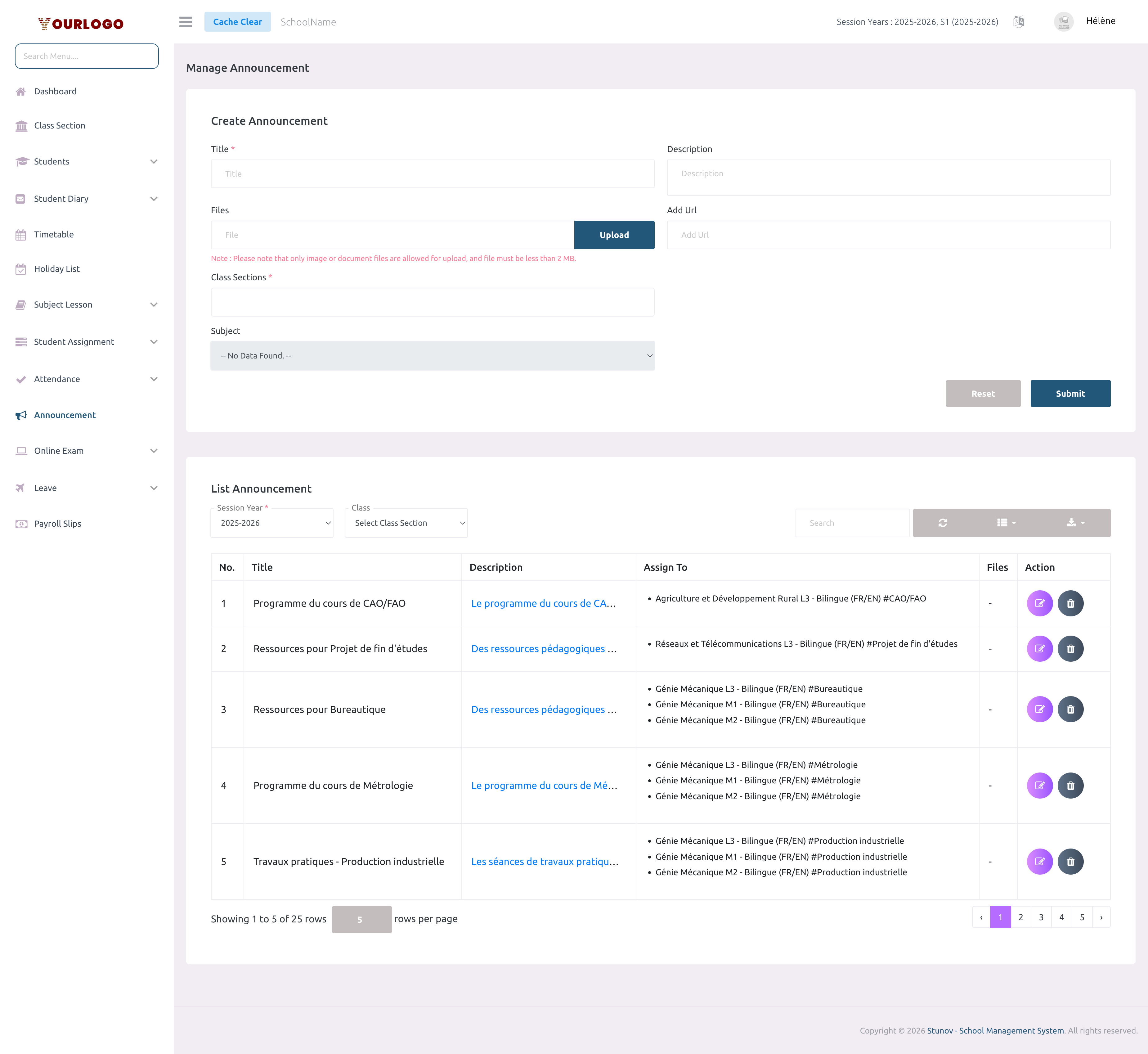
Create an Announcement
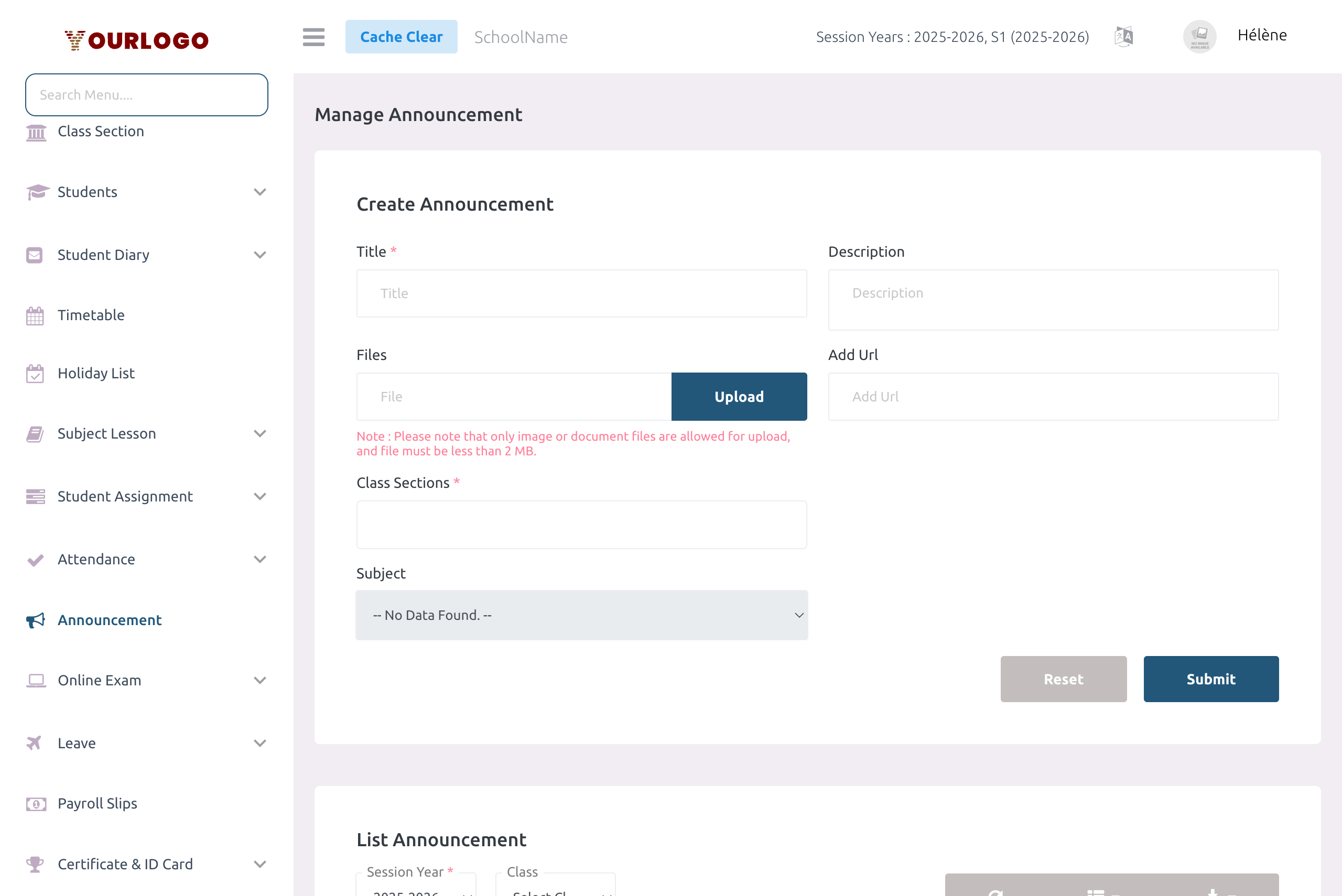
Form Fields
| Field | Type | Required | Description |
|---|---|---|---|
| Title | Text | Required | The announcement title. Maximum 128 characters. Appears as the heading in notifications and the announcement list. |
| Description | Textarea | Optional | Detailed announcement content. Maximum 1,024 characters. Long text is truncated in the list with a "Read more" link. |
| Files | File (multiple) | Optional | Attach one or more files. Accepted formats: JPEG, PNG, JPG, GIF, SVG, WebP, PDF, DOC, DOCX, XML. Max size per file depends on system settings (default: 2 MB). |
| Add Url | URL | Optional | An external URL link to attach to the announcement (e.g., Google Drive, YouTube, or any web resource). |
| Class Sections | Multi-select | Required | One or more class sections to receive the announcement. School Admins see all sections with a "Select All" option. Teachers see only their assigned sections. |
| Subject | Dropdown | Optional | Link the announcement to a specific subject. Required for Teachers (auto-populated with their assigned subjects). Optional for School Admins. When set, the announcement appears under that subject in student apps. |
- General announcement (no subject selected): Visible to all students in the selected class sections
- Subject-specific announcement (subject selected): Visible only in the context of that subject — students see it under the subject in their app, and teachers see it when filtering by subject
View and Filter Announcements
The announcement list displays all announcements for the selected session year in a searchable, paginated table with server-side processing.
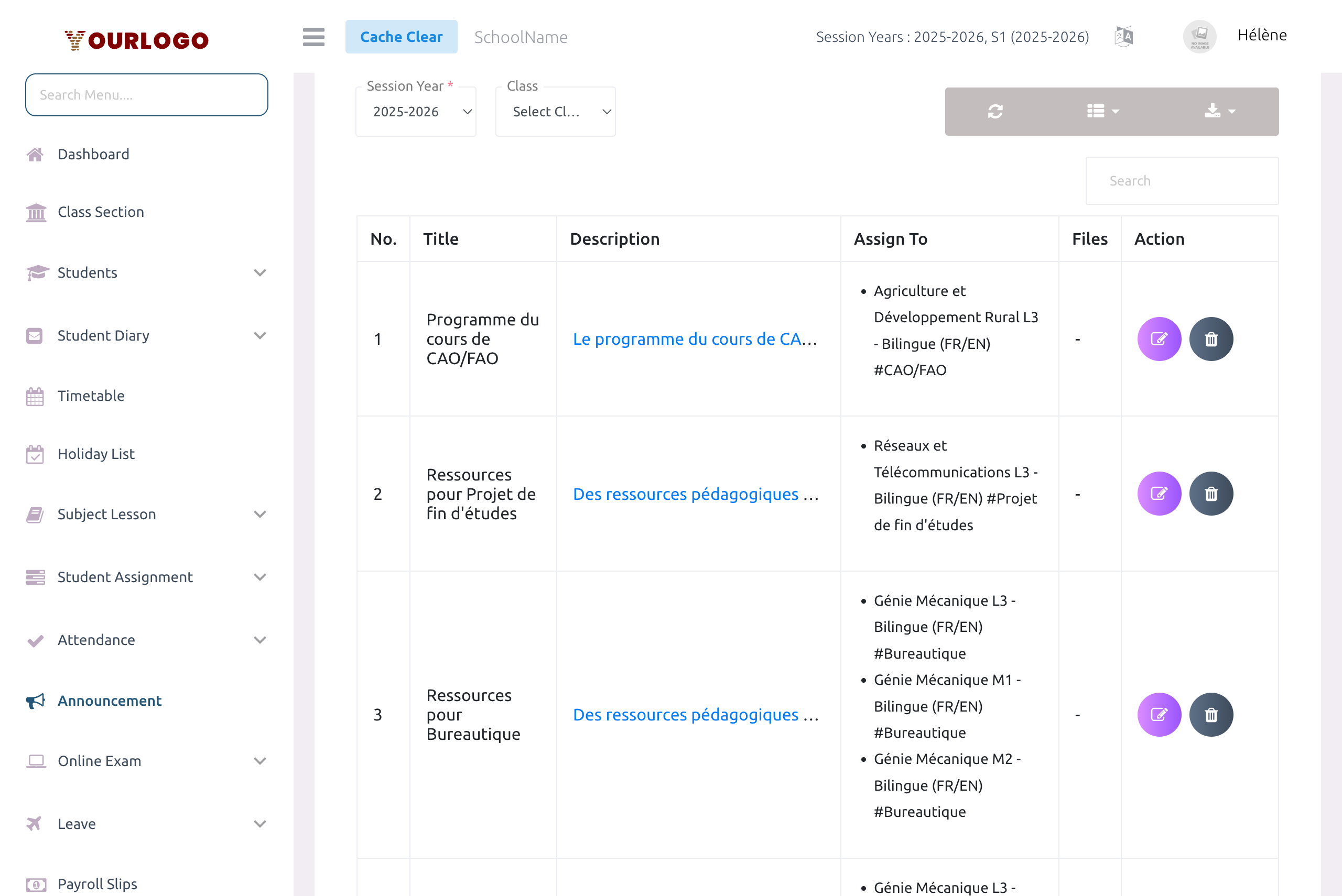
Filters
| Filter | Description |
|---|---|
| Session Year | Select the academic year to display announcements for. Defaults to the current active session year. |
| Class | Filter announcements by a specific class section. Select "Select Class Section" to show all. Teachers see only their assigned class sections. |
Table Columns
| Column | Description |
|---|---|
| No. | Row number |
| Title | The announcement title |
| Description | Announcement content — long text is truncated with a clickable "Read more" link to expand |
| Assign To | The targeted class sections and subject (displayed as "Class Section #Subject Name") |
| Files | Attached files — click to download. Shows "-" if no files are attached |
| Action | Edit and Delete buttons (visible based on user permissions) |
Additional Features
- Search: Use the search bar to find announcements by title or description
- Column Visibility: Click the Columns button to show or hide specific columns
- Export: Click the Export button to download the announcement list as CSV
- Refresh: Click the Refresh button to reload the table data
- Pagination: Use the rows-per-page selector (10, 20, 50, 100, 200) and page navigation at the bottom
Edit an Announcement
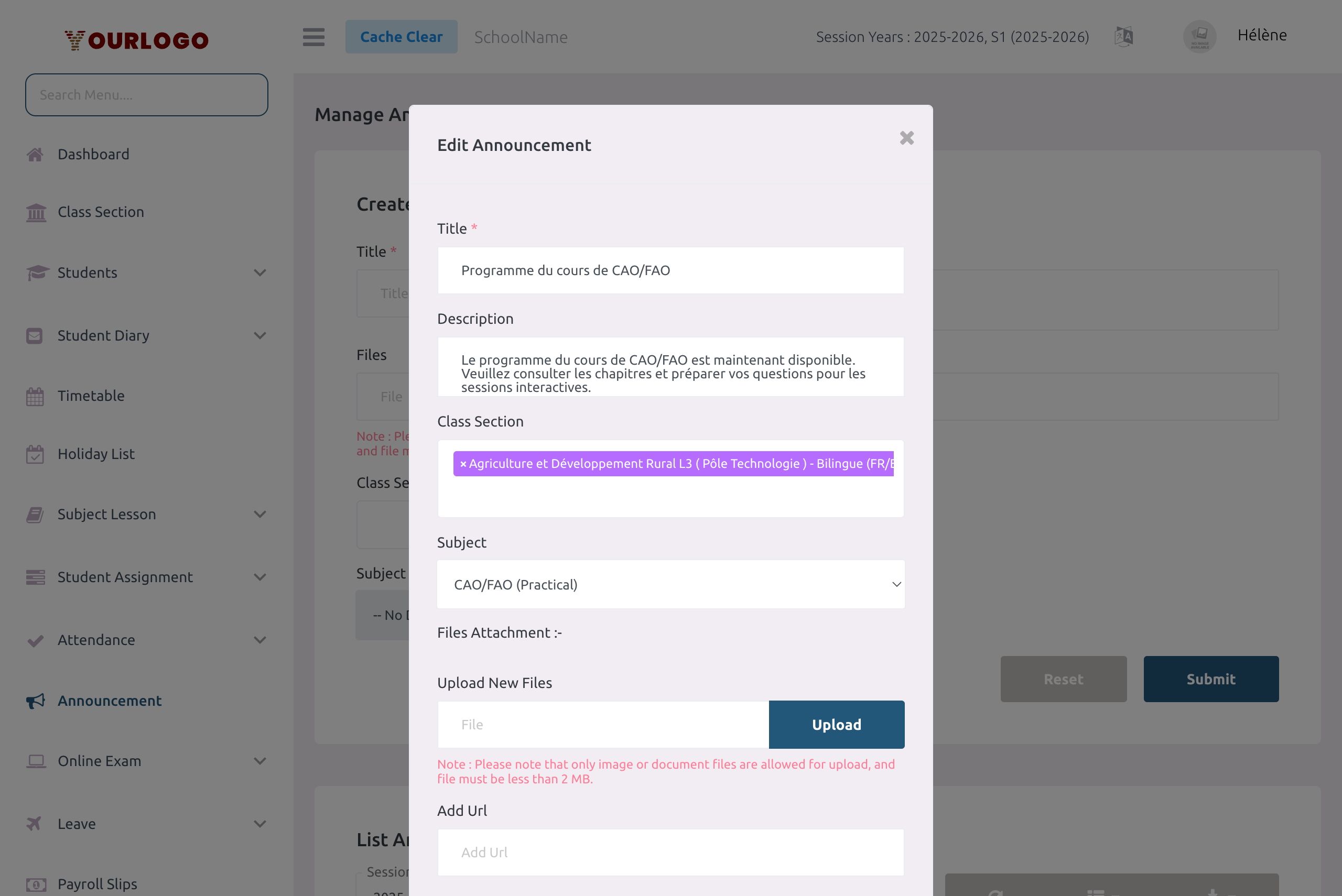
Updating an announcement sends a new push notification to all students in the targeted class sections with the message "Updated announcement" (or "Updated announcement in Subject Name" for subject-specific announcements). Be mindful of unnecessary edits to avoid notification fatigue.
Delete an Announcement
Deleted announcements are soft-deleted and tracked in the session year history. The announcement is removed from the student apps and the announcement list.
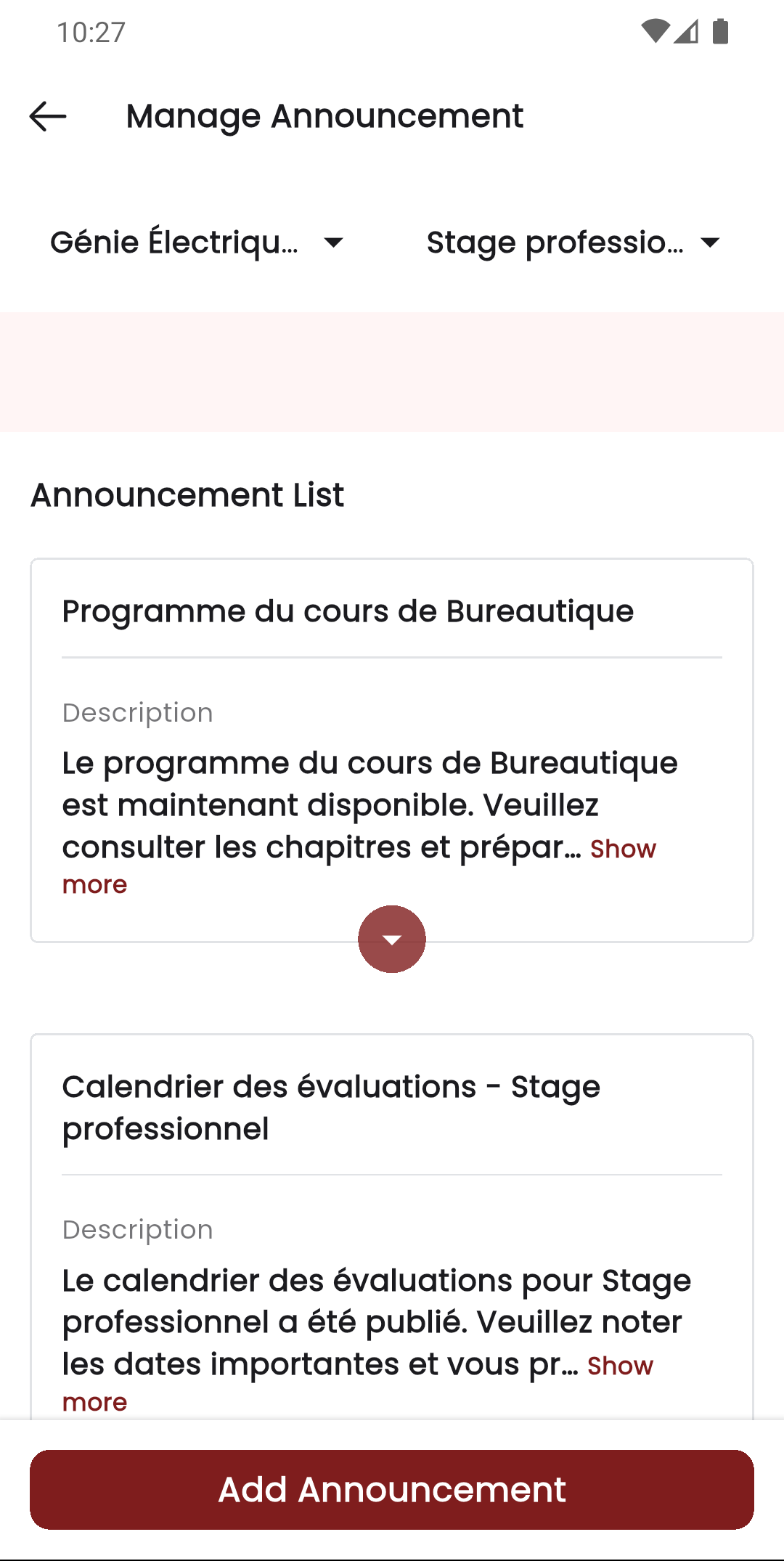
Staff App View
In the Stunov+ Staff App, teachers can create, view, and manage announcements directly from their mobile device:
- Announcement List: Teachers see announcements relevant to their assigned subjects and class sections
- Create Announcement: Teachers can compose and send announcements with the same fields available in the web panel (title, description, file attachments, class sections, subject)
- Push Notifications: Students receive instant push notifications on the student app when a new announcement is published
Permissions Summary
| Action | Permission | Roles |
|---|---|---|
| View announcement list | announcement-list | School Admin, Teacher, Marketing Manager |
| Create announcement | announcement-create | School Admin, Teacher |
| Edit announcement | announcement-edit | School Admin, Teacher |
| Delete announcement | announcement-delete | School Admin, Teacher |
Teachers can only view, edit, and delete their own announcements (those linked to their assigned subjects and class sections). School Admins can manage all announcements across the school.
Related Pages
- Dashboard — Recent announcements appear in the dashboard feed
- Notification — Send standalone push notifications to users
- Attendance — Class sections referenced in announcements
- Subject Lesson — Subject-specific announcements complement lesson content
- Student Assignment — Announce assignment deadlines or updates