Student Admission
The Student Admission page lets you enrol new students one at a time using a comprehensive form. Each admission creates a student account, links it to a guardian, assigns it to a class section, and stores any custom field data.
Need to add many students at once? Use Add Bulk Data to import via CSV instead.
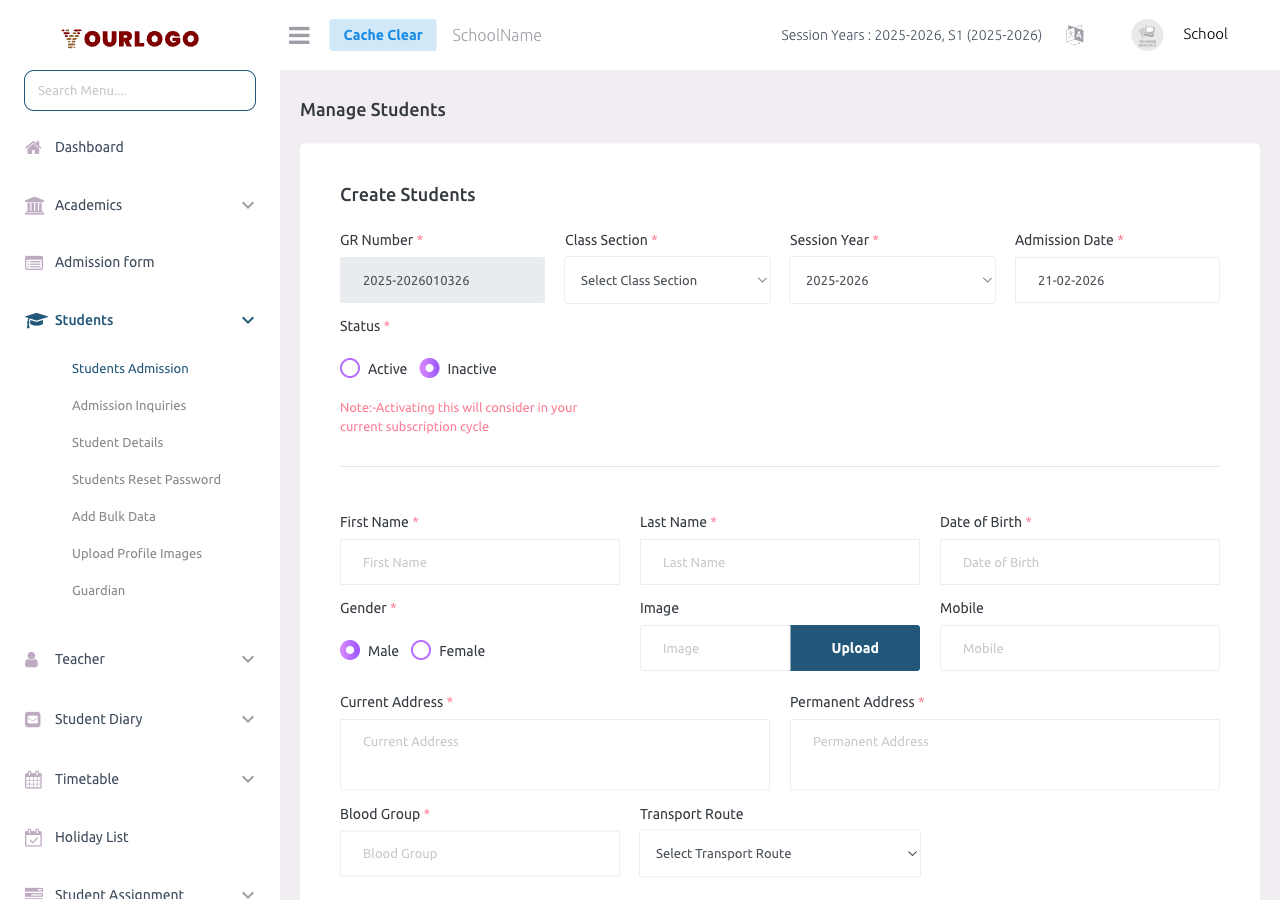
Admit a New Student

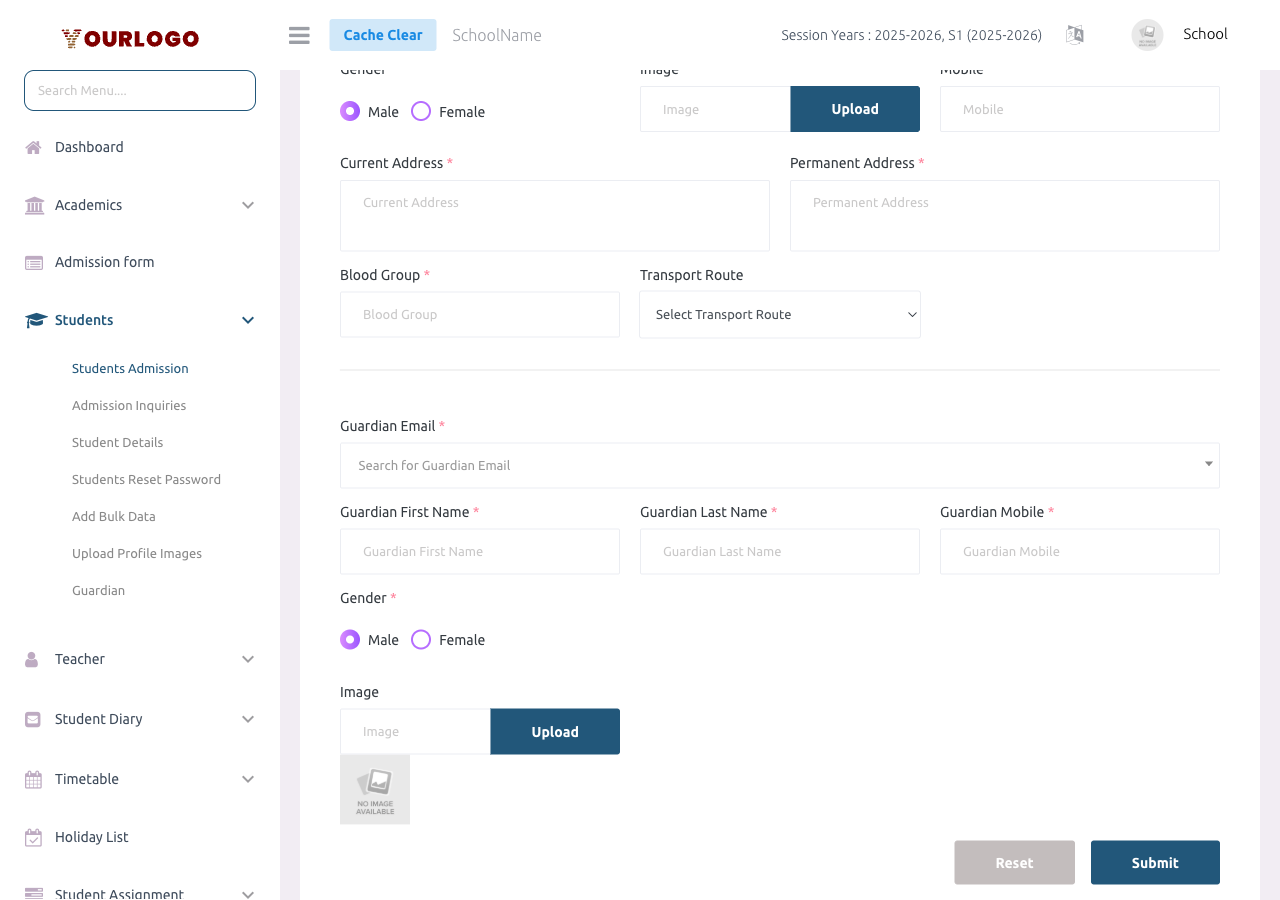
The Admission No doubles as the student's login email. It must be unique across the entire school. A common pattern is to use the format STU-2025-001 or the registration number from your school records.
Type the guardian's email in the Guardian Email field. If a guardian with that email already exists, their details are fetched automatically — you do not need to re-enter the name, mobile, or gender. This is how siblings get linked to the same parent account.
Edit a Student
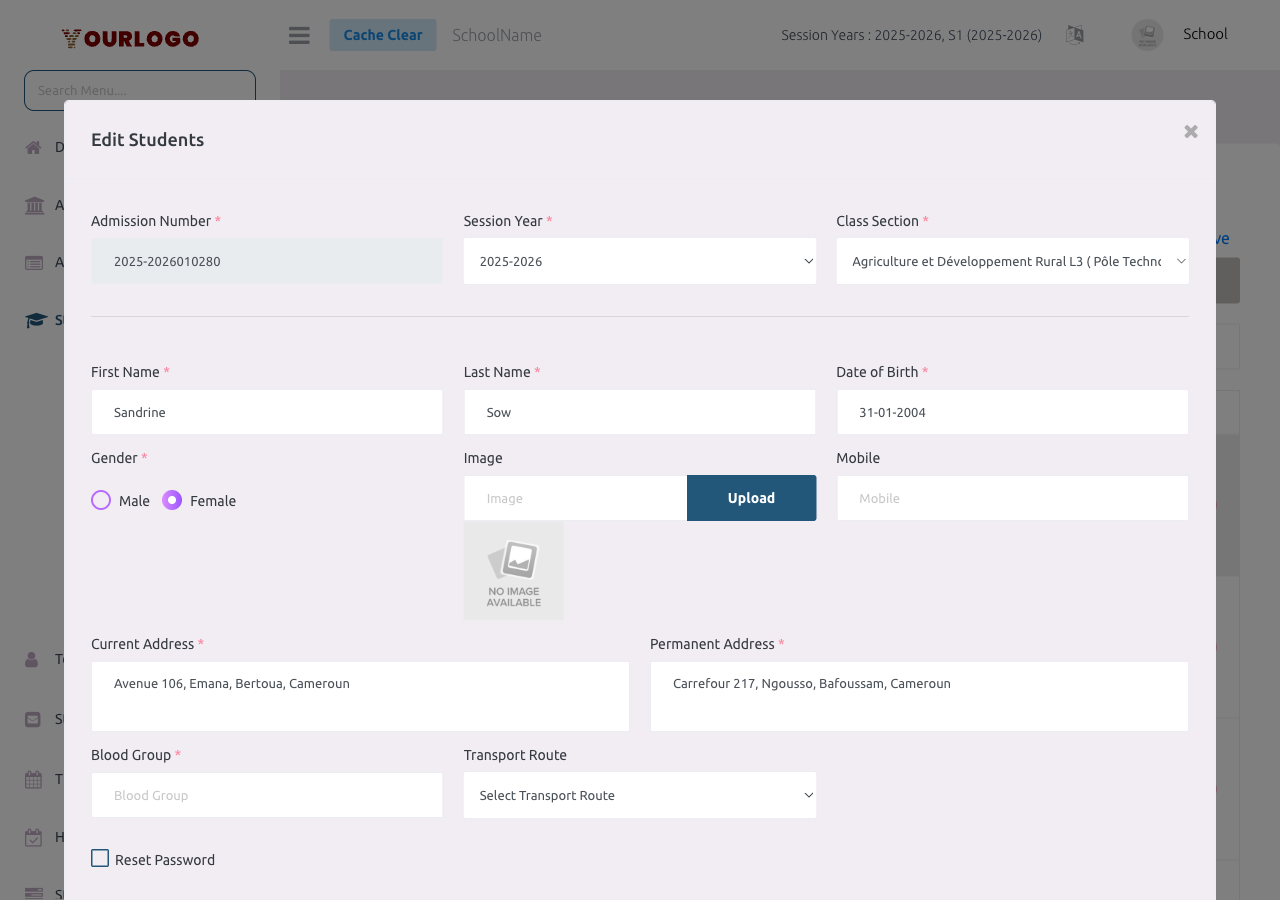
Moving a student to a different class section may affect their attendance records, fee assignments, and timetable for the current session year.
Student Status
| Status | Meaning |
|---|---|
| Active (1) | Student can log in, appears in attendance, fees, and all modules |
| Inactive (0) | Student account is deactivated — cannot log in, hidden from active lists |
You can toggle status from the student list or during edit.
Online vs. Offline Admission
| Feature | Offline (this page) | Online (via school website) |
|---|---|---|
| Who fills the form | School Admin / IT Manager | Parent/Guardian |
| Where | Admin panel → Student Admission | School public website → Admission form |
| Admission No | Entered manually | Auto-generated |
| Class assignment | Class Section (specific) | Class only (section assigned later) |
| Status on creation | Active | Pending approval (inactive until approved) |
| Approval needed | No | Yes — see Admission Inquiries |
Related Pages
- Admission Inquiries — Review and approve online admission applications
- Student Details — View and manage all student records
- Add Bulk Data — Import multiple students via CSV
- Guardian — Manage guardian accounts independently
- Custom Fields — Configure additional admission form fields