Guardian
The Guardian page lets you manage guardian (parent) accounts independently from student records. While guardians are typically created automatically during student admission, this page provides a dedicated interface to view, create, edit, and delete guardian accounts.
A guardian account can be linked to multiple students (e.g., siblings attending the same school). Each student is linked to exactly one guardian. Guardians use the Stunov+ Student/Parent app to track their children's attendance, fees, grades, and announcements.
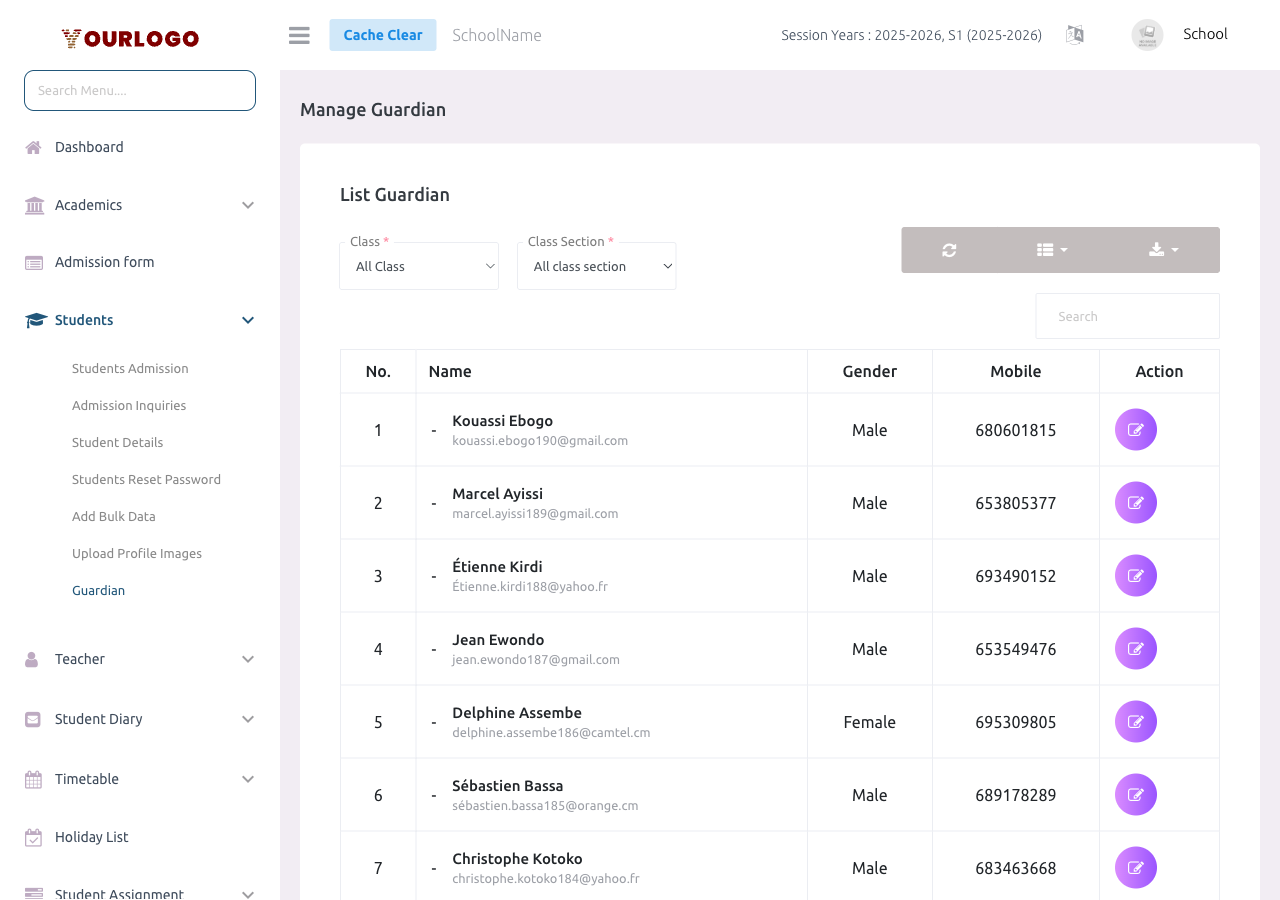
Create a Guardian
Guardians are created through the student admission form — there is no separate guardian creation page. When you admit a new student, the guardian section of the admission form collects all the required guardian details (name, email, mobile, gender, image).
Guardians can be created in two ways:
- During student admission — fill in the guardian fields in the student admission form. If the guardian email is new, a new guardian account is created automatically.
- During bulk import — include guardian details in the CSV file when using Add Bulk Data.
If you enter an email that already belongs to an existing guardian, the system auto-populates their details and links the new student to that guardian — no duplicate account is created.
Edit a Guardian
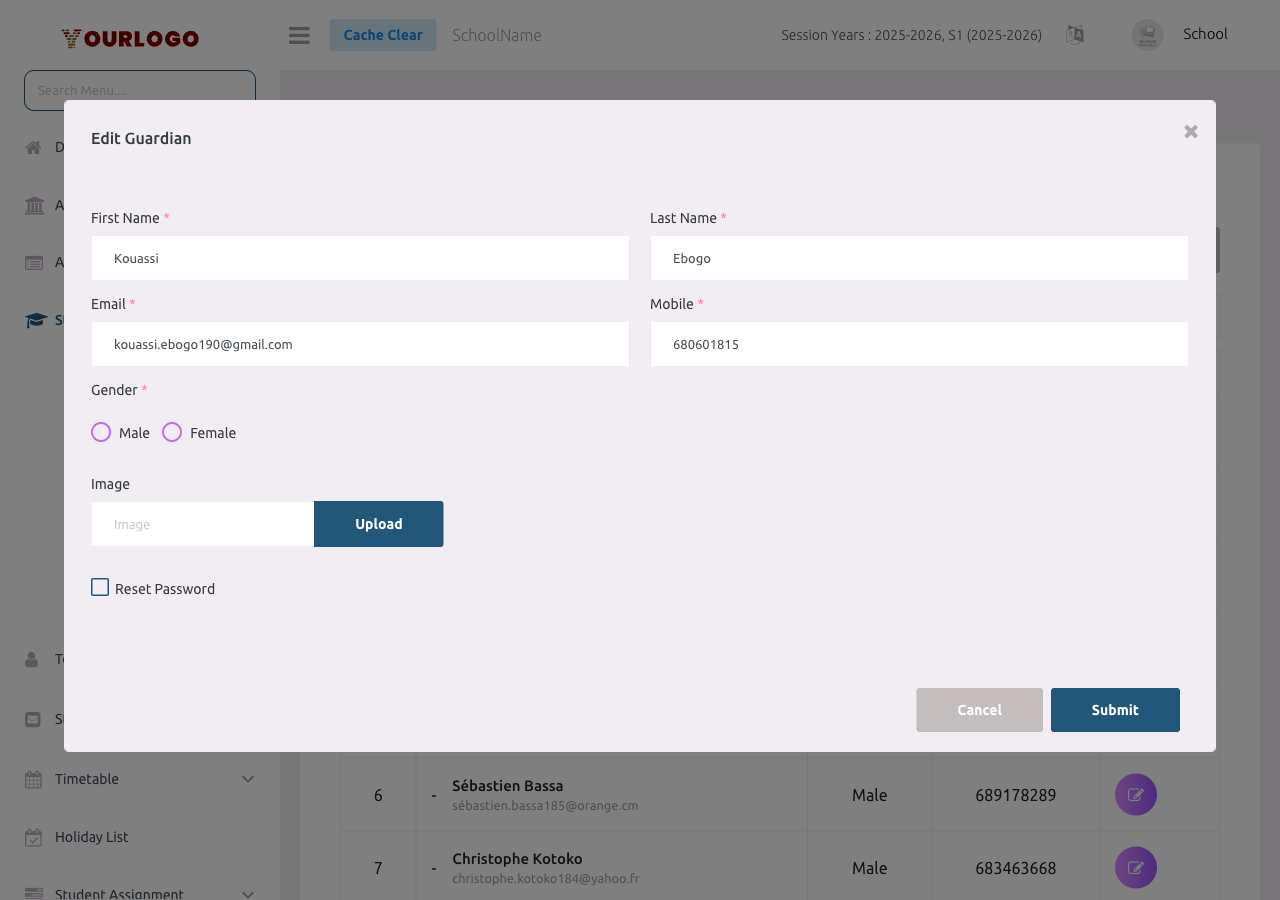
Changing a guardian's email will change their login credential. Make sure to notify the guardian of their new login email.
Delete a Guardian
A guardian cannot be deleted if they are still linked to active students. You must first reassign or delete the linked students before removing the guardian account.
Guardian Search (during Admission)
When admitting a new student, the Guardian Email field in the admission form includes a search function:
This ensures that siblings are correctly linked to the same parent account.
Guardian App Access
Guardians use the Stunov+ Student/Parent app (available on iOS and Android) to:
- View their children's attendance, grades, and exam results
- Track fee payments and outstanding balances
- Receive announcements and notifications from the school
- View timetables and holiday schedules
- Communicate with teachers (if enabled)
The guardian logs in with their email and password. The default password is set during student admission (often the mobile number or a standard password).
Related Pages
- Student Admission — Guardians are created during student admission
- Student Details — View students linked to each guardian
- Students Reset Password — Reset student passwords (guardian passwords can be reset from student edit)
- Add Bulk Data — Guardian accounts are created during CSV import