Medium
A Medium defines the language of instruction used in your school (e.g., English, French, Bilingual). Mediums are a foundational building block — they are assigned to subjects and classes, ensuring students and teachers are grouped by their language of instruction.
Every Subject and Class must be linked to a Medium. Set up your Mediums first before creating Subjects or Classes.
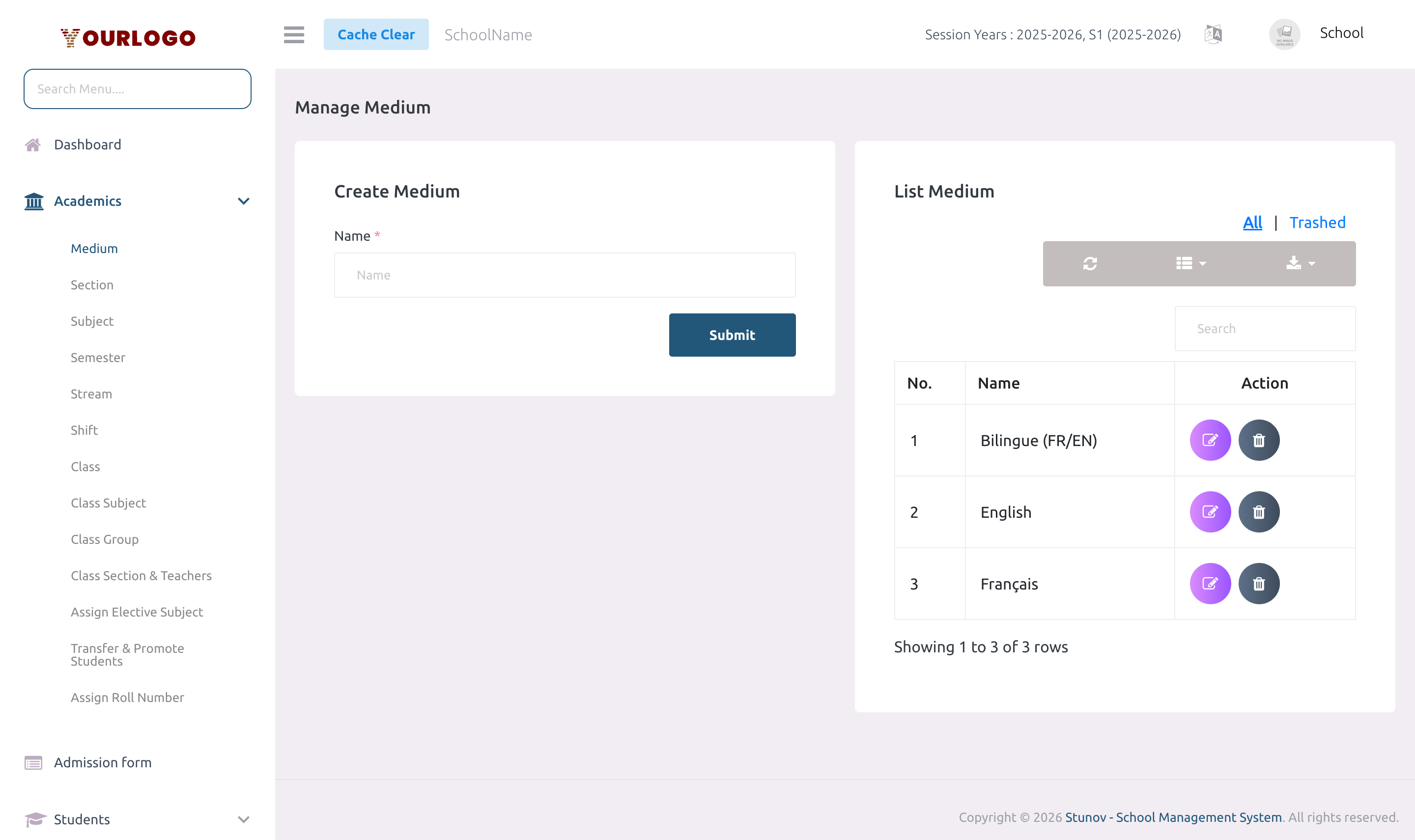
Create a Medium
Form Fields
| Field | Type | Required | Description |
|---|---|---|---|
| Name | Text | Required | The name of the instruction medium (e.g., English, French). Must be unique per school. |
View Mediums
The Medium list page displays all mediums in a searchable, paginated table.
| Column | Description |
|---|---|
| No. | Row number |
| Name | The medium name |
| Action | Edit and Delete buttons |
- Use the search bar to filter mediums by name
- Use the Show entries dropdown to control how many rows appear per page
Edit a Medium
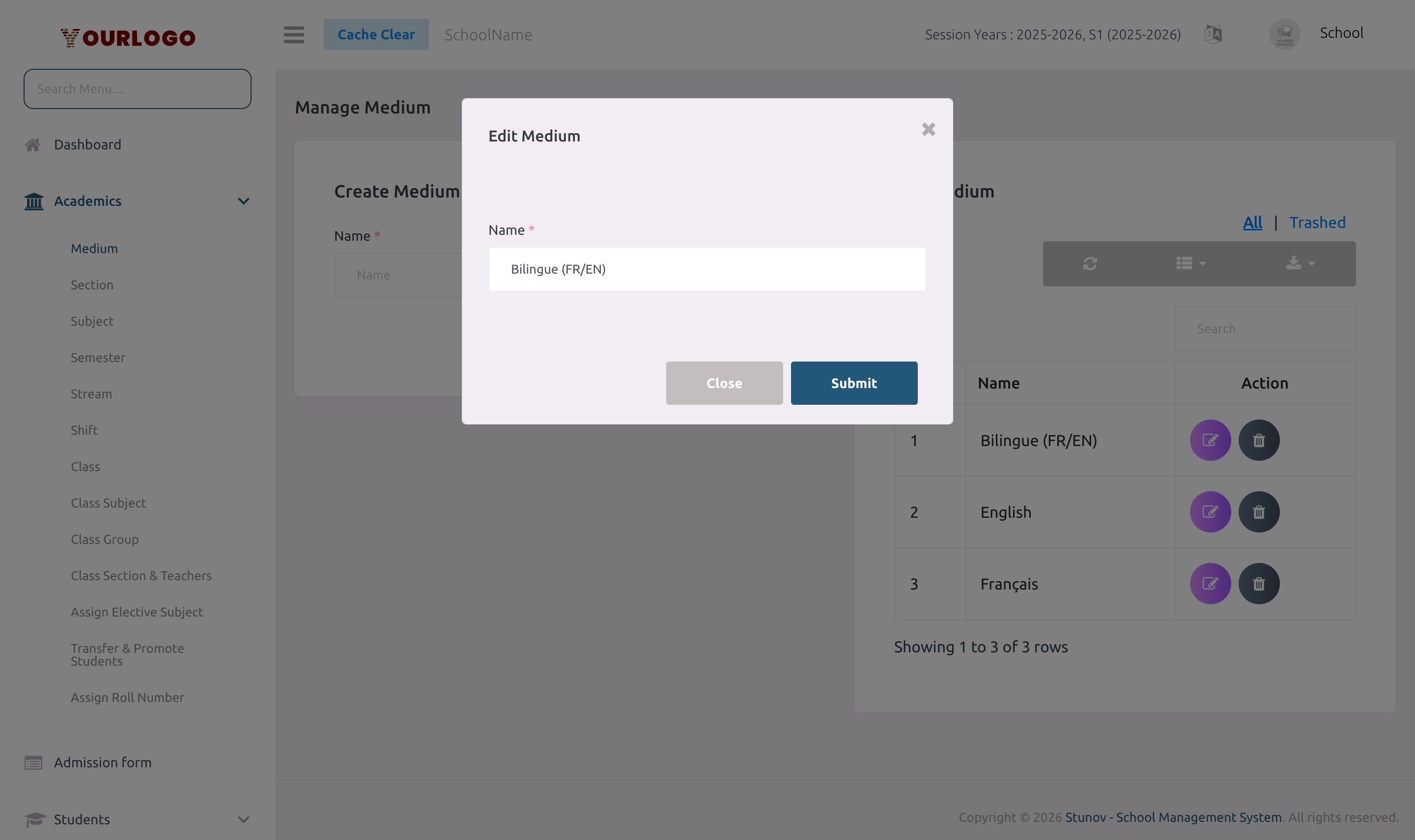
Changing a Medium name does not break its associations with Subjects or Classes — they remain linked. The updated name will appear everywhere the Medium is referenced.
Delete a Medium
If the Medium is currently assigned to any Subject or Class, the system will prevent deletion. Remove all associations first.
Restore a Deleted Medium
Deleted mediums are soft-deleted and can be restored:
- In the Medium list, switch to the Trash view
- Click Restore next to the deleted medium
- The medium returns to the active list
To permanently remove a medium, use Force Delete from the Trash view.
Staff App View
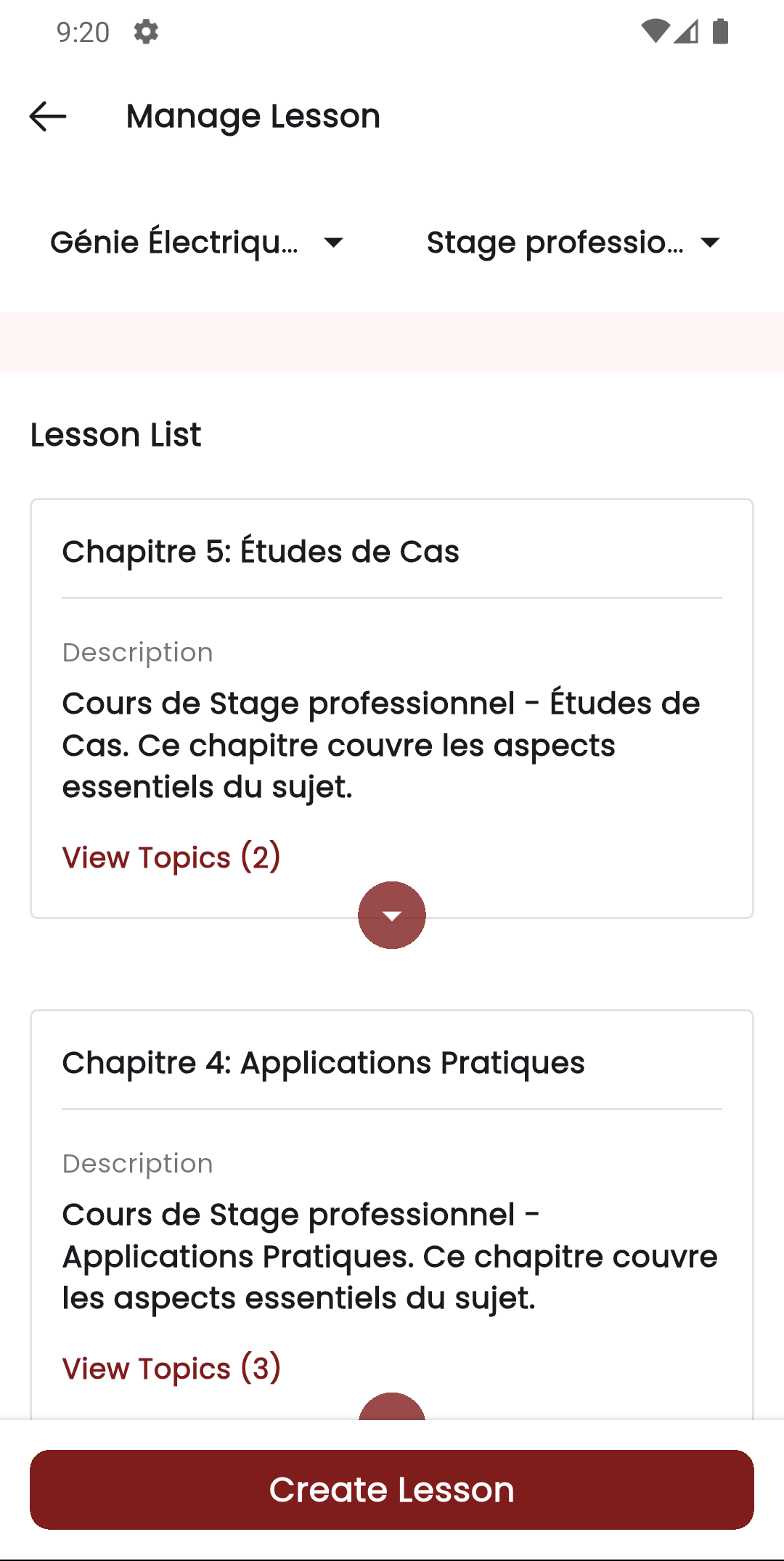
In the Stunov+ Staff app, mediums are reflected throughout the teacher experience. When managing lessons and topics, the medium determines which subjects and classes appear. Teachers see medium labels across lessons, timetables, and class listings.
Related Pages
- Subject — Subjects require a Medium
- Class — Classes require a Medium
- Class Section & Teachers — Sections can override the class Medium