Shift
Shifts define the time blocks during which your school operates (e.g., Morning Shift 07:00–12:00, Afternoon Shift 13:00–18:00). Shifts are assigned to classes and help organize timetables and transportation schedules.
If your school operates a single schedule, you can skip shift setup. Classes can be created without a shift.
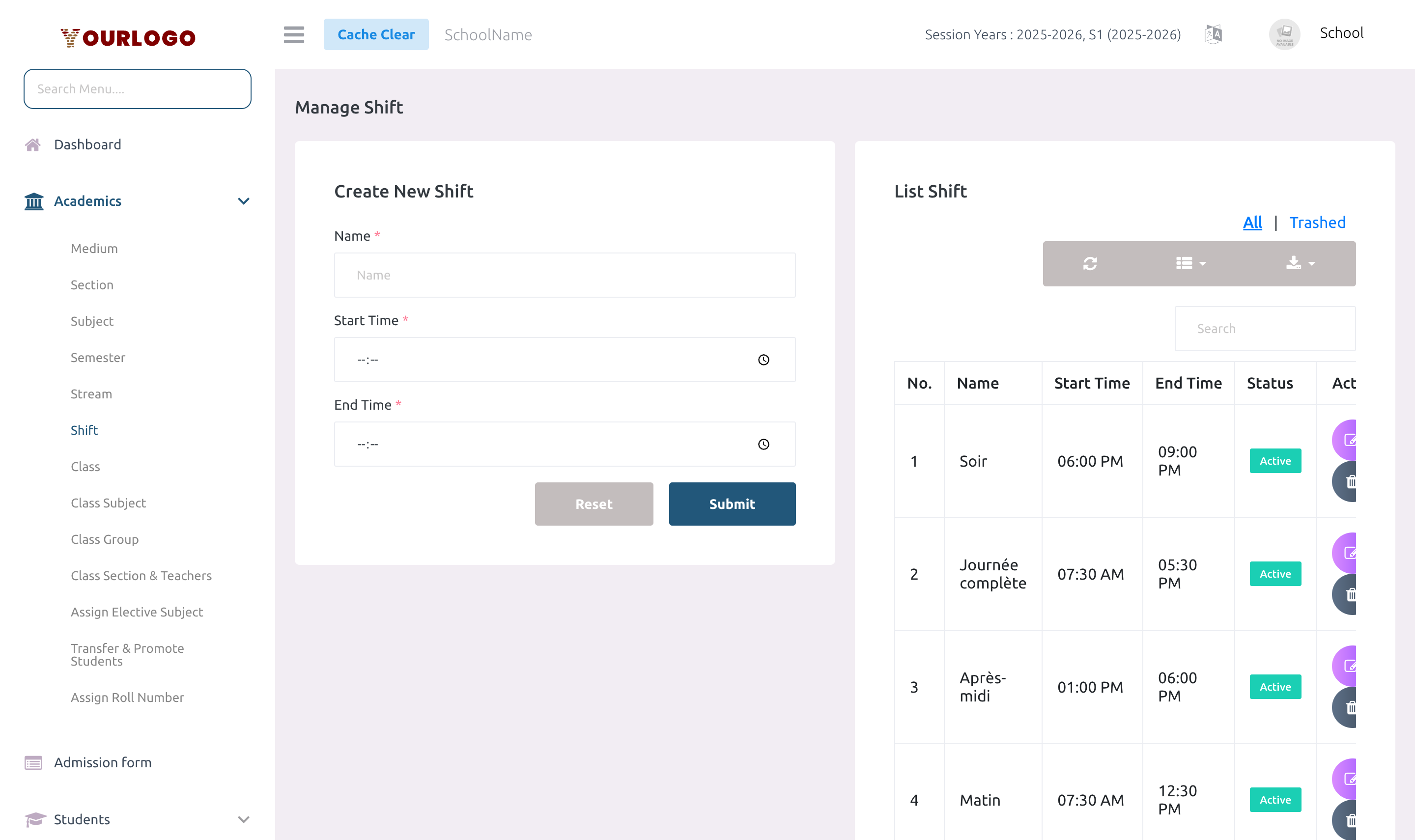
Create a Shift
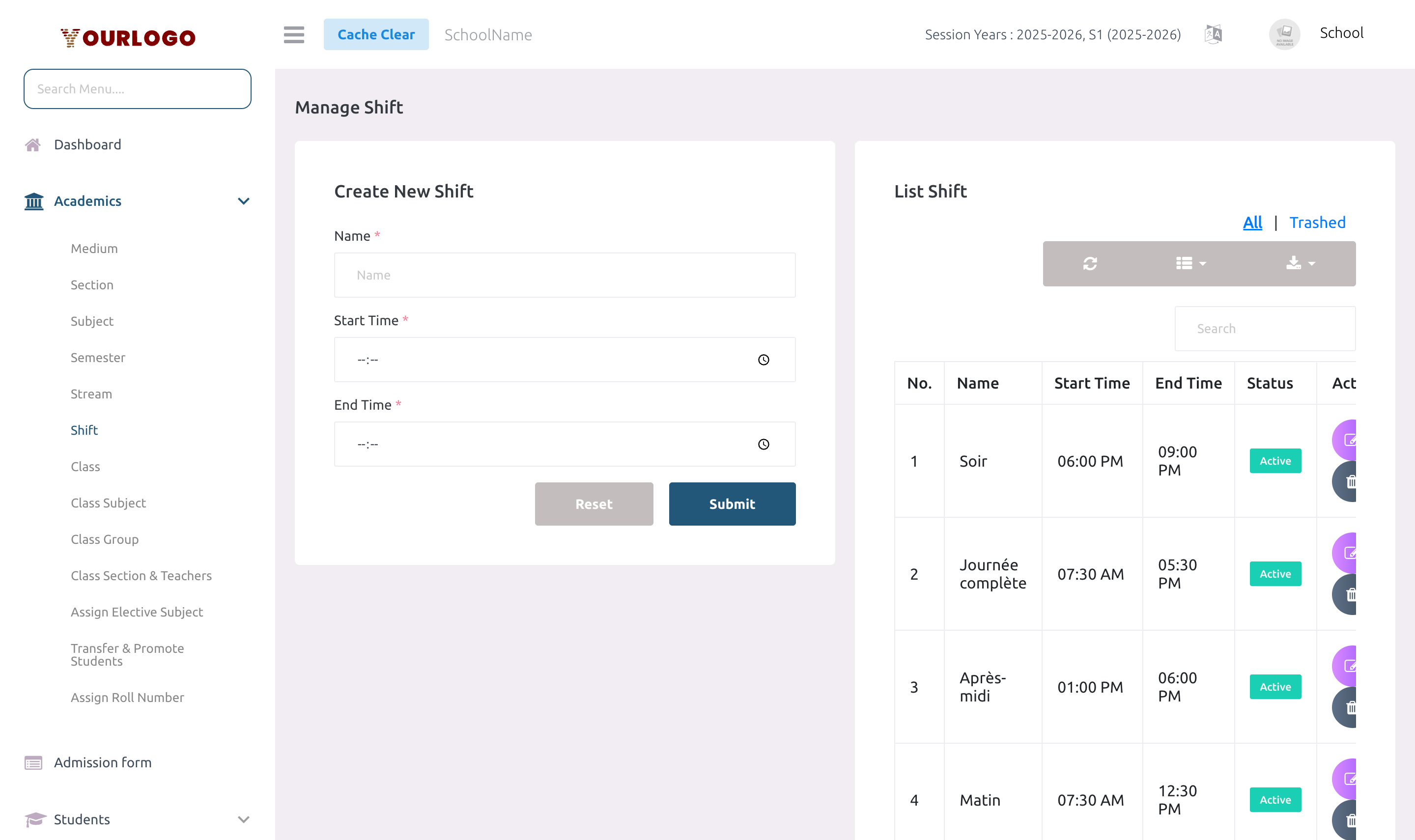
Form Fields
| Field | Type | Required | Description |
|---|---|---|---|
| Name | Text | Required | Shift name (e.g., Morning, Afternoon). Must be unique per school. |
| Start Time | Time Picker | Required | The time when this shift begins. |
| End Time | Time Picker | Required | The time when this shift ends. Must be after start time. |
View Shifts
The Shift list page displays all shifts in a paginated table.
| Column | Description |
|---|---|
| No. | Row number |
| Name | Shift name |
| Start Time | Shift start time |
| End Time | Shift end time |
| Status | Active or Inactive |
| Action | Edit and Delete buttons |
Edit a Shift
- Click the Edit button in the Action column
- Update the name, start time, or end time
- Click Submit to save
Delete a Shift
- Click the Delete button in the Action column
- Confirm the deletion
If the shift is assigned to any class, deletion will be prevented. Remove the shift from all classes first.
Deleted shifts can be restored from the Trash view.
Staff App View
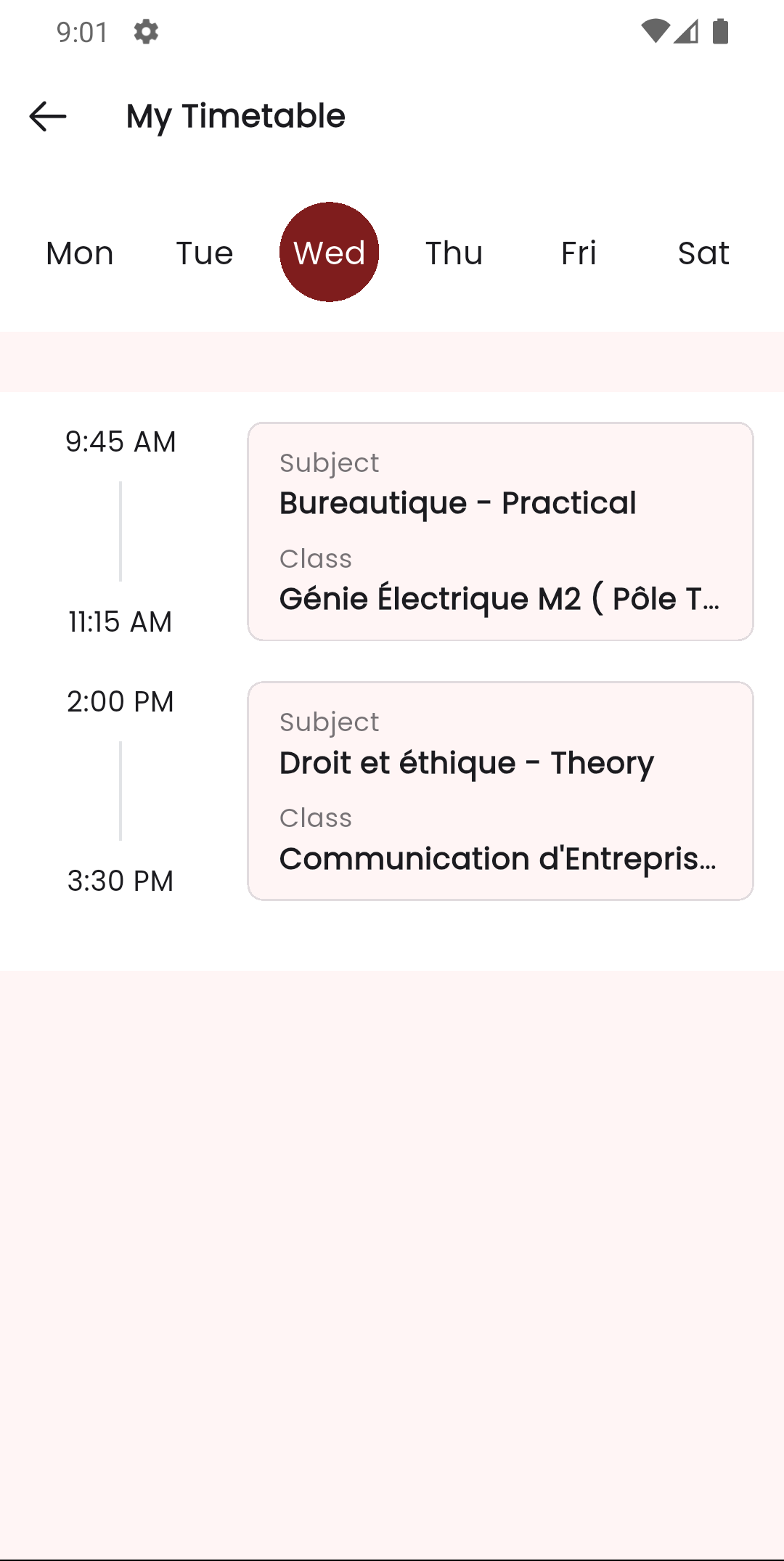
In the Stunov+ Staff app, shifts are most visible in the timetable view. The teacher's timetable shows time slots that are constrained by the shift start and end times, directly reflecting the shift configuration.
Related Pages
- Class — Assign a shift when creating a class
- Timetable — Shift times constrain timetable slot creation
- Transportations — Transportation routes may be organized by shift