Create Timetable
The Create Timetable page lets you configure global timetable settings (start time, end time, slot duration), view every class section's weekly schedule at a glance, and open a drag-and-drop calendar editor to assign subjects and breaks to each day of the week.
Before creating timetables, make sure you have:
- Created Classes and Sections (Academic Management → Academics → Class / Section)
- Assigned Subjects to classes (Academic Management → Academics → Class Subject)
- Assigned Teachers to class sections (Academic Management → Academics → Class Section & Teachers)
- If your school uses Semesters, the current semester must be active
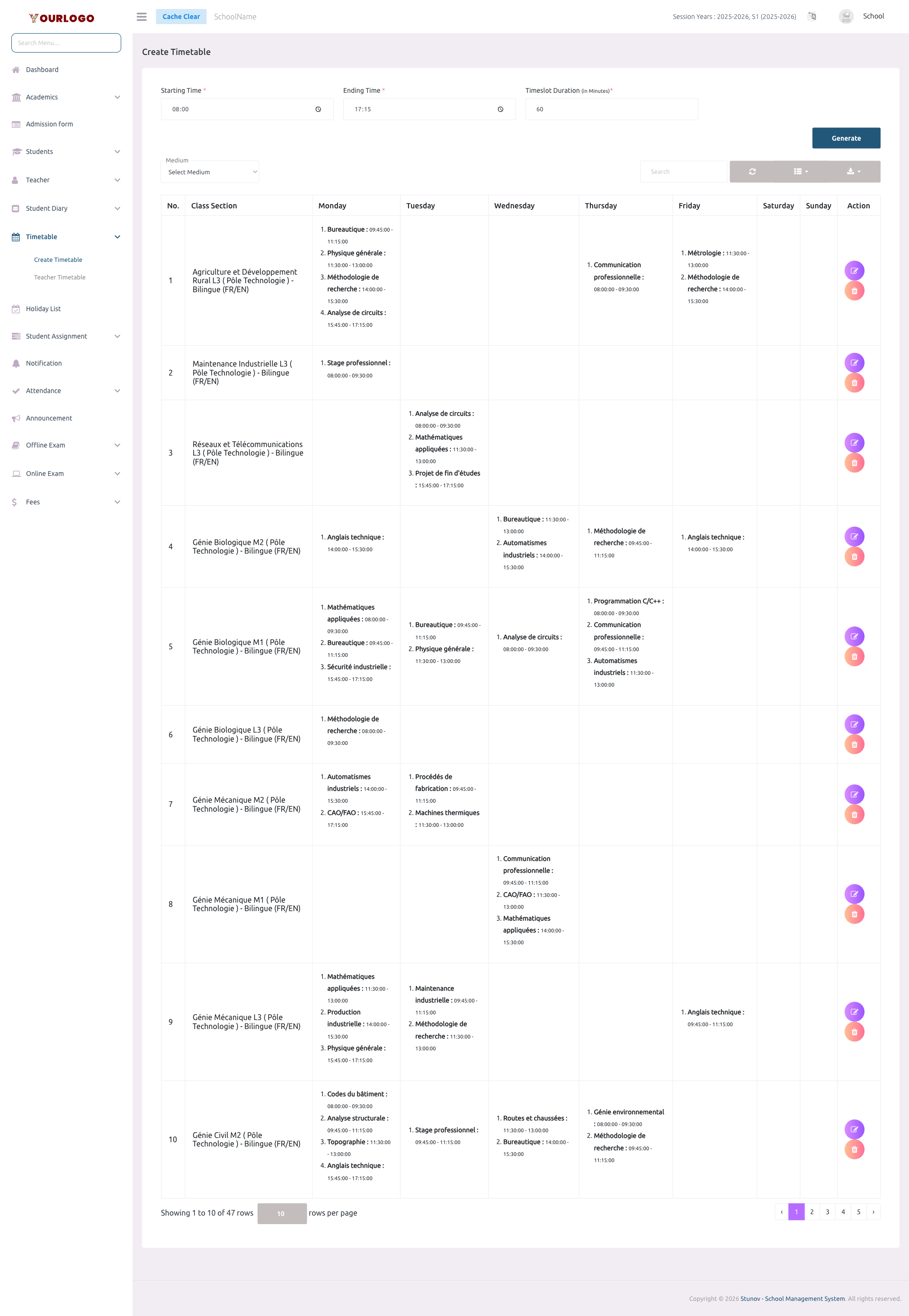
Configure Timetable Settings
Before building any timetable, you need to define the time boundaries and slot duration for your school day. These settings apply to all class timetables.
Settings Fields
| Field | Type | Required | Description |
|---|---|---|---|
| Starting Time | Time | Required | The time the school day begins (e.g., 08:00). Determines the first row of the timetable grid. |
| Ending Time | Time | Required | The time the school day ends (e.g., 17:15). Determines the last row of the timetable grid. |
| Timeslot Duration | Number (minutes) | Required | Duration of each time slot in minutes (e.g., 60). Controls how the calendar grid is divided into periods. |
View Class Timetables
Below the settings form, a table lists every class section with a summary of its weekly schedule. Data is loaded from the server with server-side pagination.
| Column | Description |
|---|---|
| No. | Row number |
| Class Section | The full name of the class section (e.g., "Génie Informatique L3 - Bilingue") |
| Monday – Sunday | An ordered list of subjects and their time ranges scheduled on that day. Each entry shows the subject name followed by the start – end time. |
| Action | Edit (pencil icon — opens calendar editor) and Delete (trash icon — removes entire class timetable) buttons |
Toolbar & Filters
| Tool | Description |
|---|---|
| Medium dropdown | Filter class sections by their instruction medium (e.g., English, French, Bilingual). Only matching sections appear in the table. |
| Search bar | Free-text search to find a class section by name |
| Refresh button | Reload the table data from the server without refreshing the page |
| Columns button | Toggle individual columns on or off — useful if you want to hide specific days |
| Export button | Download the timetable list as CSV, Excel, JSON, or PDF |
Pagination
The table supports page sizes of 5, 10, 20, 50, 100, or 200 rows per page. Use the dropdown at the bottom of the table to change the page size.
Create / Edit a Class Timetable
The drag-and-drop calendar editor is the heart of timetable creation. It displays a weekly grid (Monday–Sunday) divided by your configured time slots. You build the timetable by dragging subjects from a left panel onto the calendar.
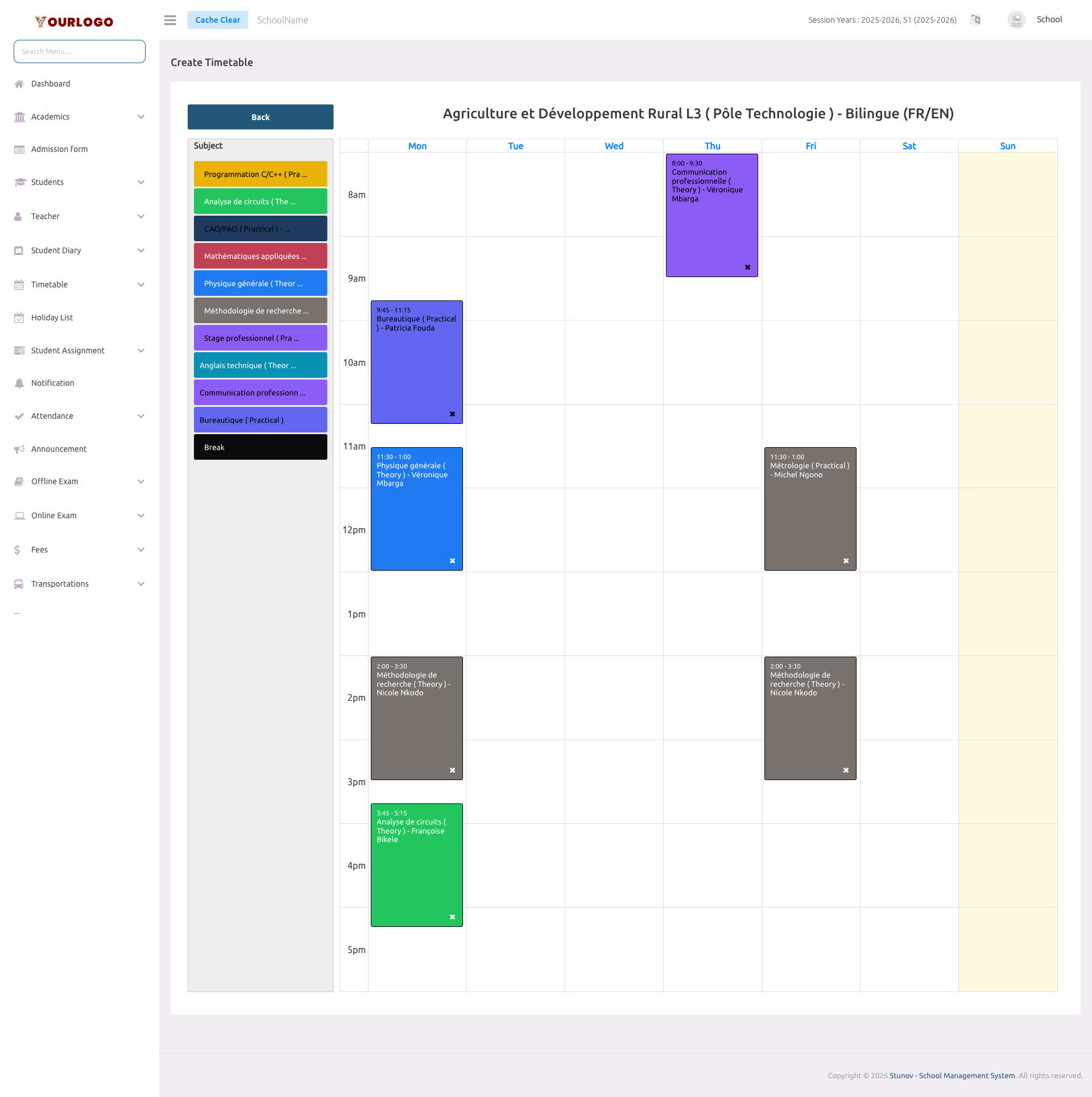
If your school uses Semesters, timetables are automatically filtered by the current active semester. When the semester changes, you can create a new timetable for the new semester without affecting the previous one.
Elective Subject Overlap Rules
The system enforces smart scheduling rules when dropping subjects onto the calendar:
- Compulsory subjects cannot overlap with any other event in the same time slot on the same day. Attempting to do so will show an error message and the event will be rejected.
- Elective subjects can overlap with other elective subjects in the same time slot. This allows you to schedule multiple electives at the same time, giving students a choice between them.
- Attempting to overlap an elective with a compulsory subject (or vice versa) will be rejected with the message: "Only elective subjects can be scheduled in the same time slot as other elective subjects."
Subject Card Details
| Field | Type | Required | Description |
|---|---|---|---|
| Subject Name | Display | Optional | The name of the subject (e.g., "Physique générale"). Color-coded with the subject background color. Text color is automatically calculated (black or white) for contrast. |
| Type | Display | Optional | Whether the subject session is Practical or Theory — displayed in parentheses after the subject name. |
| Teacher Name | Display | Optional | The full name of the assigned teacher. Subjects without a teacher assigned also appear in the sidebar, but without a teacher name. |
| Break | Special | Optional | A special card for scheduling breaks. Displayed in black with a default 30-minute duration that can be resized. |
Calendar Behavior
| Feature | Details |
|---|---|
| View | Weekly time grid (Monday–Sunday) |
| Time boundaries | Defined by your timetable settings (start time → end time) |
| Slot duration | Matches your configured timeslot duration (e.g., 60 minutes) |
| Snap increment | 1 minute — events can be placed at any minute within the grid |
| Drag & drop | Drag subjects from the sidebar onto the calendar, or move existing events within the calendar |
| Resize | Drag the top or bottom edge of an event to make it longer or shorter |
| Delete | Click the × icon on any event to delete it (with confirmation) |
| Auto-save | Each drop, move, or resize is saved immediately to the server — no save button needed |
| Color coding | Events inherit the subject's background color with automatic text contrast |
Delete a Class Timetable
Deleting a class timetable removes all scheduled periods for that class section across all days. This action cannot be undone.
Staff App View
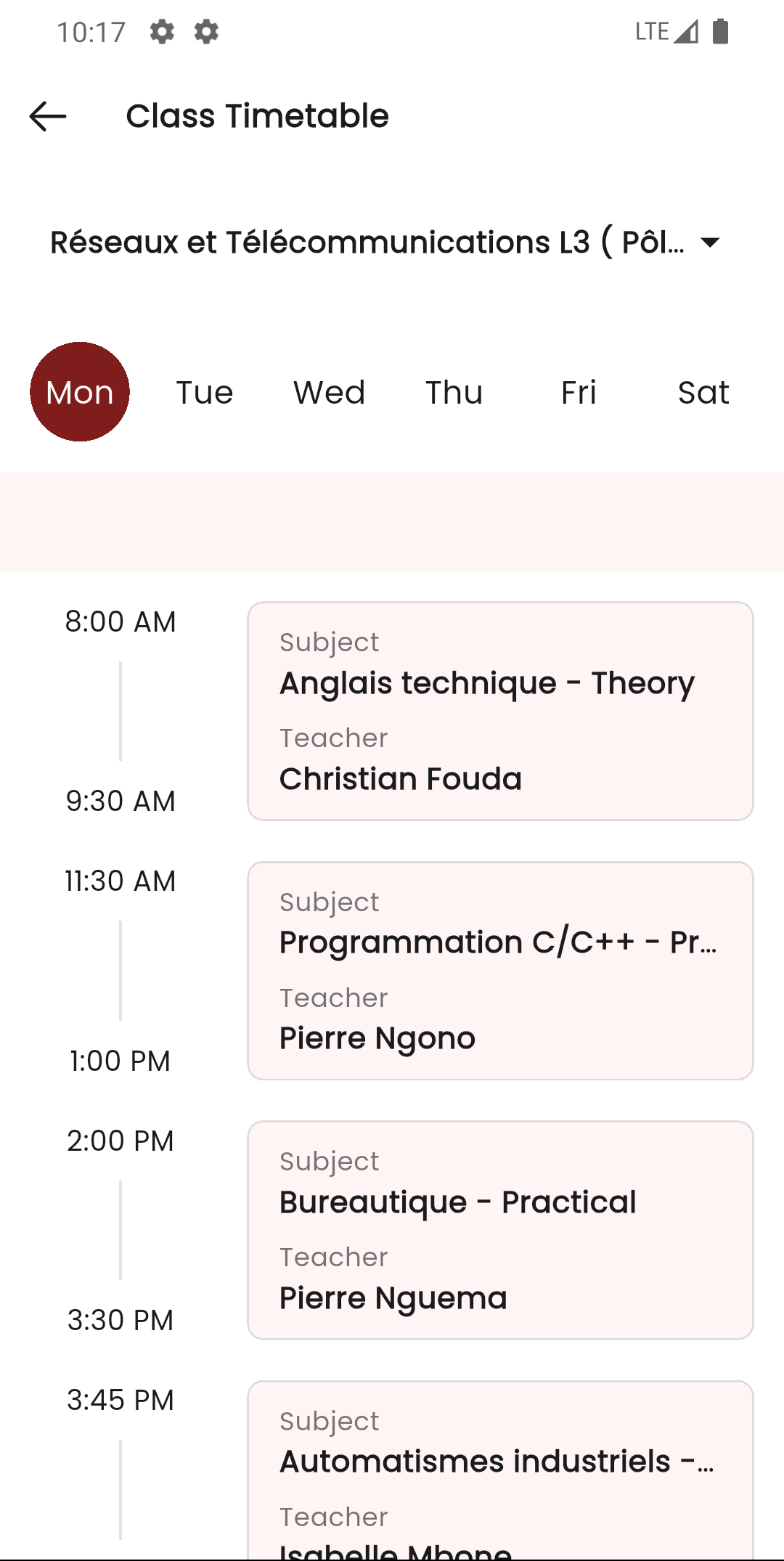
In the Stunov+ Staff app, school admins can view class timetables from the Timetable section. The app shows a visual weekly grid similar to the web panel, making it easy to check schedules on the go.
Related Pages
- Teacher Timetable — View individual teacher schedules
- Class — Classes must exist before creating timetables
- Class Section & Teachers — Teacher assignments drive the subject list in the editor
- Subject — Subjects appear as draggable cards in the editor