
Web Theme

The Web Theme page lets you control the visual identity of your school website. You can pick from ready-made color presets, fine-tune light and dark mode palettes independently, and choose a font preset that matches your school brand — all from a single editor.

Why Theme matters

Changes made here are applied instantly to the public-facing school website. Students, parents, and visitors will see the updated colors and fonts the next time they load the site.
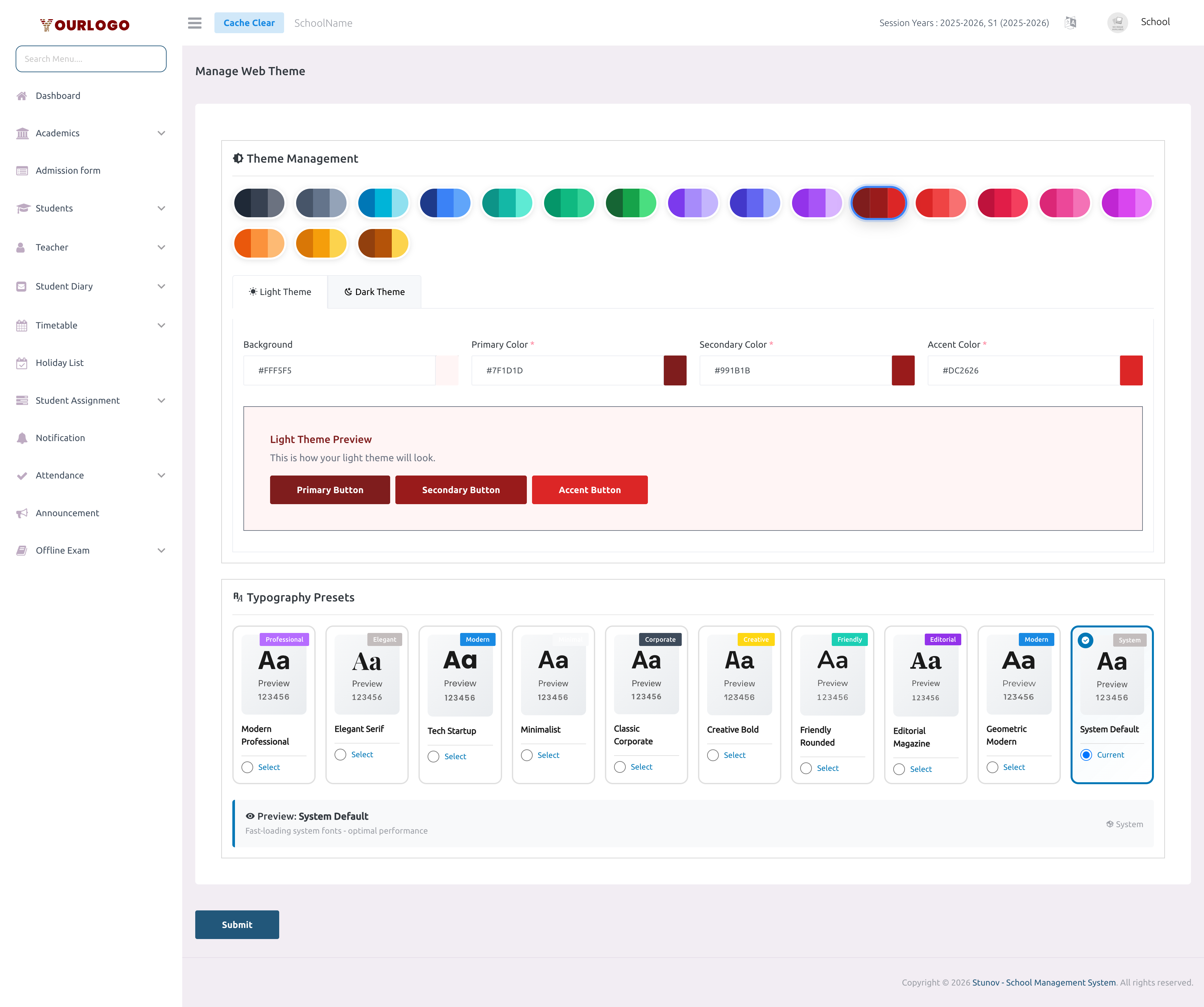
Web Theme page showing color presets, light/dark palette editors, and font preset grid
Web Theme page — preset palette grid (top), light/dark color editors (middle), font preset selector (bottom)

Choose a Color Preset

The quickest way to theme your site is to select one of the 18 built-in color presets. Each preset configures both light and dark palettes automatically.

1
Navigate to Web Settings → Web Theme
From the sidebar, expand **Web Settings** and click **Web Theme**.
2
Browse the preset grid
The top section displays 18 named presets (Pure Dark, Slate, Ocean, Midnight, Teal, Emerald, Forest, Royal, Indigo, Lavender, Maroon, Crimson, Deep Rose, Hot Pink, Fuchsia, Sunset, Amber, Bronze). Each card shows a small color swatch.
3
Click a preset
Clicking a preset card instantly populates the light and dark color pickers below. A checkmark appears on the selected preset.
4
Review the live preview
Preview cards on the right side of the page update in real-time to show how buttons, backgrounds, and text will look under both themes.
5
Save
Scroll to the bottom and click **Submit** to apply the new theme to your school website.

Customize Colors Manually

If none of the presets suit your brand, you can adjust each color individually.

1
Switch to the Light Theme tab
Below the preset grid, two tabs are available: **Light Theme** and **Dark Theme**. Click **Light Theme** first.
2
Adjust the six color channels
Use the color pickers to set **Primary**, **Secondary**, **Accent**, **Background**, **Text**, and **Muted** colors. Each picker accepts hex values.
3
Switch to Dark Theme
Click the **Dark Theme** tab and repeat the process. Dark mode values default to complementary tones of your light palette, but you can override each one.
4
Check the live preview
The preview cards update as you pick colors, showing buttons, text, and backgrounds for both themes side by side.
5
Submit
Click **Submit** to save. The system automatically generates derived shades and hover states from your base colors.
Backward compatibility

When you save a new palette, the system auto-syncs legacy color fields (primary, secondary, background, hover) so older templates continue to work.


Select a Font Preset

Below the color section, a Font Preset grid lets you choose a typographic style for the school website.

1
Scroll to the Font Preset section
On the same Web Theme page, scroll past the color editors to find the font preset grid.
2
Browse font presets
Up to 10 categorized presets are displayed (Professional, Elegant, Modern, Minimal, Corporate, Creative, Friendly, Editorial, System). Each card shows the display font, body font, and weight previews.
3
Select a preset
Click a preset card. The **Current Selection** panel below updates to confirm the chosen fonts.
4
Submit
Click **Submit** to apply the font preset across your school website.

Key Points

  • Presets vs. manual — Presets are the fastest path; manual pickers give pixel-perfect control.
  • Dark mode — Every school website automatically supports dark mode. The theme editor lets you tune both palettes independently.
  • Font & color are independent — You can change fonts without touching colors and vice versa.
  • Cache — After saving, click Cache Clear in the top navbar if you don't see changes reflected immediately on the live site.