Content
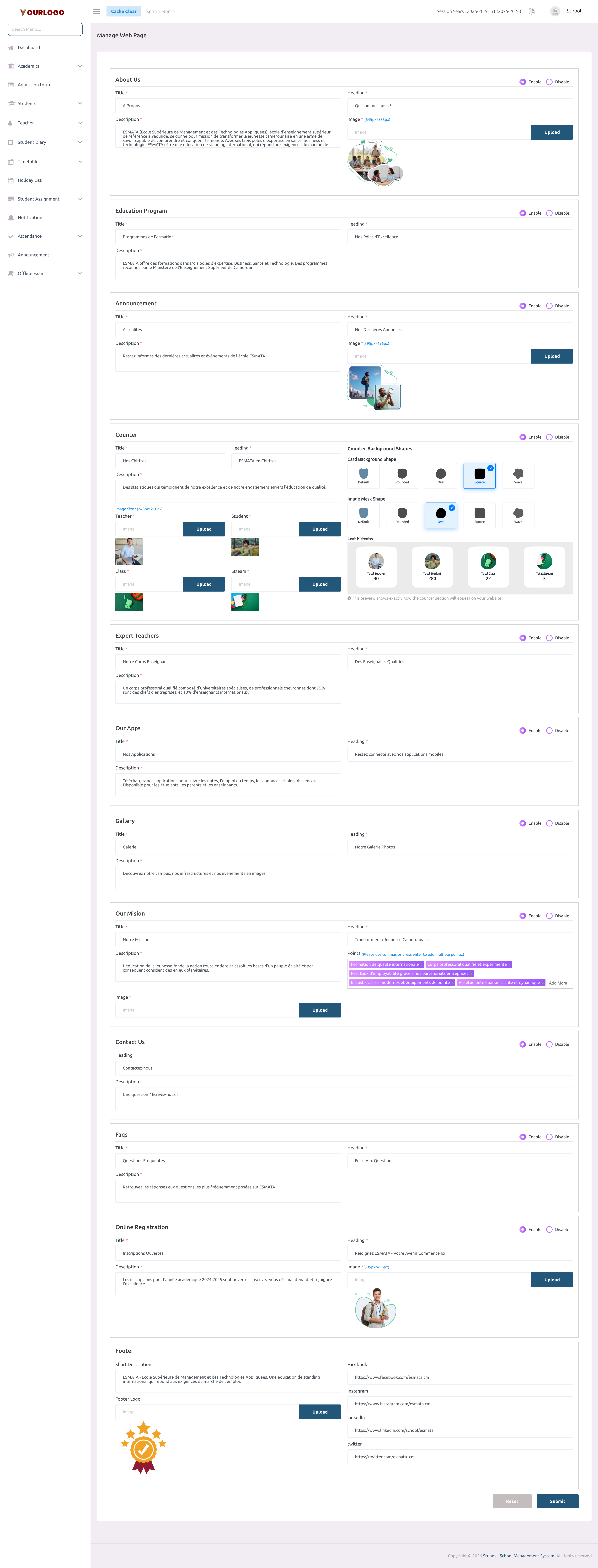
The Content page is a single form that controls every section of your school homepage. Each section can be toggled on or off, and most accept a Title, Heading, Description, and optionally an image.
Disabling a section hides it entirely from the public website. This lets you prepare content in advance and reveal it when ready.
How It Works
All homepage sections live inside one form. Scroll through each section, fill in the fields, toggle visibility, and click Submit at the bottom to save everything at once.
Homepage Sections
Below is a summary of every configurable section on the Content page.
About Us
| Field | Description |
|---|---|
| Status | Enable or disable the section |
| Title | Small label above the heading (e.g., "About Our School") |
| Heading | Bold heading displayed on the site |
| Description | Paragraph of text describing the school |
| Image | Photo displayed beside the text (recommended 645 × 555 px) |
Education Program
| Field | Description |
|---|---|
| Status | Enable / Disable |
| Title | Label for the section |
| Heading | Section heading |
| Description | Description of your educational programs |
Announcement
| Field | Description |
|---|---|
| Status | Enable / Disable |
| Title / Heading / Description | Standard section text |
| Image | Illustration for the announcement section (595 × 496 px) |
Counter
The counter section shows animated statistics on the homepage (e.g., number of teachers, students, classes, streams).
| Field | Description |
|---|---|
| Status | Enable / Disable |
| Title / Heading / Description | Standard section text |
| Teacher Image | Icon for teachers counter (248 × 210 px) |
| Student Image | Icon for students counter (248 × 210 px) |
| Class Image | Icon for classes counter (248 × 210 px) |
| Stream Image | Icon for streams counter (248 × 210 px) |
| Background Shape Preset | Shape style for counter backgrounds (imgShape, rounded, oval, square, wave) |
| Image Shape Preset | Shape style for counter icons |
The actual numbers displayed (e.g., "40 Teachers") are pulled automatically from your school data — you only configure the labels and images here.
Expert Teachers
| Field | Description |
|---|---|
| Status | Enable / Disable |
| Title / Heading / Description | Standard section text |
Our Apps
| Field | Description |
|---|---|
| Status | Enable / Disable |
| Title / Heading / Description | Promotes the mobile apps to visitors |
Gallery
| Field | Description |
|---|---|
| Status | Enable / Disable |
| Title / Heading / Description | Label text for the gallery section |
The actual photos are managed on the separate Gallery page. This section only controls the gallery heading and visibility on the homepage.
Our Mission
| Field | Description |
|---|---|
| Status | Enable / Disable |
| Title / Heading / Description | Mission statement text |
| Points | Tag-style bullet points (e.g., "Innovation", "Excellence") |
| Image | Illustration (recommended dimensions shown on the form) |
Contact Us
| Field | Description |
|---|---|
| Status | Enable / Disable |
| Heading / Description | Contact section text |
FAQs
| Field | Description |
|---|---|
| Status | Enable / Disable |
| Title / Heading / Description | Label text above the FAQ list |
The individual questions and answers are managed on the separate FAQs page. This section only controls the heading and visibility.
Online Registration
| Field | Description |
|---|---|
| Status | Enable / Disable |
| Title / Heading / Description | Call-to-action text for online admissions |
| Image | Illustration (595 × 496 px) |
Footer
| Field | Description |
|---|---|
| Short Description | Brief school description shown in the footer |
| Footer Logo | Logo image for the footer area |
| Facebook page URL | |
| Instagram profile URL | |
| LinkedIn page URL | |
| Twitter / X profile URL |
Key Points
- One form, all sections — Everything saves together when you click Submit.
- Enable/Disable — Disabled sections are completely hidden from the live website.
- Image dimensions — Follow the recommended sizes displayed next to each upload field for best results.
- Cache — Click Cache Clear in the top navbar if changes aren't immediately visible.