FAQs
The FAQs page lets you create and manage the frequently asked questions that appear on your school website. Visitors can browse these Q&A pairs to find answers to common questions about admissions, fees, schedules, and more.
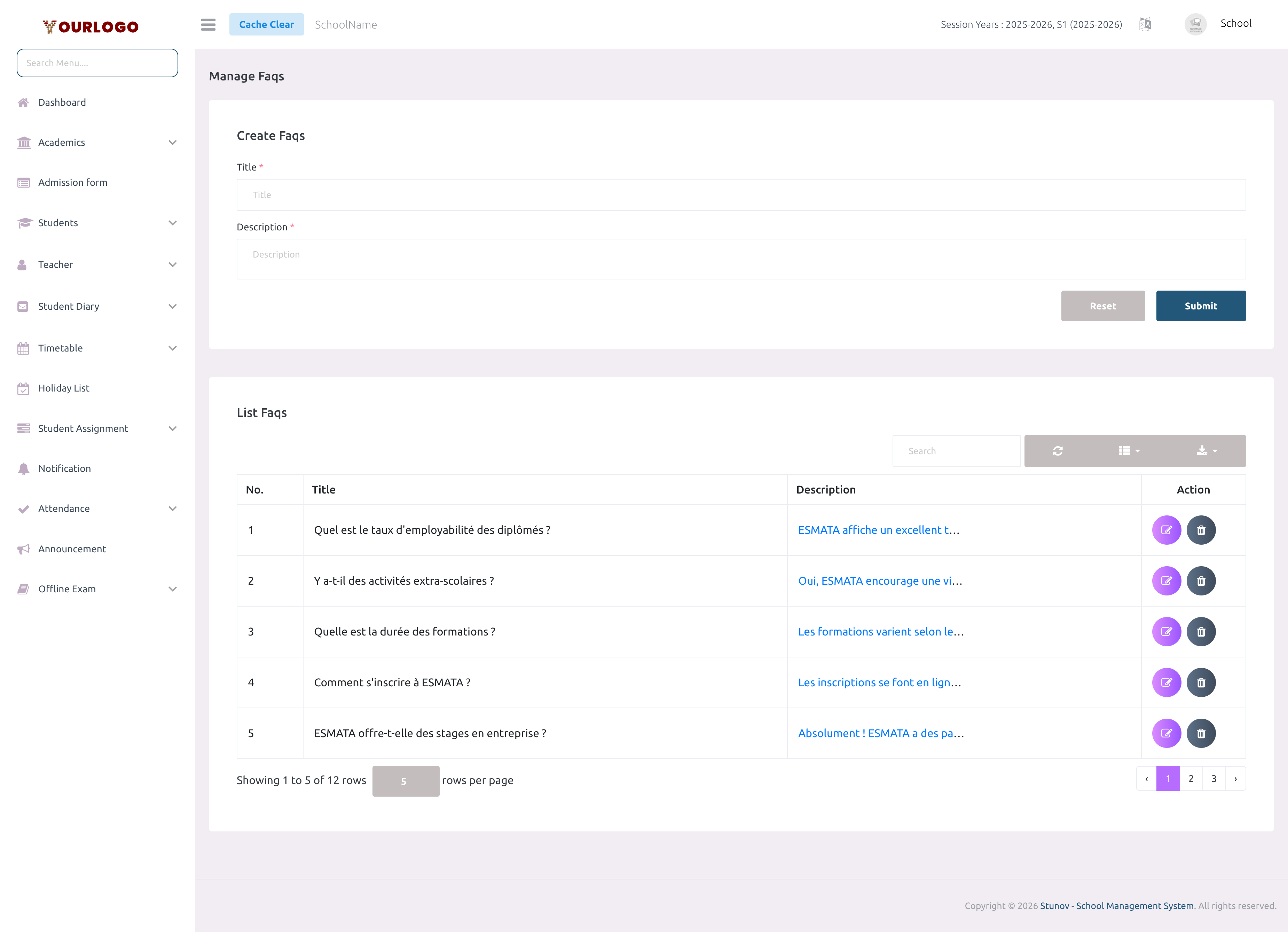
FAQs page — create form (top) and list of existing questions (bottom)
Create a FAQ
1
Navigate to Web Settings → FAQs
From the sidebar, expand **Web Settings** and click **FAQs**.
2
Fill in the Title
In the create form at the top of the page, enter the **Title** — this is the question itself (e.g., "What are the admission requirements?").
3
Fill in the Description
Enter the **Description** — this is the answer to the question. You can use plain text.
4
Submit
Click **Submit** to create the FAQ. It appears immediately in the list below.
View FAQs
The FAQ list displays all questions in a paginated table.
| Column | Description |
|---|---|
| No. | Row number |
| Title | The question text |
| Description | The answer text (may be truncated) |
| Action | Edit and Delete buttons |
- Use the search bar to filter FAQs by keyword
- Use the rows per page selector to control how many entries appear per page
Edit a FAQ
1
Click the Edit button
In the Action column, click the **Edit** (pencil) button next to the FAQ you want to modify.
2
Update the fields
An edit modal opens with the Title and Description pre-filled. Modify the question or answer as needed.
3
Submit
Click **Submit** to save your changes.
Delete a FAQ
1
Click the Delete button
In the Action column, click the **Delete** (trash) button.
2
Confirm
A confirmation dialog appears. Click **Confirm** to permanently remove the FAQ.
warning
Deleted FAQs are removed from the live website immediately.
Key Points
- Homepage toggle — The FAQs section visibility on the homepage is controlled from the Content page (FAQs section → Enable/Disable). The Content page sets the heading; this page manages the individual Q&A items.
- No rich text — FAQ descriptions are plain text. Keep answers concise and clear.
- Order — FAQs are displayed on the website in the same order as the list table (most recently created at the bottom).