
Translation

The Content Translation Manager lets you translate your school website content into additional languages. A progress dashboard at the top tracks completion per content type, while the sidebar + detail panel layout provides a focused side-by-side editing experience for Sliders, Announcements, FAQs, Galleries, and School Settings.

Bilingual schools

If your school operates in multiple languages (e.g., French and English), use this tool to ensure every piece of website content is available in both languages.
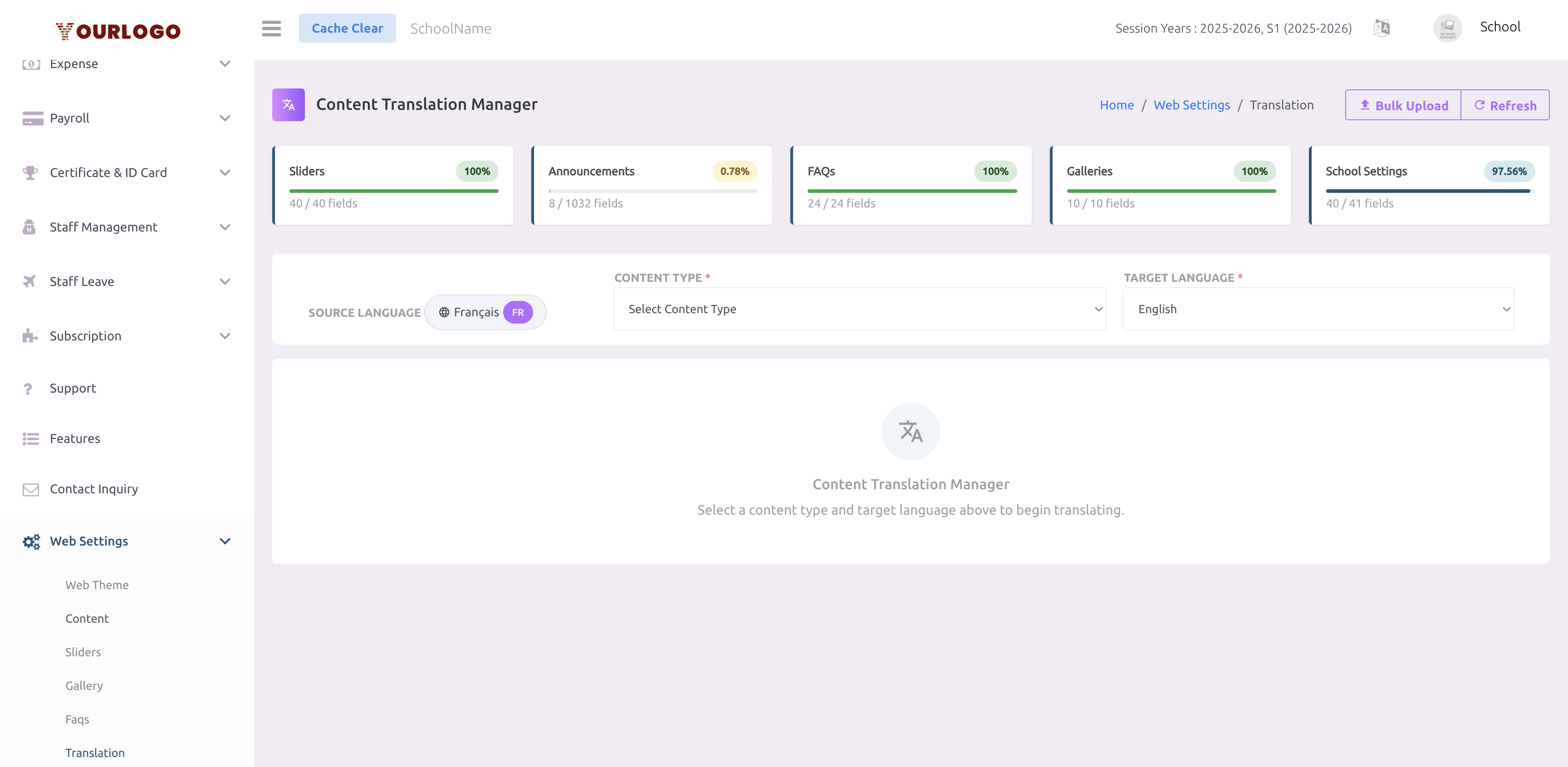
Content Translation Manager landing page showing progress dashboard cards for each content type, filter panel with source language, content type, and target language selectors, and an empty state prompting the user to select a content type
Content Translation Manager — progress dashboard cards at the top, filter panel below, and an empty-state prompt before content is selected

How Translation Works

The translation system pulls all translatable content from your school website. The progress dashboard gives you an at-a-glance view of completion across all content types. When you select a content type, a sidebar lists every translatable item, and clicking one opens its fields in a detail panel with the original text on the left and an editable translation field on the right.
1
Navigate to Web Settings → Translation
From the sidebar, expand **Web Settings** and click **Translation**.
2
Review the Progress Dashboard
At the top, stat cards display each content type with a **progress bar**, **percentage badge**, and a **field count** (e.g., "40 / 40 fields"). This tells you how much translation work remains.
3
Select a Content Type
Use the **Content Type** dropdown to choose what you want to translate: **Sliders**, **Announcements**, **FAQs**, **Galleries**, or **School Settings**.
4
Select the Target Language
Choose the language you want to translate into from the **Target Language** dropdown (e.g., English if your default is French, or vice versa).
5
Pick an item from the sidebar
A sidebar appears listing all translatable items with **completion badges** (e.g., 100%). Click any item to load its fields in the detail panel.
6
Enter translations
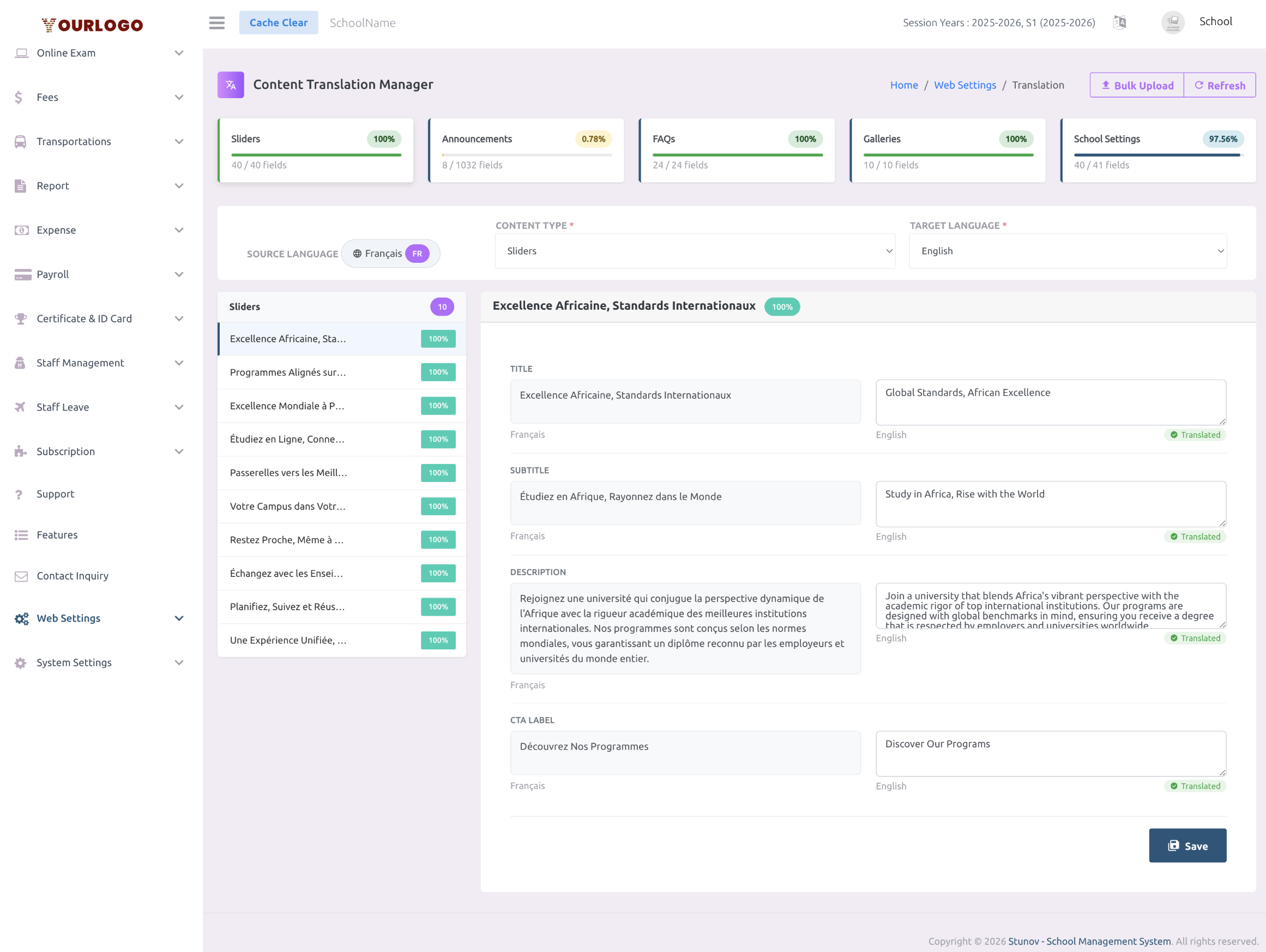
Each field shows the **original text** on the left and an editable **translation field** on the right, with a "Translated" or "Not translated" status indicator. Fill in the translations and click **Save** at the bottom.
Translation manager with Sliders selected — sidebar listing 10 slider items with 100% badges, detail panel showing side-by-side Title, Subtitle, Description, and CTA Label fields with original French text on the left and English translations on the right
Sidebar + detail panel — click an item on the left, translate its fields on the right with status indicators and a Save button

Content Types

The following content types are available for translation:

Content TypeWhat It Translates
SlidersTitle, subtitle, description, and CTA label for each homepage slide
AnnouncementsAnnouncement titles and descriptions
FAQsQuestion titles and answer descriptions
GalleriesAlbum titles and descriptions
School SettingsHomepage section headings and descriptions (About Us, Mission, Footer, etc.)

Progress Dashboard

The top of the page displays stat cards — one per content type — showing:

  • Progress bar — a coloured bar indicating the percentage of fields translated
  • Percentage badge — e.g., "100%" displayed next to the content type name
  • Field count — e.g., "40 / 40 fields" showing how many fields have translations vs the total

Click Refresh in the header to update all progress values after saving translations. Aim for 100% across all content types for a fully bilingual website.


Bulk Upload

For large translation projects, you can import and export translations via CSV files using the Bulk Upload modal.
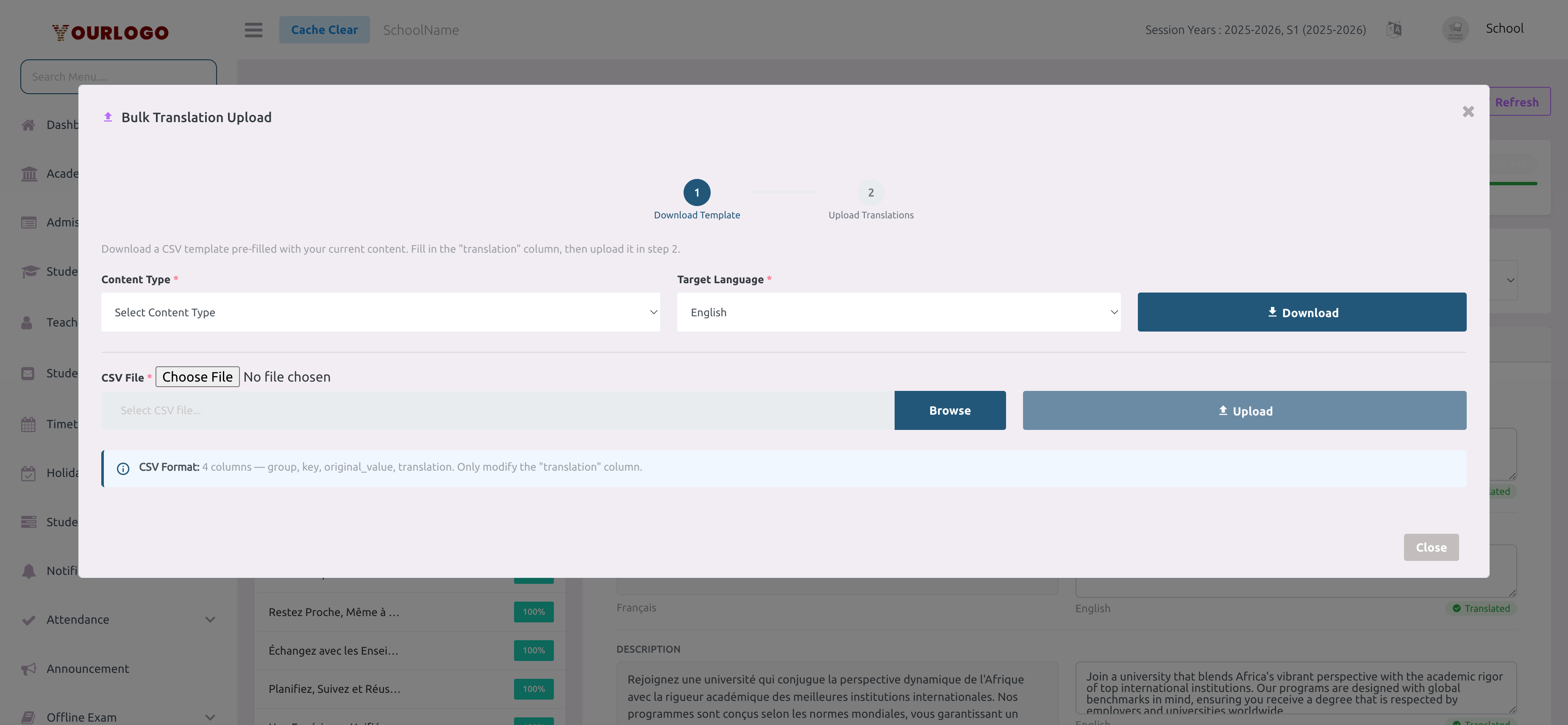
Bulk Translation Upload modal with a stepper showing Step 1 Download Template and Step 2 Upload Translations, content type and target language selectors, a Download button, CSV file input with Browse and Upload buttons, and a CSV Format info callout
Bulk Translation Upload — two-step workflow: download a CSV template, fill in translations offline, then upload it back

The modal uses a two-step stepper:

Step 1 — Download Template

1
Click "Bulk Upload"
Click the **Bulk Upload** button in the page header (top-right).
2
Select a Content Type
In the modal, choose the **Content Type** you want to translate (e.g., Sliders, FAQs, School Settings).
3
Select the Target Language
Choose the **Target Language** for the translations.
4
Click Download
Click the **Download** button. A CSV file is generated containing all translatable content with 4 columns: `group`, `key`, `original_value`, and `translation`.
5
Fill in the translation column
Open the CSV file in a spreadsheet editor. Only modify the **translation** column — leave `group`, `key`, and `original_value` unchanged.

Step 2 — Upload Translations

1
Choose the CSV file
In the **Upload Translations** section (Step 2), click **Browse** and select your completed CSV file.
2
Click Upload
Click the **Upload** button. The system processes the file and updates all matching translation fields. A progress bar and result alert are shown.
3
Verify
Close the modal and click **Refresh** on the translation page. Check the progress dashboard cards to confirm completion.
CSV Format

The CSV file must have exactly 4 columns: group, key, original_value, translation. Only the "translation" column should be modified.


Key Points

  • Source language — Displayed as a language chip in the filter panel (e.g., "Français FR"). It is auto-detected from your school settings and cannot be changed on this page.
  • Sidebar + detail panel — Pick an item from the left sidebar; its translatable fields appear on the right for side-by-side editing.
  • Status indicators — Each field shows a green "Translated" or grey "Not translated" badge so you can see at a glance what still needs attention.
  • Content types are independent — Progress is tracked separately per content type. You can translate sliders first and come back to FAQs later.
  • Instant effect — Saved translations are immediately available on the school website when visitors switch languages.
  • Template download — The bulk upload CSV template includes all current content at the time of download. Re-download it after adding new sliders or FAQs to capture new content.

  • Sliders — Create the slides whose text you translate here
  • FAQs — Create the questions whose text you translate here
  • Gallery — Create the albums whose titles you translate here
  • Content — Manage section text (translatable via the "School Settings" content type)