Dashboard Theme
The Dashboard Theme page controls the look of the admin dashboard — the interface you and your staff use to run the school. You can pick a ready-made colour preset, fine-tune individual colours for light and dark mode, and choose a typography preset. Or, with one toggle, you can keep the dashboard in step with your public website's theme automatically.
Dashboard vs. website theme
This page styles the admin dashboard only. To style the public-facing school website, use Web Theme.
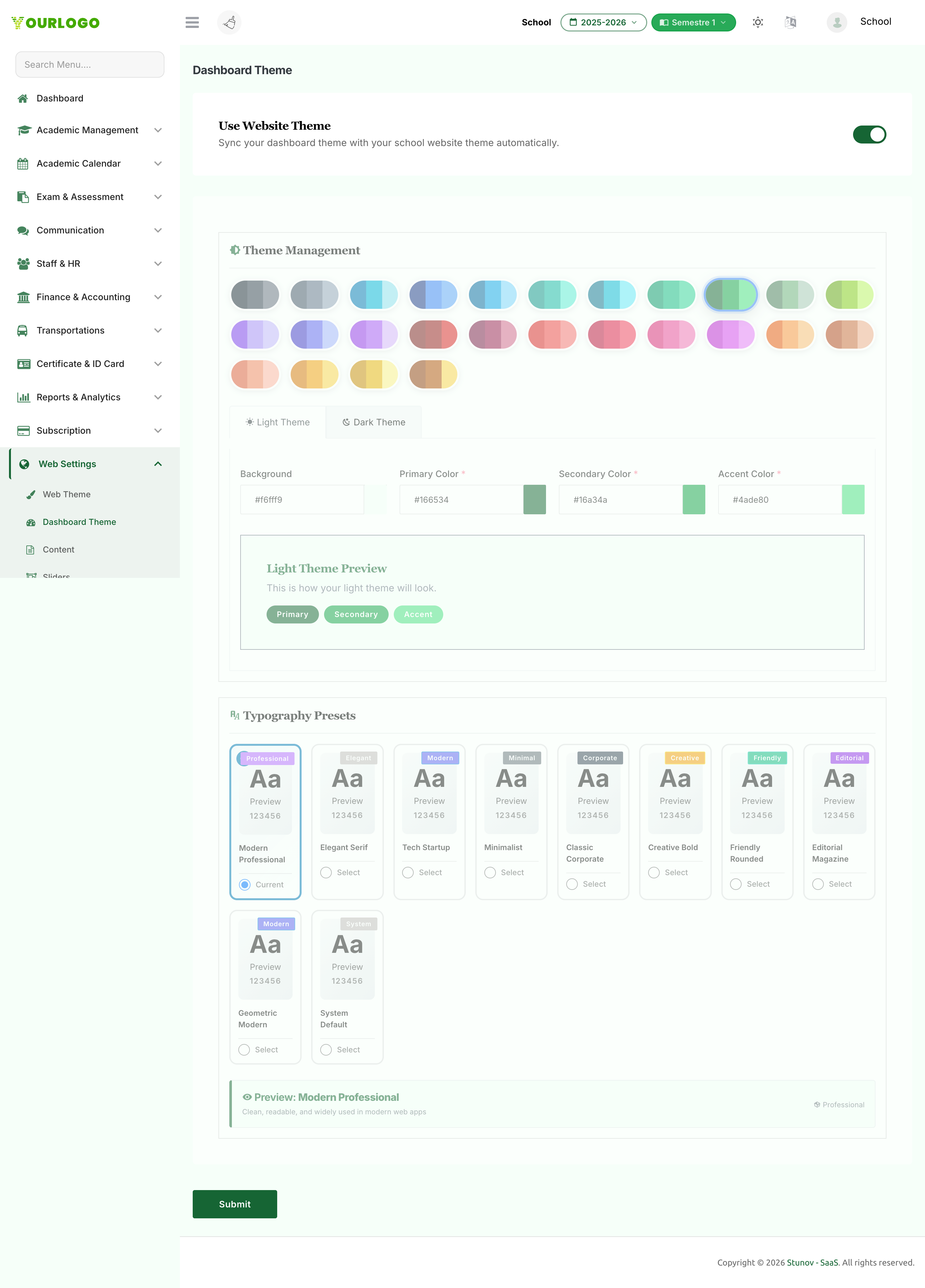
Dashboard Theme — presets, per-mode colours, and live previews
Customize the Dashboard Theme
1
Navigate to Web Settings → Dashboard Theme
From the sidebar, open **Web Settings** and click **Dashboard Theme**.
2
Decide whether to sync with the website
Turn on **Use Website Theme** to make the dashboard automatically match your public website palette. While this is on, the custom colour controls are disabled. Turn it off to customize the dashboard independently.
3
Pick a colour preset
Choose a ready-made palette (for example Royal Purple, Ocean Blue, or Emerald) from the preset grid, or skip ahead to adjust colours by hand.
4
Fine-tune light and dark mode
Switch between the **Light Theme** and **Dark Theme** tabs and adjust the **Primary**, **Secondary**, **Accent**, and **Background** colours for each. The preview boxes update live.
5
Choose a typography preset
Select a font preset (such as Modern Professional or Elegant Serif) from the typography grid.
6
Submit
Click **Submit** to save. The dashboard reloads and applies the new theme immediately.
Light and dark are configured separately
The Light Theme and Dark Theme tabs hold their own colour sets, so the dashboard looks right whichever mode a user prefers. Background colours are optional and fall back to sensible defaults (white for light, dark navy/charcoal for dark).
Related Pages
- Web Theme — Theme the public school website
- Content — Edit website page content
- Translation — Manage interface translations