General Settings
The General Settings page is the central hub for your school's identity and core configuration. Here you set the school name, contact information, logos, date and time formats, domain, and roll number sorting preferences. Changes made here are reflected throughout the entire system — on the web panel, staff app, and student app.
Start here
General Settings should be the first page you configure after creating your school. The school name, logos, and contact details appear on certificates, reports, notifications, and the school website.
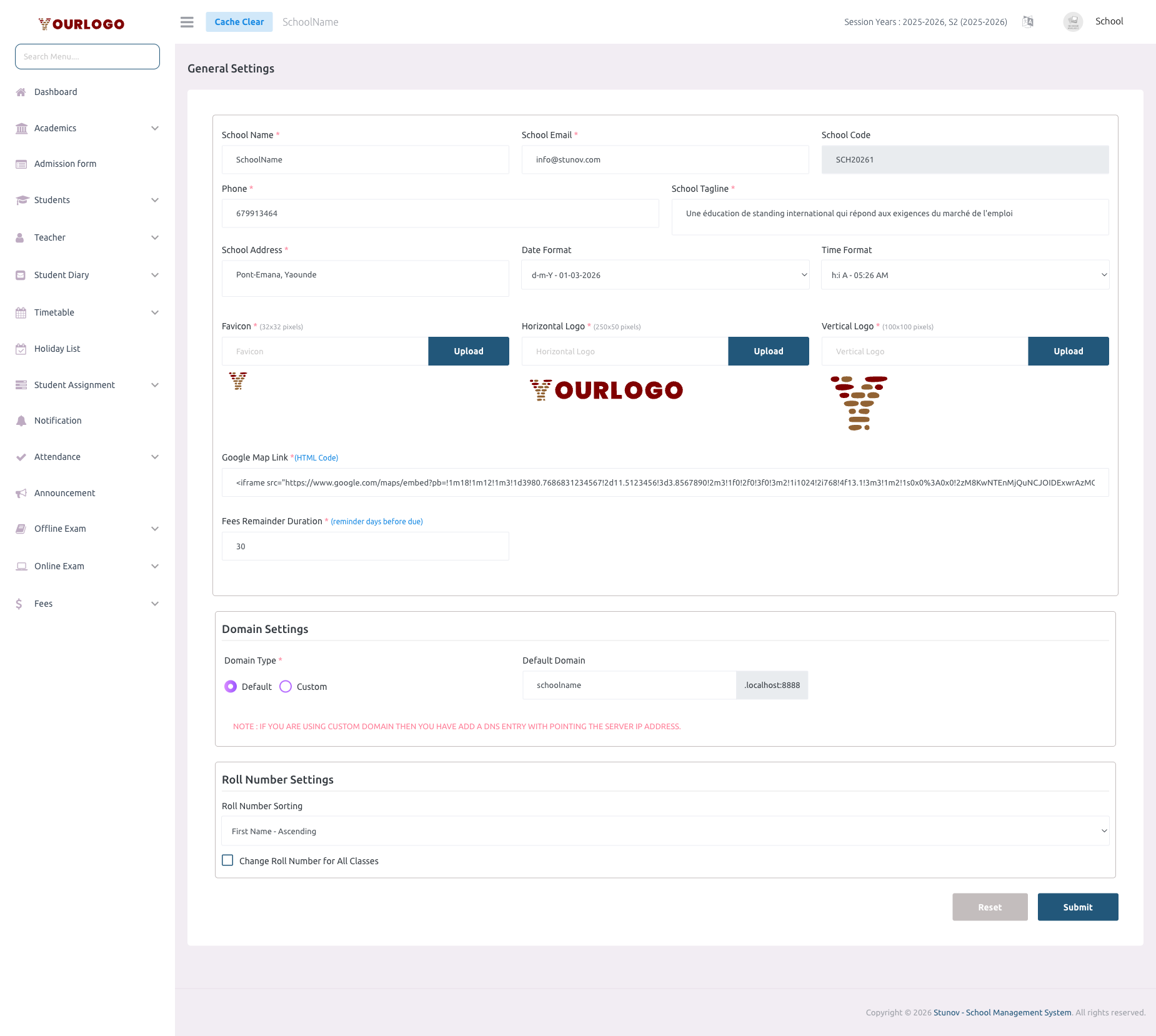
General Settings — configure your school's core identity and display preferences
Update General Settings
1
Navigate to System Settings → General Settings → School Settings
From the sidebar, expand **System Settings → General Settings** and click **School Settings**.
2
Fill in school information
Enter or update your **School Name**, **School Email**, **Phone**, **School Tagline**, and **School Address**. The School Code is auto-generated and cannot be changed.
3
Select date and time formats
Choose your preferred **Date Format** (e.g., d-m-Y, m/d/Y, Y-m-d) and **Time Format** (12-hour or 24-hour) from the dropdowns.
4
Upload logos and favicon
Upload your **Favicon** (32×32 px), **Horizontal Logo** (250×50 px), and **Vertical Logo** (100×100 px). These appear in the browser tab, sidebar, login page, and printed documents.
5
Add your Google Map embed
Paste the full HTML iframe code from Google Maps into the **Google Map Link** field. This embeds your school location on the school website.
6
Set fees reminder duration
Enter the number of days before a fee due date to send reminder notifications to parents (e.g., 30 days).
7
Configure domain settings
Choose **Default** to use a subdomain (e.g., schoolname.stunov.com) or **Custom** to use your own domain. For custom domains, add a DNS record pointing to the server IP.
8
Set roll number sorting
Select how roll numbers are assigned when auto-generated: by **First Name** or **Last Name**, in ascending or descending order. Check **Change Roll Number for All Classes** to apply the new sorting to existing classes.
9
Submit
Click **Submit** to save all changes. Click **Reset** to revert to the last saved values.
Settings Breakdown
School Identity
| Setting | Description |
|---|---|
| School Name | Your institution’s official name — displayed everywhere in the system |
| School Email | Primary contact email — used in email templates and the school website |
| School Code | Auto-generated unique code (read-only) — used for API authentication and app login |
| Phone | School contact number — displayed on reports and the school website |
| School Tagline | A short slogan or motto — shown on the login page and school website |
| School Address | Physical address — printed on certificates, reports, and the school website |
Display Preferences
| Setting | Description |
|---|---|
| Date Format | Controls how dates appear across the system. Options: d/m/Y, m/d/Y, Y/m/d, Y/d/m, d-m-Y, m-d-Y, Y-m-d, Y-d-m |
| Time Format | Choose between h:i a (12h lowercase), h:i A (12h uppercase), or H:i (24h) |
| Favicon | 32×32 px icon shown in the browser tab |
| Horizontal Logo | 250×50 px logo shown in the sidebar header |
| Vertical Logo | 100×100 px square logo used in login pages and certificates |
Domain Settings
| Setting | Description |
|---|---|
| Domain Type | Choose between Default (subdomain) or Custom (your own domain) |
| Default Domain | Your subdomain prefix (e.g., schoolname results in schoolname.stunov.com) |
| Custom Domain | Enter your full custom domain — requires DNS A-record pointing to the server IP |
Additional Settings
| Setting | Description |
|---|---|
| Google Map Link | Full HTML iframe embed code from Google Maps for your school location |
| Fees Reminder Duration | Number of days before a fee due date to send automatic reminders to parents |
| Roll Number Sorting | Order for auto-assigned roll numbers: First Name or Last Name, Ascending or Descending |
| Change Roll Number for All Classes | When checked, re-sorts and reassigns roll numbers for all existing classes |
Domain changes require DNS configuration
If you switch to a custom domain, you must configure a DNS A-record pointing your domain to the server’s IP address. The change may take up to 48 hours to propagate.
Related Pages
- Session Year — Configure the active academic session
- Payment Settings — Set up payment gateways and currency
- Web Settings — Customize your school website appearance