Email Template
The Email Template page lets you customize the automated emails your school sends to staff, parents, and applicants. Each template supports dynamic placeholders that are automatically replaced with actual data when the email is sent.
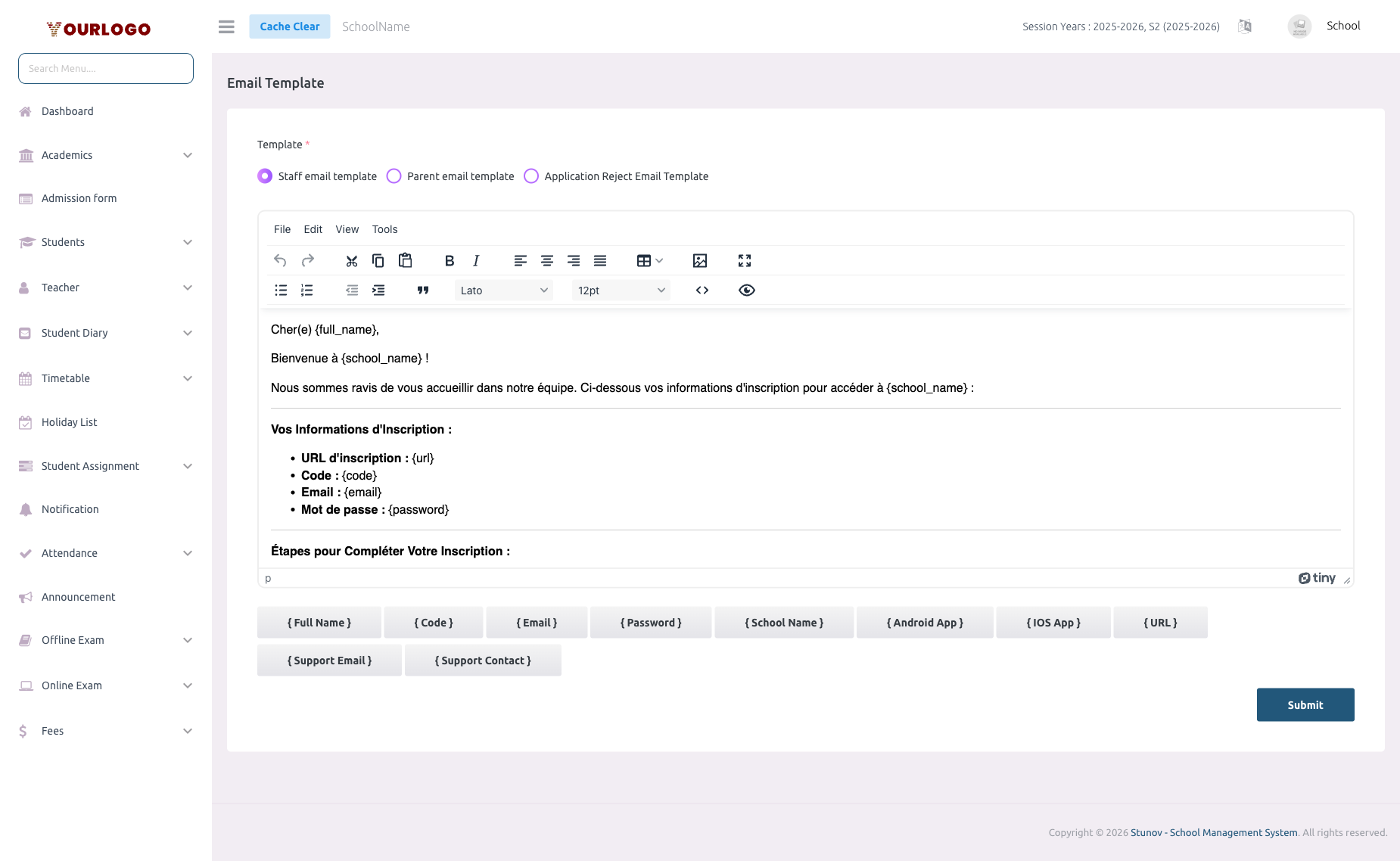
Email Template — customize automated emails with dynamic placeholders
Update Email Templates
1
Navigate to System Settings → Communication Settings → Email Template
From the sidebar, expand **System Settings → Communication Settings** and click **Email Template**.
2
Select the template to edit
The page shows three templates: **Staff Credential Email**, **Parent Credential Email**, and **Application Rejection Email**. Click on the one you want to modify.
3
Edit the template content
Use the rich text editor to modify the email body. Insert **placeholders** (dynamic variables) that will be replaced with actual data when the email is sent.
4
Submit
Click **Submit** to save the template. Changes take effect immediately for all future emails.
Available Templates
Staff Credential Email
Sent automatically when a new staff member is created. Contains login credentials.
Available Placeholders:
| Placeholder | Replaced With |
|---|---|
{school_name} | Your school's name |
{name} | Staff member's full name |
{email} | Staff member's email address |
{password} | Auto-generated temporary password |
{school_admin_name} | School administrator's name |
{support_email} | Support email address |
{url} | School panel login URL |
{code} | School code for app login |
Parent Credential Email
Sent automatically when a new student is admitted and parent account is created.
Available Placeholders:
| Placeholder | Replaced With |
|---|---|
{school_name} | Your school's name |
{parent_name} | Parent's full name |
{email} | Parent's email address |
{password} | Auto-generated temporary password |
{student_name} | Student's full name |
{code} | School code for app login |
Application Rejection Email
Sent when an admission inquiry/application is rejected.
Available Placeholders:
| Placeholder | Replaced With |
|---|---|
{school_name} | Your school's name |
{applicant_name} | Applicant's full name |
{rejection_reason} | Reason provided for rejection |
Keep templates professional
Use a clear subject line, structured body with greeting and signature, and include all necessary login details. Test each template by creating a test user to verify the email looks correct.
Related Pages
- General Settings — School name and email used in templates
- Notification — Send push notifications to users
- Staff Management — Creating staff triggers the staff email
- Students — Admitting students triggers the parent email