Payment Settings
The Payment Settings page lets you configure how your school accepts fee payments. You can set the school currency, enable one or more online payment gateways (Stripe, Razorpay, Paystack, Flutterwave), and configure bank transfer details for manual payments.
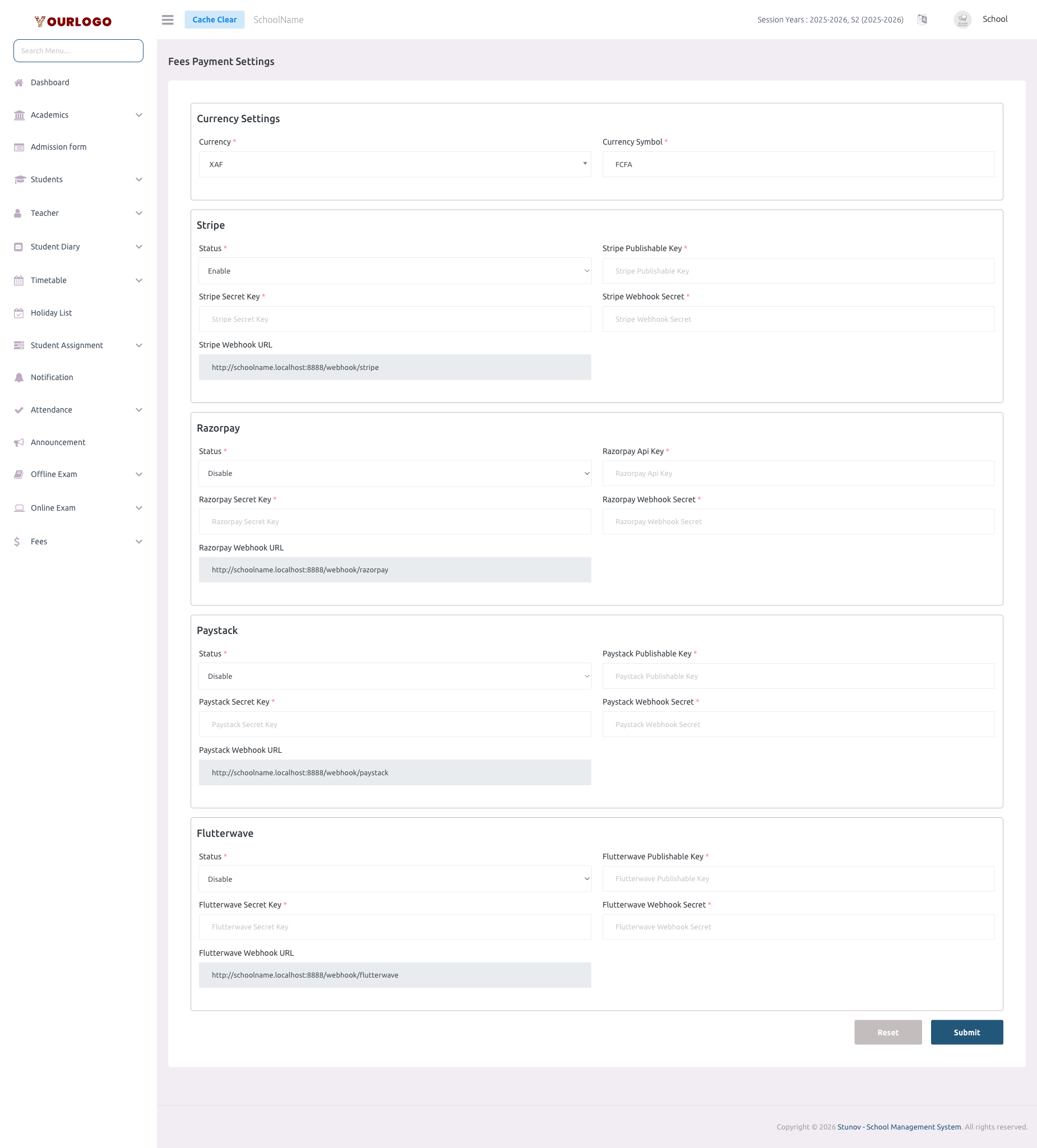
Payment Settings — configure currency in and payment gateways
Configure Payment Settings
1
Navigate to System Settings → Payment Settings
From the sidebar, expand **System Settings** and click **Payment Settings**.
2
Set the currency
Enter your **Currency Code** (e.g., XAF, USD, EUR) and **Currency Symbol** (e.g., FCFA, $, €). This determines how amounts are displayed throughout the system.
3
Enable payment gateways
Toggle on the payment gateways you want to use. For each enabled gateway, enter the required API credentials.
4
Configure bank transfer (optional)
If you accept bank transfers, enter your **Bank Name**, **Account Name**, and **Account Number**. Parents will see these details when choosing bank transfer as a payment method.
5
Submit
Click **Submit** to save the configuration.
Supported Payment Gateways
Stripe
| Field | Description |
|---|---|
| Status | Toggle to enable/disable Stripe |
| Stripe Publishable Key | Your Stripe public key (starts with pk_) |
| Stripe Secret Key | Your Stripe secret key (starts with sk_) |
| Webhook Secret Key | For verifying Stripe webhook events |
Razorpay
| Field | Description |
|---|---|
| Status | Toggle to enable/disable Razorpay |
| Razorpay Key | Your Razorpay key ID |
| Razorpay Secret | Your Razorpay key secret |
| Webhook Secret | For verifying Razorpay webhook events |
Paystack
| Field | Description |
|---|---|
| Status | Toggle to enable/disable Paystack |
| Paystack Public Key | Your Paystack public key |
| Paystack Secret Key | Your Paystack secret key |
Flutterwave
| Field | Description |
|---|---|
| Status | Toggle to enable/disable Flutterwave |
| Flutterwave Public Key | Your Flutterwave public key |
| Flutterwave Secret Key | Your Flutterwave secret key |
Bank Transfer
| Field | Description |
|---|---|
| Bank Name | Name of your school's bank |
| Account Name | Account holder name |
| Account Number | Bank account number for deposits |
Keep API keys secure
Never share your payment gateway secret keys. These are sensitive credentials that could be used to access your payment account.
Currency Configuration
| Field | Description |
|---|---|
| Currency Code | ISO 4217 currency code (e.g., XAF, USD, EUR, GBP, INR, NGN, KES) |
| Currency Symbol | Symbol displayed with amounts (e.g., FCFA, $, €, £, ₹, ₦) |
The currency is used across all financial features: fees, expenses, payroll, and reports.
How Payments Work
- School admin configures payment gateways and currency on this page
- When parents view pending fees in the student app, they see enabled payment options
- Online payments are processed through the selected gateway and recorded automatically
- Bank transfer payments require manual confirmation by the school admin
- All transactions appear in the Fees Transaction Logs
Related Pages
- Fees — Set up fee types and structures
- Fees Transaction Logs — View all payment transactions
- General Settings — Core school configuration