Leave Settings
Leave Settings define how many leaves staff members are entitled to per month and which days of the week are designated as holidays. Each leave setting is tied to a specific Session Year, allowing different leave policies across academic periods.
One setting per session
You can create only one leave setting per session year. If you need to adjust leave policies, edit the existing setting for that session.
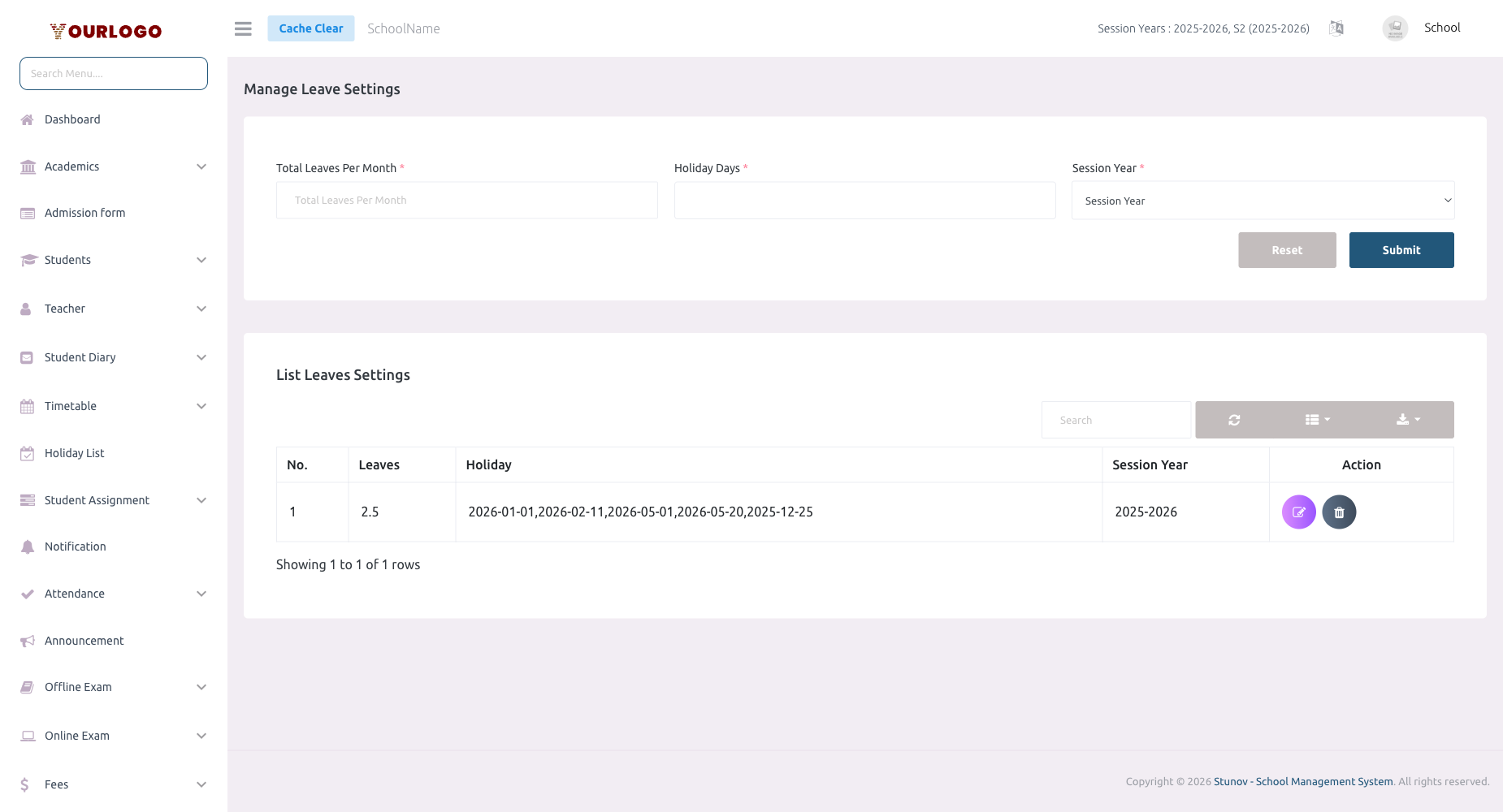
Leave Settings — set monthly leave allowances and weekly holidays per session year
Create Leave Settings
1
Navigate to System Settings → General Settings → Leave Settings
From the sidebar, expand **System Settings → General Settings** and click **Leave Settings**.
2
Click "+ Add Leave"
Click the **+ Add Leave** button. The creation form appears.
3
Select the Session Year
Choose the **Session Year** this leave policy applies to. Each session can have only one leave configuration.
4
Set monthly leave allowance
Enter the number of **Leaves (per month)** that each staff member is entitled to (e.g., 2.5).
5
Select holiday days
Check the days of the week that are designated as **Holidays** (e.g., Saturday, Sunday). These days are excluded from leave calculations.
6
Submit
Click **Submit** to create the leave settings.
View Leave Settings
The leave settings list shows all configurations in a table:
| Column | Description |
|---|---|
| No. | Row number |
| Session Year | The academic session this setting applies to |
| Leaves (Per Month) | Number of allowed leaves per month |
| Holiday | Weekly holiday days (e.g., Saturday, Sunday) |
| Action | Edit and Delete buttons |
Edit Leave Settings
1
Click the Edit button
In the Action column, click the **Edit** (pencil) button next to the leave setting.
2
Update the configuration
Modify the monthly leave count or holiday days as needed. The session year cannot be changed.
3
Save changes
Click **Submit** to save your changes.
Delete Leave Settings
1
Click the Delete button
In the Action column, click the **Delete** (trash) button.
2
Confirm deletion
A confirmation dialog appears. Click **Confirm** to delete the leave setting.
Deleting leave settings affects leave tracking
If you delete a leave setting for the current session, all staff leave balance calculations for that session will be affected. Existing approved leaves remain in the system, but new leave requests won’t have a reference policy.
How Leave Calculations Work
- Monthly allowance: If set to 2.5 leaves/month, a staff member gets 30 leaves for a 12-month session
- Holiday exclusion: Days marked as holidays are not counted when calculating leave duration
- Leave balance: The system tracks remaining leaves as: Total Allowance - Approved Leaves = Remaining Balance
- Partial leaves: Decimal values are supported (e.g., 1.5 leaves/month)
Related Pages
- Session Year — Leave settings are tied to session years
- Staff Leave — Manage staff leave requests
- Leave (Personal) — Staff can apply for personal leave