Apply Leave
The Apply Leave page lets you submit personal leave requests, track their approval status, and manage your active leave entries. Every staff member — school admin, teacher, driver, or helper — uses this same page to request time off.
When you submit a leave request, your school administrator or academic coordinator reviews and approves/rejects it from the Staff Leave management section. You can track the status of your requests in the My Leaves table below the form.
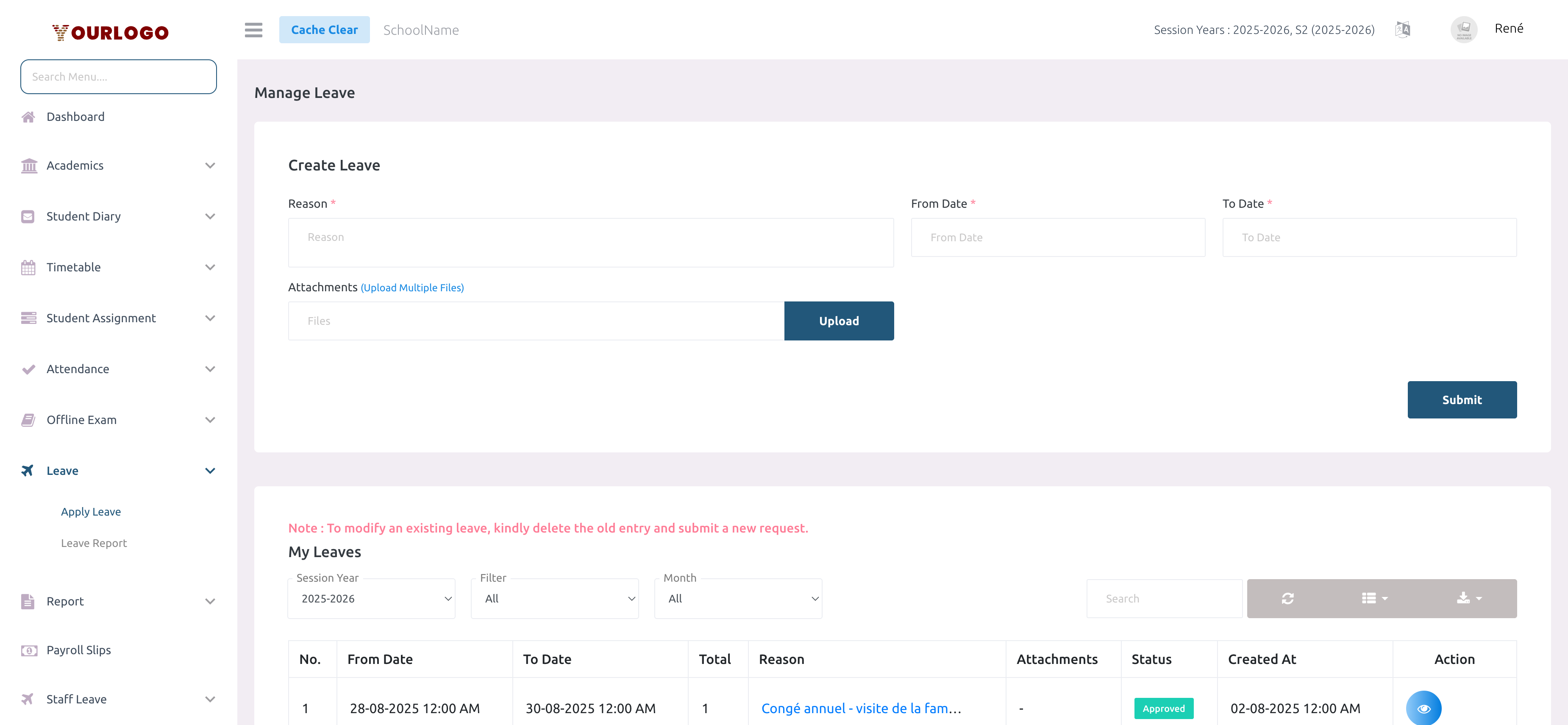
Submit a Leave Request
View Leave Details
After submitting, each leave entry shows a detailed breakdown of every day in the requested range. You can view this by clicking the eye icon in the Action column.
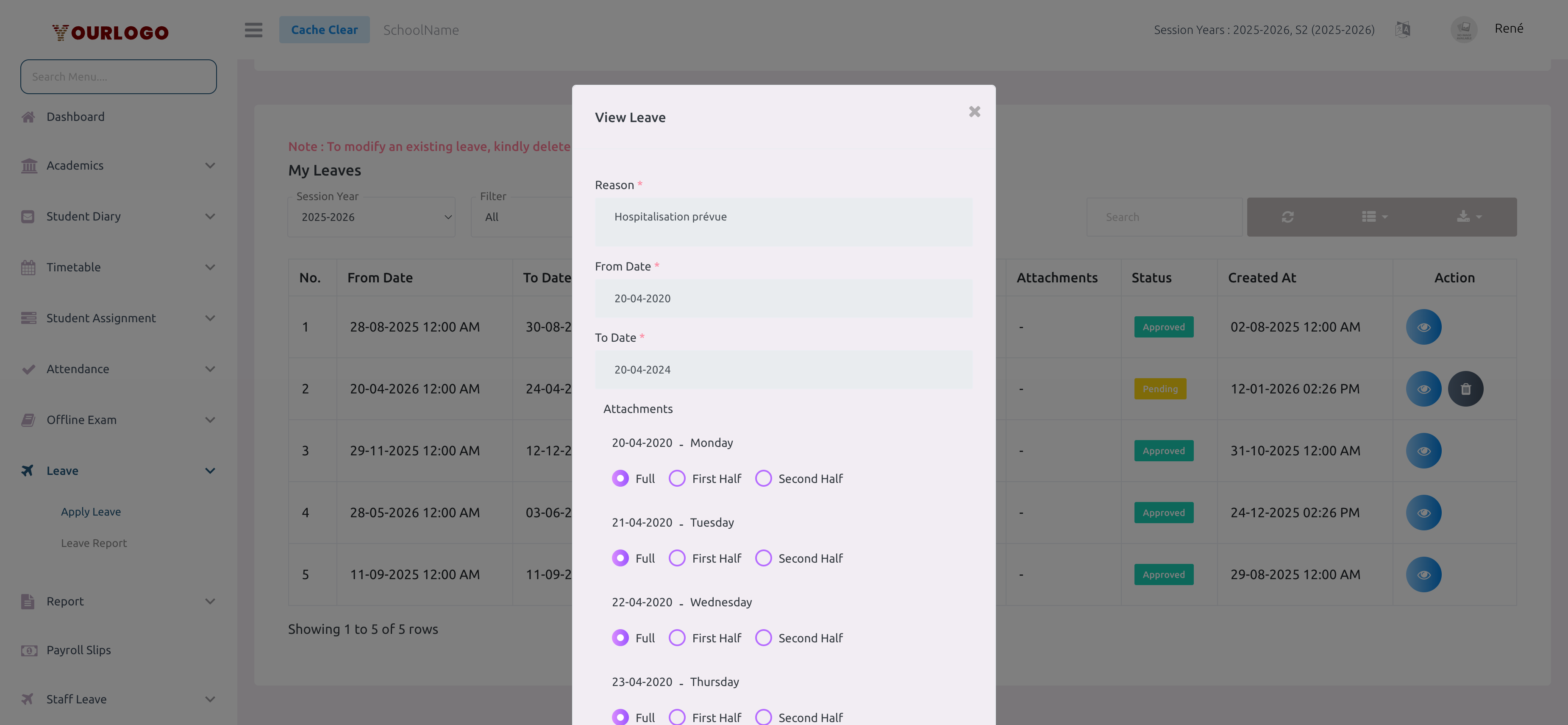
The details modal displays:
- Reason — your stated reason for leave
- From Date / To Date — the requested date range
- Attachments — any uploaded files
- Per-day breakdown — each date is listed with its day name and the leave type (Full, First Half, or Second Half)
The system supports half-day leave. When you view a leave entry, each day shows Full, First Half, or Second Half radio options. The Total column in the table reflects the calculated leave days (e.g., 2.5 days for two full days and one half day).
My Leaves Table
The My Leaves section lists all your leave requests for the selected session year.
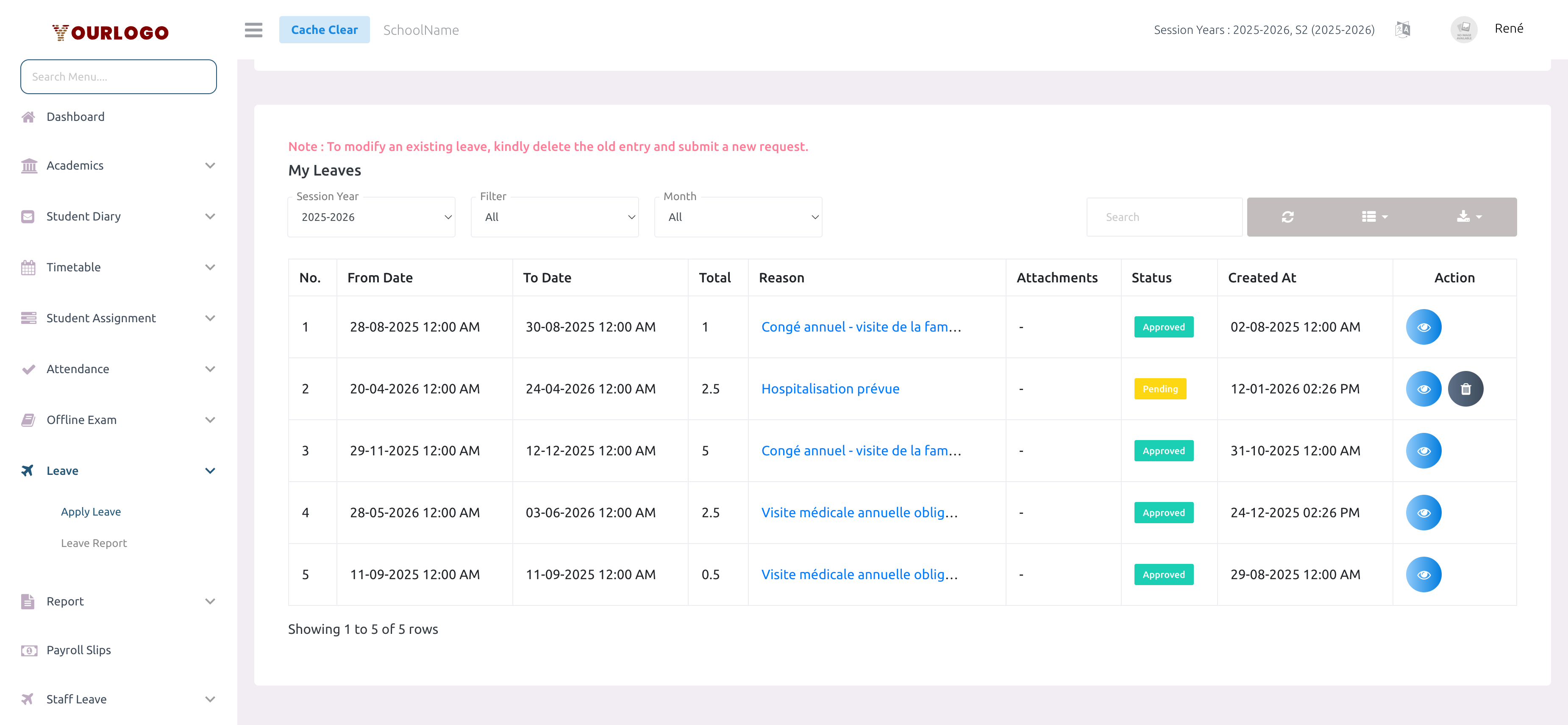
Filters
- Session Year — switch between academic years to view historical leave data
- Filter — narrow by time period: All, Today, Tomorrow, or Upcoming
- Month — filter by a specific month (January through December)
- Search — free-text search across reason, dates, and status
Table Columns
| Column | Description |
|---|---|
| No. | Row number |
| From Date | Leave start date and time |
| To Date | Leave end date and time |
| Total | Calculated leave days (supports half-day increments like 0.5, 1.5, 2.5) |
| Reason | Click to view the full reason text |
| Attachments | Uploaded supporting documents (shown as "-" if none) |
| Status | Current approval status: Pending, Approved, or Rejected |
| Created At | When the request was submitted |
| Action | View details (eye icon) and Delete (trash icon, only for Pending requests) |
Status Indicators
- Pending (yellow) — awaiting review by administration
- Approved (green) — leave has been granted
- Rejected (red) — leave request was denied
Delete a Leave Request
Once a leave request has been Approved or Rejected, it cannot be deleted. To modify an existing leave, delete the old entry (if still Pending) and submit a new request.
Staff App View
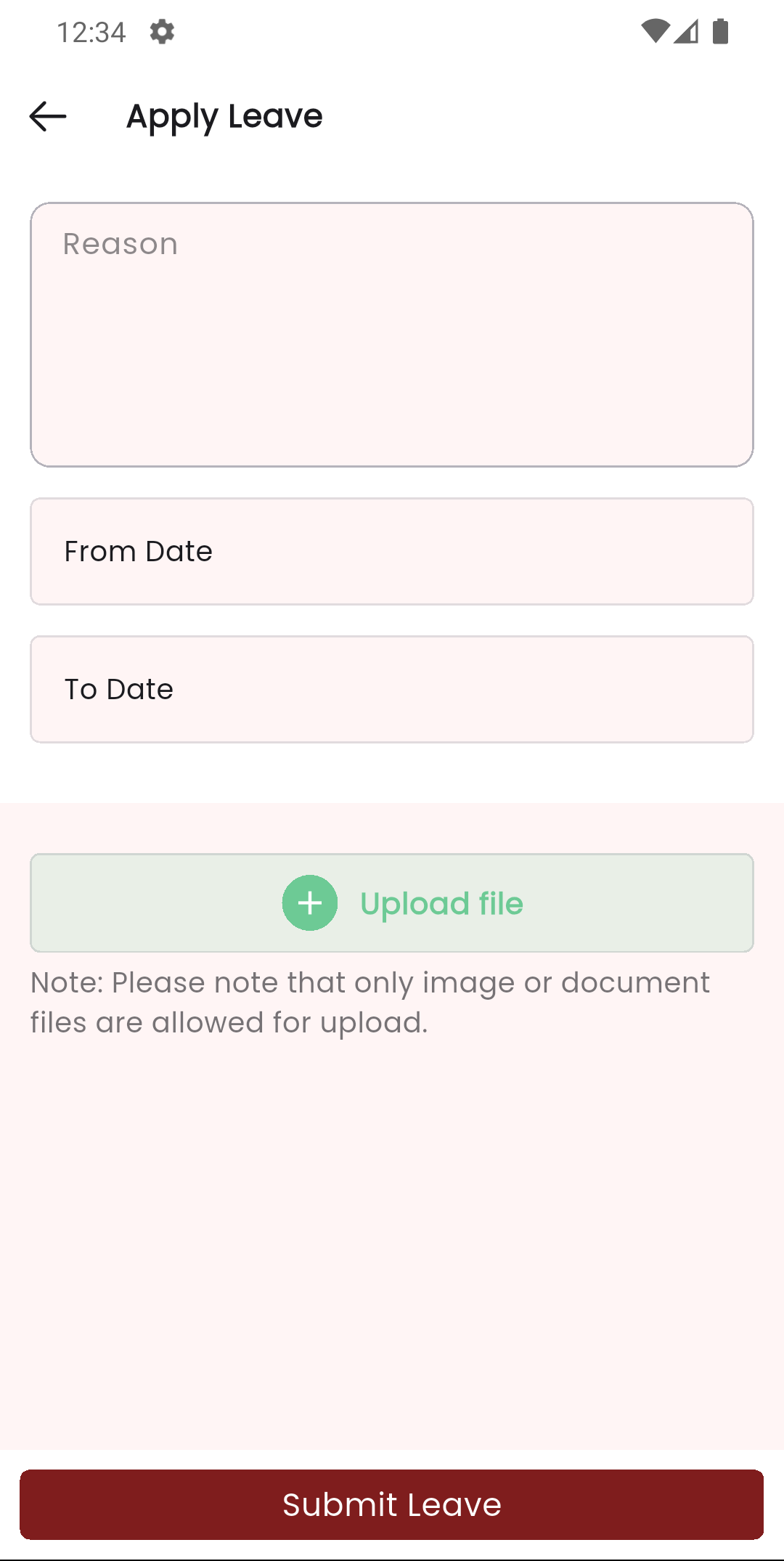
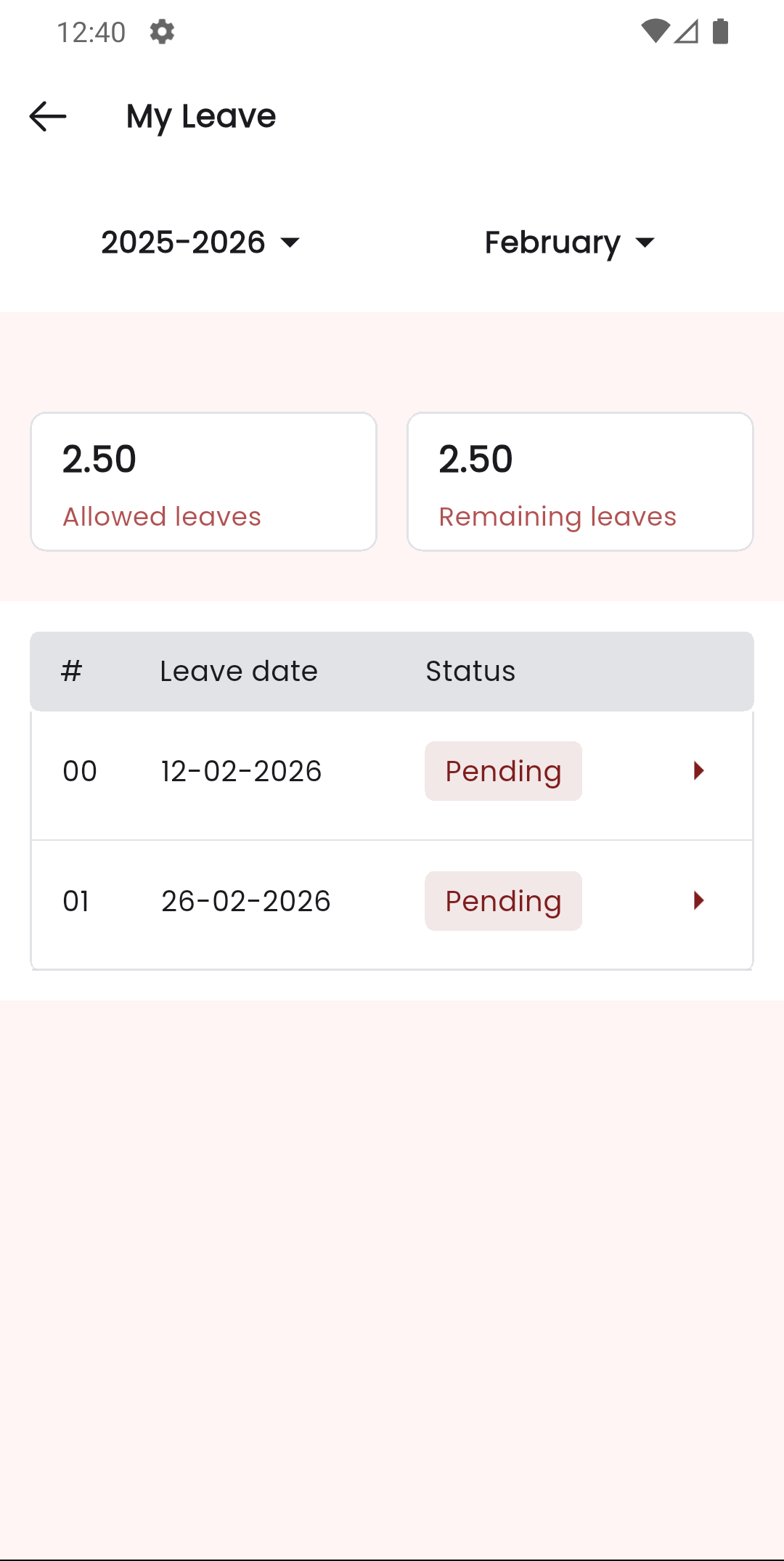
In the Stunov+ Staff app, teachers and staff can apply for leave, view their leave list, and check leave details directly from their mobile device.
Related Pages
- Leave Report — View your monthly leave balance and usage breakdown
- Staff Leave (Management) — How administrators manage and approve/reject staff leave requests