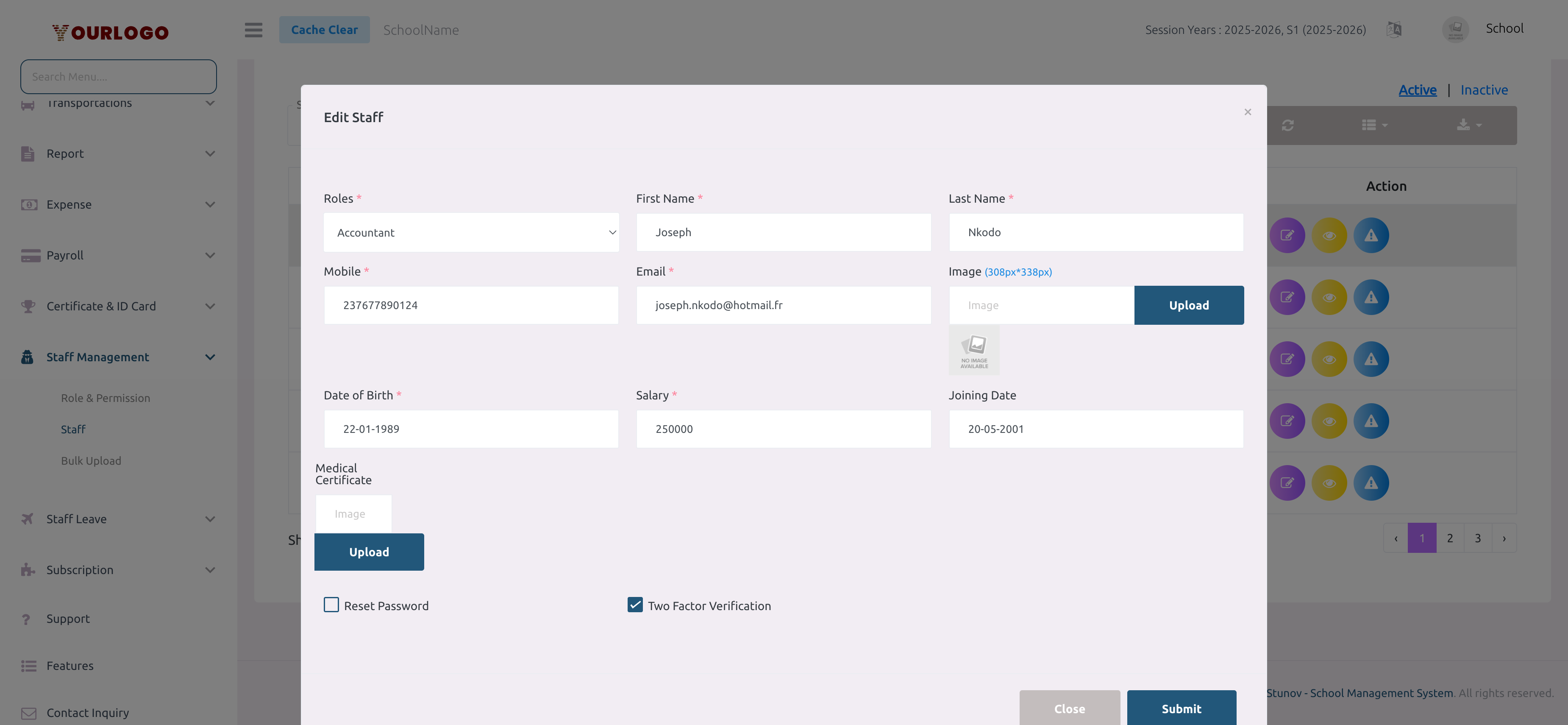
The Staff page lets you add, edit, and manage all non-teaching personnel — accountants, HR managers, IT staff, coordinators, transportation managers, and any other custom role you have created. Each staff member gets login credentials, a role assignment, and an optional salary structure.
Teachers are managed separately
Teachers have their own dedicated section under Academic Management → Teacher → Manage Teacher. This page is for all other staff roles.
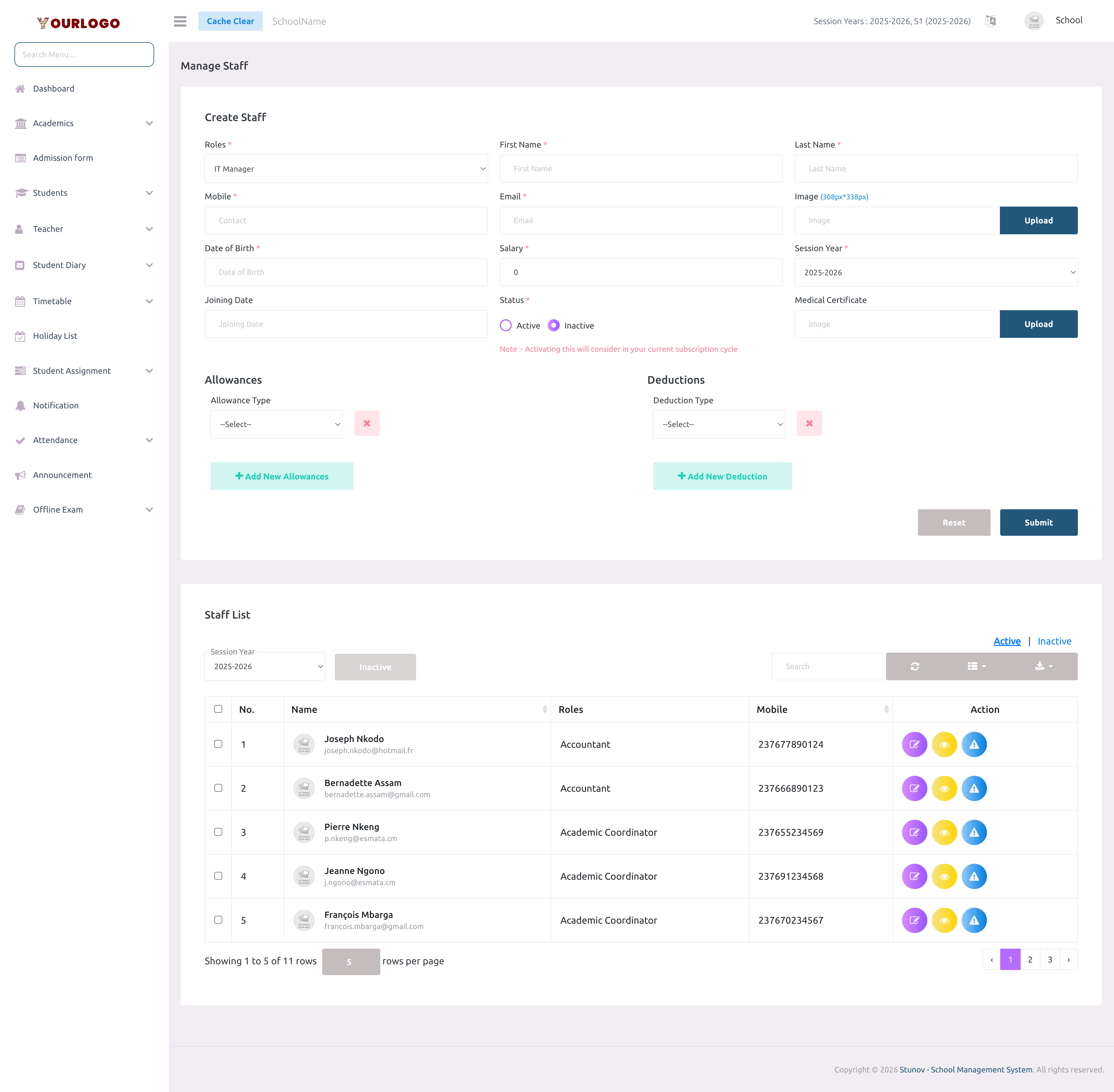
The create form is at the top of the Staff page. Fill in the personal details, assign a role, and optionally configure salary components. The staff list is displayed below the form.
Staff page — create form (top) and staff list (bottom)
1
Navigate to Staff & HR → Staff Management → Staff
From the sidebar, expand **Staff & HR → Staff Management** and click **Staff**. The staff page opens with the create form at the top and the staff list below.
2
Select a Role
Choose the role for this staff member from the **Role** dropdown. Only custom roles appear here (e.g., Accountant, IT Manager). Create roles first via **Role & Permission** if needed.
3
Enter personal details
Fill in **First Name**, **Last Name**, **Mobile** number, **Email** address, and **Date of Birth**. The mobile number will be used as the default password.
4
Upload a profile image (optional)
Click the image area to upload a profile photo. Recommended size: 308 × 338 pixels.
5
Set salary and session year
Enter the staff member's **Salary** amount and select the **Session Year**. These fields are required for School Admin users.
6
Configure payroll components (optional)
If the Expense Management feature is enabled, you can add **Allowances** (e.g., Housing, Transport, Meal) and **Deductions** (e.g., Tax, Insurance, Savings Fund). Click **Add New Allowance** or **Add New Deduction** and select the type and amount.
7
Submit
Click **Submit** to create the staff member. They will receive login credentials (email + mobile number as password) and appear in the staff list.
Default password
The staff member's mobile number is used as their default login password. They can change it after first login.
Each staff member has a dedicated salary structure page showing their base salary, allowances, and deductions.
1
Click the Salary Structure button
In the Action column, click the **Salary Structure** (money) button to view the staff member's payroll configuration.
2
Review or update
The salary structure page shows the base salary and all configured allowances and deductions. You can add, edit, or remove payroll components from this page.