Tasks
The Tasks page is a lightweight to-do tracker for staff. Create tasks for yourself or assign them to other staff members, set a due date, and follow each task through to completion. Status is tracked as Pending, In Progress, or Completed, and tasks past their due date are flagged as Overdue.
- Staff with the Assign Tasks permission can create tasks for other staff members and see everyone's tasks.
- Staff without that permission see and manage only their own tasks.
- Assignees receive a push notification when a task is assigned to them.
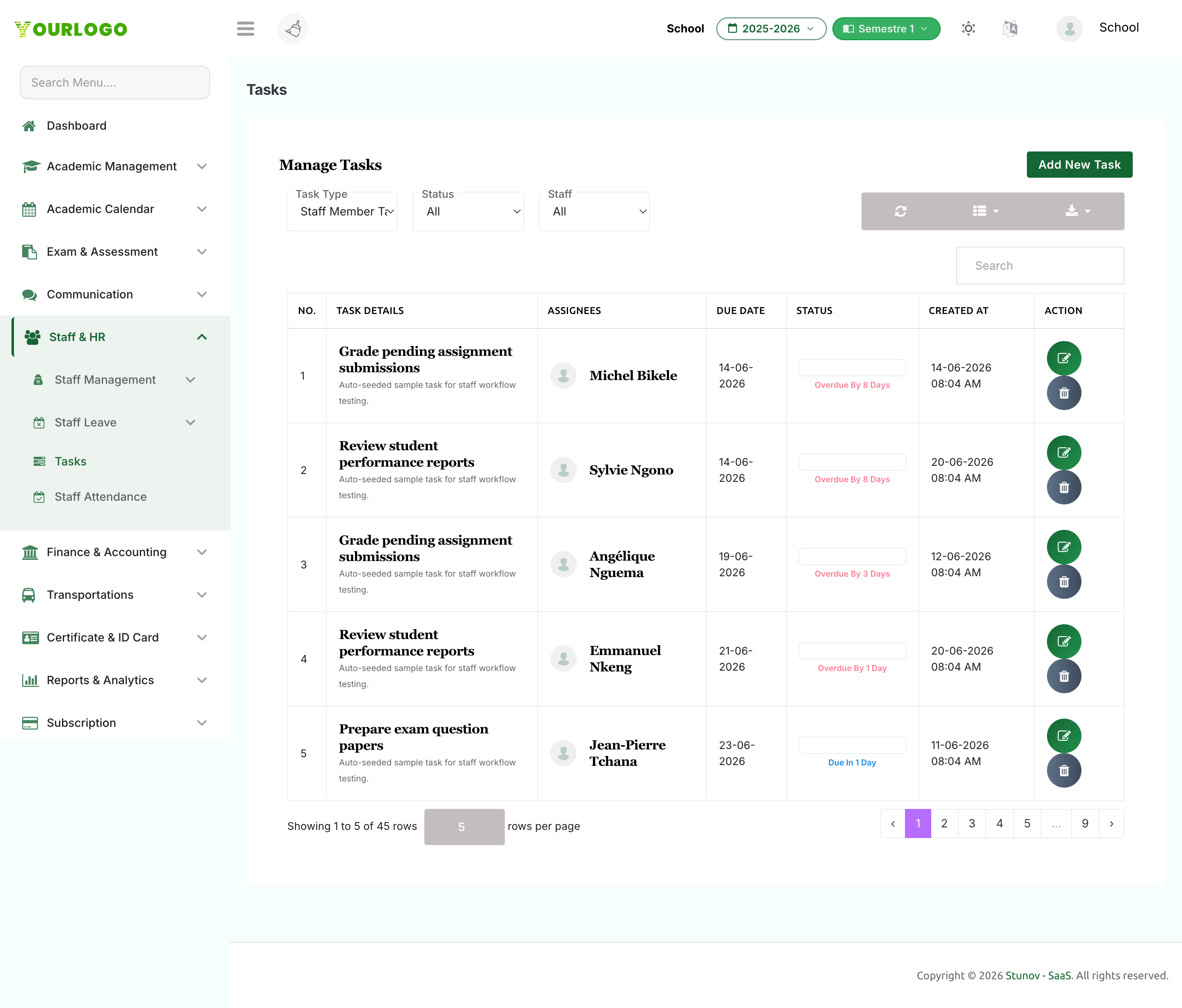
Create a Task
Form Fields
| Field | Type | Required | Description |
|---|---|---|---|
| Assign To | Radio (Myself / Staff Members) | Required | Whether the task is for you or another staff member. The Staff Members option requires the Assign Tasks permission. |
| Select User | Dropdown | Optional | The staff member to assign the task to. Shown only when Assign To is set to Staff Members, where it is required. |
| Title | Text | Required | A short name for the task. |
| Description | Textarea | Required | Detailed instructions or context for the task. |
| Due Date | Date | Required | The date by which the task should be completed. Tasks past this date with an incomplete status are flagged Overdue. |
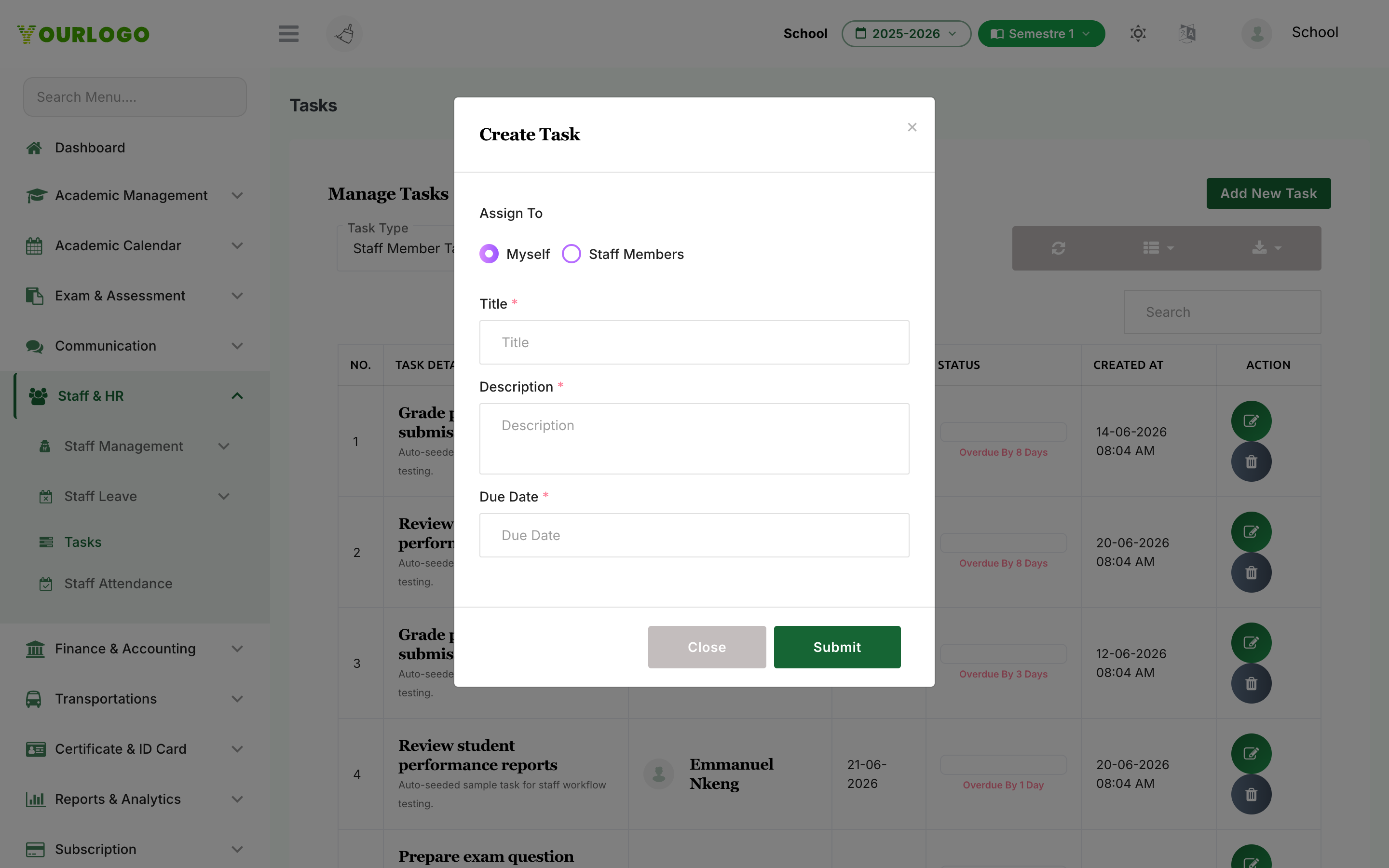
Track and Update Status
Each task row has an inline Status dropdown so you can update progress without opening a form. Status values are colour-coded for quick scanning.
| Status | Meaning |
|---|---|
| Pending | Not started yet |
| In Progress | Being worked on |
| Completed | Finished |
| Overdue | Past the due date and not yet completed (shown as a badge — it is a display state, not a value you set) |
To change a task's status, open the Status dropdown on its row and pick the new value. The change is saved immediately.
Edit a Task
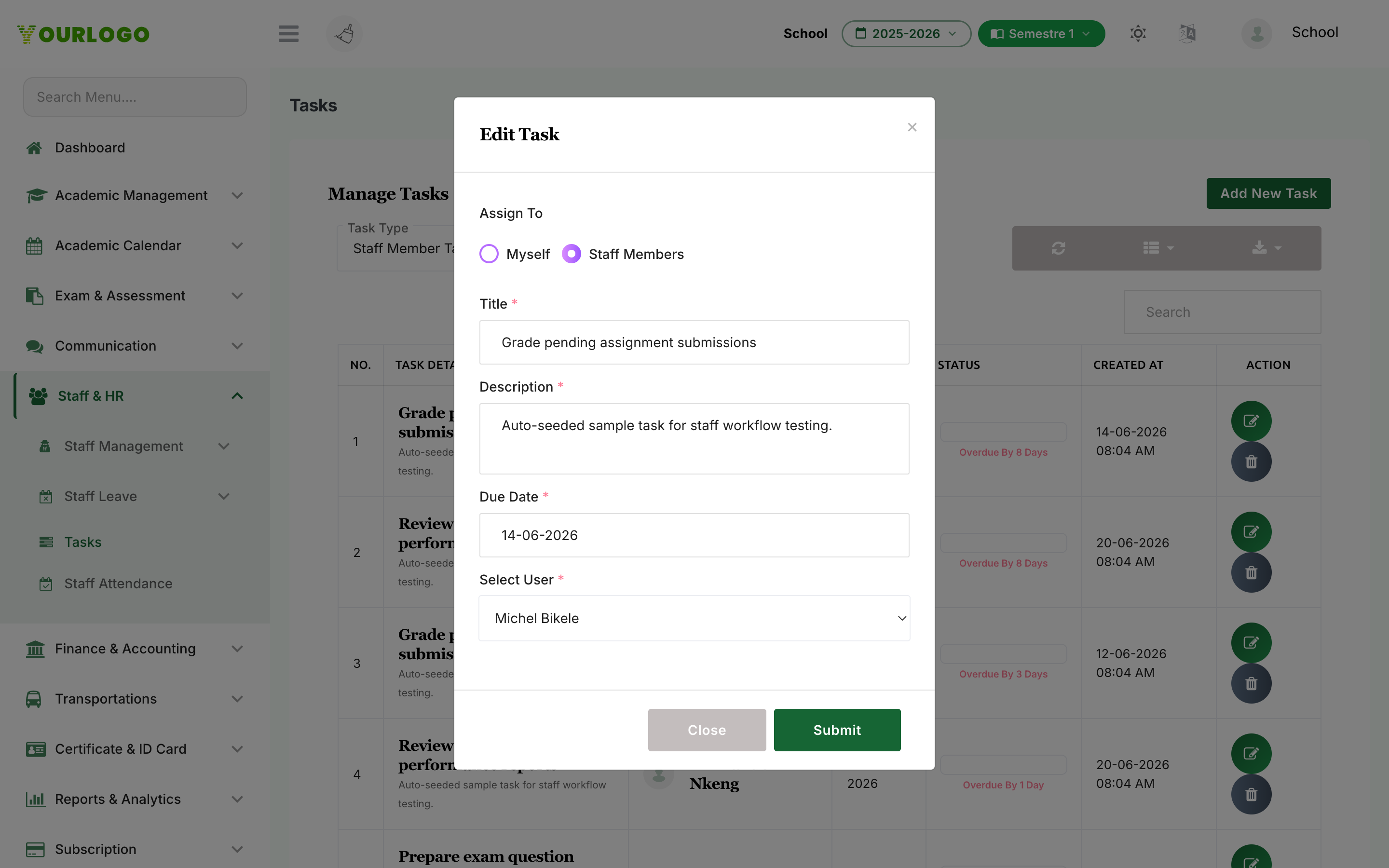
Without the Assign Tasks permission, you can only edit tasks assigned to you. Staff with the permission can edit any staff task.
Filter, Search, and Export
The list above the table offers several controls:
- Task Type — switch between My Tasks and Staff Member Tasks (only shown to staff with the Assign Tasks permission).
- Status — filter by All, Pending, In Progress, Completed, or Overdue.
- Staff — filter by a specific assignee (Assign Tasks permission only).
- Search — find tasks by title, description, due date, or assignee name.
- Export — download the current list to CSV.
Delete a Task
In the Action column, click the Delete (trash) button and confirm. The task is removed permanently.
Deleting a task cannot be undone. There is no trash or restore for tasks.
Related Pages
- Staff Attendance — Mark and review daily staff attendance
- Staff — Add and manage the staff members you assign tasks to
- Role & Permission — Grant the Assign Tasks permission to a role