Staff Attendance
The Staff Attendance page lets you record and review attendance for all staff members. It has two views:
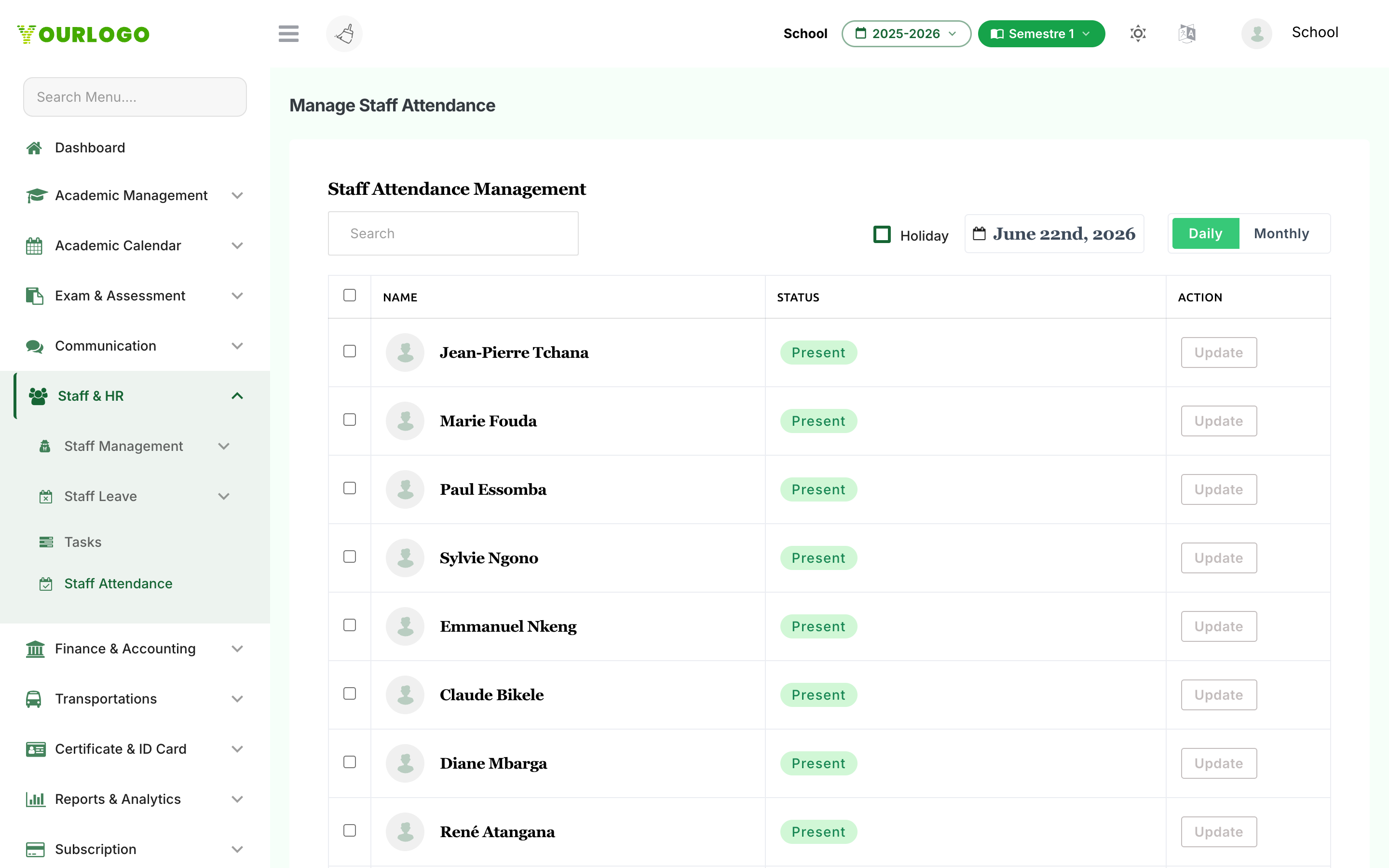
- Daily — mark today's (or any selected date's) attendance for one staff member, several at once, or the whole day as a holiday.
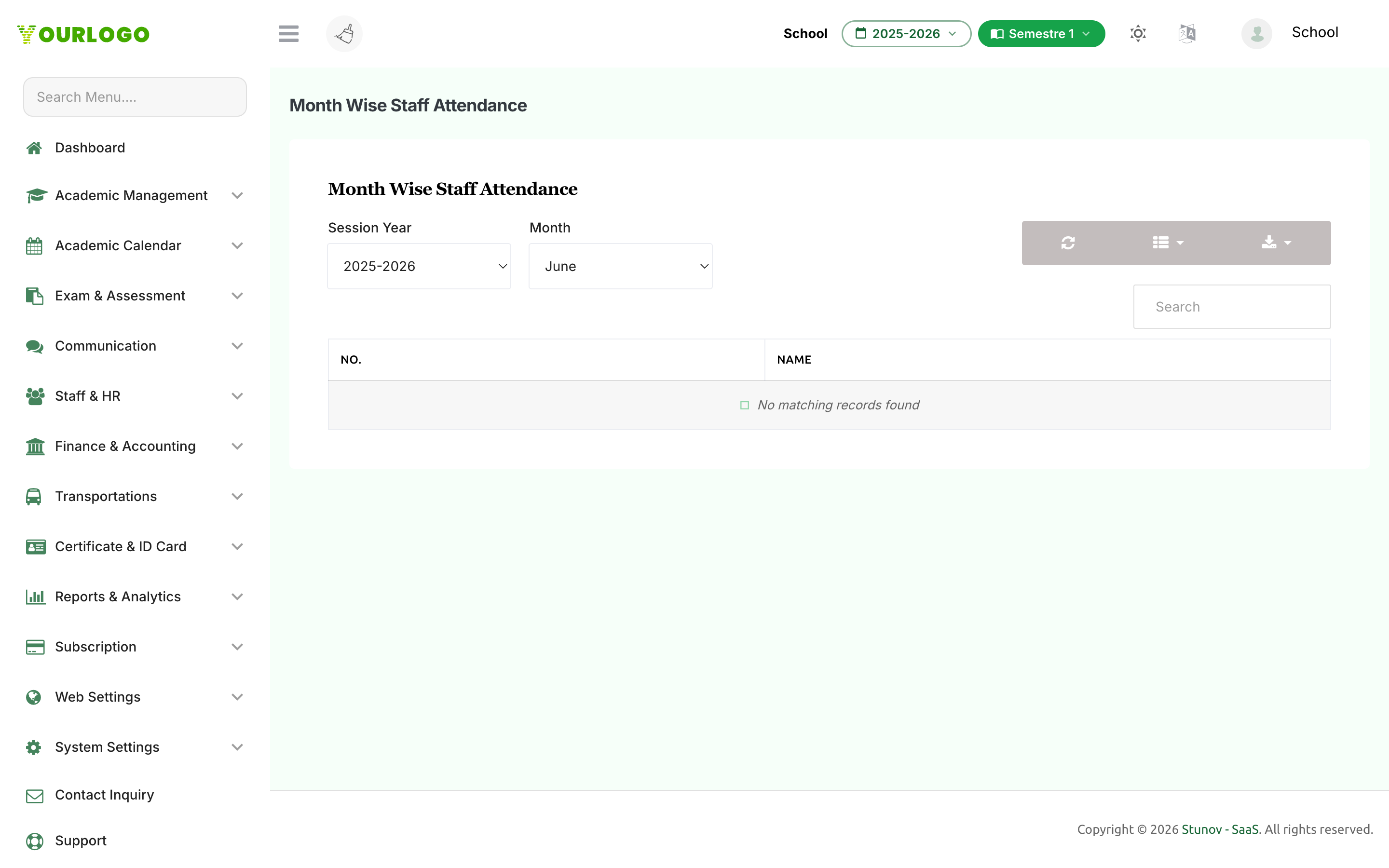
- Monthly — review a calendar grid of every staff member's attendance across a chosen month.
Marking a staff member Absent or Half Day automatically creates a matching leave entry, so attendance and leave stay in sync.
Staff Attendance Management must be enabled in your school's subscription plan. If you don't see the menu item, contact your platform administrator to enable the feature.
Mark Daily Attendance
The page opens on the Daily view with today's date selected. Use the date picker at the top to change the day.
Mark Attendance Fields
| Field | Type | Required | Description |
|---|---|---|---|
| Attendance Status | Radio | Required | One of Present, Absent, or Half Day. |
| Which half was present? | Radio (First Half / Second Half) | Optional | Shown only when Half Day is selected, where it is required. |
| Reason | Textarea | Optional | An optional note explaining the attendance record. |
| Send absent notification | Checkbox | Optional | When checked, sends a push notification to staff marked absent. |
Tick the Holiday checkbox at the top to mark the selected date as a school holiday for all staff. No leave entries are created for holidays, and attendance cannot be marked on a holiday or a weekly off day.
Review Month-Wise Attendance
Switch to the Monthly view (toggle at the top right) to see a calendar grid of attendance for an entire month.
How Attendance Links to Leave and Payroll
- Leave sync — marking a staff member Absent creates a full-day leave entry; Half Day creates a half-day leave entry. The reason you enter is stored on the leave record.
- Payroll lock — once payroll has been generated for a month, attendance already recorded for that month is locked. Single updates are blocked with a message, and in a bulk update the locked rows are skipped (a toast reports how many were skipped).
- Leave settings required — to mark someone absent or half-day, Leave Settings must be configured first; otherwise the save is rejected.
Attendance cannot be added or changed on dates marked as holidays or on the school's weekly off days. Untick the Holiday checkbox or pick a working day to make changes.
Related Pages
- Tasks — Assign and track staff to-do tasks
- Staff Leave — Review and approve staff leave applications
- Leave Settings — Configure leave types and weekly offs
- Payroll — Generate payslips that depend on attendance