Bulk Upload
The Bulk Upload feature lets you import multiple staff members at once by uploading a CSV or Excel file. This is ideal for onboarding large numbers of staff at the start of a session — rather than creating each one individually.
Download the sample file first
Always download the system-generated sample file before preparing your data. It includes the correct column headers and, on a second sheet, lists the valid values for any custom dropdown/radio fields.
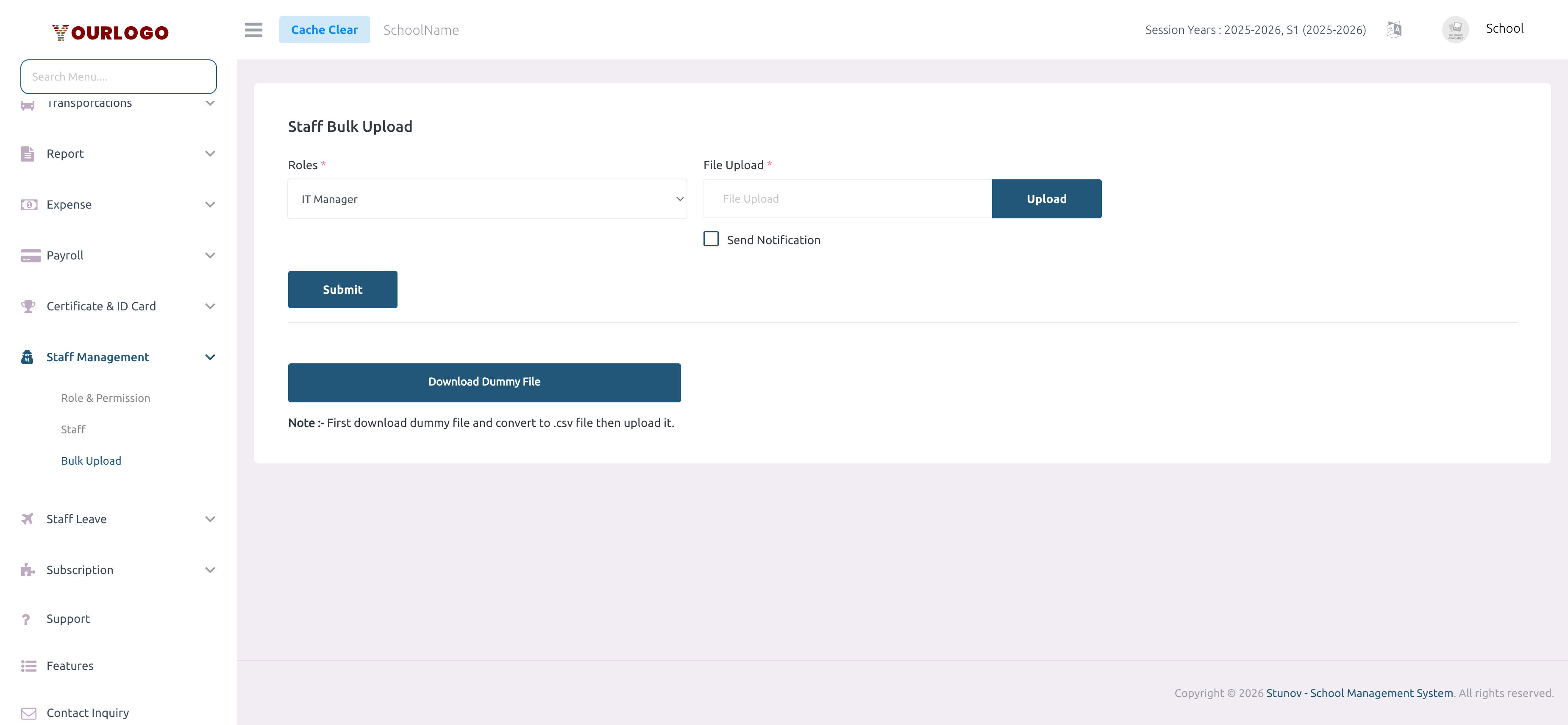
Bulk Upload — select a role, download the sample file, then upload your completed file
Upload Workflow
1
Navigate to Staff & HR → Staff Management → Bulk Upload
From the sidebar, expand **Staff & HR → Staff Management** and click **Bulk Upload**.
2
Select a Role
Choose the role that all uploaded staff will be assigned to (e.g., Accountant, IT Manager). All staff in a single upload share the same role.
3
Download the sample file
Click the **Download Sample File** button. The system generates a CSV/Excel template with the correct column headers. If your school has custom form fields for staff, those columns are included automatically.
4
Fill in the data
Open the sample file and add one row per staff member. See the column reference below for format requirements. The second sheet of the Excel file lists valid values for dropdown and radio-type custom fields.
5
Upload the file
Click the file upload area (or drag and drop) to select your completed file. Supported formats: **.csv**, **.xls**, **.xlsx**.
6
Submit
Click **Submit** to process the upload. The system validates each row and creates staff accounts. Any errors are reported with the corresponding row numbers.
CSV Column Reference
The sample file contains these fixed columns, plus any custom form fields configured for staff:
| Column | Required | Format | Example |
|---|---|---|---|
| first_name | Yes | Text | Jean |
| last_name | Yes | Text | Dupont |
| mobile | Yes | Numeric, 1–16 digits | 237699123456 |
| Yes | Valid email, unique | [email protected] | |
| dob | Yes | DD-MM-YYYY or MM/DD/YYYY | 15-03-1985 |
| salary | Yes | Numeric | 150000 |
| joining_date | No | DD-MM-YYYY or MM/DD/YYYY | 01-09-2025 |
After these 7 columns, any custom form fields you have defined for staff (excluding file-type fields) appear as additional columns in the same order they were created.
Important notes
- Each staff member's email must be unique across the entire system. Duplicate emails will cause that row to fail.
- The mobile number is used as the default login password for each imported staff member.
- All staff in a single upload are assigned the same role — the one selected before uploading. To import staff with different roles, perform separate uploads.
- File-type custom fields cannot be populated via bulk upload. Upload profile images and file attachments individually after import.
After Upload
Once the upload completes:
- Each staff member receives a user account with their email as username and mobile number as password
- They appear in the Staff list under the assigned role
- You can edit individual records (salary, allowances, profile image) from the Staff page
- Staff members can log in immediately using the Staff App
Related Pages
- Staff — View, edit, and manage imported staff members
- Role & Permission — Create the roles you assign during bulk upload