Manage Payroll
The Manage Payroll page lets you generate monthly payroll for every staff member in your school. Each payroll run computes each employee's net salary from their base salary plus allowances minus deductions, factoring in any leave-without-pay deductions. Once generated, you can review the breakdown and download individual payslips as PDF.
Before generating payroll, make sure you have configured your Payroll Settings (allowances & deductions). Staff members must also have a base salary set in their profile under Staff & HR → Staff Management → Staff.
Generate Payroll
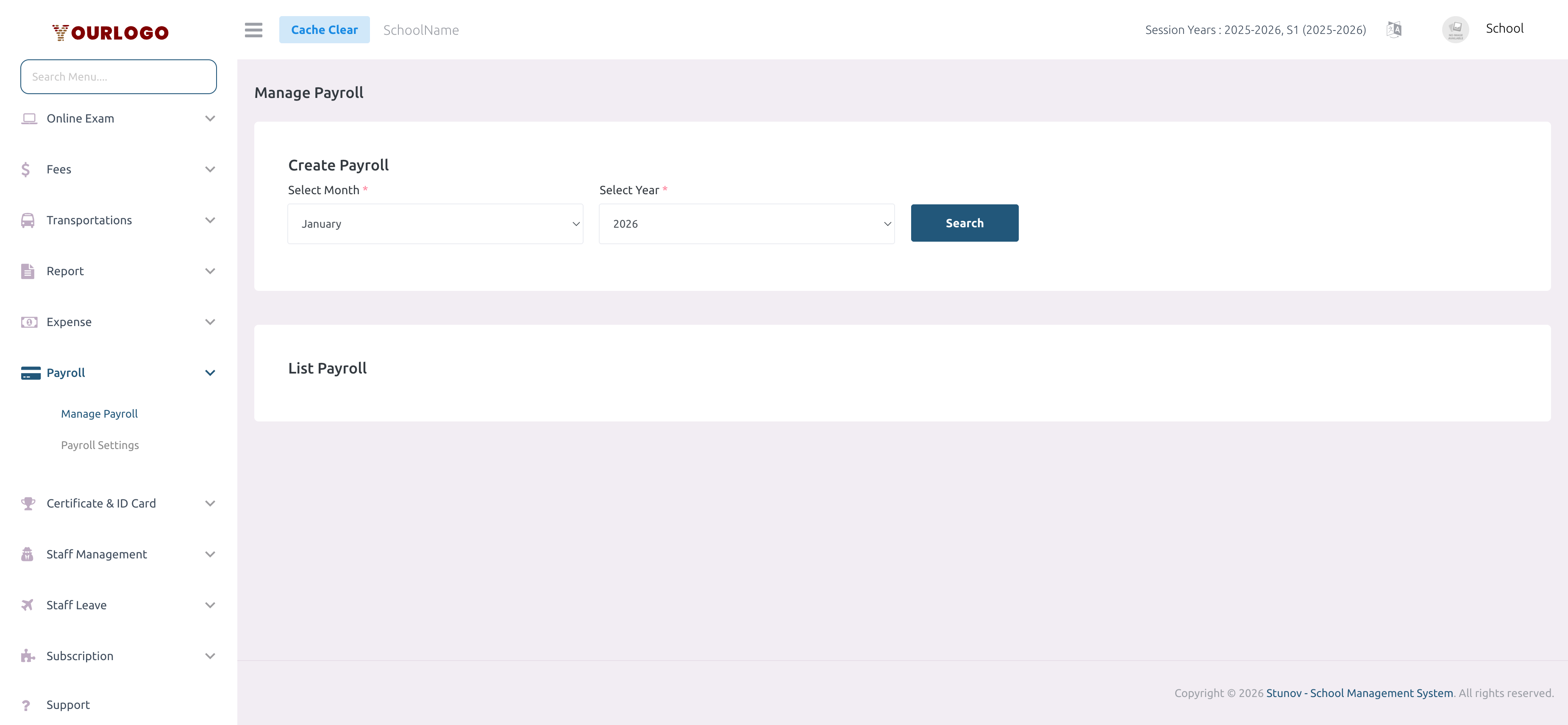
If payroll has not been generated for the selected month yet, clicking Search will automatically create payroll entries for all active staff using their current base salary and the configured allowances/deductions.
Payroll List
After clicking Search, the payroll list shows every staff member with a complete salary breakdown for the selected month.
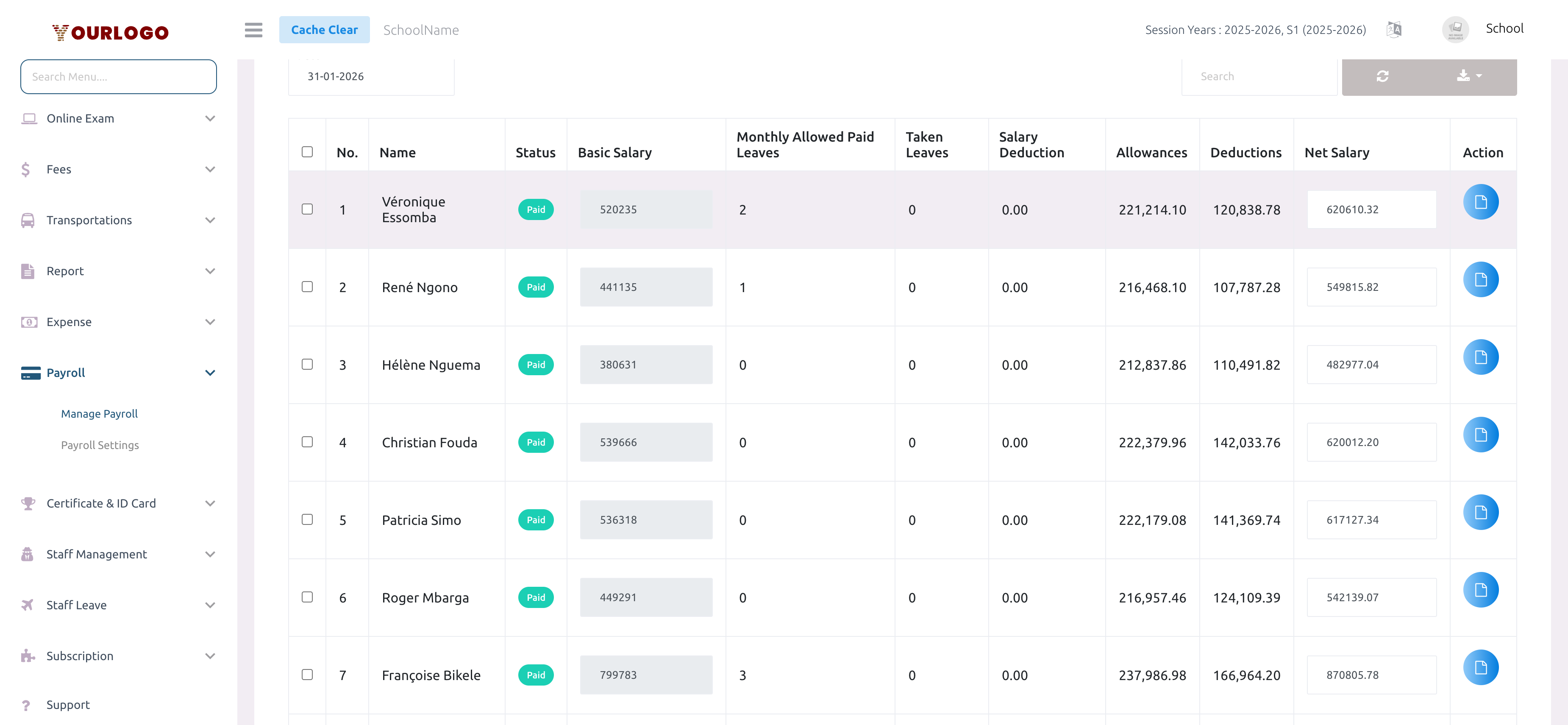
| Column | Description |
|---|---|
| No. | Row number |
| Name | Staff member's full name |
| Status | Payment status badge — Paid (green) or Pending |
| Base Salary | The staff member's base monthly salary (editable) |
| Paid Monthly Leaves Allowed | Number of paid leave days allowed per month |
| Leaves Taken | Number of leave days taken in this month |
| Salary Deduction | Amount deducted for leave without pay (LWP) |
| Allowances | Total of all allowances (fixed amounts + percentage-based) |
| Deductions | Total of all deductions (taxes, contributions, etc.) |
| Net Salary | Final salary = Base Salary + Allowances − Deductions − Salary Deduction |
| Action | Download payslip PDF |
- Use the Search box to filter staff by name
- Use the Date field to set the payment date on the payslip
- Use the Export button to download the full payroll data
- Select staff via checkboxes and click Submit to finalize payroll
You can adjust a staff member's base salary directly in the payroll list for one-off corrections. This does not change their permanent salary — only the payroll for the selected month is affected.
Download Payslip
Each row has a Slip action button that opens the payslip as a PDF.
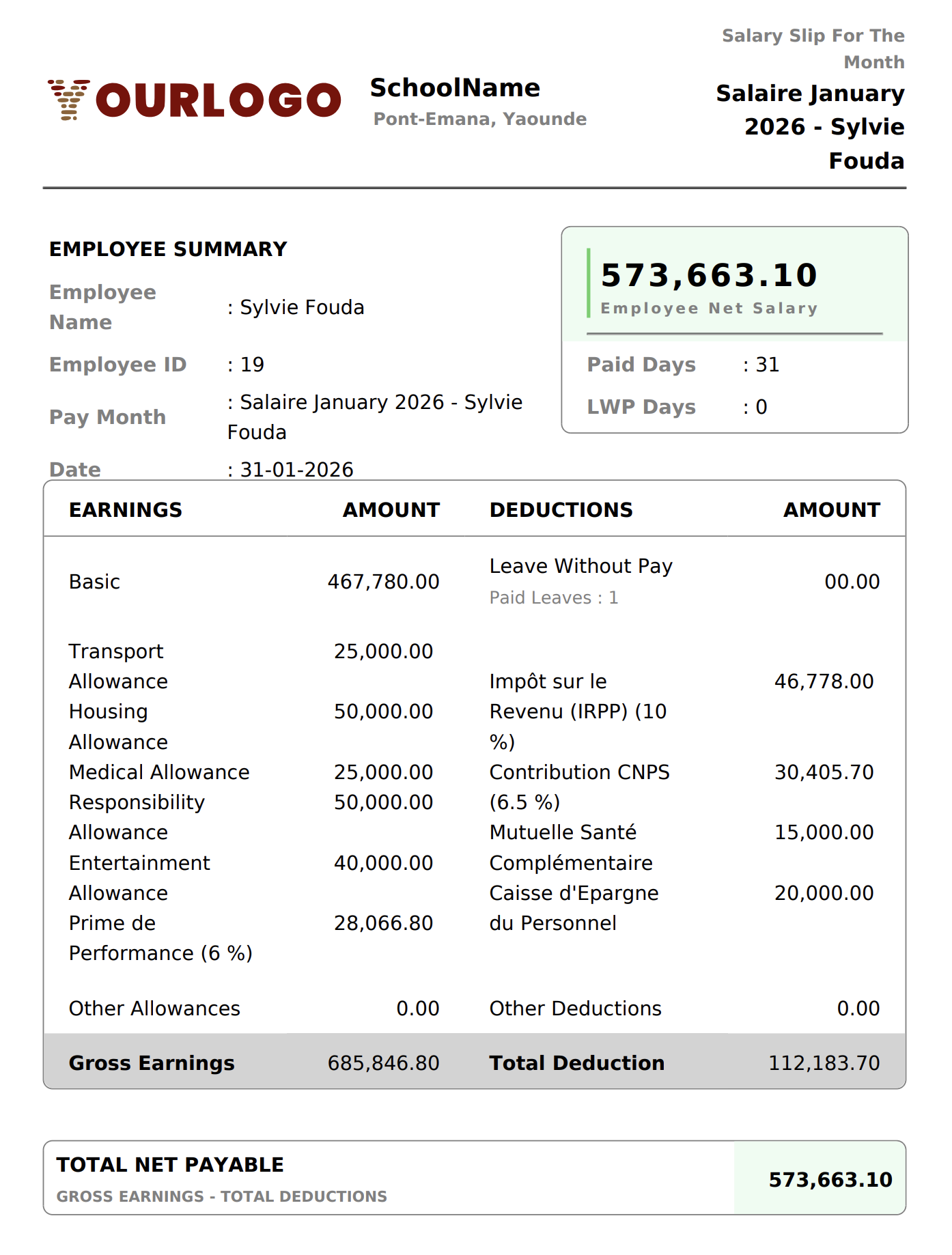
The payslip contains:
- Employee Summary — name, employee ID, pay month, payment date
- Net Salary — highlighted total with paid days and LWP days
- Earnings — base salary and each allowance with its amount
- Deductions — each deduction with its amount (percentage-based deductions show the percentage)
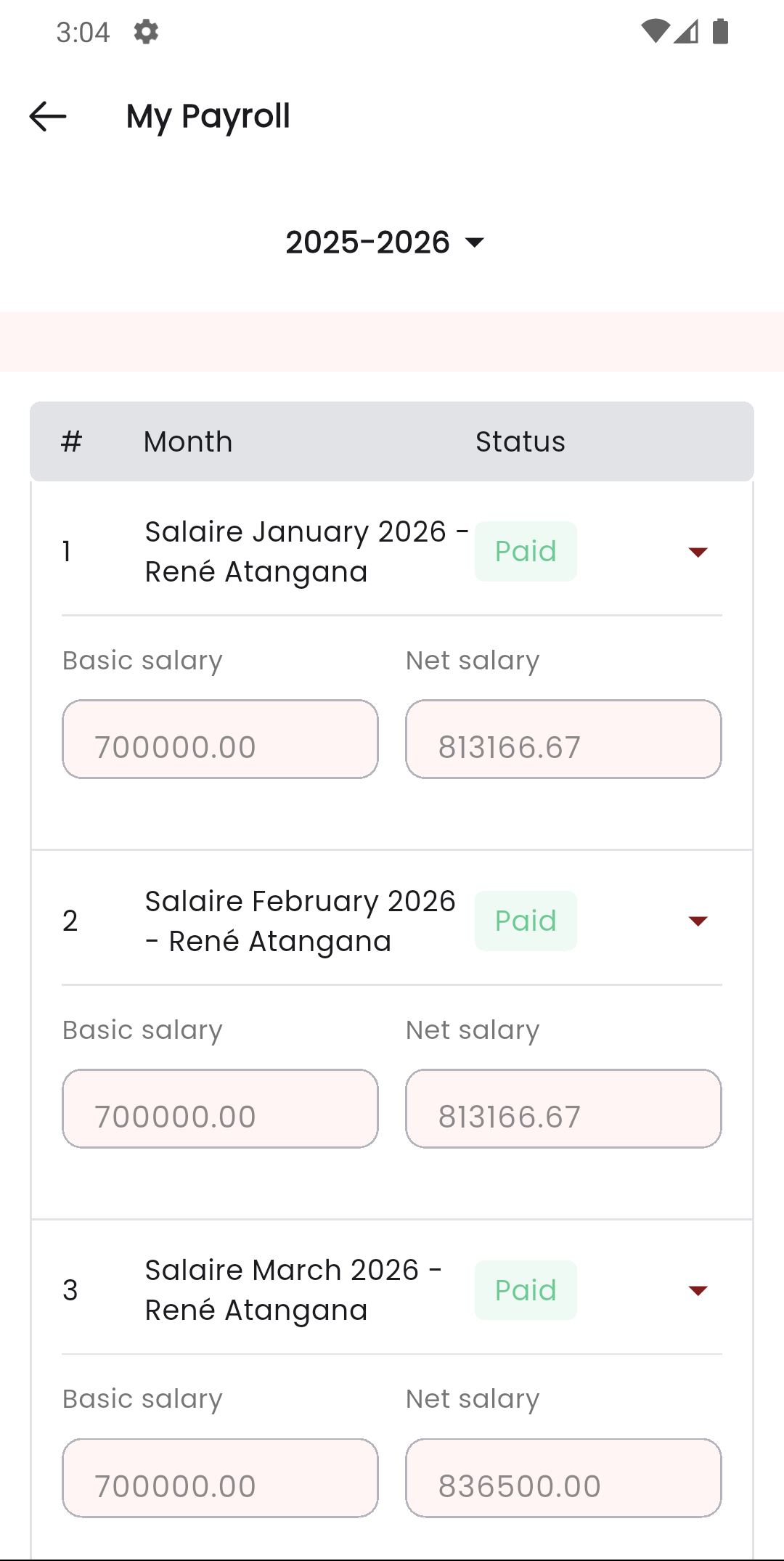
Staff App View
Staff members can view their own payroll slips in the Stunov+ Staff app under the My Payroll section.
Related Pages
- Payroll Setting — Configure allowances and deductions before generating payroll
- Staff Management — Set staff base salaries
- Expense — Payroll generates linked expense entries automatically