Manage Expense
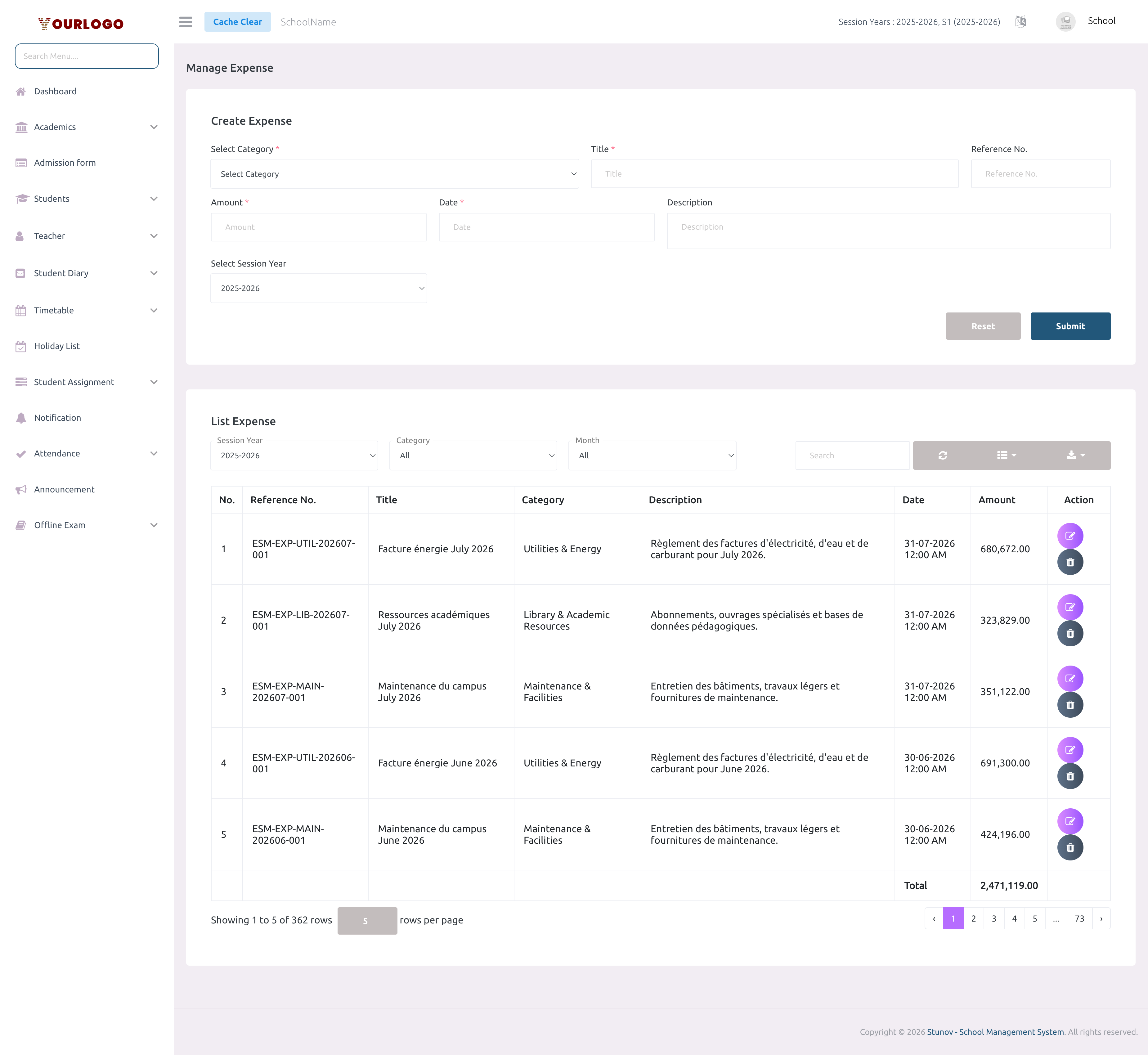
Record and track every expense your school incurs. Each expense is linked to a category, session year, and date, making it easy to filter, search, and export your financial data. The expense table also shows a running total of displayed amounts.
Salary expenses
Payroll-generated salary entries also appear in the expense list under the Salary category. These entries cannot be edited or deleted from this page — manage them in Payroll → Manage Payroll.

Manage Expense page — create form (top), filters (middle), and expense list with total amount (bottom)
Create an Expense
1
Navigate to Expense → Manage Expense
From the sidebar, expand **Expense** and click **Manage Expense**. The page opens with the create form at the top.
2
Select a Category
Choose the expense category from the dropdown (e.g., Utilities & Energy, IT & Digital Services). Categories are managed under **Expense → Manage Category**.
3
Enter the Title
Type a short, descriptive title for the expense (e.g., "Electricity bill June 2026", "Campus maintenance May 2026").
4
Add a Reference Number (optional)
Enter an optional reference number for tracking (e.g., invoice number, receipt code). Reference numbers must be unique within the session year.
5
Enter the Amount
Type the expense amount. Only positive numbers are accepted.
6
Pick the Date
Select the expense date using the date picker. Future dates are not allowed.
7
Add a Description (optional)
Provide additional details about the expense if needed.
8
Select Session Year
The current session year is pre-selected. Change it only if recording an expense for a different academic year.
9
Submit
Click **Submit** to save the expense. It appears in the list below, and the running total updates.
View & Filter Expenses
The expense list provides powerful filtering options to find specific records:
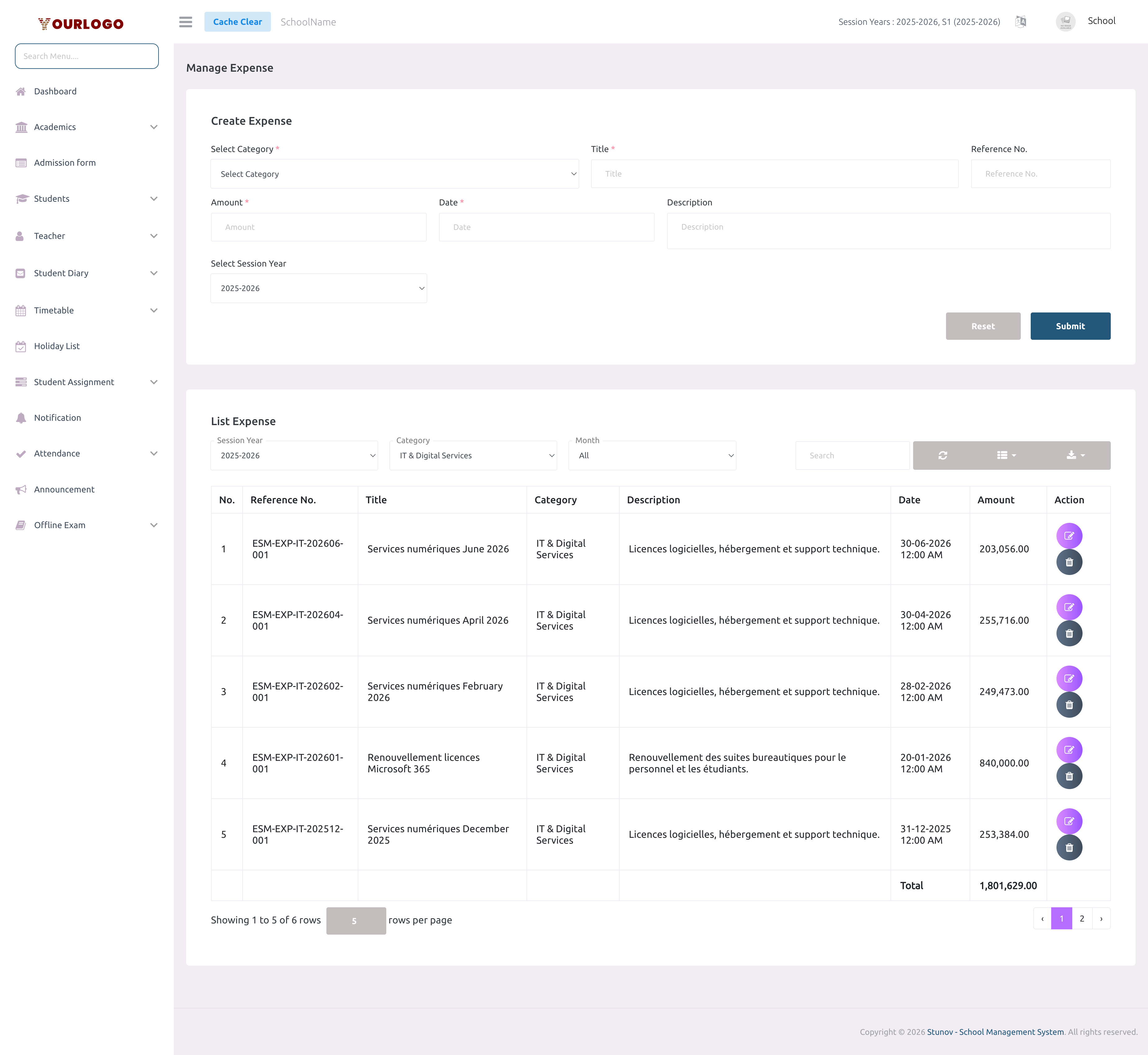
Expense list filtered by the IT & Digital Services category
Filter Options
| Filter | Description |
|---|---|
| Session Year | Show expenses from a specific academic year |
| Category | Filter by expense category (includes a special Salary option for payroll entries) |
| Month | Filter by the month the expense was recorded |
List Columns
| Column | Description |
|---|---|
| No. | Row number |
| Reference No. | Unique reference identifier |
| Title | Expense title |
| Category | Assigned expense category |
| Description | Expense details |
| Date | Expense date |
| Amount | Expense amount |
| Action | Edit and Delete buttons |
- The table footer displays the total amount of all visible expenses
- Use the search bar to search across title, reference number, amount, date, and category
- Click Export to download expenses as CSV/Excel
Edit an Expense
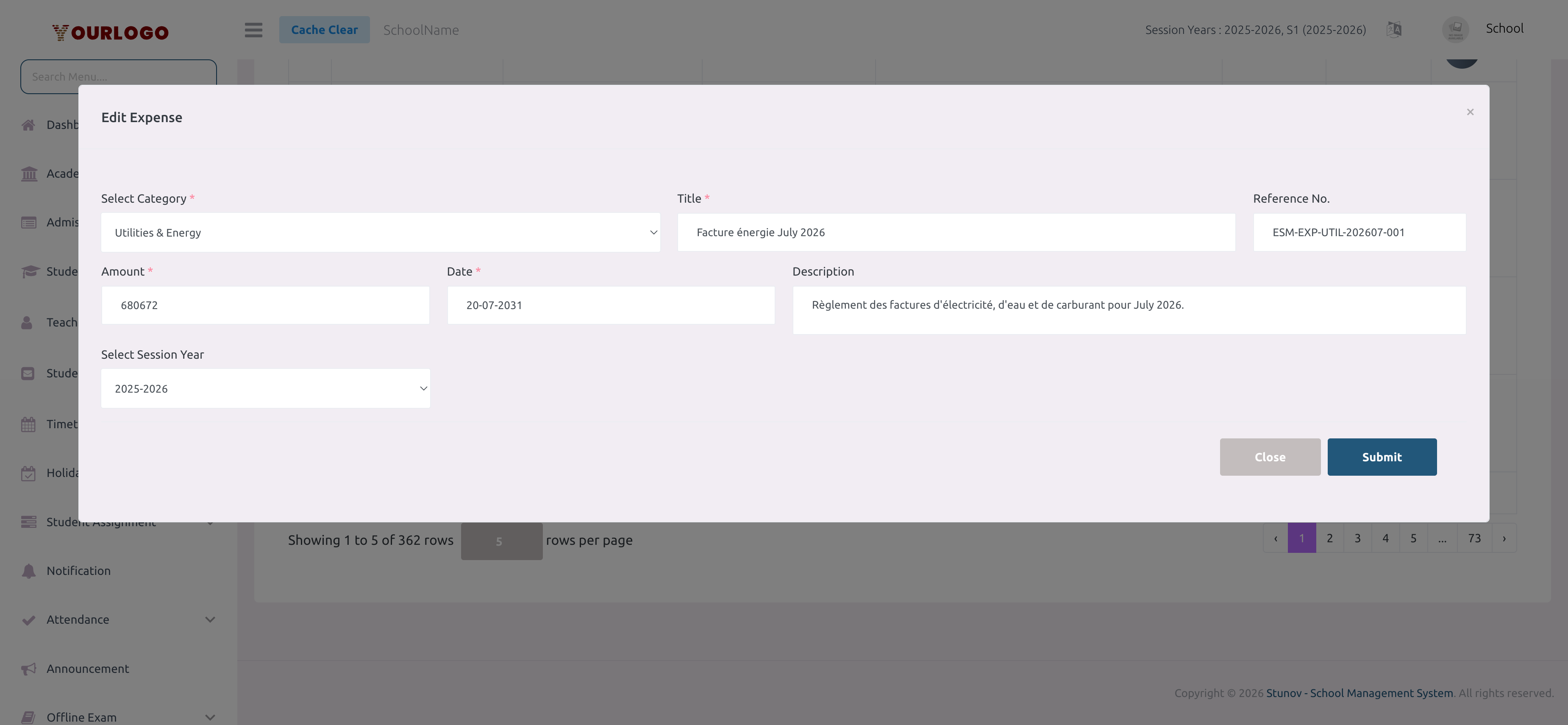
Editing an expense — the modal shows all fields pre-filled with current values
1
Click the Edit button
In the Action column of the expense you want to edit, click the **Edit** (pencil) button. An edit modal opens with all fields pre-filled.
2
Update the fields
Modify any field: category, title, reference number, amount, date, description, or session year.
3
Save changes
Click **Submit** to save. The list and total amount update immediately.
Salary expenses cannot be edited here
Expenses generated by the payroll system (shown under the Salary category) are read-only on this page. Edit them via Payroll → Manage Payroll.
Delete an Expense
1
Click the Delete button
In the Action column, click the **Delete** (trash) button next to the expense.
2
Confirm deletion
A confirmation dialog appears. Click **Confirm** to remove the expense permanently.
Salary expenses cannot be deleted here
Payroll-generated expenses are protected and cannot be deleted from the expense page.
Related Pages
- Manage Category — Create and manage expense categories
- Expense Report — Generate filtered expense reports
- Payroll — Manage salary-related expenses