Class Section & Teachers
This page is where you assign Class Teachers and Subject Teachers to each class section. Class teachers manage the section overall (attendance, diary, announcements), while subject teachers handle specific subjects (lessons, assignments, exam marks). Proper teacher assignment is essential for timetable creation, exam mark entry, and the Staff App experience.
- School Admin / Academic Coordinator can view and edit all teacher assignments
- Teacher can view their own assigned sections and subjects (read-only)
View Class Sections
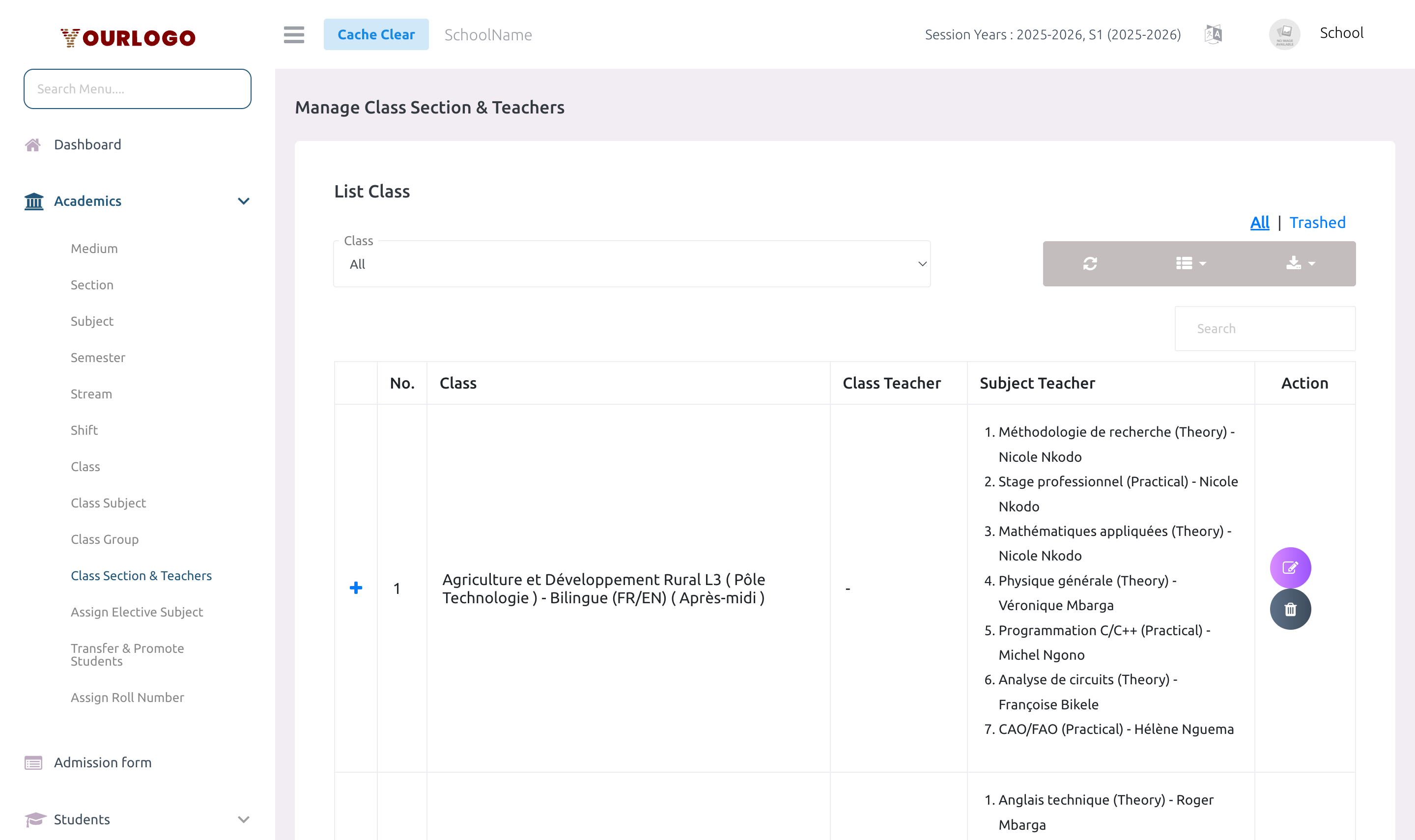
The list page shows all class sections with their current teacher assignments.
| Column | Description |
|---|---|
| No. | Row number |
| Class | Class name |
| Section | Section name |
| Class Teacher(s) | Teachers assigned as class teachers for this section |
| Subjects & Teachers | Each assigned subject with its subject teacher(s) |
| Action | Edit and Delete buttons |
Filters:
- Class — Filter by a specific class
Assign Teachers to a Class Section
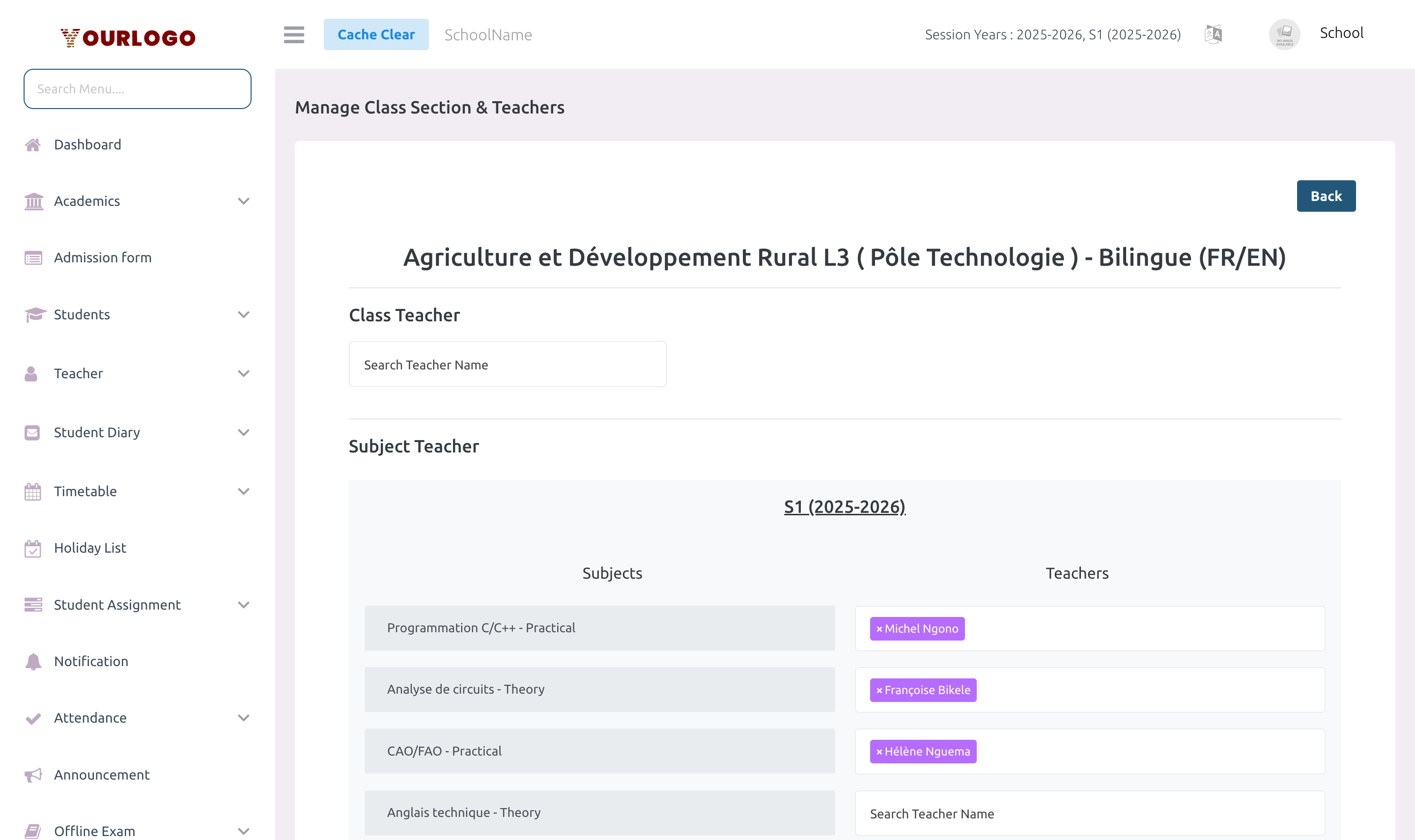
Assignment Fields
| Field | Type | Required | Description |
|---|---|---|---|
| Class Teacher | Multi-select | Optional | One or more teachers responsible for the section. Grants permissions: class-teacher, exam-upload-marks, exam-result, attendance-list. |
| Subject Teacher (per subject) | Multi-select | Optional | Teacher(s) assigned to teach a specific subject in this section. Grants permissions: exam-upload-marks, exam-result. |
Automatic Permissions
When you assign a teacher, the system automatically grants the following permissions:
| Assignment Type | Permissions Granted |
|---|---|
| Class Teacher | class-teacher, exam-upload-marks, exam-result, attendance-list |
| Subject Teacher | exam-upload-marks, exam-result |
When you remove a teacher from all sections, these permissions are automatically revoked.
When a subject teacher is assigned, the system automatically fills any empty timetable slots for that subject in this section with the newly assigned teacher.
Remove a Teacher
Remove a Class Teacher
- From the edit view, click the Remove button next to the class teacher's name
- Confirm the removal
- If the teacher has no other class assignments, their class-teacher permissions are revoked
Remove a Subject Teacher
- From the edit view, click the Remove button next to the subject teacher's name
- Confirm the removal
- If the teacher has no other subject assignments, their exam permissions are revoked
Delete a Class Section
- Click the Delete button in the Action column
- Confirm deletion
This soft-deletes the class section and removes all teacher assignments. Students enrolled in this section will need to be transferred to another section.
Deleted sections can be restored from the Trash view (this also restores the parent class if it was deleted).
Staff App View
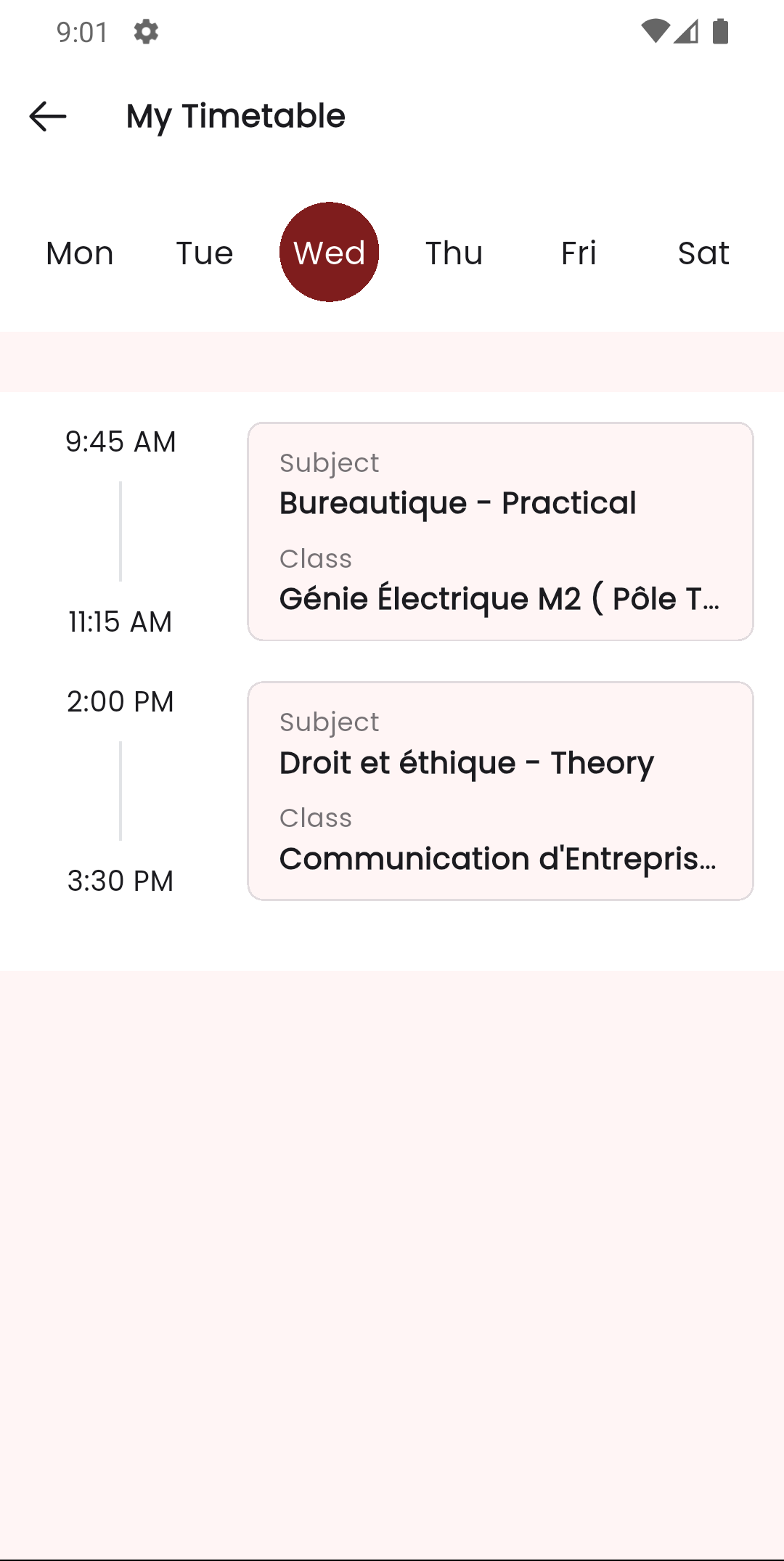
In the Stunov+ Staff app, the teacher's timetable is a direct reflection of class section and teacher assignments. Each timetable slot shows the subject, class section, and time — all driven by the assignments configured on this page.
Related Pages
- Class — Classes and sections must be created first
- Class Subject — Subjects must be assigned to a class before subject teachers can be set
- Timetable — Timetable uses teacher assignments from this page
- Attendance — Class teachers take attendance for their sections
- Teachers — Teachers must be registered before assignment