Class Group
Class Groups let you organize related classes into named categories (e.g., "Primary School", "Secondary School", "High School"). Each group has a name, description, display image, and a set of assigned classes. Class Groups are primarily used on the school website and mobile apps to help parents and visitors browse your academic offerings.
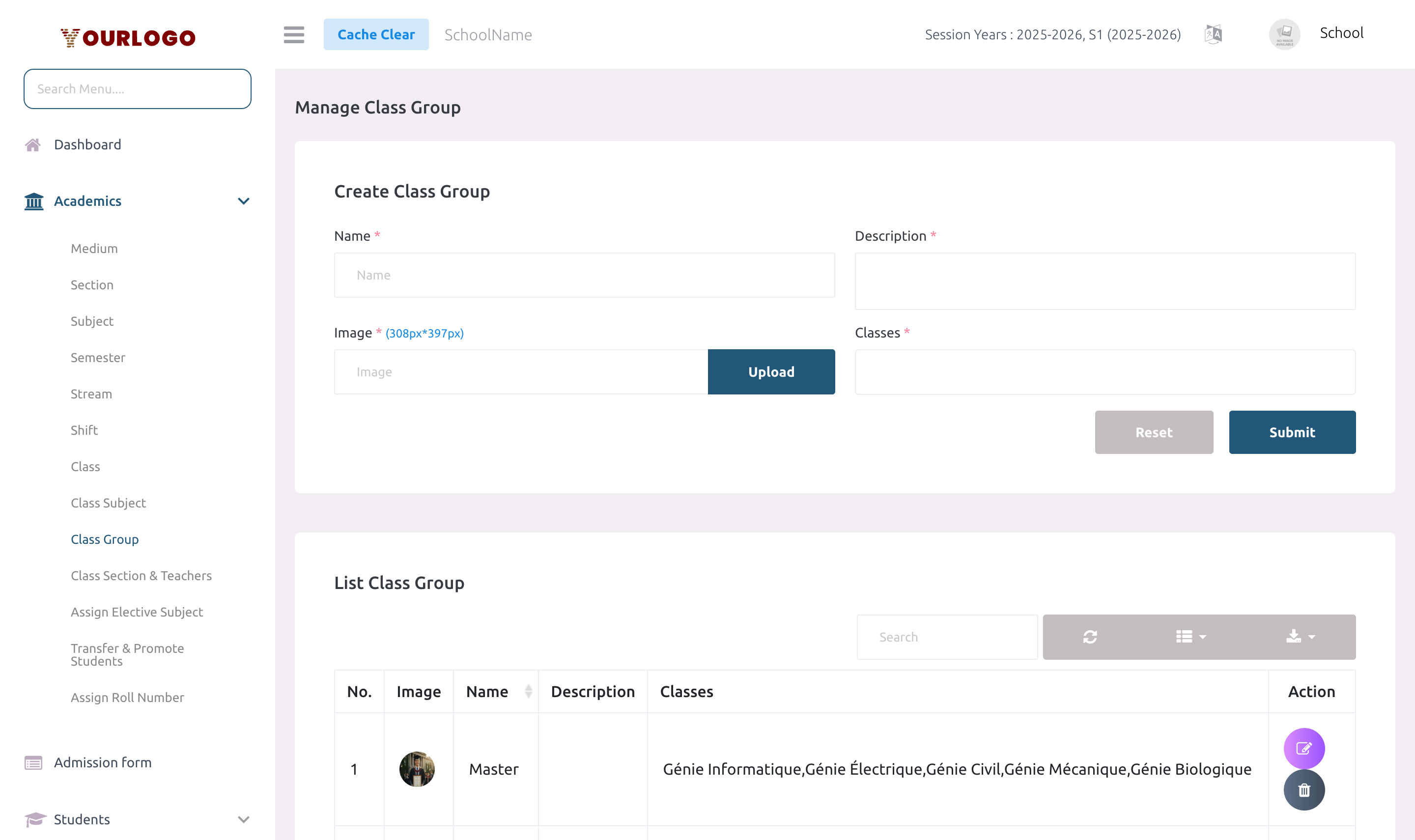
Create a Class Group
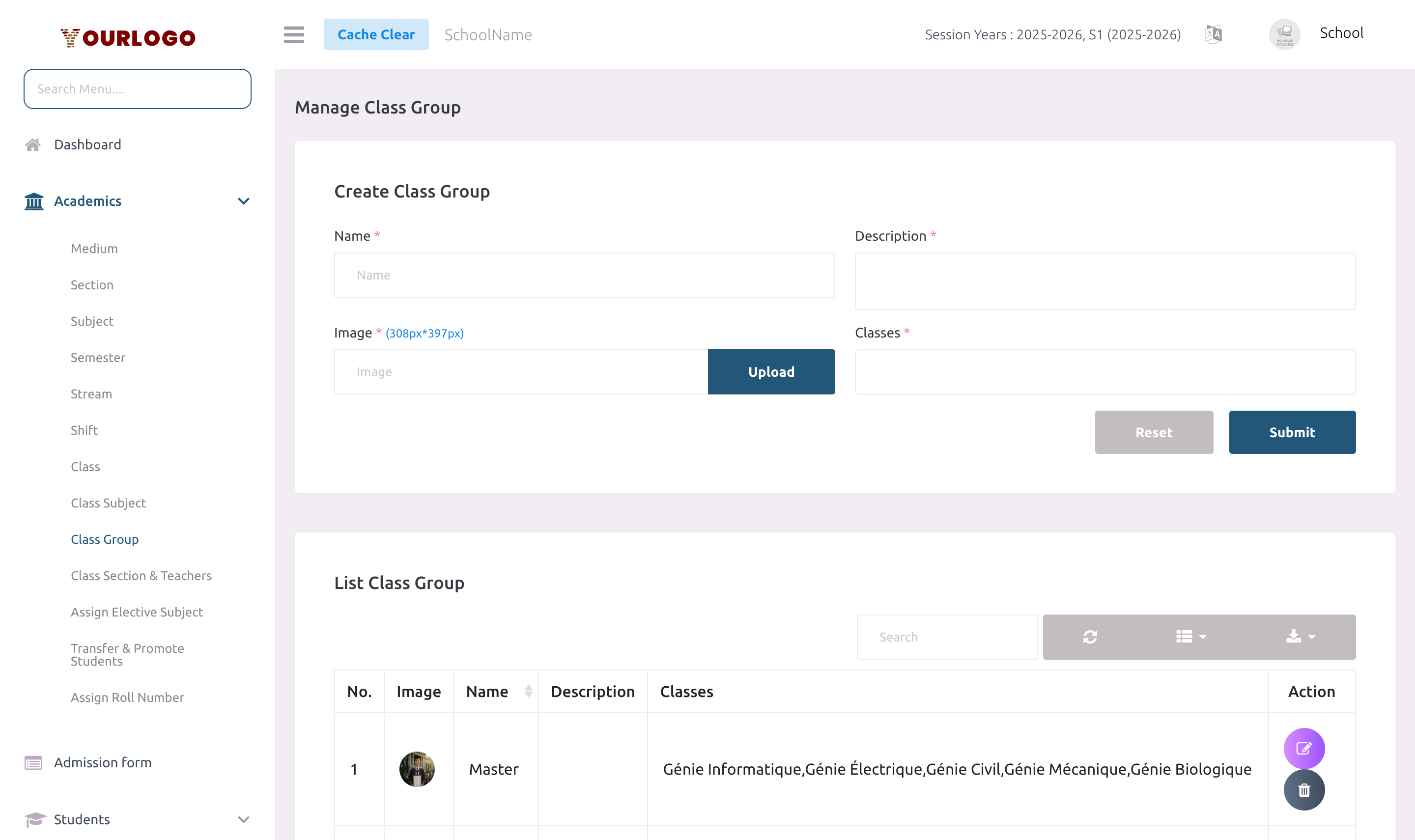
Form Fields
| Field | Type | Required | Description |
|---|---|---|---|
| Name | Text | Required | The group display name (e.g., Primary School, Lower Secondary). |
| Description | Textarea | Required | A brief description of this class group. May be shown on the school website. |
| Image | File Upload | Required | Group thumbnail image. Accepted formats: JPEG, PNG, JPG, SVG, GIF, WebP. |
| Classes | Multi-select | Required | Select which classes belong to this group. Loaded from existing classes. |
View Class Groups
The Class Group list page shows all groups in a sortable, paginated table.
| Column | Description |
|---|---|
| No. | Row number |
| Image | Group thumbnail |
| Name | Group name |
| Description | Group description |
| Classes | List of assigned class names |
| Action | Edit and Delete buttons |
Groups are sorted by their rank (display order).
Edit a Class Group
- Click the Edit button in the Action column
- Update the name, description, image, or assigned classes
- Click Submit to save
The image only needs to be re-uploaded if you want to change it.
Delete a Class Group
- Click the Delete button in the Action column
- Confirm the deletion
Deleting a class group does not delete the classes themselves — only the group association is removed.
Staff App View
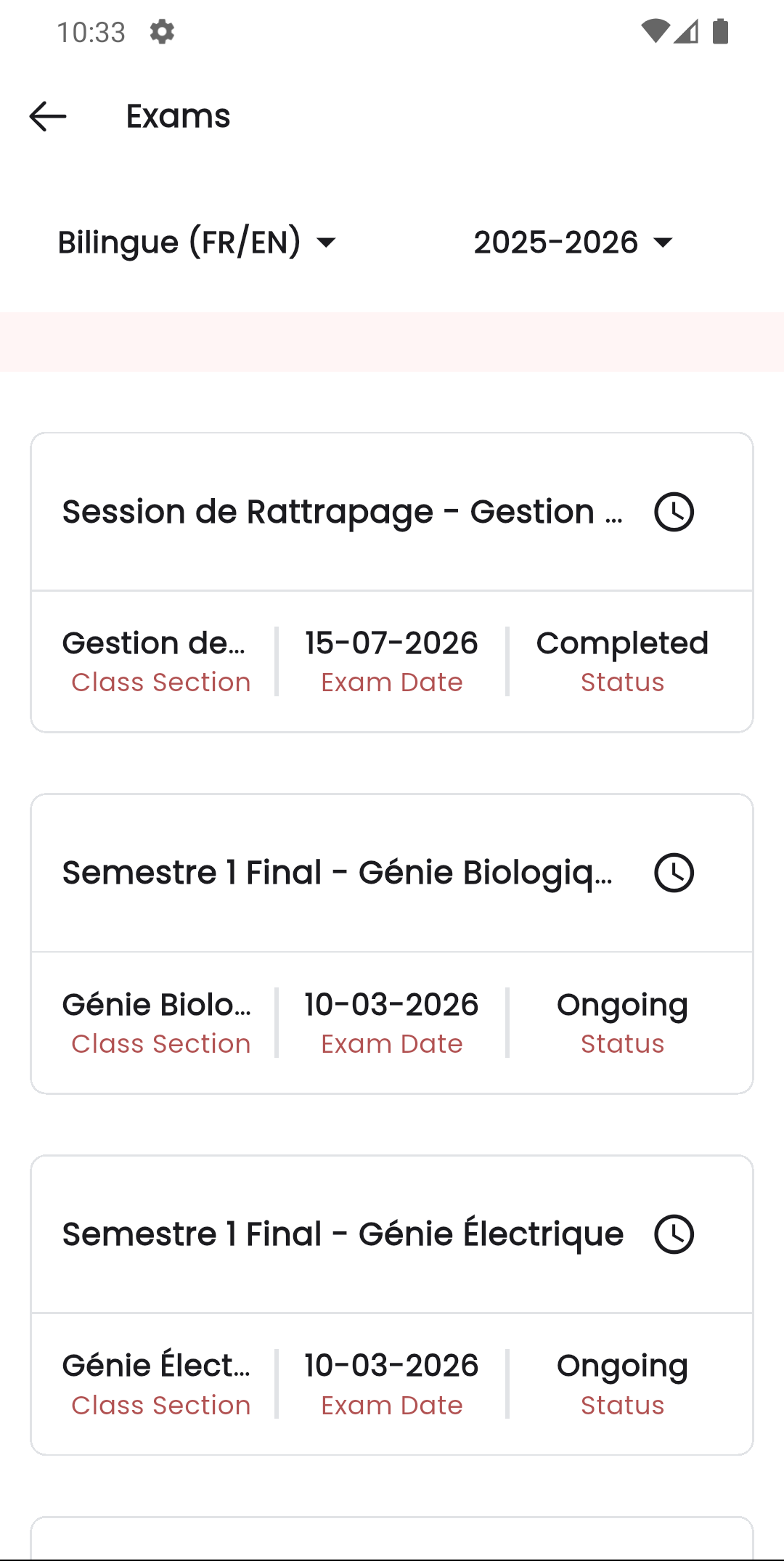
In the Stunov+ Staff app, class groupings are reflected in the exam list. Teachers can see exams organized by class, which correspond to the class groups configured in the web panel.
Related Pages
- Class — Classes must exist before creating groups
- Web Settings — Content — Class groups may appear on the school website