Stream
Streams represent academic tracks or specializations within your school (e.g., Science, Arts, Commerce, General). When creating a class, you can assign one or more streams — the system will automatically create a separate class variant for each stream.
If your school does not use academic tracks, you can skip stream setup. Classes can be created without a stream.
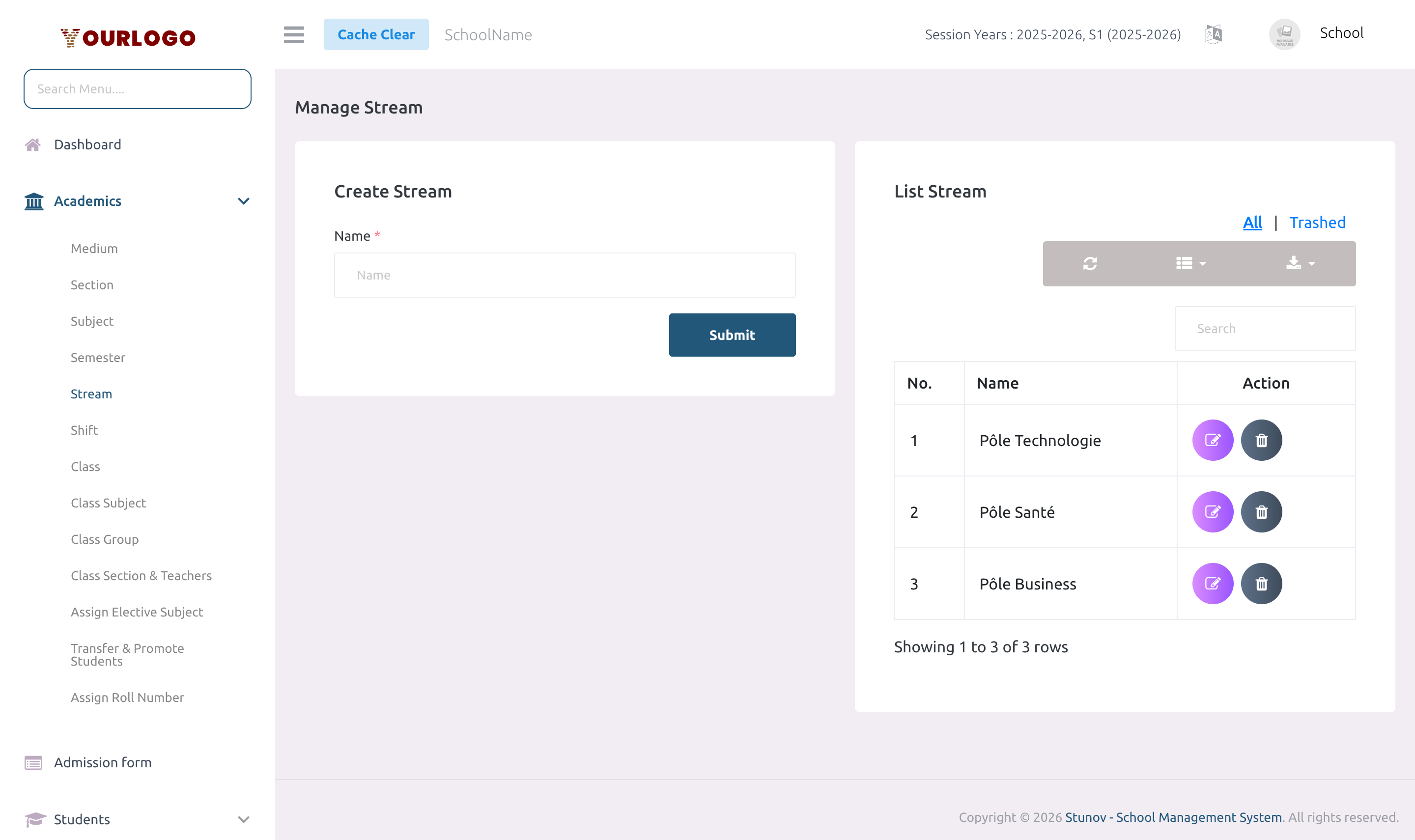
Create a Stream
Form Fields
| Field | Type | Required | Description |
|---|---|---|---|
| Name | Text | Required | The stream name (e.g., Science, Arts, Commerce). Must be unique per school. |
View Streams
The Stream list page shows all streams in a paginated table.
| Column | Description |
|---|---|
| No. | Row number |
| Name | Stream name |
| Action | Edit and Delete buttons |
Edit a Stream
- Click the Edit button in the Action column
- Update the stream name
- Click Submit to save
Delete a Stream
- Click the Delete button in the Action column
- Confirm the deletion
If the stream is assigned to any class, deletion will be prevented. Remove the stream from all classes first.
Deleted streams can be restored from the Trash view.
How Streams Work with Classes
When you create a class and select multiple streams:
- The system creates one class per stream automatically
- Each class variant gets the same name but is linked to its respective stream
- For example: selecting "Grade 10" with streams "Science" and "Arts" creates two classes: "Grade 10 (Science)" and "Grade 10 (Arts)"
This allows each stream to have its own sections, subjects, and teacher assignments.
Staff App View
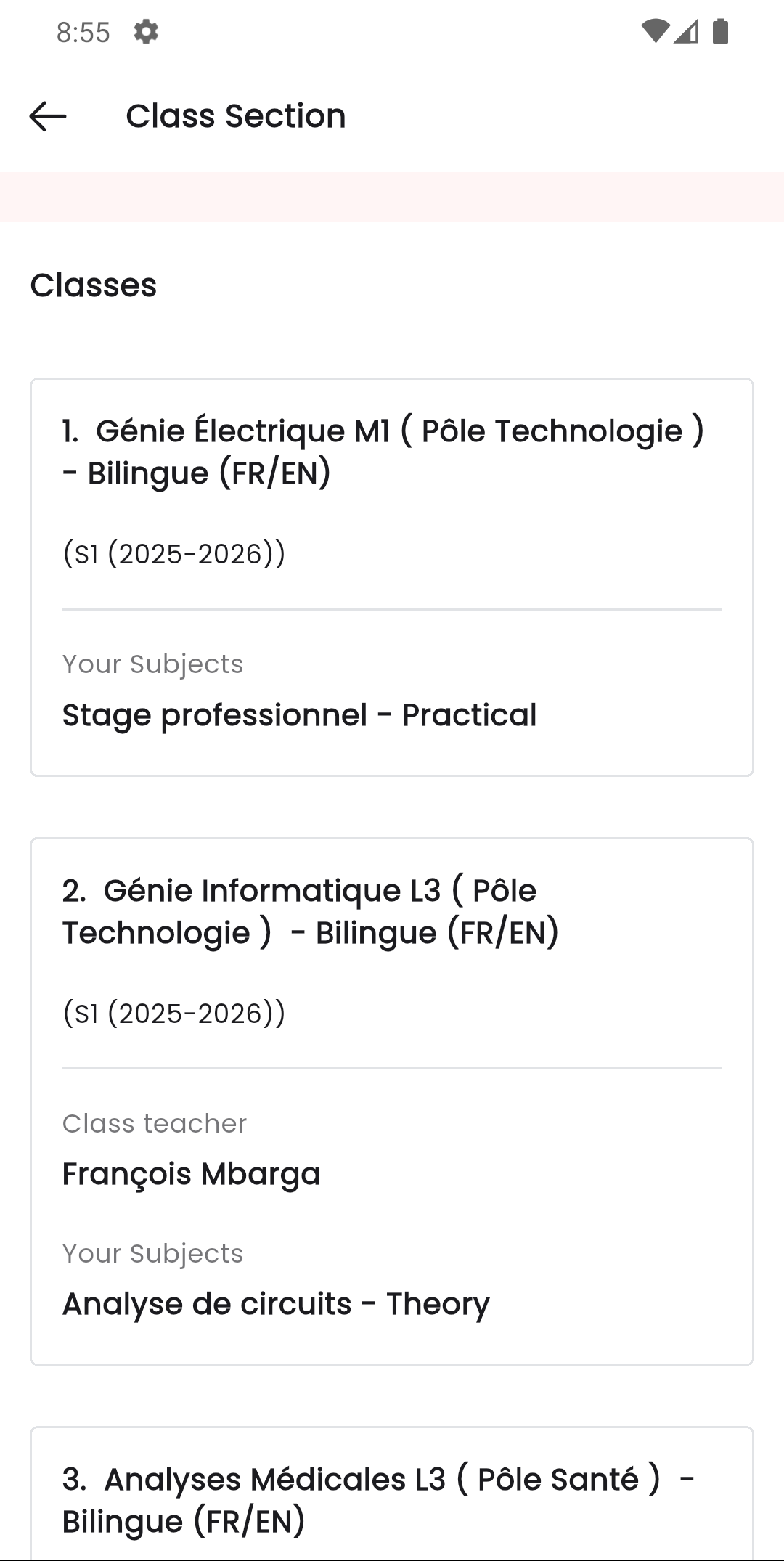
In the Stunov+ Staff app, streams are visible when teachers select a class section. Stream-based class variants appear as separate entries in the class picker, helping teachers identify which stream they are working with.
Related Pages
- Class — Assign streams when creating classes
- Class Subject — Each stream variant of a class can have different subjects