Transfer & Promote Students
This page handles two workflows:
- Transfer — Move students from one class section to another within the same session year
- Promote — Advance students to the next class at the end of a session year (pass/fail/left designation)
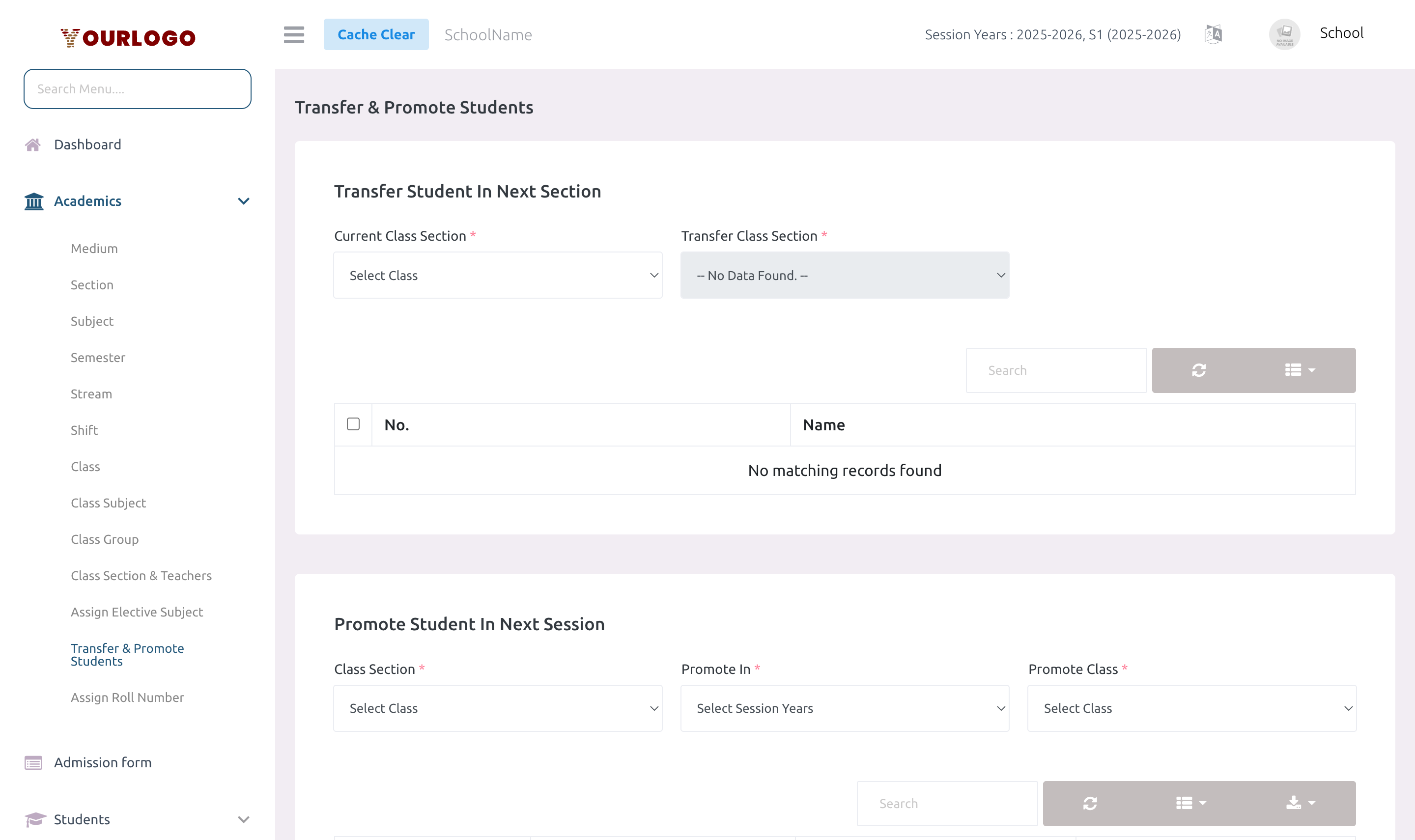
Transfer & Promote Students — transfer students between sections (top) and promote to next session (bottom)
Promote Students
Promotion advances students from their current class section to a new class section for the next session year.
1
Navigate to Academic Management → Academics → Transfer & Promote Students
From the sidebar, expand **Academic Management → Academics** and click **Transfer & Promote Students**. The Promote tab is shown by default.
2
Select the current Class Section
Choose the **Class Section** containing the students to promote.
3
Review the student list
A list of all students in the selected section appears with their current details.
4
Set the destination
Select the **Session Year** and **New Class Section** where promoted students will be placed.
5
Mark each student's result
For each student, set: **Result** (Pass or Fail) and **Status** (Continue or Left). See the decision table below.
6
Submit
Click **Submit** to process all promotions at once.
Promotion Decision Table
| Result | Status | Action |
|---|---|---|
| Pass | Continue | Student moves to the new class section and session year. Roll number is auto-assigned. |
| Fail | Continue | Student stays in the current class section but session year is updated (repeating). |
| Any | Left | Student account is deactivated (status set to 0, user soft-deleted). |
Promotion Form Fields
| Field | Type | Required | Description |
|---|---|---|---|
| Class Section | Dropdown | Required | The current class section of students to promote. |
| Session Year | Dropdown | Required | The target session year for promotion (typically the next session year). |
| New Class Section | Dropdown | Required | The destination class section for passing students. |
| Result (per student) | Toggle | Required | Pass (1) or Fail (0) for the student. |
| Status (per student) | Toggle | Required | Continue (1) or Left (0). Left deactivates the student account. |
Roll number auto-assignment
When students are promoted to the new class section, roll numbers are automatically assigned based on your school's Roll Number Sort settings (default: sorted by first name, ascending). You can manually reassign roll numbers later via Assign Roll Number.
Transfer Students
Transfer moves students from one class section to another within the same session year, without changing their academic standing.
1
Switch to the Transfer tab
Click the **Transfer** tab at the top of the page.
2
Select the current Class Section
Choose the class section from which students will be transferred.
3
Select the destination Class Section
Choose the new class section where students will be moved.
4
Select Students
From the student list, check the students you want to transfer. Use "Select All" to transfer the entire section.
5
Submit
Click **Submit** to process the transfer.
Transfer Form Fields
| Field | Type | Required | Description |
|---|---|---|---|
| Current Class Section | Dropdown | Required | The class section students are currently in. |
| New Class Section | Dropdown | Required | The destination class section for the transfer. |
| Students | Checkbox list | Required | Select which students to transfer. |
Transfer side effects
- Transferred students receive incremental roll numbers in the destination section (starting after the current highest roll number)
- All elective subject selections for the transferred students are deleted (they must be reassigned in the new section)
- Consider reassigning elective subjects via Assign Elective Subject after a transfer
Staff App View
In the Stunov+ Staff app, class rosters update automatically after transfers and promotions. Teachers can verify updated student lists through the attendance screen, which reflects the current class section assignments.
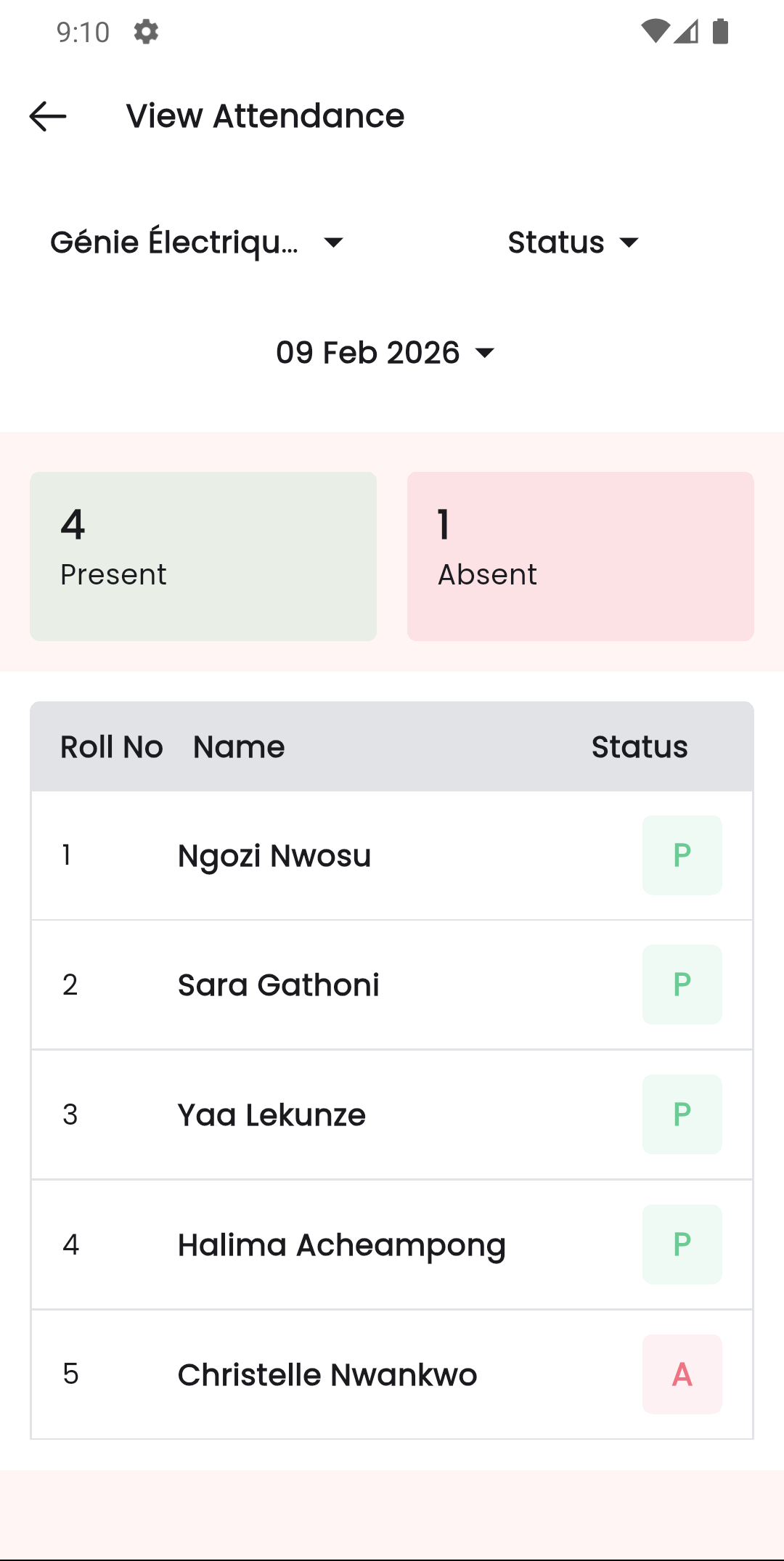
Transfer & Promote — Web panel (left) and Staff app attendance view with updated roster (right)
Related Pages
- Class — Destination classes must be created first
- Assign Roll Number — Reassign roll numbers after promotion or transfer
- Assign Elective Subject — Reassign electives after transfer
- Students — View student details and class history
- System Settings — Session Year — Session years must be configured for promotion