Student Details
Student Details is the central directory of all enrolled students. It provides a searchable, filterable data table showing every student record in the school, with actions to view, edit, delete, or change student status.
- School Admin and IT Manager: Full access — view, edit, delete, change status
- Teacher: View-only — can see student details for their assigned classes
- Accountant, Marketing Manager, Transportation Manager: View-only — limited to viewing student information
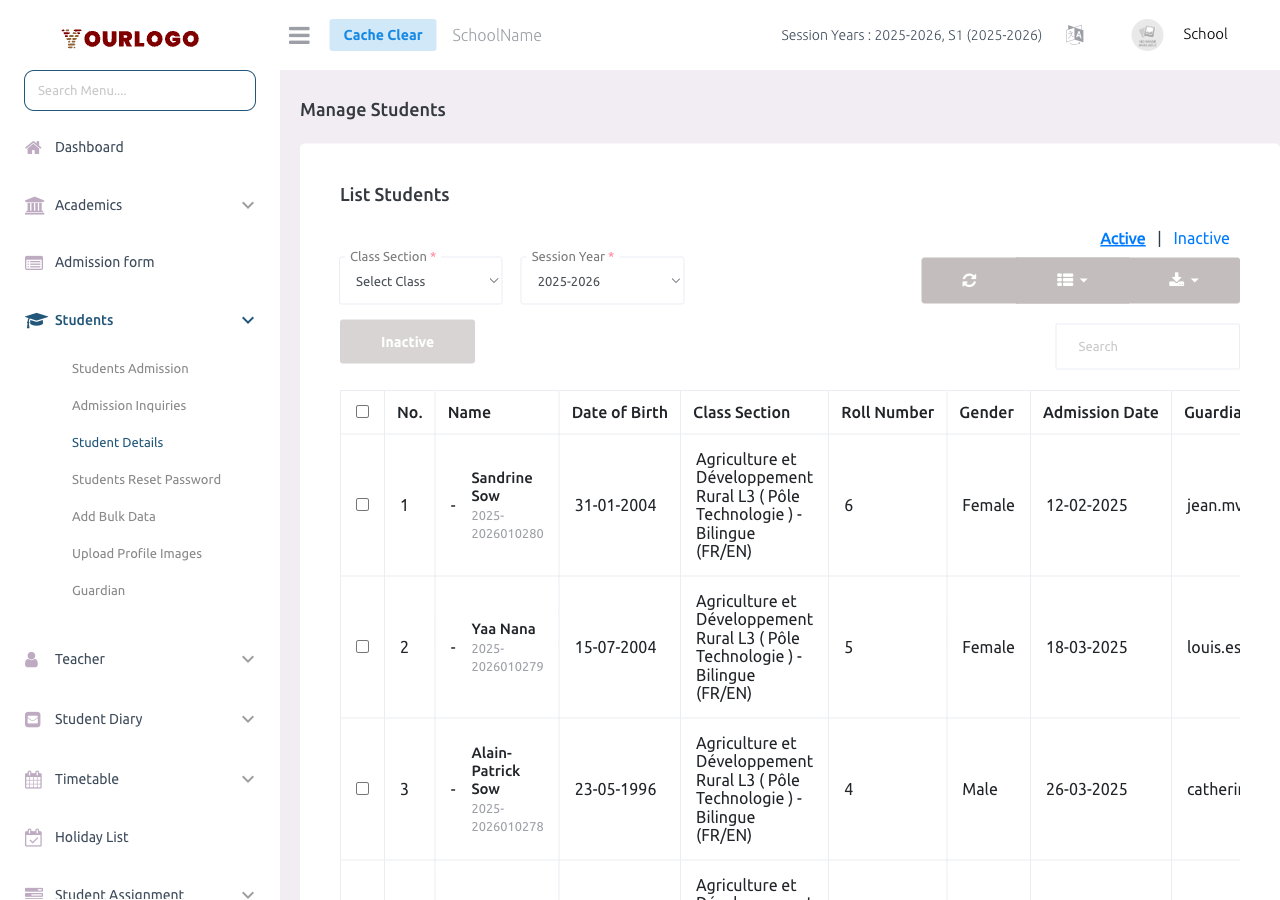
Filter and Search
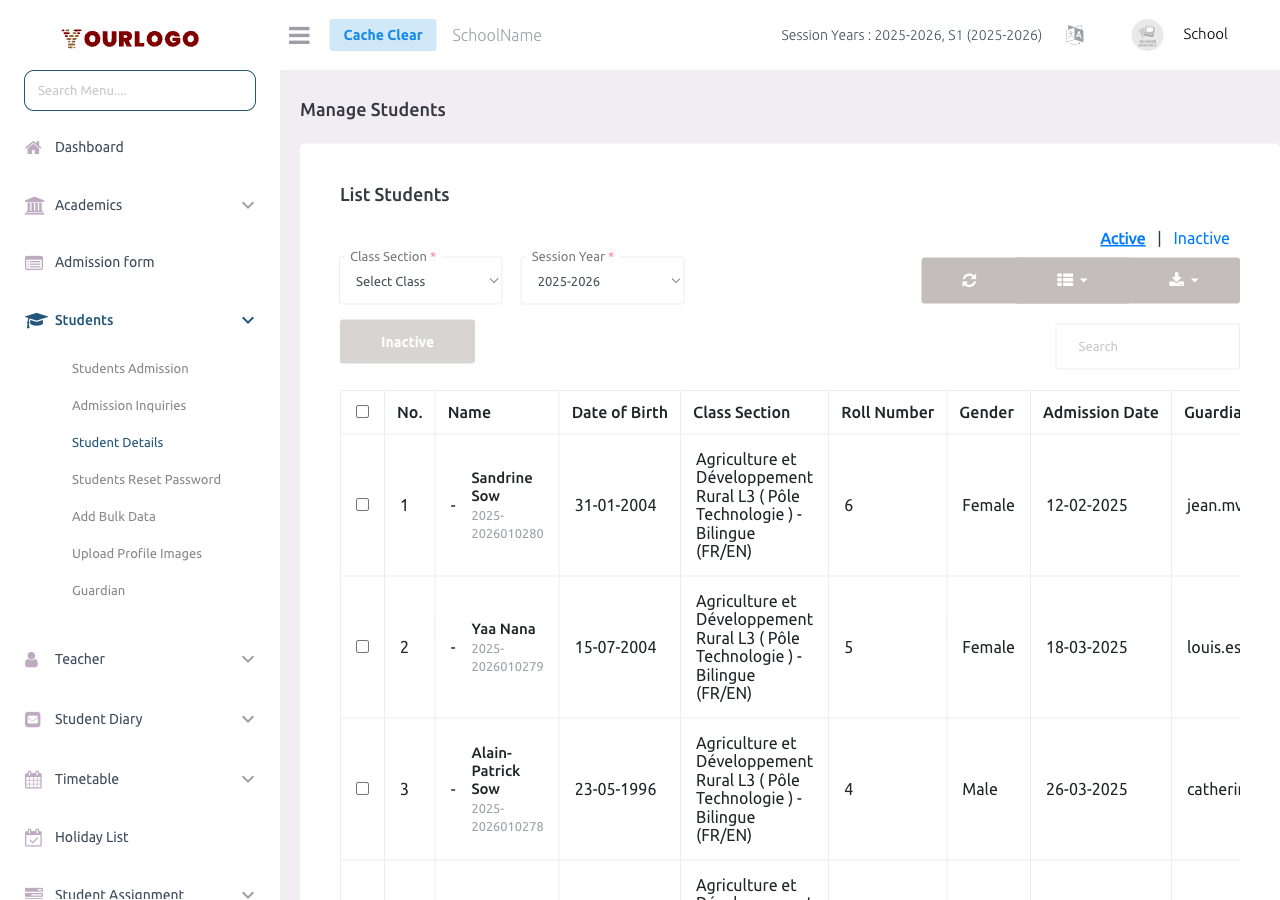
Use the filter bar at the top of the table:
- Class dropdown — filter by class
- Section dropdown — updates based on selected class
- Session Year dropdown — filter by academic session year
- Search box — free-text search across student name, admission no, guardian name
The table supports pagination with options: 5, 10, 20, 50, 100, 200 items per page.
View a Student Profile
Edit a Student
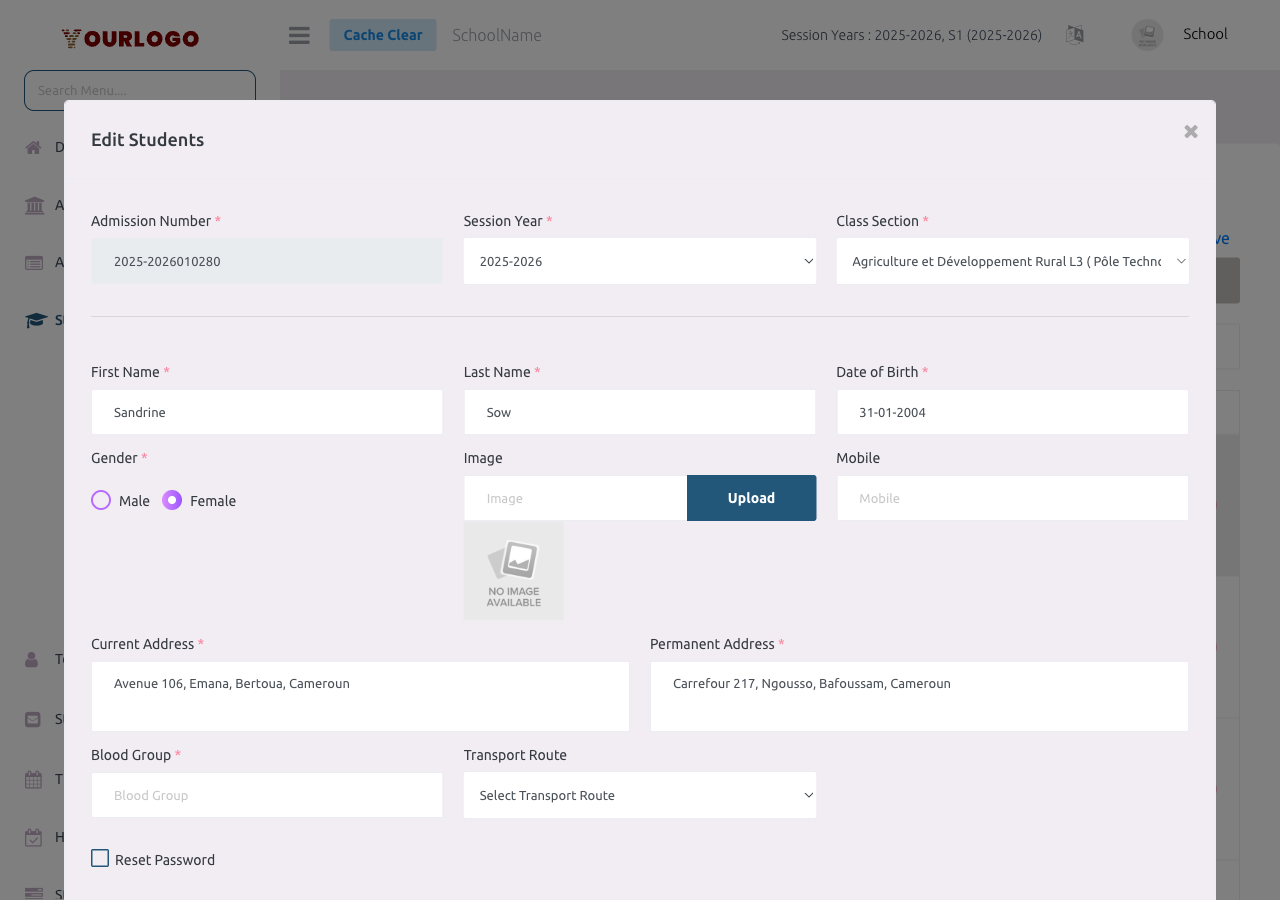
Moving a student to a different class section may affect their attendance records, fee assignments, and timetable for the current session year.
Delete a Student
Student deletion is a soft delete — the record is marked as deleted but remains in the database. The student no longer appears in active lists but can be recovered by a database administrator if needed.
Change Student Status
Toggle the Status switch in the student row:
- Active: Student can log in, appears in all modules
- Inactive: Student cannot log in, hidden from active lists (attendance, fees, exams, etc.)
Bulk Status Change
This is useful for deactivating students who haven't paid fees or who have left the school.
Download & Export
The student list can be exported for external use:
- CSV Download — exports the filtered list as a CSV file
- PDF Download — generates a formatted PDF of the student list
These export buttons appear at the top of the student table.
Related Pages
- Student Admission — Add a new student
- Admission Inquiries — Review online applications
- Students Reset Password — Bulk password reset
- Add Bulk Data — Import students via CSV
- Upload Profile Images — Upload photos in bulk
- Guardian — Manage guardian records