Students Reset Password
The Students Reset Password page lets you reset login passwords for students who have requested a reset. When a student uses Forgot Password in the Stunov+ student app, they appear in this list. You then reset their password with a single click — it is set to the student's date of birth, which they can use to log back in and change.
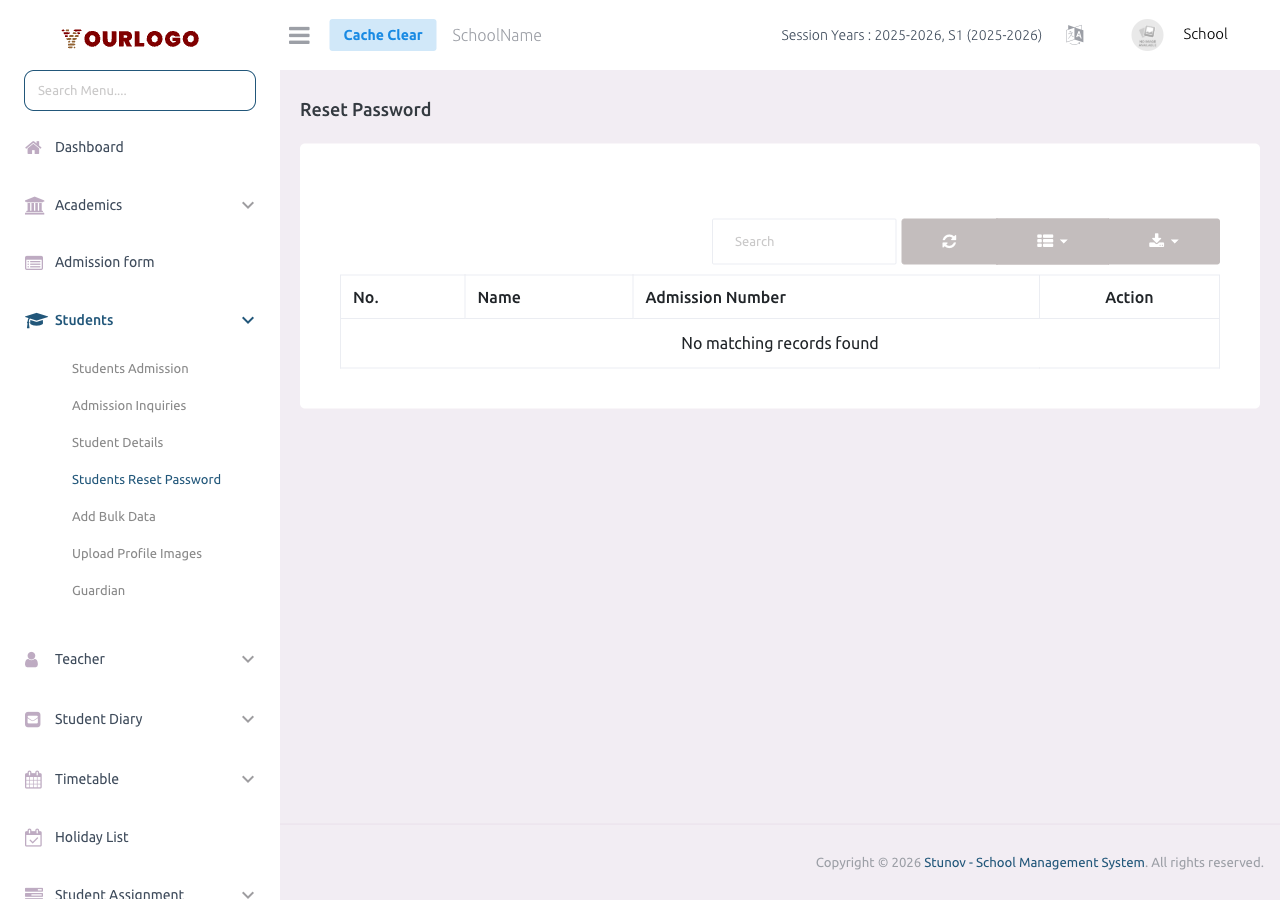
Only students with a pending reset request are shown — i.e. students who tapped Forgot Password in the student app. The list is empty when there are no outstanding requests. There are no class or section filters; use the search box to find a specific student.
Reset a Student's Password
Page Fields
| Field | Type | Required | Description |
|---|---|---|---|
| Search | Search field | Optional | Filters the pending-reset list by student name, admission number, or email. Searches as you type. |
| No. | Column | Optional | Sequential row number for the listed students. |
| Name | Column | Optional | The student's full name. |
| Admission No. | Column | Optional | The student's admission number (their login username). |
| Action | Button | Optional | The reset (pencil) button. Opens the confirmation dialog and, once confirmed, resets that student's password to their date of birth. |
Important Notes
- The reset password is always the student's date of birth in
DDMMYYYYformat — make sure the date of birth on the student's record is correct before resetting. - Passwords are stored as encrypted hashes — you cannot view a student's current password.
- Encourage students to change their password after logging back in via the student app.
You can also reset an individual student's password from the Student Details edit form by checking the Reset Password checkbox — useful when a student has not raised a request from the app.
Related Pages
- Student Details — Edit individual student records and reset single passwords
- Student Admission — Passwords are set during admission
- Guardian — Guardian password resets are handled separately