Subject
Subjects represent the courses taught in your school (e.g., Mathematics, Physics, English). Each subject is linked to a Medium, has a type (Theory or Practical), and includes a visual icon and background color for identification throughout the system.
Before creating subjects, ensure you have at least one Medium configured.
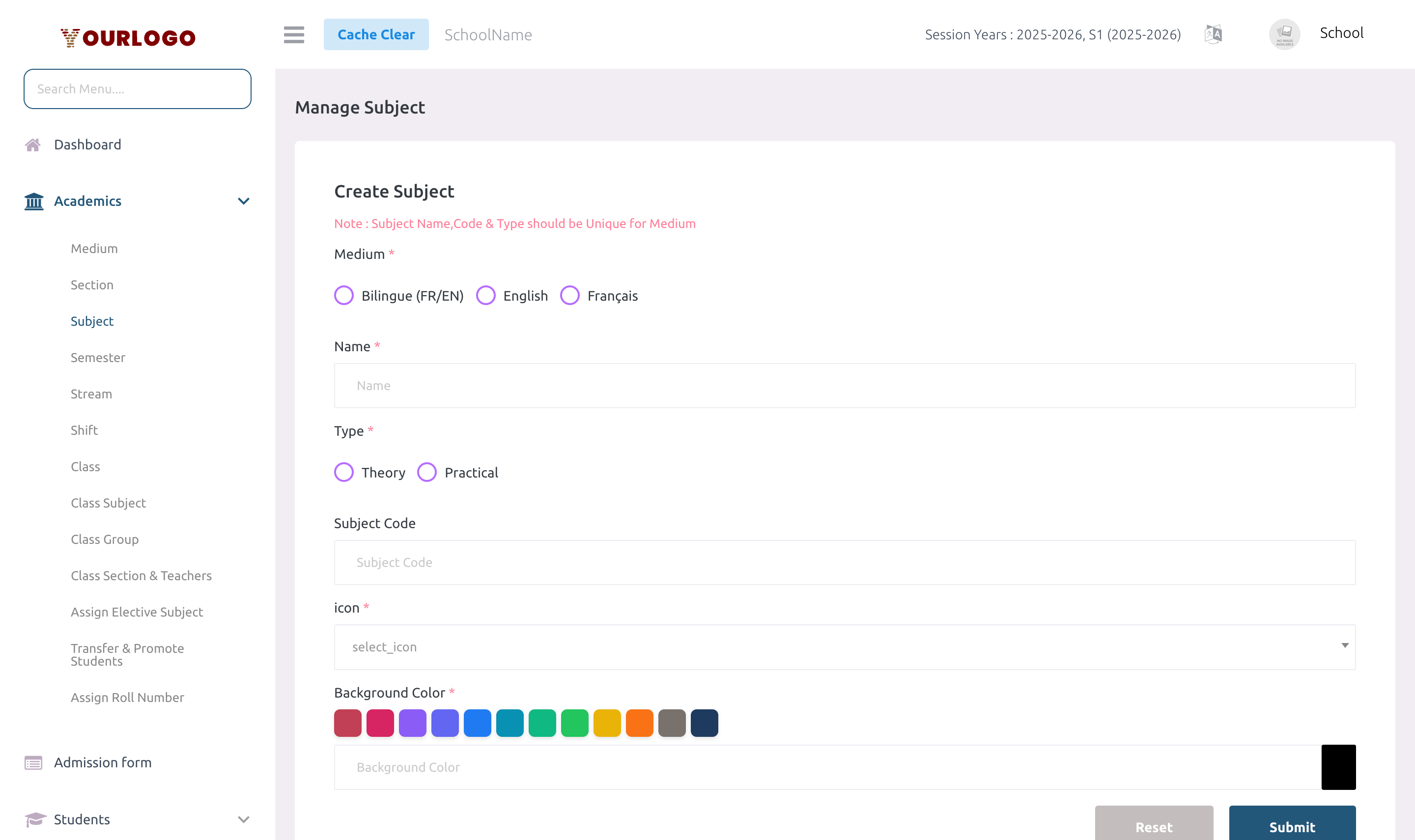
Create a Subject
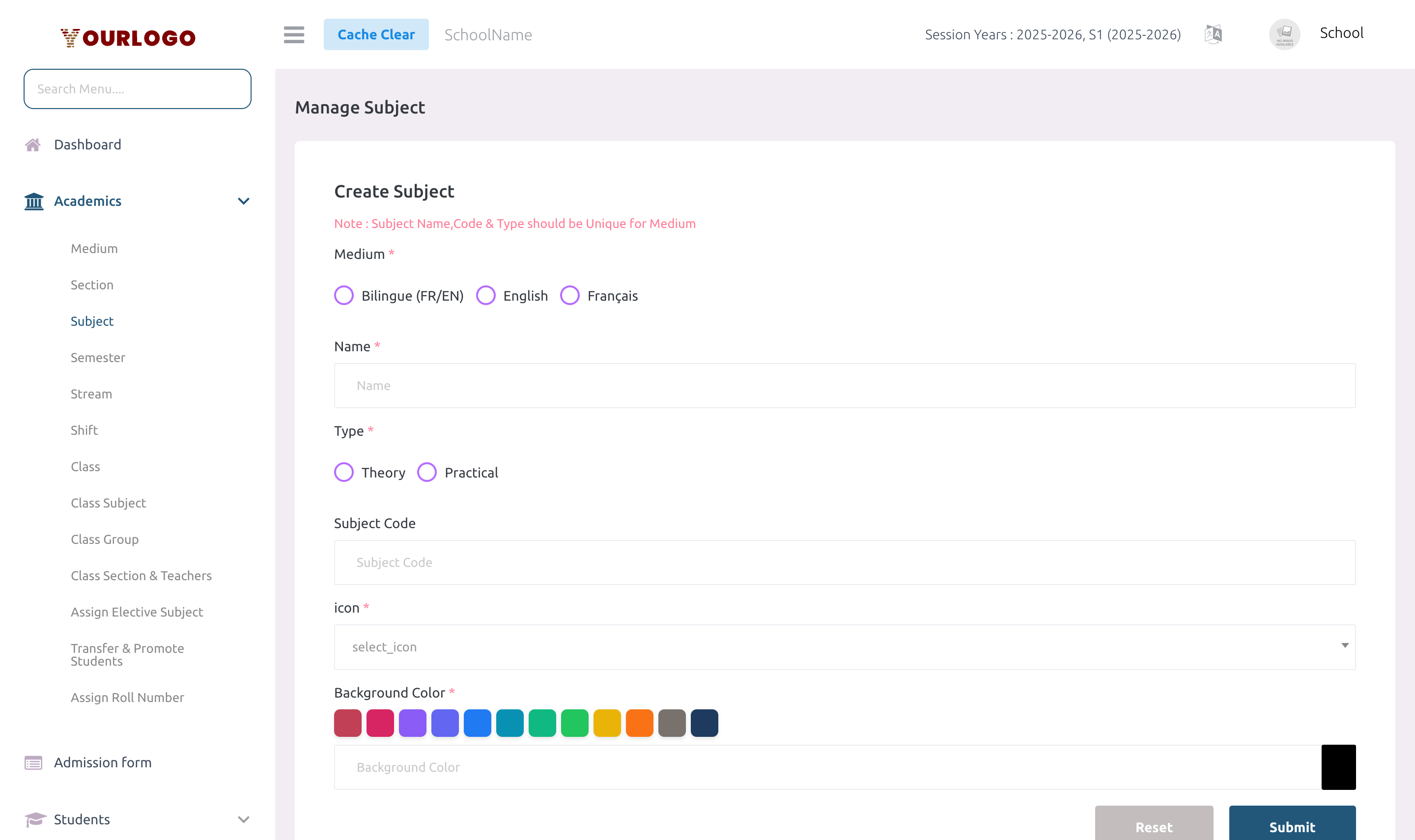
Form Fields
| Field | Type | Required | Description |
|---|---|---|---|
| Medium | Dropdown | Required | The instruction medium this subject belongs to. Loaded from configured Mediums. |
| Name | Text | Required | Subject name (e.g., Mathematics). Unique per medium + type combination. |
| Type | Dropdown | Required | Subject type: "Theory" or "Practical". Affects exam and timetable categorization. |
| Subject Code | Text | Optional | Short identifier code (e.g., MATH101). Unique per medium + type if provided. |
| Background Color | Color Picker | Required | Hex color used to identify the subject in timetables, reports, and apps. Cannot be "transparent". |
| Icon | Icon Picker | Required | SVG icon selected from the built-in library. Displayed in timetables and the mobile app. |
View Subjects
The Subject list page displays all subjects in a searchable, paginated table.
| Column | Description |
|---|---|
| No. | Row number |
| Name | Subject name |
| Code | Subject code (if set) |
| Type | Theory or Practical |
| Medium | Associated instruction medium |
| Icon | Visual SVG icon |
| Color | Background color swatch |
| Action | Edit and Delete buttons |
- Filter by Medium: Use the Medium dropdown above the table to show only subjects for a specific medium
- Search: Use the search bar to find subjects by name or code
Edit a Subject
If you change a subject's type (Theory ↔ Practical) or medium, it may affect class subject assignments and timetable configurations that reference this subject.
Delete a Subject
- Click the Delete (trash) button in the Action column
- Confirm the deletion in the dialog
If the subject is assigned to any class (via Class Subject), removal will be blocked. Unassign it from all classes first.
Deleted subjects can be restored from the Trash view, or permanently removed with Force Delete.
Staff App View
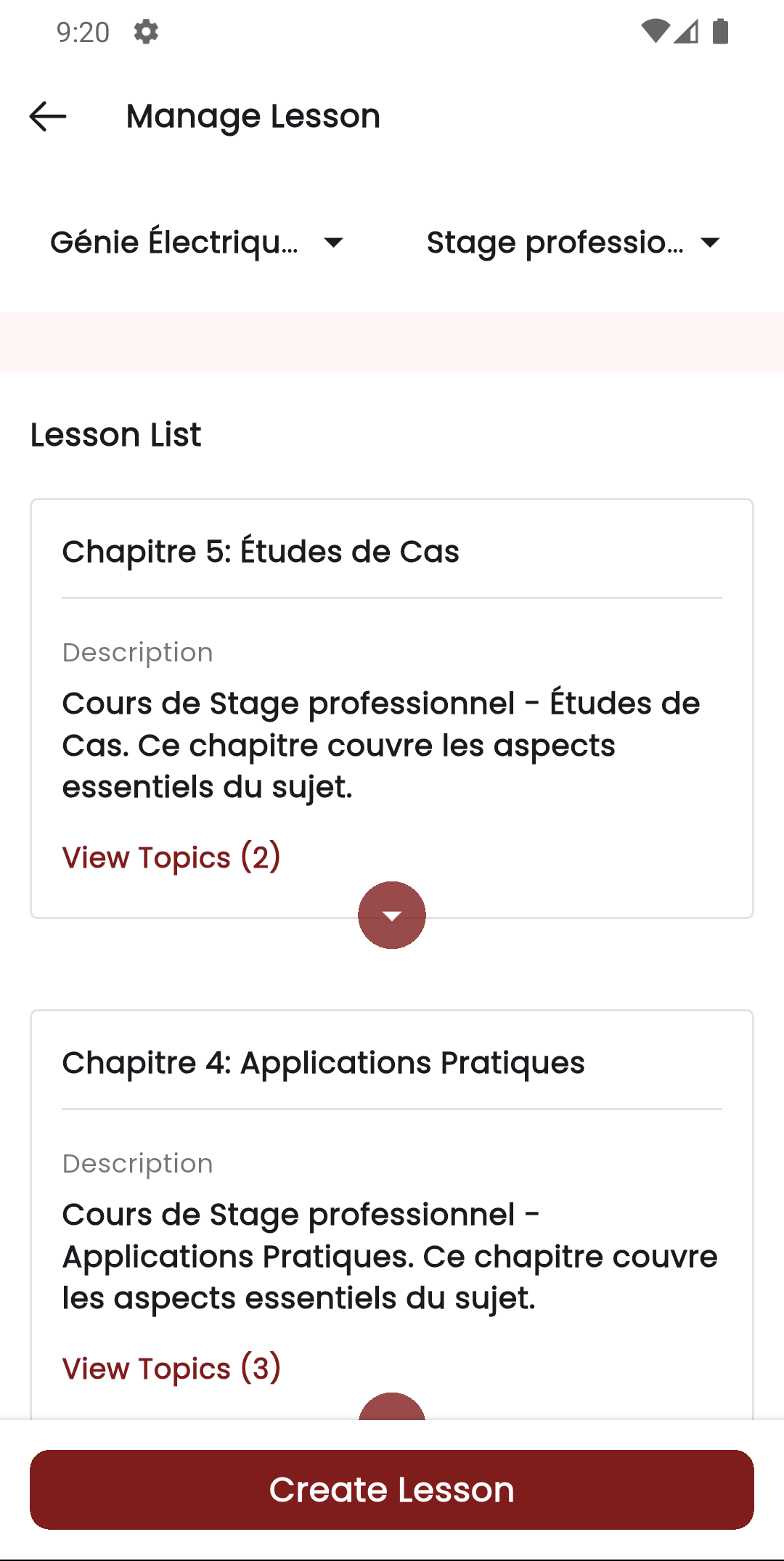
In the Stunov+ Staff app, subjects drive the teacher's lesson and topic management. Each subject is listed with its icon and color, letting teachers create lessons, add topics, and attach resources per subject.
Related Pages
- Medium — Each subject requires a Medium
- Class Subject — Assign subjects to classes
- Class Section & Teachers — Assign teachers to teach specific subjects
- Assign Elective Subject — Manage elective subject assignments for students