Class
A Class (also called Grade or Level) is the primary unit for grouping students academically. Each class is linked to a Medium, can optionally have a Stream and Shift, and must contain at least one Section. Classes are central to the entire system — fees, timetables, exams, attendance, and student enrollment all depend on class configuration.
Create a Class
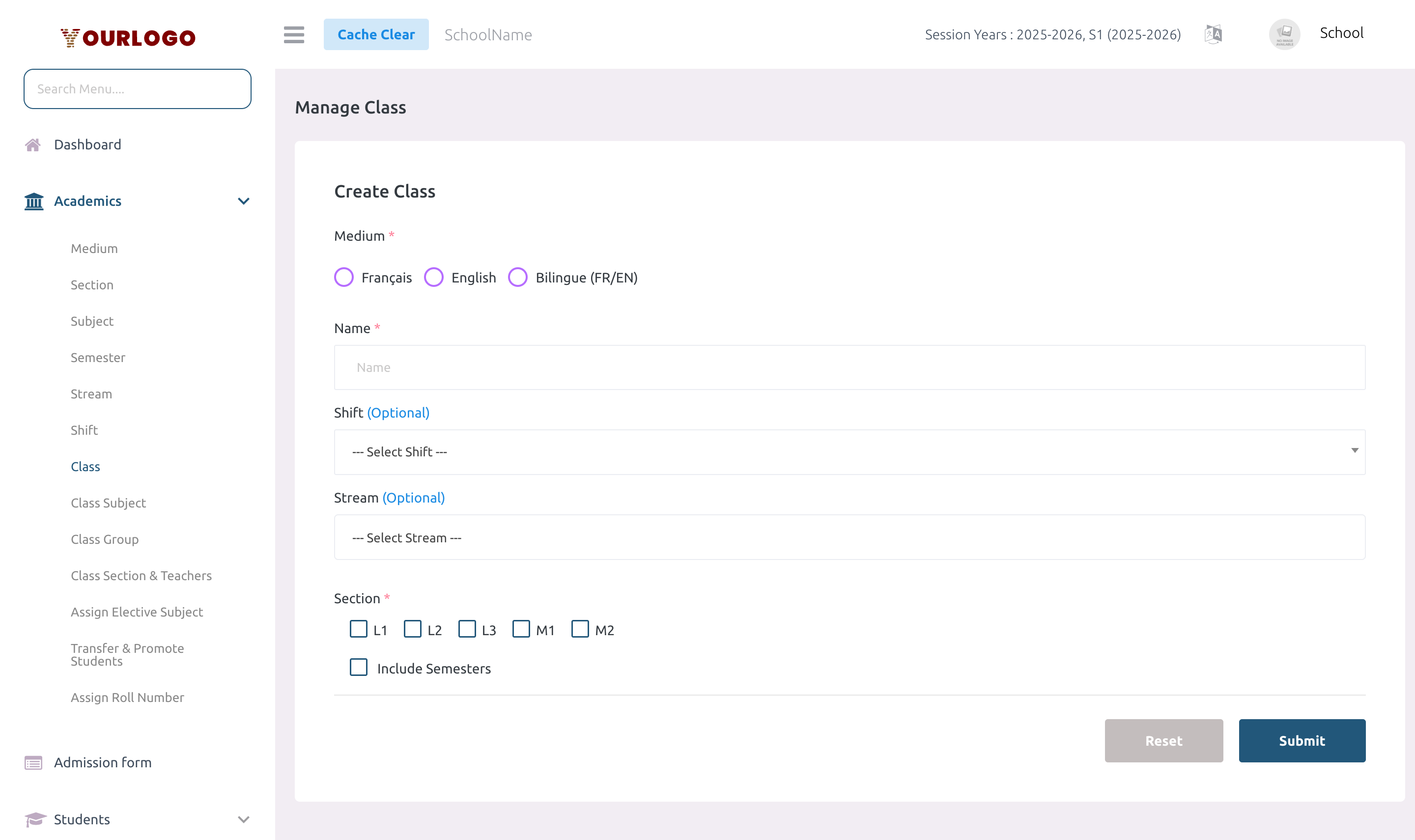
Form Fields
| Field | Type | Required | Description |
|---|---|---|---|
| Medium | Dropdown | Required | The instruction medium for this class. Loaded from configured Mediums. |
| Name | Text | Required | Class name (e.g., Grade 1). Unique per combination of medium + stream + shift. |
| Section | Multi-select | Required | One or more sections to create within this class (e.g., A, B, Science). |
| Shift | Dropdown | Optional | Optional school shift for this class (e.g., Morning, Afternoon). |
| Stream | Multi-select | Optional | Optional streams. Selecting multiple streams creates one class per stream. |
| Include Semesters | Toggle | Optional | Enable to allow semester-based subject assignment for this class. Default: off. |
View Classes
The Class list page shows all classes in a filterable, paginated table.
| Column | Description |
|---|---|
| No. | Row number |
| Name | Class name |
| Medium | Instruction medium |
| Stream | Academic stream (if set) |
| Shift | School shift (if set) |
| Sections | List of sections in this class |
| Semesters | Whether semesters are enabled |
| Action | Edit and Delete buttons |
Filters available:
- Medium — Show classes for a specific medium only
- Shift — Show classes in a specific shift only
Edit a Class
Toggling the semester setting on an existing class will delete all class subject assignments and elective groups for that class. This also deletes all timetable entries for the class. This action cannot be undone.
Delete a Class
- Click the Delete button in the Action column
- Confirm the deletion
Deleting a class also soft-deletes all its class sections. Deleted classes can be restored from the Trash view (which also restores all sections).
If any section of the class has enrolled students, those students must be transferred or removed first.
Staff App View
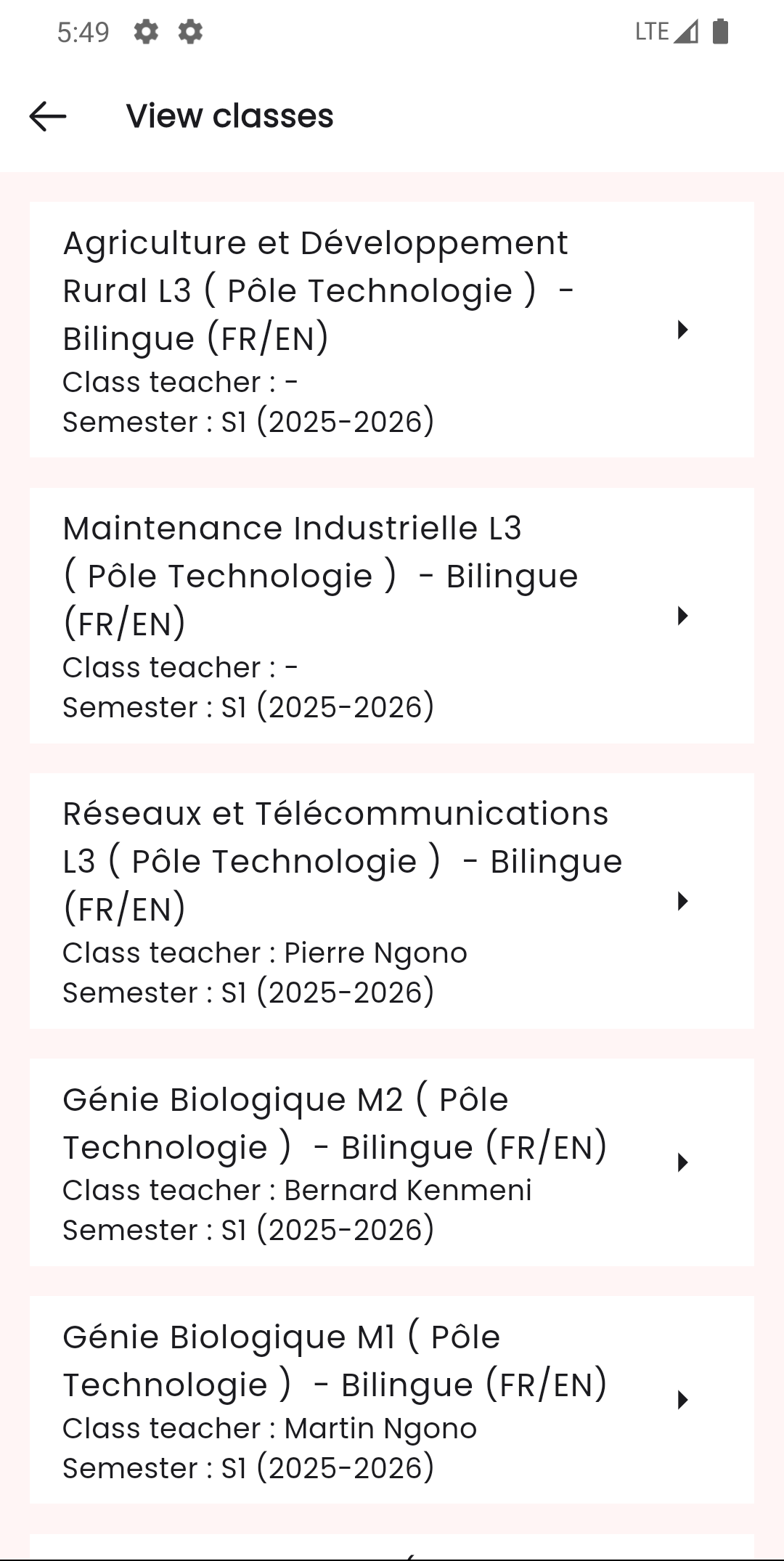
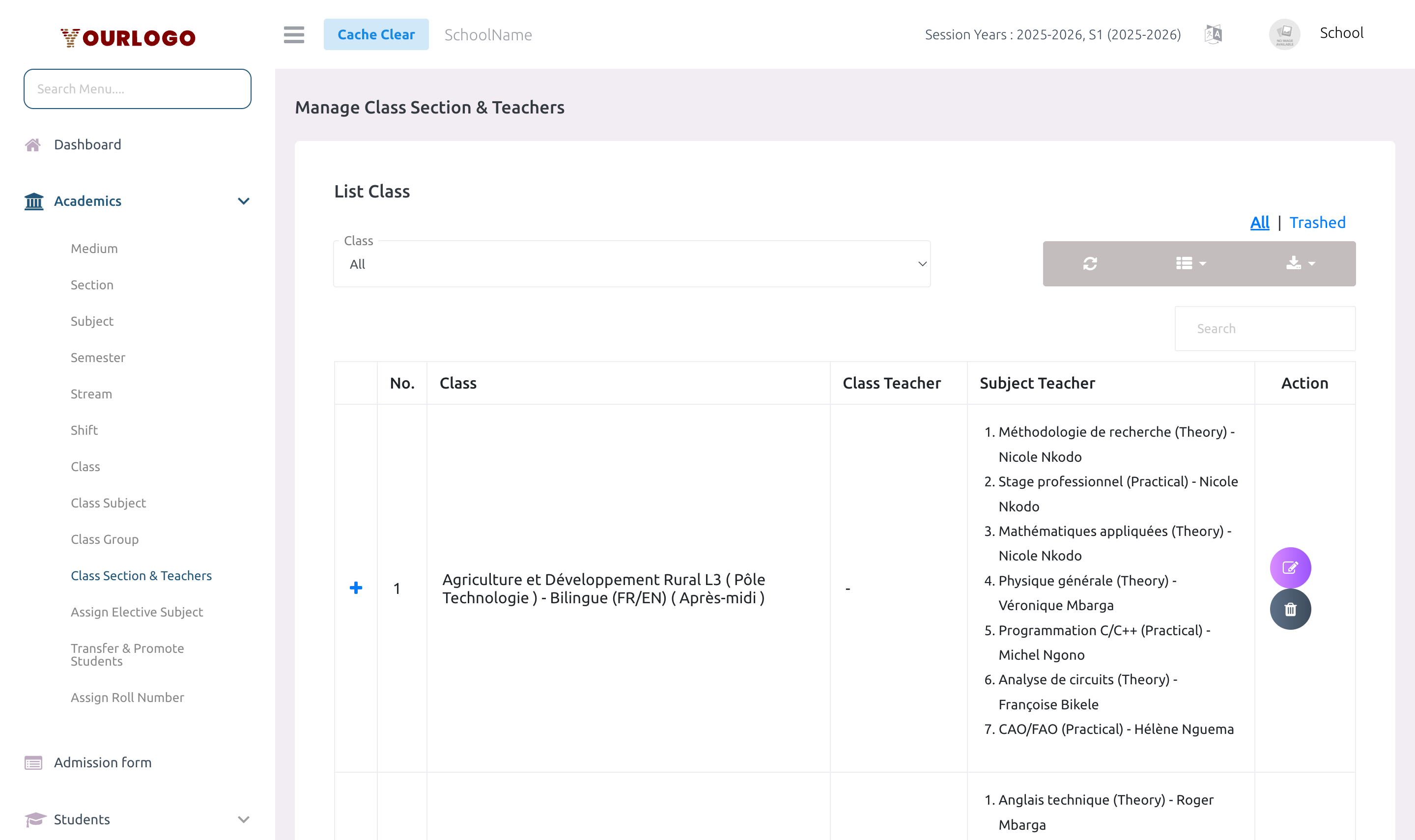
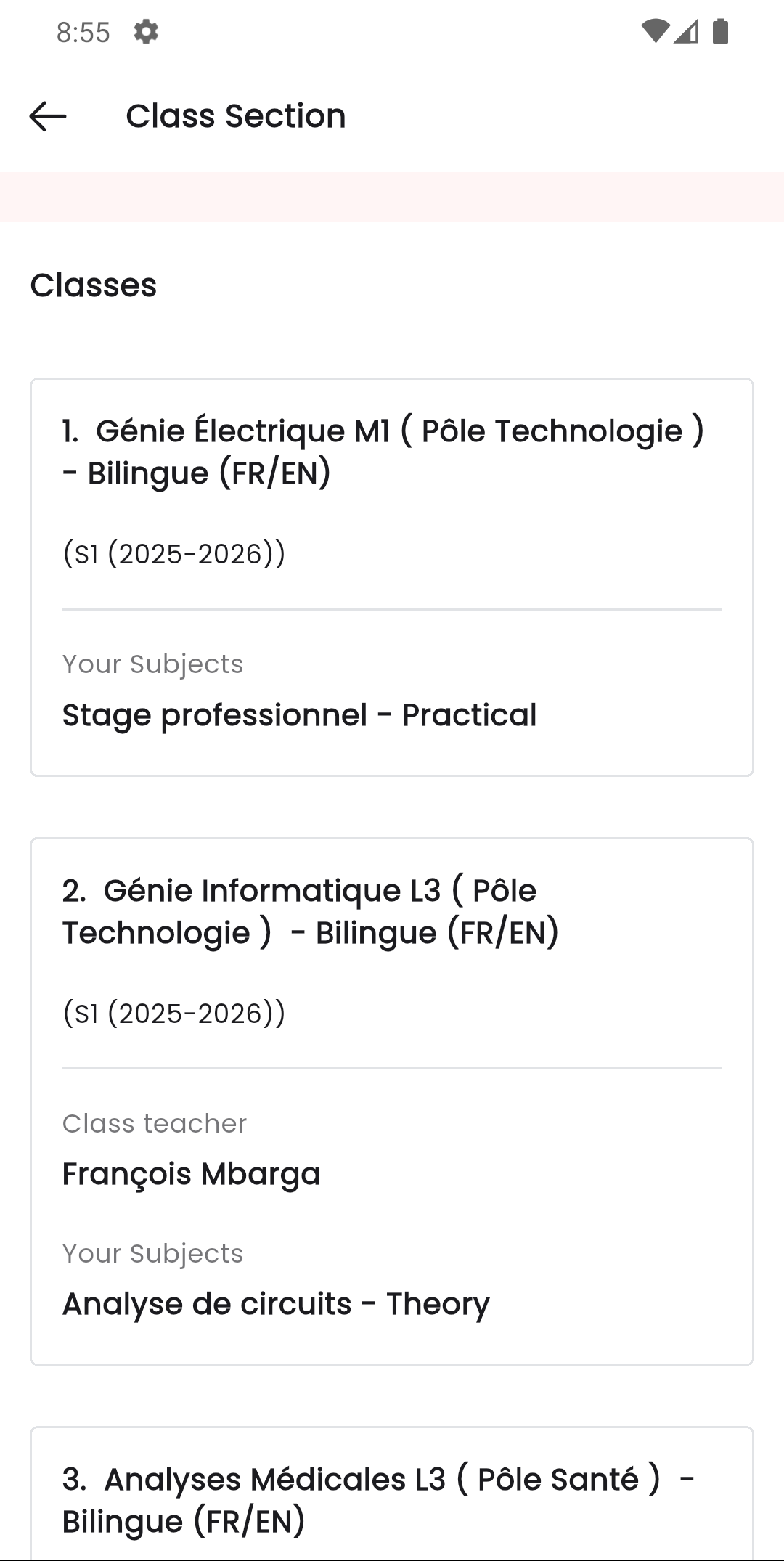
The Stunov+ Staff app provides a mobile-optimized view of your class structure. Staff can browse all classes, see their sections, and view details including assigned subjects, teachers, and student counts.
Related Pages
- Medium — Required when creating a class
- Section — Required when creating a class
- Stream — Optional: creates one class per stream
- Shift — Optional: assigns time blocks to classes
- Class Subject — Assign subjects to this class
- Class Section & Teachers — Assign teachers to class sections
- Students — Enroll students into class sections
- Fees — Assign fees per class