Add Attendance
Add Attendance lets you take daily student attendance for a specific class section. Select a class, pick a date, and mark each student as Present or Absent. You can also mark the entire day as a Holiday or send push notifications to guardians of absent students.
Class Section → Date → Student → Present / Absent — First select the class section, then the date. The system loads all enrolled students for you to mark their attendance.
The Attendance Management feature must be enabled in your school's subscription for the "Attendance" menu to appear. Contact your School Admin or Super Admin if you don't see it in the sidebar.
Overview
The Add Attendance page provides a form with a class section selector and date picker at the top, followed by a student table with Present/Absent radio buttons for each student.
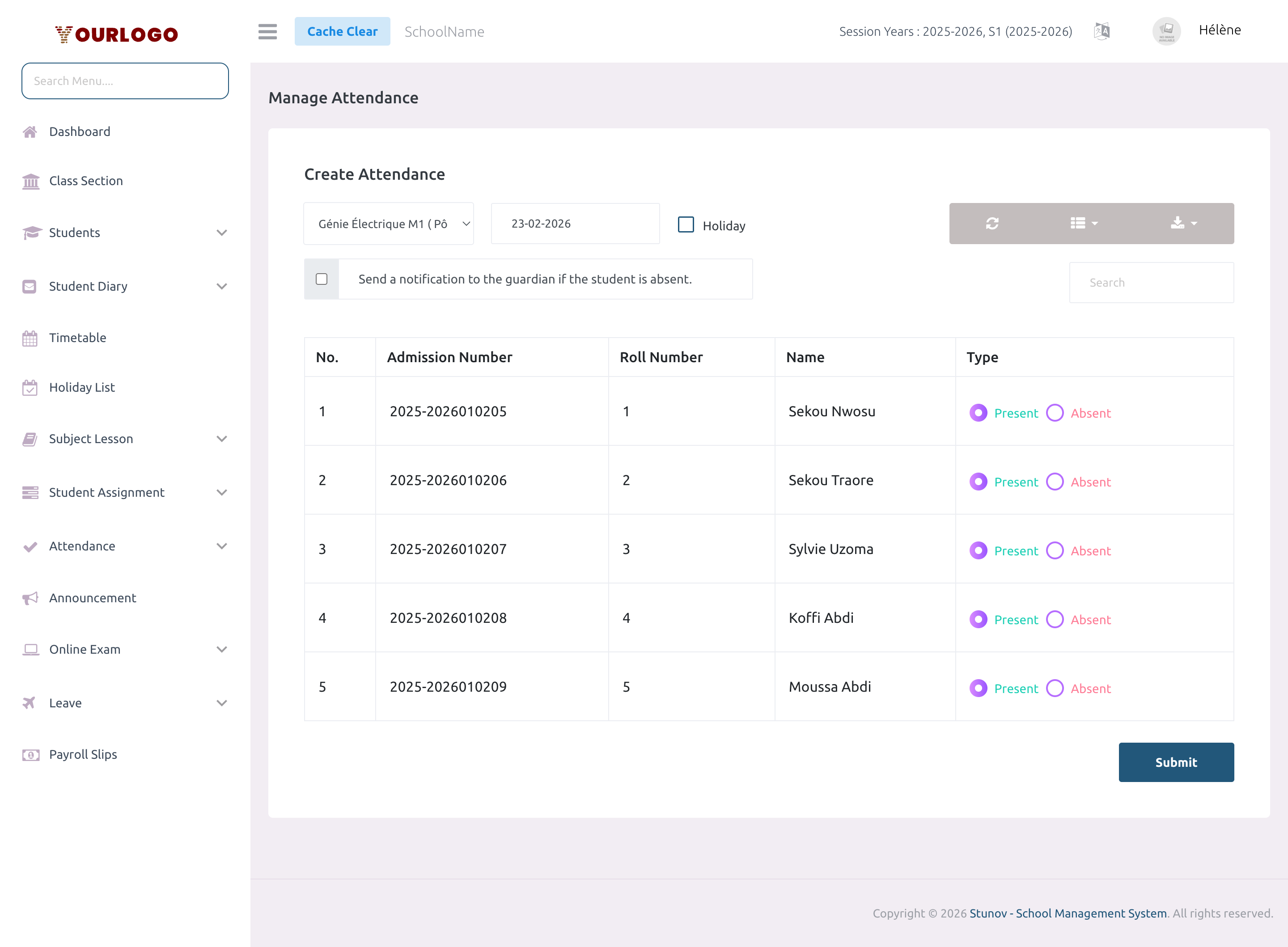
Take Daily Attendance
Form Fields
| Field | Type | Required | Description |
|---|---|---|---|
| Class Section | Select | Required | The class section to take attendance for. Teachers see only their assigned sections; admins see all class sections. |
| Date | Date picker | Required | The date for the attendance entry. Cannot be set to a future date. |
| Holiday | Checkbox | Optional | When checked, marks the entire day as a Holiday for all students in the class section. The student table is hidden. |
| Absent Notification | Checkbox | Optional | When checked, a push notification is sent to the guardian of each student marked as Absent. |
| Type (per student) | Radio button | Required | Mark each student as Present or Absent using the radio buttons in the Type column. |
Mark a Holiday
If the selected date is a holiday, you can mark the entire class section at once:
Marking a day as Holiday overwrites any previously saved Present/Absent marks for that date and class section. To undo a Holiday, uncheck the Holiday checkbox and re-save.
Absent Notification
When the "Send a notification to the guardian if the student is absent" checkbox is checked before submitting:
- A push notification is sent to the guardian of each student marked as Absent
- The notification is delivered through the Stunov+ Student/Parent mobile app
- Only guardians with the app installed and logged in will receive the notification
Check this option when taking the morning attendance so parents are immediately informed of their child's absence.
Edit Attendance
Attendance can be edited by returning to the same class section and date:
Student Table Columns
| Column | Description |
|---|---|
| No. | Row number |
| Admission Number | The student's unique admission number |
| Roll Number | The student's roll number within the class section |
| Name | The student's full name |
| Type | Present / Absent radio buttons |
- Use the Search bar to filter students by name or admission number
- Use Columns to show/hide specific columns
- Use Export to download the attendance data
- Click Refresh to reload the student list
Staff App View
In the Stunov+ Staff app, teachers can take attendance directly from their phone. The mobile workflow mirrors the web panel: select a class section, pick a date, and mark each student.
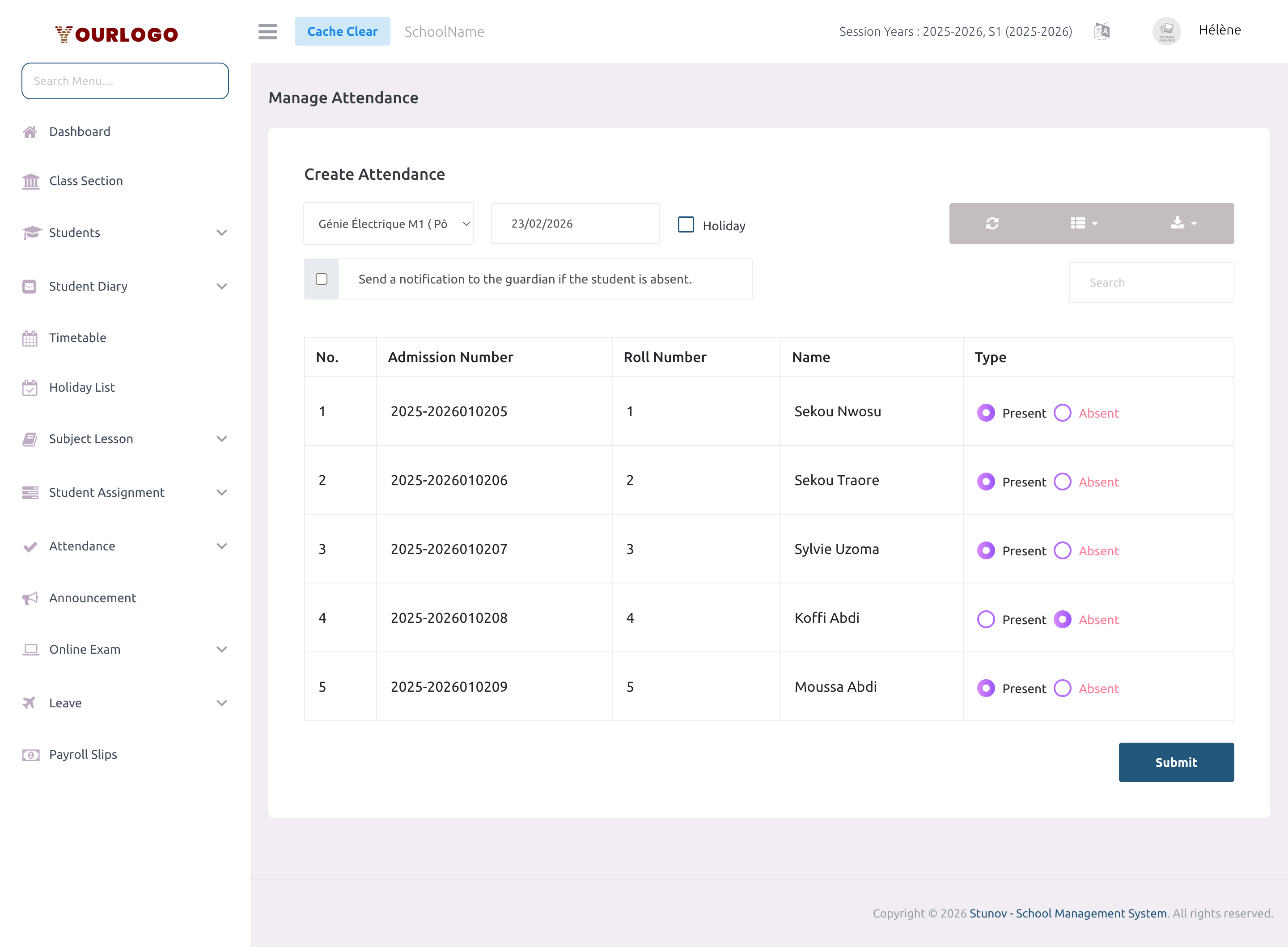
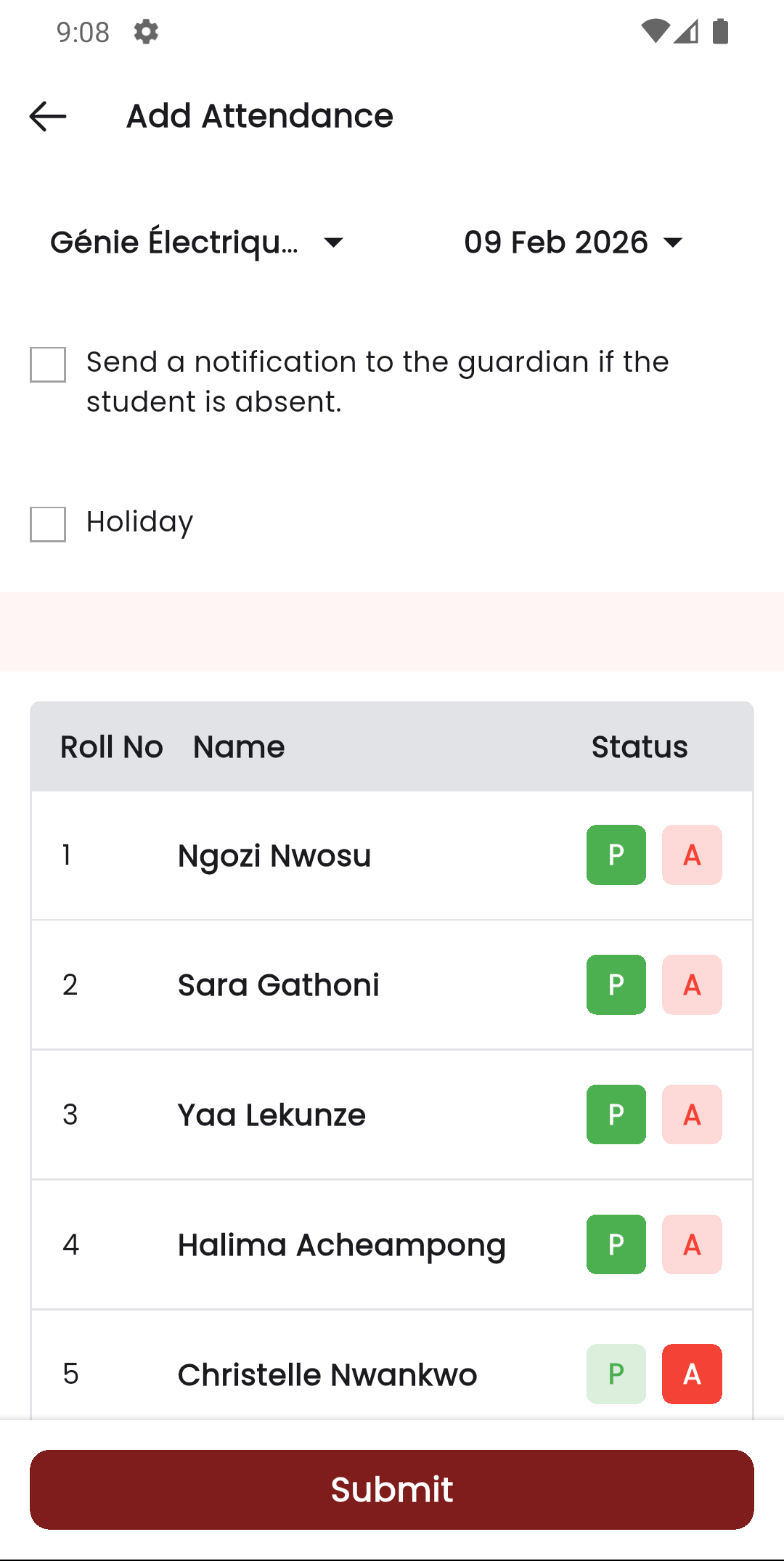
Mobile Workflow
- Open the Stunov+ Staff app and tap Attendance
- Select the Class Section from the dropdown
- Pick the Date
- Toggle each student between Present and Absent
- Tap Submit to save
Permissions Required
| Permission | Description |
|---|---|
attendance-create | Create and edit attendance records |
attendance-list | View the attendance form and student list |
Related Pages
- View Attendance — Review saved attendance records in a read-only table
- Month Wise — See a calendar grid of attendance per student for an entire month
- Holiday List — Manage official school holidays