View Attendance
View Attendance provides a read-only table of previously recorded attendance data. Filter by class section, date, and attendance type (Present, Absent, or Holiday) to review the attendance history for any class on any date.
Navigate to Academic Calendar → Attendance → View Attendance from the sidebar to open this page.
Overview
The View Attendance page has three filter controls at the top and a paginated data table below. Select a class section and date to load the attendance records. Optionally filter by attendance type.
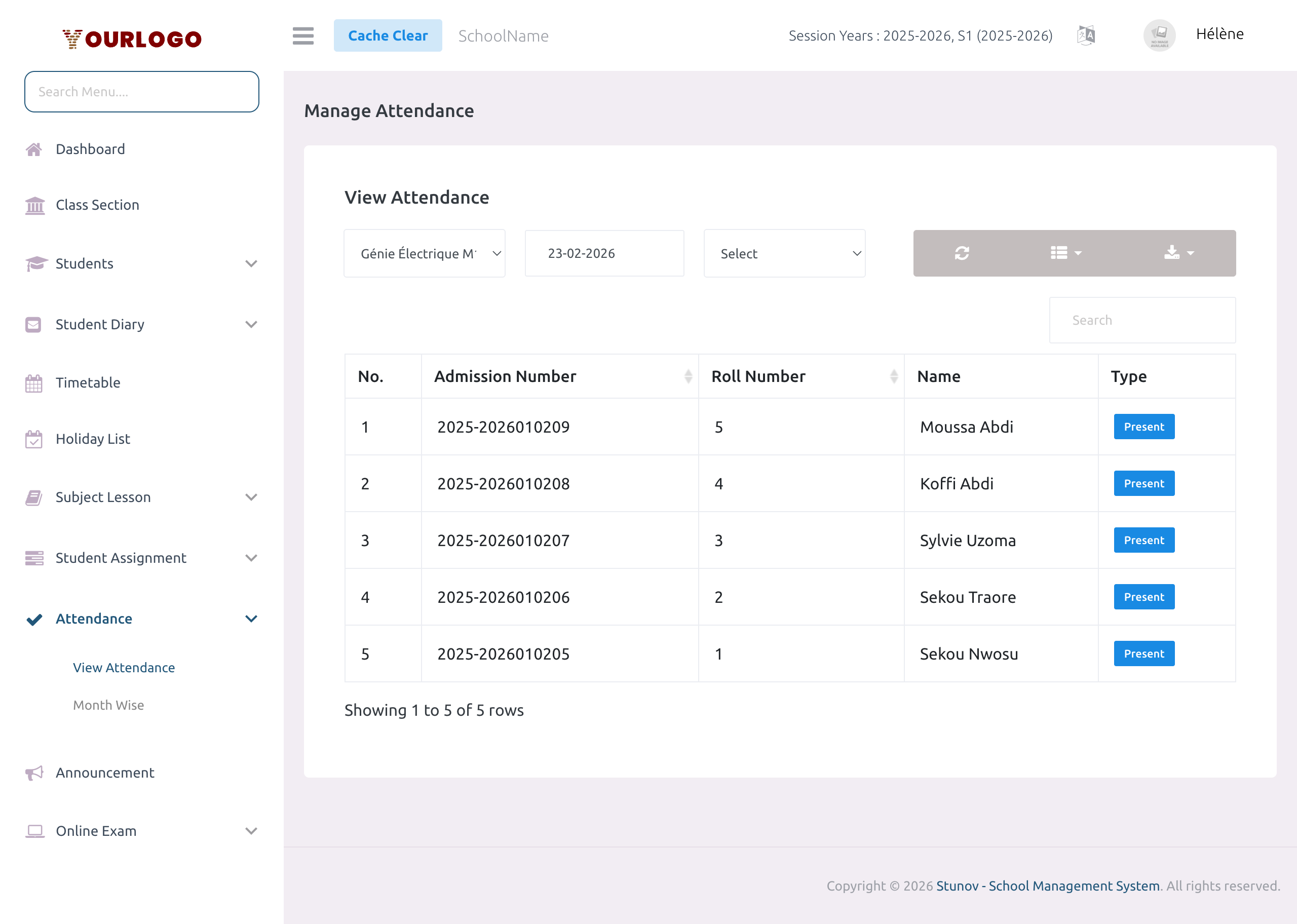
View Attendance Records
Filter by Attendance Type
Use the third dropdown (Select) to filter the table by attendance type:
| Filter | Shows |
|---|---|
| (empty) | All students regardless of type |
| Present | Only students marked as Present |
| Absent | Only students marked as Absent |
| Holiday | Only entries where the day was marked as a Holiday |
The table updates in real time as you change the filter.
Filter Controls
| Field | Type | Required | Description |
|---|---|---|---|
| Class Section | Select | Required | The class section whose attendance records you want to view. Teachers see only their assigned sections. |
| Date | Date picker | Required | The date for which to display attendance records. Cannot be a future date. |
| Attendance Type | Select | Optional | Filter by type: Present, Absent, or Holiday. Leave blank to show all. |
Table Columns
| Column | Description |
|---|---|
| No. | Row number |
| Admission Number | The student's unique admission number |
| Roll Number | The student's roll number within the class section |
| Name | The student's full name |
| Type | Attendance status: displayed as a colored badge — Present (blue), Absent (red), or Holiday (info) |
- Use the Search bar to filter by student name or admission number
- Use the Show entries dropdown to control pagination (5, 10, 20, 50, 100, 200, All)
- Use Columns to show/hide specific columns
- Use Export to download the attendance data as CSV or Excel
- Click Refresh to reload the table
Staff App View
In the Stunov+ Staff app, teachers can view attendance records using the same filter workflow: select class, pick date, and review the results.
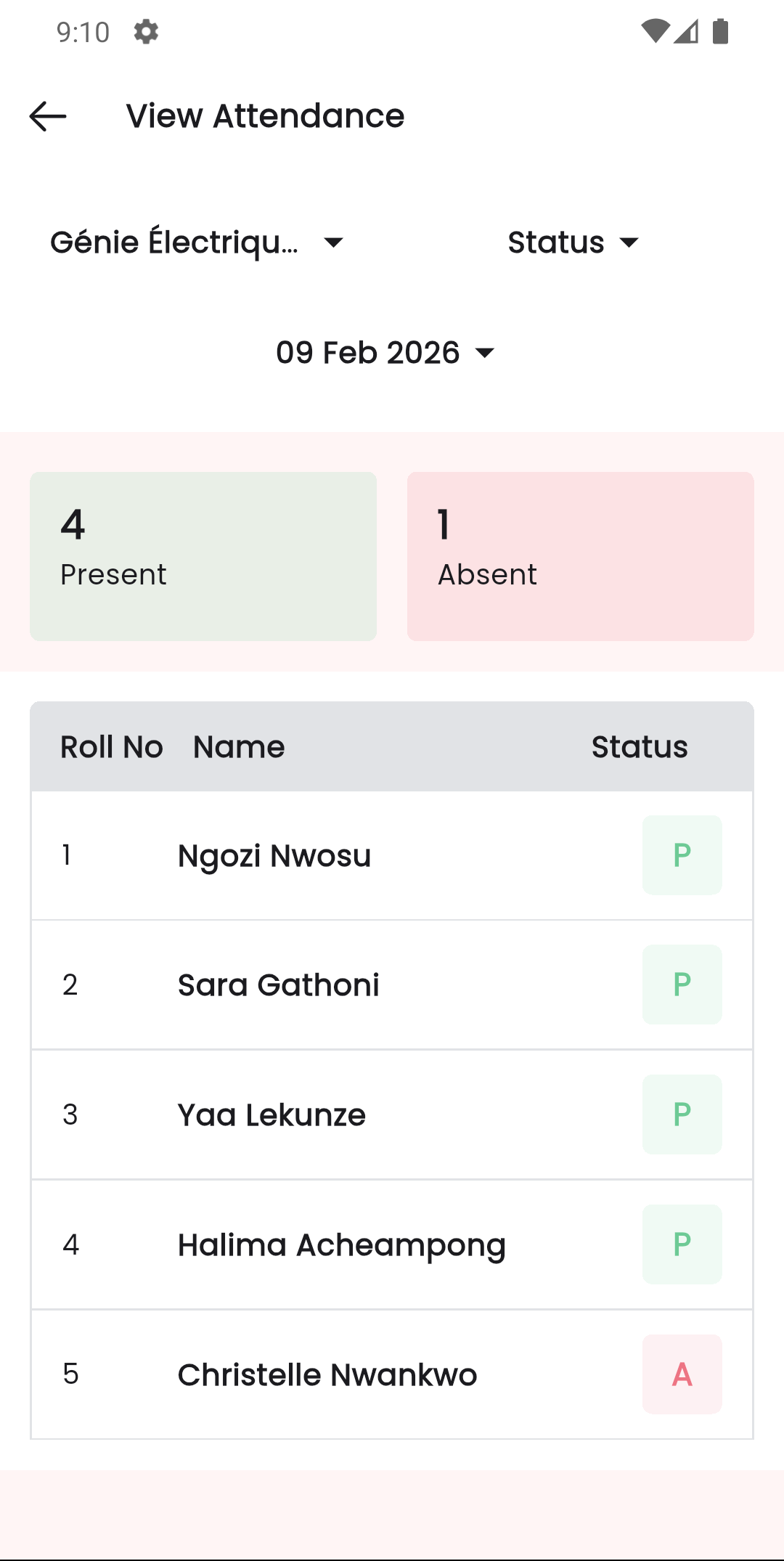
Mobile Workflow
- Open the Stunov+ Staff app and tap Attendance
- Switch to the View tab
- Select the Class Section and Date
- Review the attendance status for each student
Permissions Required
| Permission | Description |
|---|---|
attendance-list | View attendance records |
The View Attendance page is read-only. To edit attendance records, go to Add Attendance and select the same class section and date.
Related Pages
- Add Attendance — Take or edit daily attendance
- Month Wise — See a calendar grid of attendance for an entire month