Month Wise Attendance
Month Wise displays a calendar grid of student attendance for an entire month. Each row represents a student, and each column represents a day of the month. The grid uses icons to show whether each student was Present, Absent, or on a Holiday for each day.
The month-wise view is ideal for quickly spotting attendance patterns — identify frequently absent students, check for gaps, and review holiday coverage across the entire month.
Overview
The Month Wise page has two filter controls: Class Section and Month. Once both are selected, a dynamic table loads with one column per day of the month, showing attendance icons for each student.
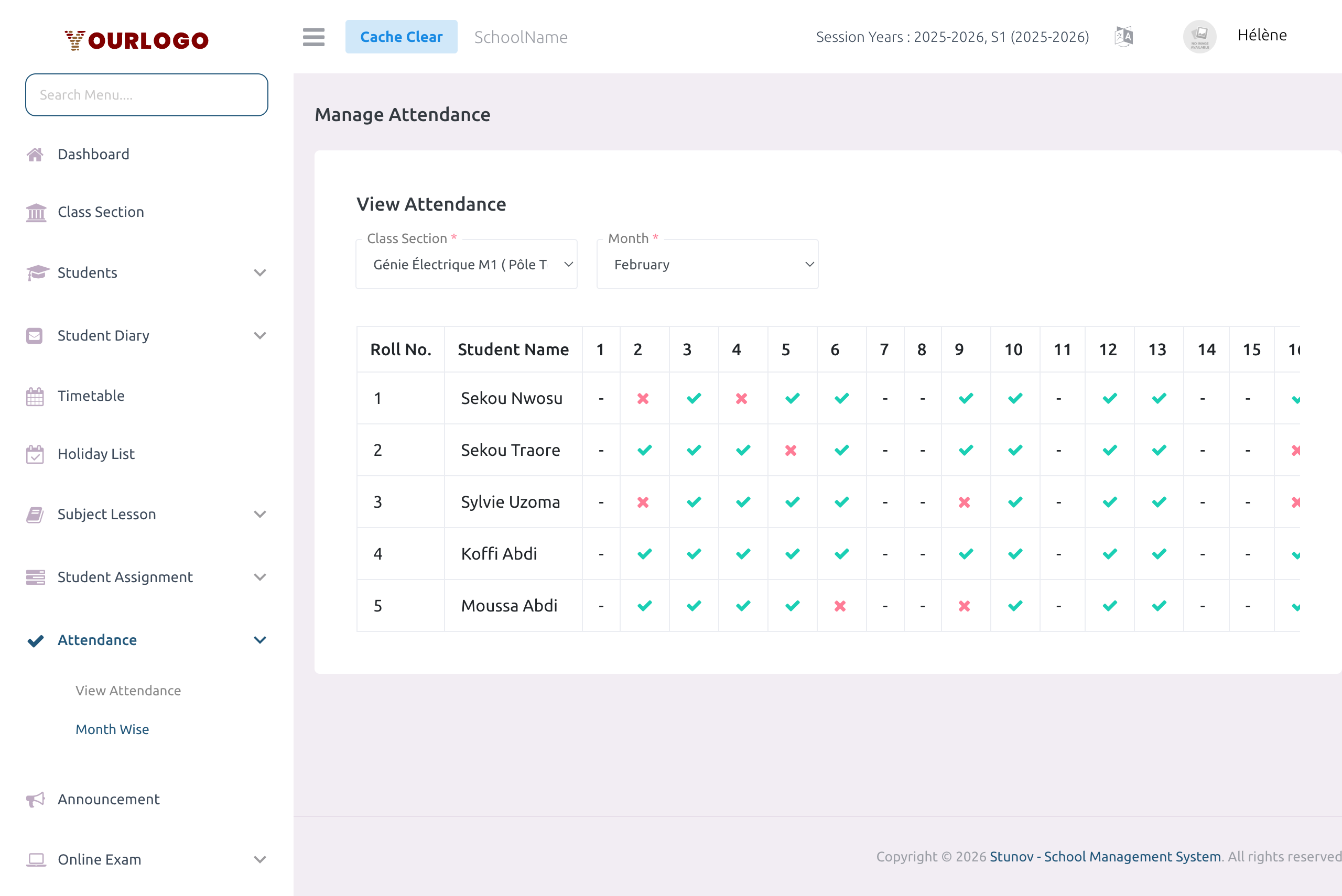
View Month Wise Attendance
Filter Controls
| Field | Type | Required | Description |
|---|---|---|---|
| Class Section | Select | Required | The class section whose monthly attendance you want to view. Teachers see only their assigned sections. |
| Month | Select | Required | The month to display (January – December). The grid shows all days in the selected month for the current session year. |
Grid Legend
The grid uses the following icons to represent attendance status:
| Icon | Meaning | Color |
|---|---|---|
| ✓ (check) | Present | Green |
| ✗ (cross) | Absent | Red |
| ⏻ (power) | Holiday | Blue |
| — (dash) | No data | Gray |
Table Structure
| Column | Description |
|---|---|
| Roll Number | The student's roll number within the class section |
| Student Name | The student's full name |
| Day 1 – Day N | One column per day of the month, each showing the attendance icon |
The number of day columns varies based on the month (28–31 days). For days where no attendance was recorded, a dash (—) is shown.
Reading the Grid
- Horizontal scan — Look across a student's row to see their attendance pattern for the entire month
- Vertical scan — Look down a day column to see the whole class's attendance for that day
- Holiday columns — If a day was marked as Holiday, the entire column shows the Holiday icon for all students
- Gaps — A dash (—) means no attendance was taken for that student on that day (e.g., weekend or the class didn't meet)
The grid shows attendance for the current session year only. If you select a month before the session start or after the session end, it may show no data.
Permissions Required
| Permission | Description |
|---|---|
attendance-list | View attendance records and month-wise grid |
Related Pages
- Add Attendance — Take or edit daily attendance
- View Attendance — Review attendance records filtered by date and type