Add Bulk Questions
The Bulk Questions feature lets you import multiple questions into the question bank at once by uploading a CSV file. This is ideal for large-scale question entry — instead of creating questions one by one, you prepare them all in a spreadsheet and upload in a single operation.
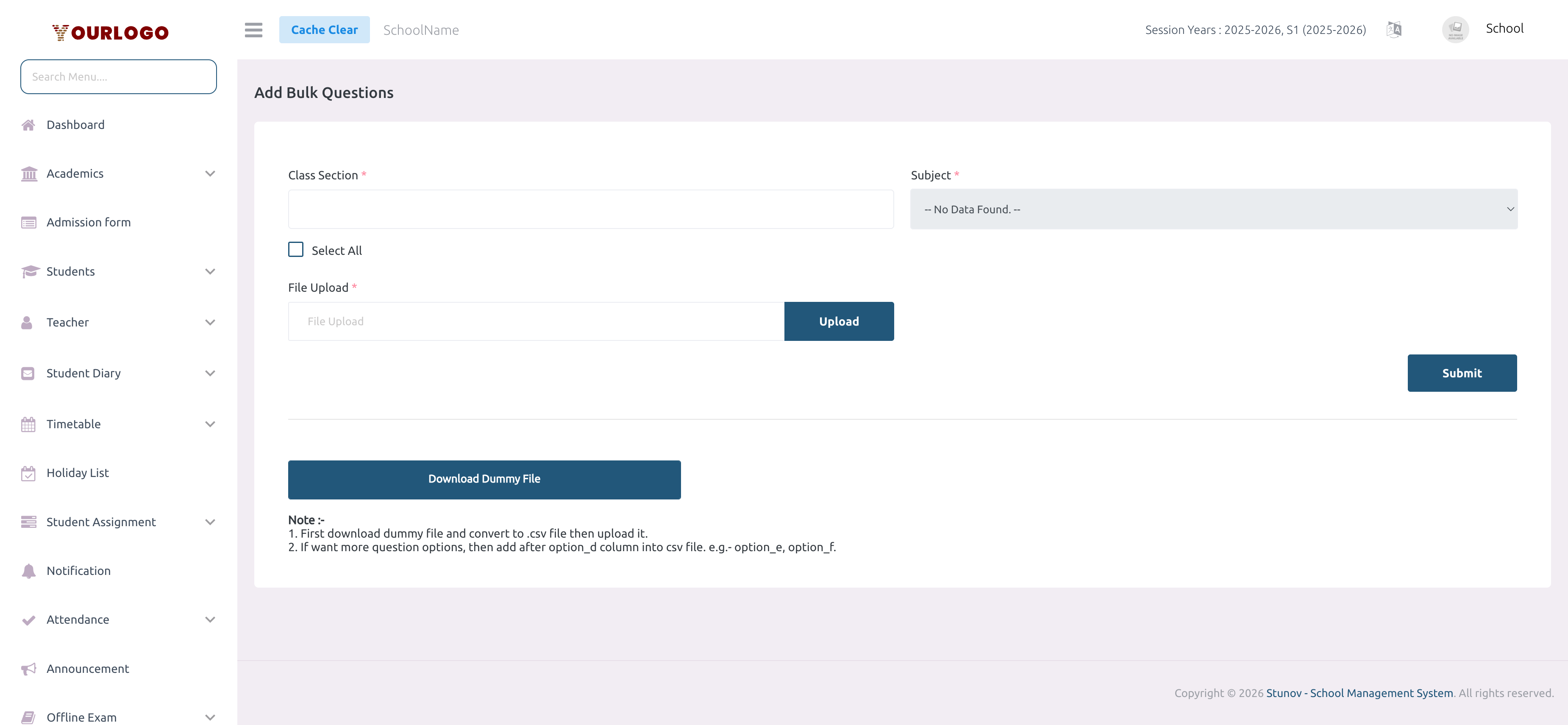
Add Bulk Questions — select target class section and subject, then upload CSV
Upload Questions via CSV
1
Navigate to Exam & Assessment → Online Exam → Add Bulk Questions
From the sidebar, expand **Exam & Assessment → Online Exam** and click **Add Bulk Questions**.
2
Download the template file
Click the **Download Dummy File** button to download the Excel template (`Online_Exam_Questions_import.xlsx`). This file shows the required format and column headers.
3
Prepare your CSV
Open the downloaded template, fill in your questions following the column format (see CSV Format below), then **save the file as .csv** format.
4
Select Class Section(s)
Choose the target class section(s) from the **Class Section** multi-select dropdown. Use **Select All** to target all sections.
5
Select the Subject
Pick the subject these questions belong to from the **Subject** dropdown.
6
Upload the CSV file
Click the file upload area and select your prepared `.csv` file.
7
Submit
Click **Submit** to import. The system validates each row and creates the questions. A success or error message displays the results.
Upload Form Fields
| Field | Type | Required | Description |
|---|---|---|---|
| Class Section | Multi-select | Required | Target class section(s) for the imported questions. Teachers see only their assigned sections. |
| Subject | Dropdown | Required | The subject these questions belong to. Filters based on selected class sections. |
| File | File Upload (.csv) | Required | The CSV file containing questions. Must be in .csv or .txt format. |
CSV File Format
The CSV file must follow this exact column structure:
| Column | Description | Required | Example |
|---|---|---|---|
| question | The question text | Yes | "What is the capital of France?" |
| option_a | First answer option | Yes | "London" |
| option_b | Second answer option | Yes | "Paris" |
| option_c | Third answer option | Yes | "Berlin" |
| option_d | Fourth answer option | Yes | "Madrid" |
| answer | The correct answer(s) — must exactly match an option column header | Yes | "option_b" |
| difficulty | Difficulty level: easy, medium, or hard | Yes | "medium" |
| note | Optional explanation or hint | No | "Paris is the capital and largest city of France" |
Adding more options
If you need more than 4 options per question, add additional columns after option_d in the CSV. For example: option_e, option_f, etc. The system will automatically detect them.
Example CSV Content
question,option_a,option_b,option_c,option_d,answer,difficulty,note
"What is 2+2?","3","4","5","6","option_b","easy","Basic arithmetic"
"Which planet is closest to the Sun?","Venus","Mercury","Earth","Mars","option_b","medium","Mercury orbits at ~58 million km from the Sun"
"What is the chemical formula of water?","H2O","CO2","NaCl","O2","option_a","easy",""
Important Notes
Convert to CSV first
The template download is an .xlsx file (Excel). You must convert it to .csv format before uploading. Open it in Excel or Google Sheets, then use Save As → CSV.
Validation
- Each row must have at least the
question,option_a,option_b,answer, anddifficultycolumns - The
answervalue must be one of the option column headers (e.g.,option_a,option_b) - The
difficultyvalue must be one of:easy,medium,hard - Empty rows are skipped
- If any row fails validation, the system reports the error with the row number
Related Pages
- Manage Questions — Create and edit questions individually
- Manage Online Exam — Create exams and assign questions from the bank