Manage Questions
The Question Bank is a centralized pool of multiple-choice questions organized by class section and subject. Questions stored here can be reused across multiple online exams — either assigned manually or picked randomly.
Shared across exams
A single question in the bank can be assigned to many different online exams. Editing a question here updates it everywhere.
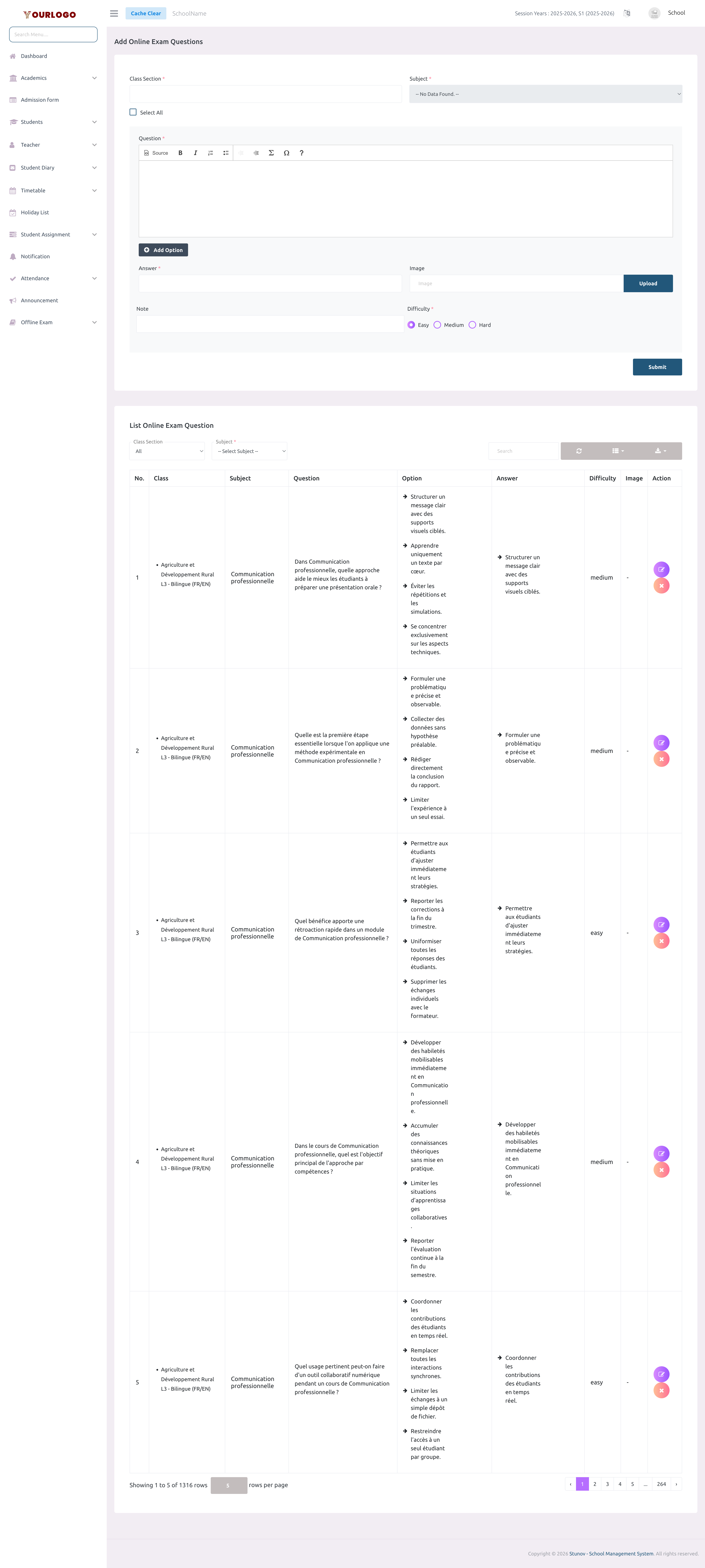
Manage Questions — create form (top) and question bank list with filters (bottom)
Create a Question
1
Navigate to Exam & Assessment → Online Exam → Manage Questions
From the sidebar, expand **Exam & Assessment → Online Exam** and click **Manage Questions**.
2
Select Class Section(s)
Choose one or more class sections from the **Class Section** multi-select. Use **Select All** to target all sections. Teachers only see their assigned sections.
3
Select the Subject
The **Subject** dropdown filters based on the selected class sections. Pick the subject this question belongs to.
4
Enter the Question text
Type or paste the question in the **Question** rich text editor (CKEditor). You can use formatting, mathematical notation (MathJax), and inline images.
5
Add Options
Click **Add Option** to create answer choices. Each option has a rich text editor. Add as many options as needed (minimum 2). Click the **Remove** button next to an option to delete it.
6
Select the Correct Answer(s)
In the **Answer** multi-select dropdown, choose which option(s) are correct. Multiple correct answers are supported.
7
Upload an Image (optional)
Upload a supporting image for the question (JPG/PNG, max 3 MB). This image will be shown alongside the question text.
8
Add a Note (optional)
Enter a short note or explanation. This can be used as a hint or post-exam explanation for students.
9
Set Difficulty
Choose a difficulty level: **Easy**, **Medium**, or **Hard**. This is used for filtering and random question assignment.
10
Submit
Click **Submit** to save the question to the bank. It will appear in the list below.
Create Form Fields
| Field | Type | Required | Description |
|---|---|---|---|
| Class Section | Multi-select | Required | One or more class sections this question is available for. Teachers see only their assigned sections. |
| Subject | Dropdown | Required | The subject this question belongs to. Filters based on selected class sections. |
| Question | Rich Text (CKEditor) | Required | The question text. Supports formatting, MathJax, and inline images (max 1024 characters). |
| Options | Rich Text (repeater) | Required | Answer choices. At least 2 options required. Each option supports rich text. Use Add/Remove buttons to manage. |
| Answer | Multi-select | Required | The correct answer(s). Selecting multiple enables multi-answer questions. |
| Image | File Upload | Optional | Optional image to accompany the question. Accepts JPEG/PNG, max 3 MB. |
| Note | Text | Optional | Optional explanation or hint (max 1024 characters). |
| Difficulty | Radio (Easy / Medium / Hard) | Required | Difficulty level. Used for filtering and random assignment. Default is Easy. |
View Questions
The question list displays all questions in a server-side paginated table.
Filter Bar
| Filter | Description |
|---|---|
| Class Section | Filter by a specific class section |
| Subject | Filter by subject (populates after selecting a class section) |
List Columns
| Column | Description |
|---|---|
| No. | Row number |
| Class | Class section with medium |
| Subject | Subject name |
| Question | The question text (rendered as rich HTML) |
| Options | List of answer options |
| Answer | The correct answer(s) highlighted |
| Difficulty | Easy, Medium, or Hard |
| Image | Thumbnail of attached image (if any) |
| Action | Edit and Delete buttons |
- Use the search bar to find questions by keywords
- Export the list using the export button
- Server-side pagination with configurable page sizes (5, 10, 20, 50, 100, 200)
Edit a Question
1
Click the Edit button
In the **Action** column of the question row, click the **Edit** (pencil) button. You are redirected to the edit page.
2
Update the fields
Modify the question text, options, answer, image, note, and difficulty. The **Class Section** and **Subject** are read-only and cannot be changed.
3
Save changes
Click **Update** to save your changes. The question is updated across all exams that reference it.
Updates affect all exams
Editing a question updates it in every online exam that uses this question. Double-check before modifying questions that are part of ongoing exams.
Delete a Question
1
Click the Delete button
In the **Action** column, click the **Delete** (trash) button.
2
Confirm deletion
A confirmation dialog appears. Click **Confirm** to soft-delete the question.
Cannot delete questions assigned to exams
If the question is currently assigned to an active online exam, you must remove it from the exam first before deleting it from the bank.
Related Pages
- Manage Online Exam — Create exams and assign questions to them
- Add Bulk Questions — Import multiple questions via CSV