Assignment Submission
The Assignment Submission page allows teachers to review, grade, and provide feedback on student submissions. You can view all submissions across assignments, filter by class section and subject, and access detailed grading for each assignment.
There are two views for submissions:
- Submission List — shows all individual submissions across assignments (filterable)
- Submission Details — shows all students who submitted for a specific assignment (accessed via the "View Submissions" eye icon on the Create Assignment page)
Submission List
Navigate to Exam & Assessment → Student Assignment → Assignment Submission to see all submissions in a single table.
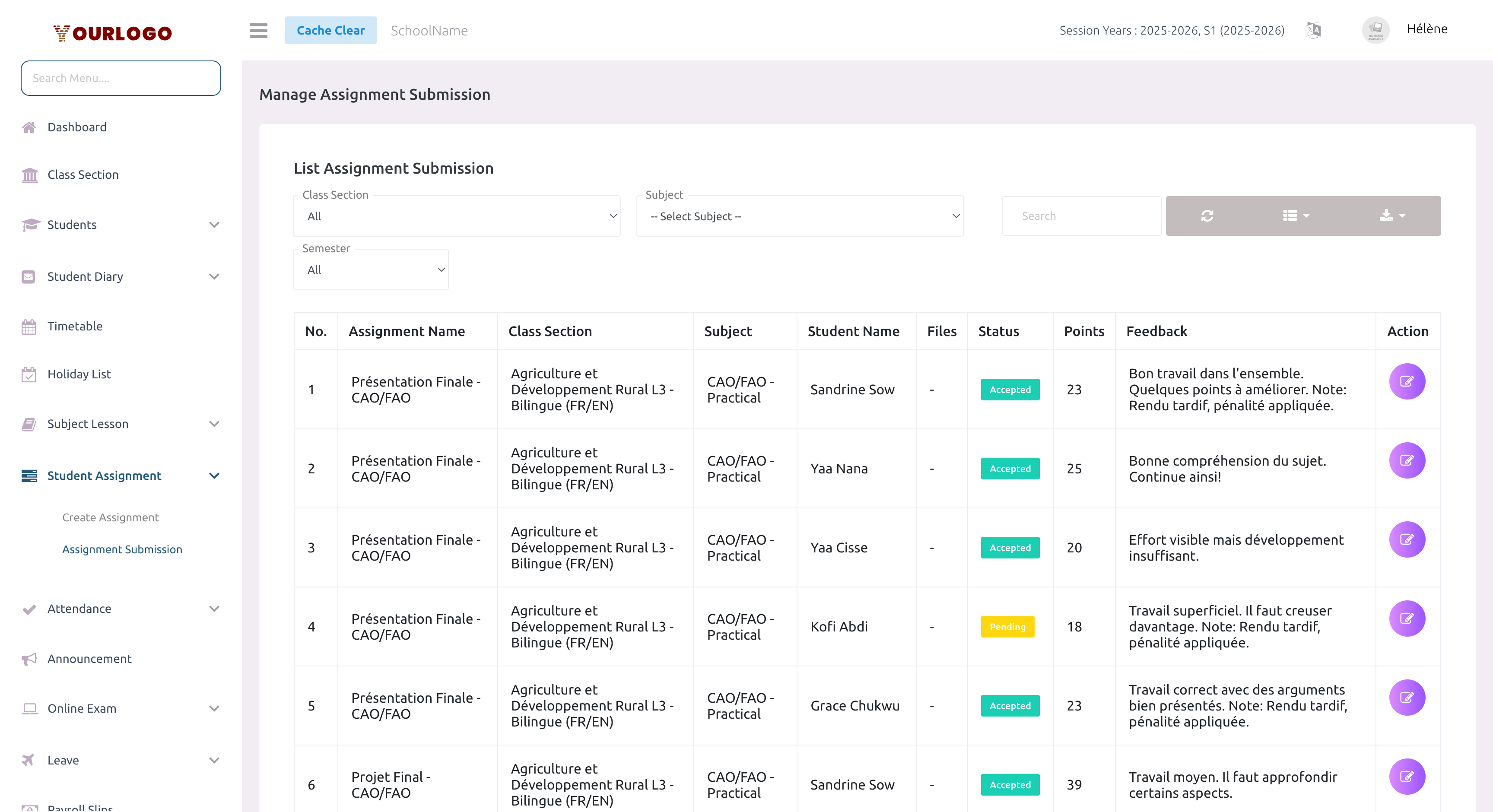
Filter Options
| Filter | Description |
|---|---|
| Class Section | Filter by class section (defaults to "All") |
| Subject | Filter by subject |
| Semester | Filter by semester (only appears if semesters are enabled) |
Table Columns
| Column | Description |
|---|---|
| No. | Row number |
| Assignment Name | The assignment this submission belongs to |
| Class Section | Class section with medium |
| Subject | Subject name with type (Theory/Practical) |
| Student Name | The student who submitted |
| Files | Submitted files (click to view/download), or "-" if none |
| Status | Submission status: Accepted, Rejected, or Pending |
| Points | Points awarded to the student |
| Feedback | Teacher feedback text |
| Action | Edit (pencil) button to modify status/points/feedback |
Additional toolbar features:
- Search bar — find submissions by assignment name, student name, or feedback
- Refresh button — reload the table data
- Columns button — show/hide table columns
- Export button — download the submission list
Review Submissions (Submission Details)
To review all students who submitted for a specific assignment, use the View Submissions (eye icon) button on the Create Assignment page.
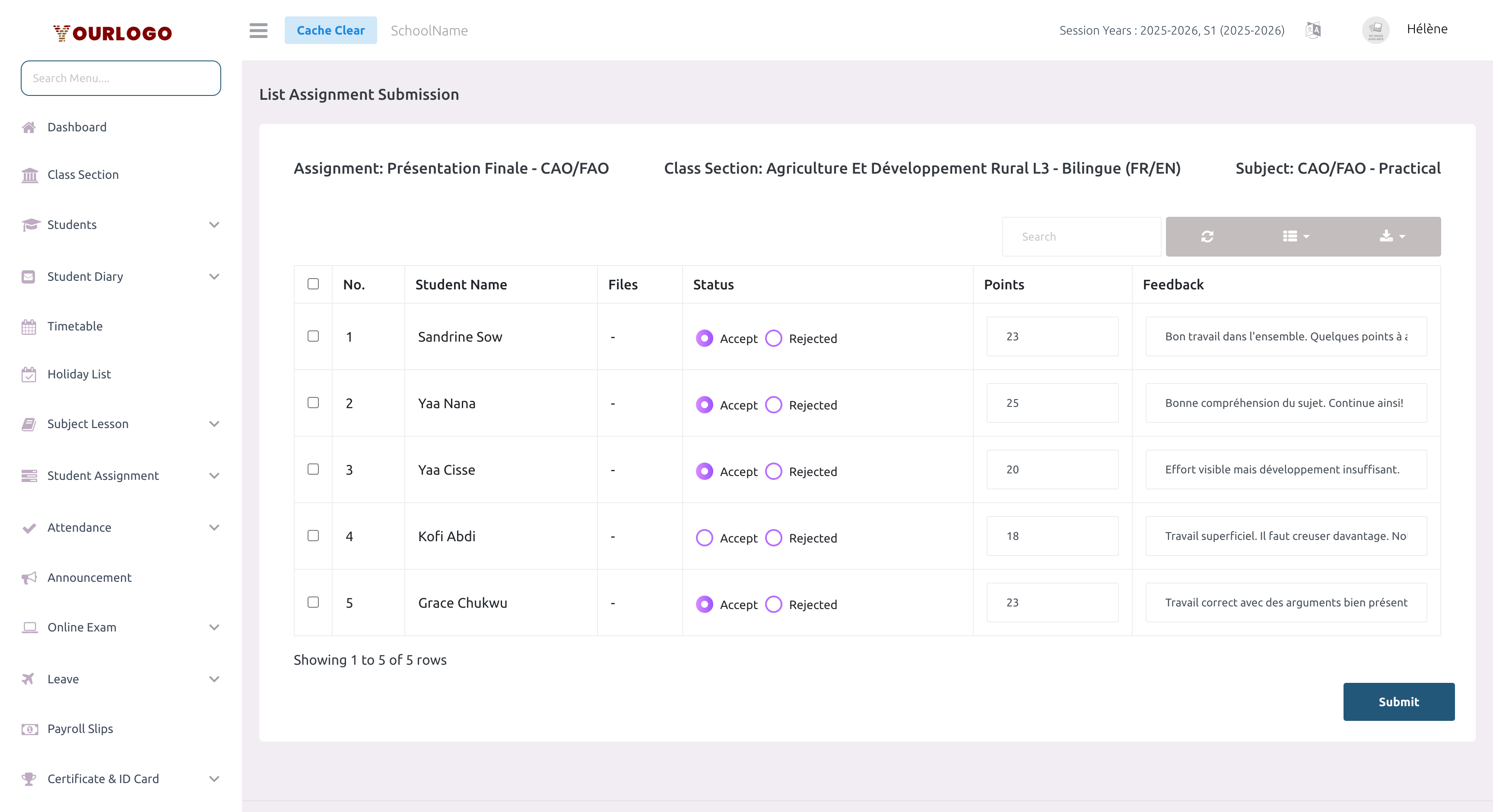
This page shows:
- Assignment name, Class Section, and Subject as headers
- A table of all student submissions with inline editing controls
Grading Controls
For each student submission row, you can:
| Control | Description |
|---|---|
| Checkbox | Select individual submissions for bulk actions |
| Accept / Rejected | Radio buttons to set the submission status |
| Points | Number input to assign points (max is the assignment's total points) |
| Feedback | Text input to write feedback for the student |
Grading on the Submission Details page is saved all at once when you click Submit. If you navigate away without submitting, your changes will be lost.
Submission Statuses
| Status | Description |
|---|---|
| Pending | The student has submitted but the teacher has not yet reviewed it |
| Accepted | The teacher has reviewed and accepted the submission |
| Rejected | The teacher has reviewed and rejected the submission — the student may need to resubmit |
If the assignment allows resubmission and the deadline + extra days have not passed, a rejected student can submit again from the mobile app. The new submission replaces the previous one.
Staff App Views
Teacher (Staff App)
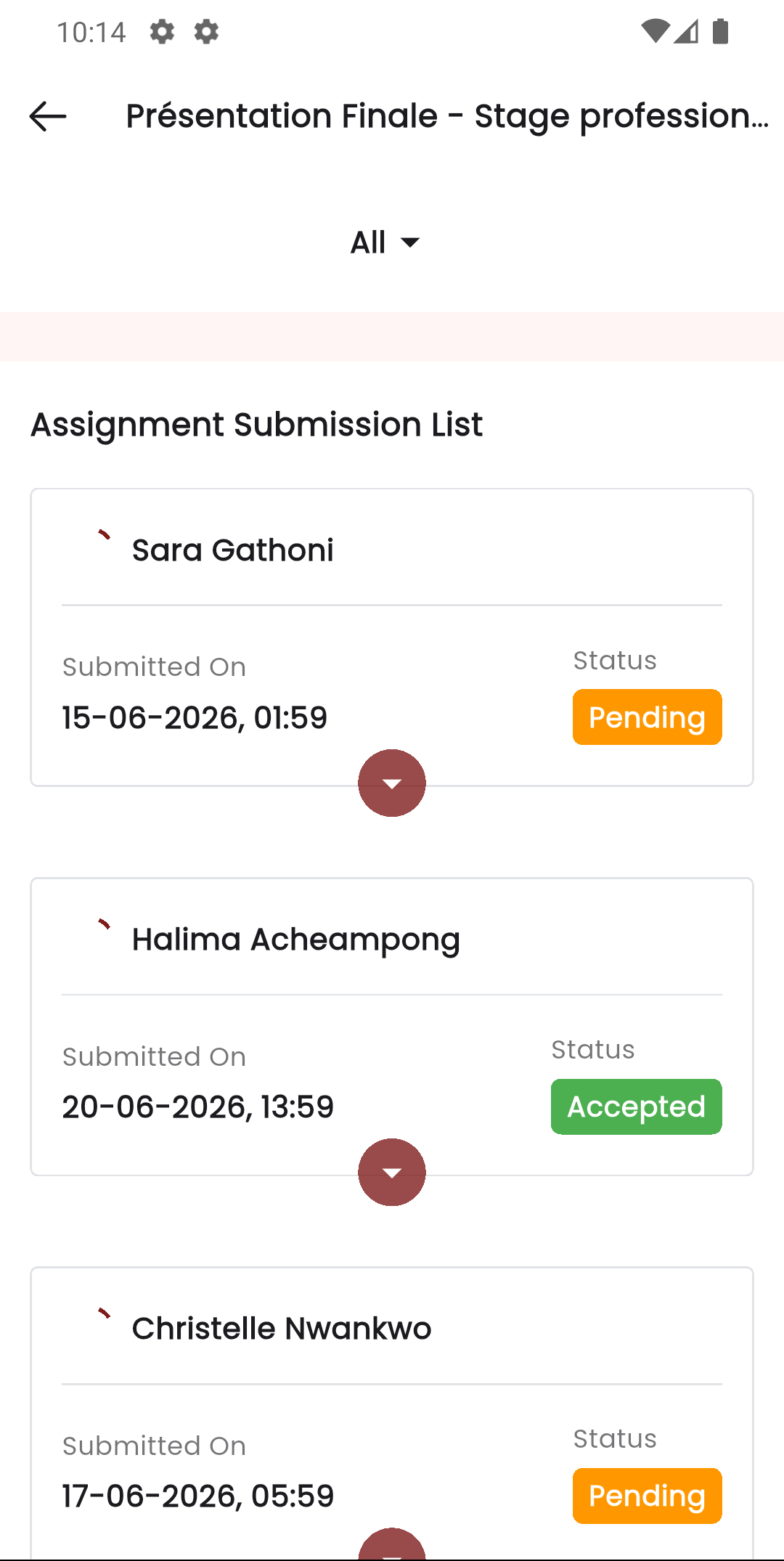
Teachers can view assignment submissions from the Stunov+ Staff App. The app shows submissions per assignment with status indicators.
Student (Student App)
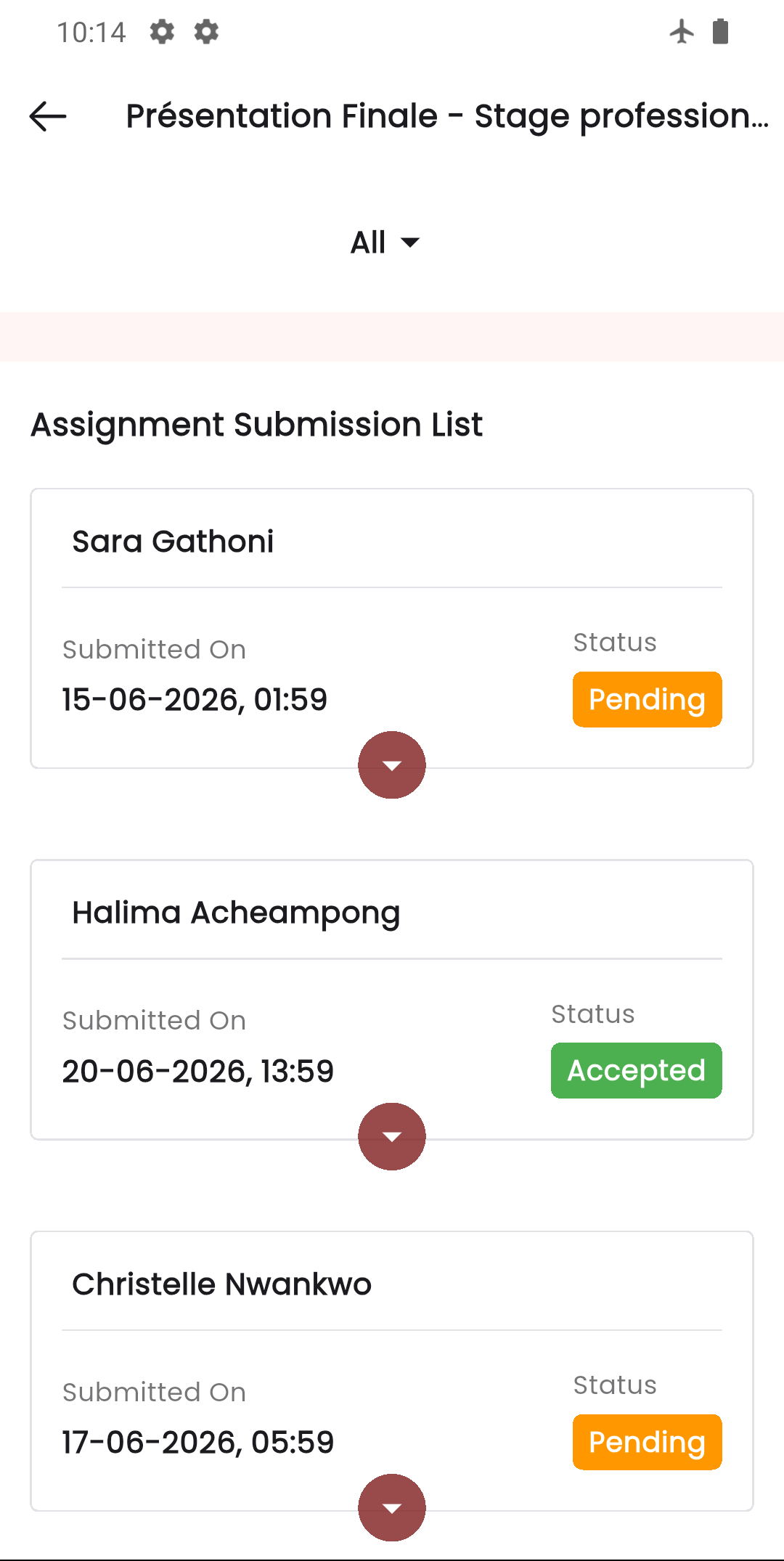
Students view their assignments and submission status in the Stunov+ Student App. They can see:
- Assignment name, instructions, and due date
- Submission status (Pending, Accepted, Rejected)
- Points awarded and teacher feedback
- Option to submit or resubmit files
Permissions Required
| Action | Permission | Role |
|---|---|---|
| View submissions | assignment-submission-list | Teacher |
| Grade submissions | assignment-submission-edit | Teacher |
Related Pages
- Create Assignment — Create and manage the assignments themselves
- Create Lesson — Manage subject lessons for organized content delivery
- Announcement — Send announcements to students about assignment deadlines