Create Assignment
An Assignment is a task assigned by a teacher to students in one or more class sections for a specific subject. Assignments have due dates, point values, optional file attachments, and can allow resubmissions. Students submit their work through the mobile app, and teachers review submissions from the web panel.
Class Section → Subject → Assignment → Submission — Your School Admin creates Classes and Subjects. You then create Assignments here for your assigned subjects, and students submit their work via the Stunov+ Student app.
The Student Assignment feature must be enabled in your school's subscription for the "Student Assignment" menu to appear. Contact your School Admin or Super Admin if you don't see it in the sidebar.
Overview
The Assignment page combines a create form at the top and a list table below it. You can create, view, edit, and delete assignments all from this single page.
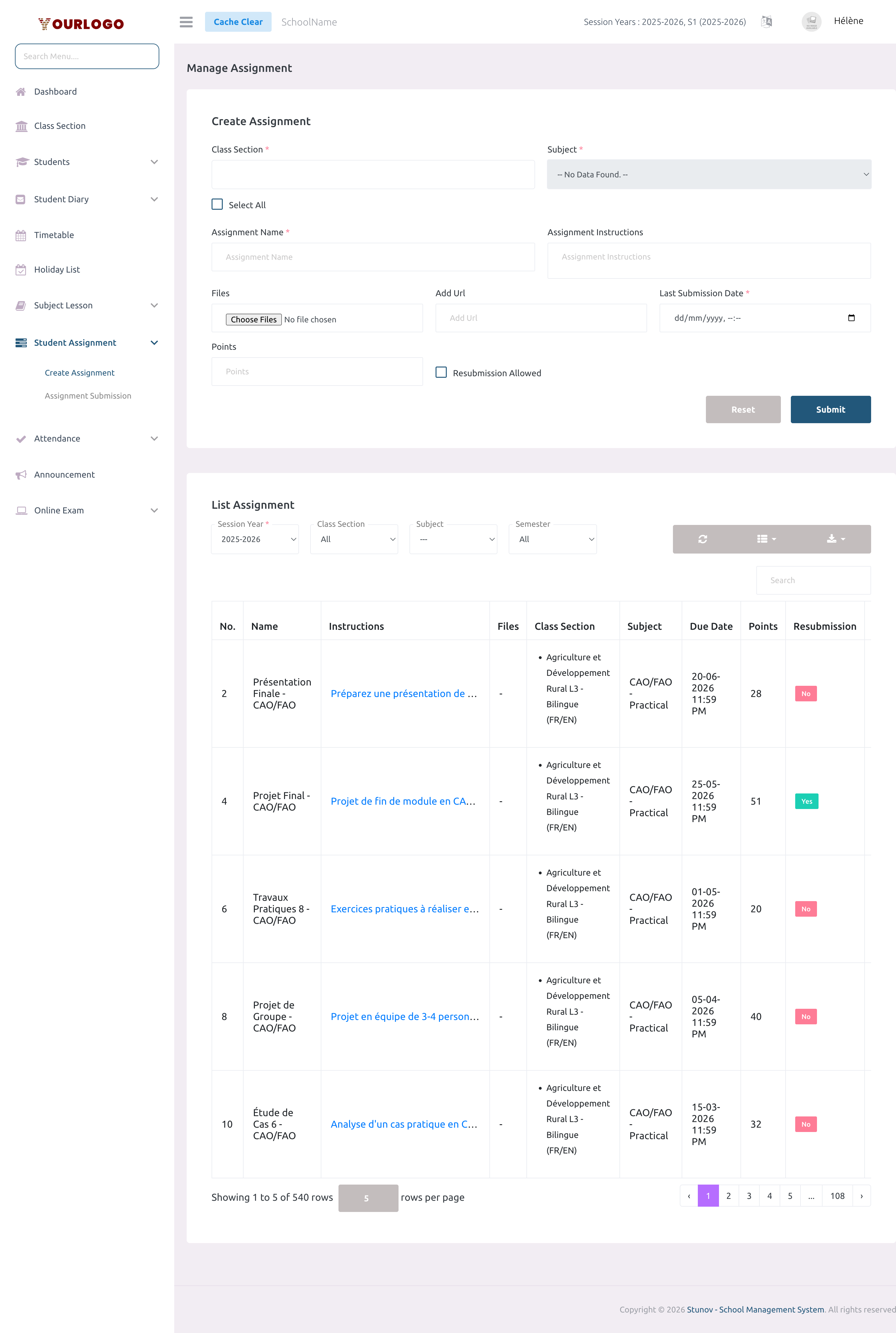
Create an Assignment
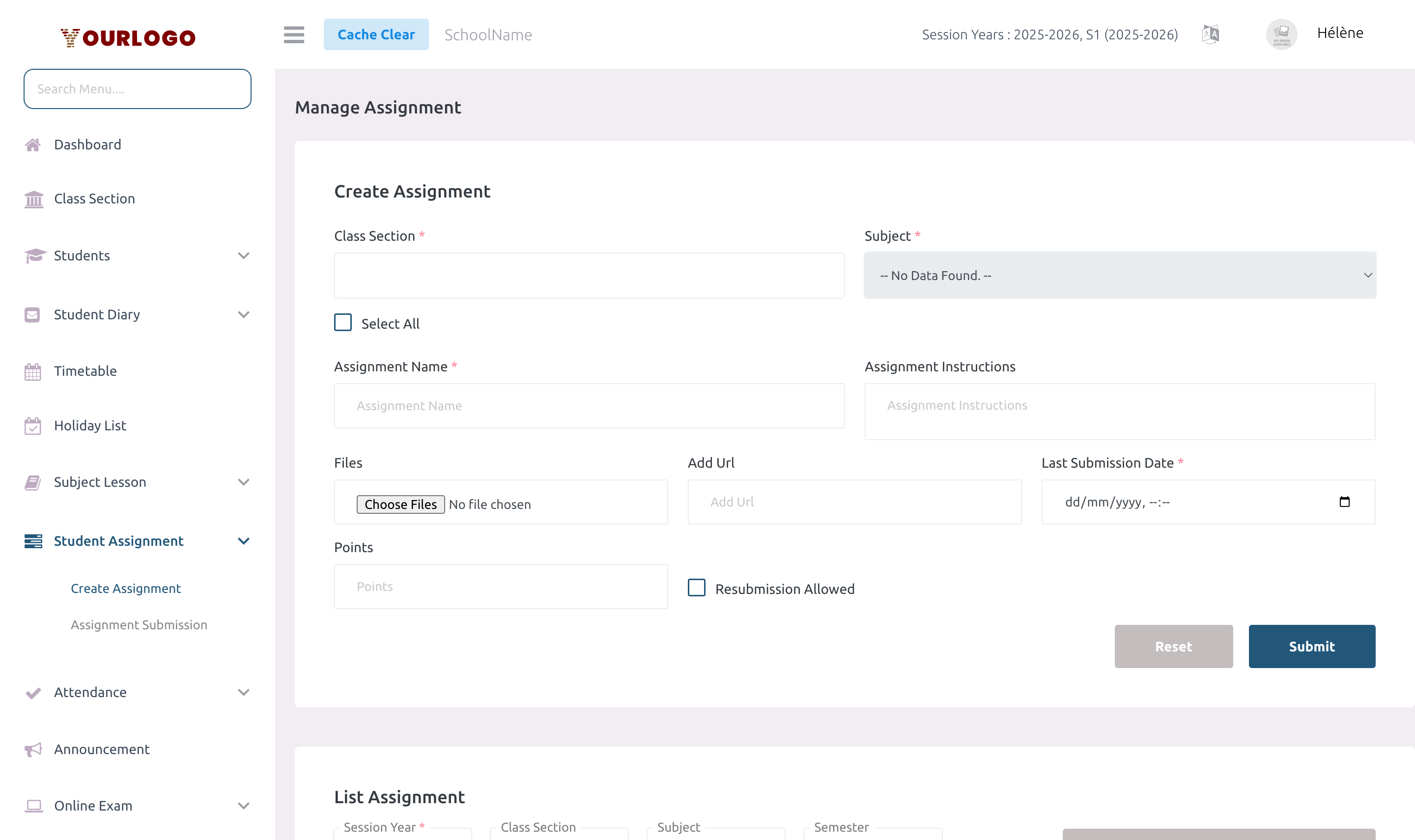
Form Fields
| Field | Type | Required | Description |
|---|---|---|---|
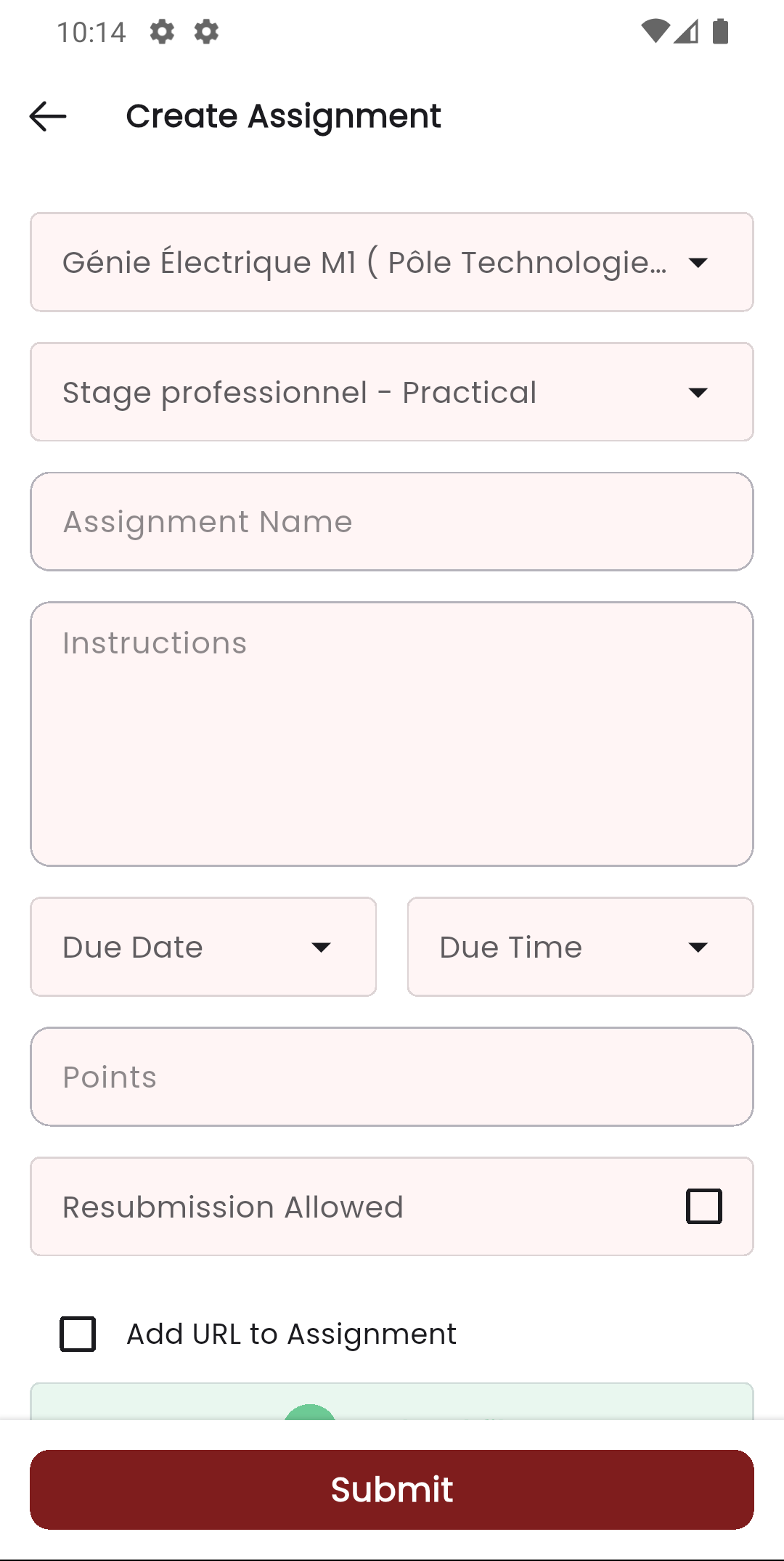
| Class Section | Multi-select dropdown | Required | One or more class sections the assignment is for. Includes a "Select All" checkbox. Only shows class sections assigned to you. |
| Subject | Dropdown | Required | The subject this assignment belongs to. Disabled until a class section is selected. Only shows your assigned subjects for the selected sections. |
| Assignment Name | Text | Required | The name of the assignment. Visible to students in the mobile app. |
| Assignment Instructions | Textarea | Optional | Instructions for completing the assignment. Shown to students when viewing the assignment. |
| Files | File upload | Optional | Supporting files (documents, PDFs, images). Students can download these from the mobile app. |
| Add Url | URL | Optional | A reference URL to share with students alongside the assignment. |
| Last Submission Date | Date-time picker | Required | The deadline for student submissions. After this date, no new submissions are accepted unless resubmission is enabled. |
| Points | Number | Optional | Maximum points for this assignment. Defines the grading scale (e.g., 28 means student scores are out of 28). |
| Resubmission Allowed | Checkbox | Optional | When checked, students can resubmit after the deadline. Reveals an additional "Extra Days for Resubmission" field. |
| Extra Days for Resubmission | Number | Optional | Number of extra days beyond the deadline that students can resubmit. Only visible when Resubmission Allowed is checked. |
View Assignments
The assignment list table appears below the create form. Use the filter bar to narrow down results.
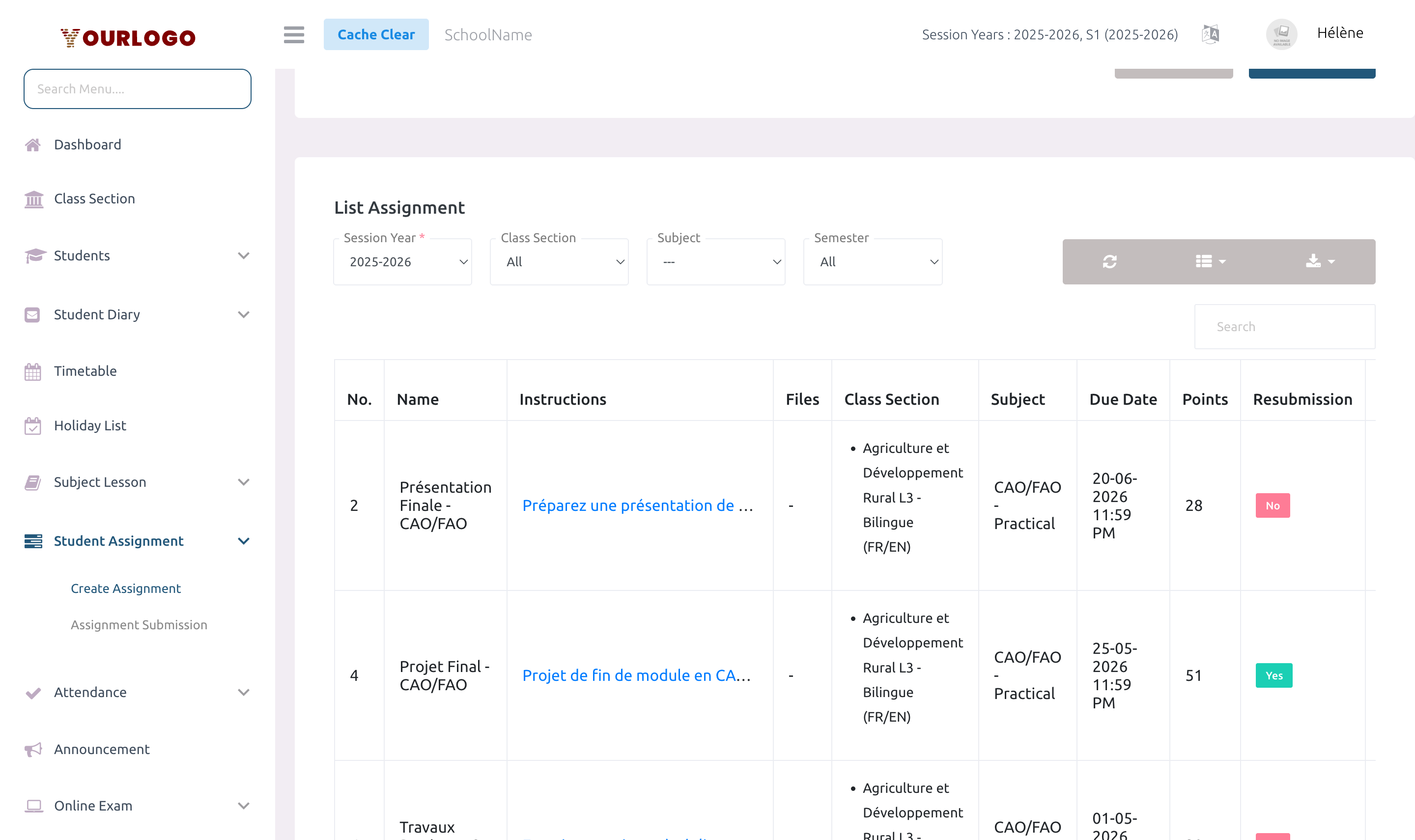
Filter Options
| Filter | Description |
|---|---|
| Session Year | Filter assignments by academic session year (required, defaults to current) |
| Class Section | Filter by class section |
| Subject | Filter by subject |
| Semester | Filter by semester (only appears if semesters are enabled) |
Table Columns
| Column | Description |
|---|---|
| No. | Row number |
| Name | Assignment name |
| Instructions | Assignment instructions (click to expand full text) |
| Files | Attached files (click to view/download), or "-" if none |
| Class Section | Assigned class section(s) with medium |
| Subject | Subject name with type (Theory/Practical) |
| Due Date | Last submission date and time |
| Points | Maximum points |
| Resubmission | Whether resubmission is allowed (Yes/No badge) |
| Resubmit Days | Number of extra days for resubmission |
| Action | Edit (pencil), View Submissions (eye), and Delete (trash) buttons |
Additional toolbar features:
- Search bar — find assignments by name or instructions
- Refresh button — reload the table data
- Columns button — show/hide table columns
- Export button — download the list as a file
Edit an Assignment
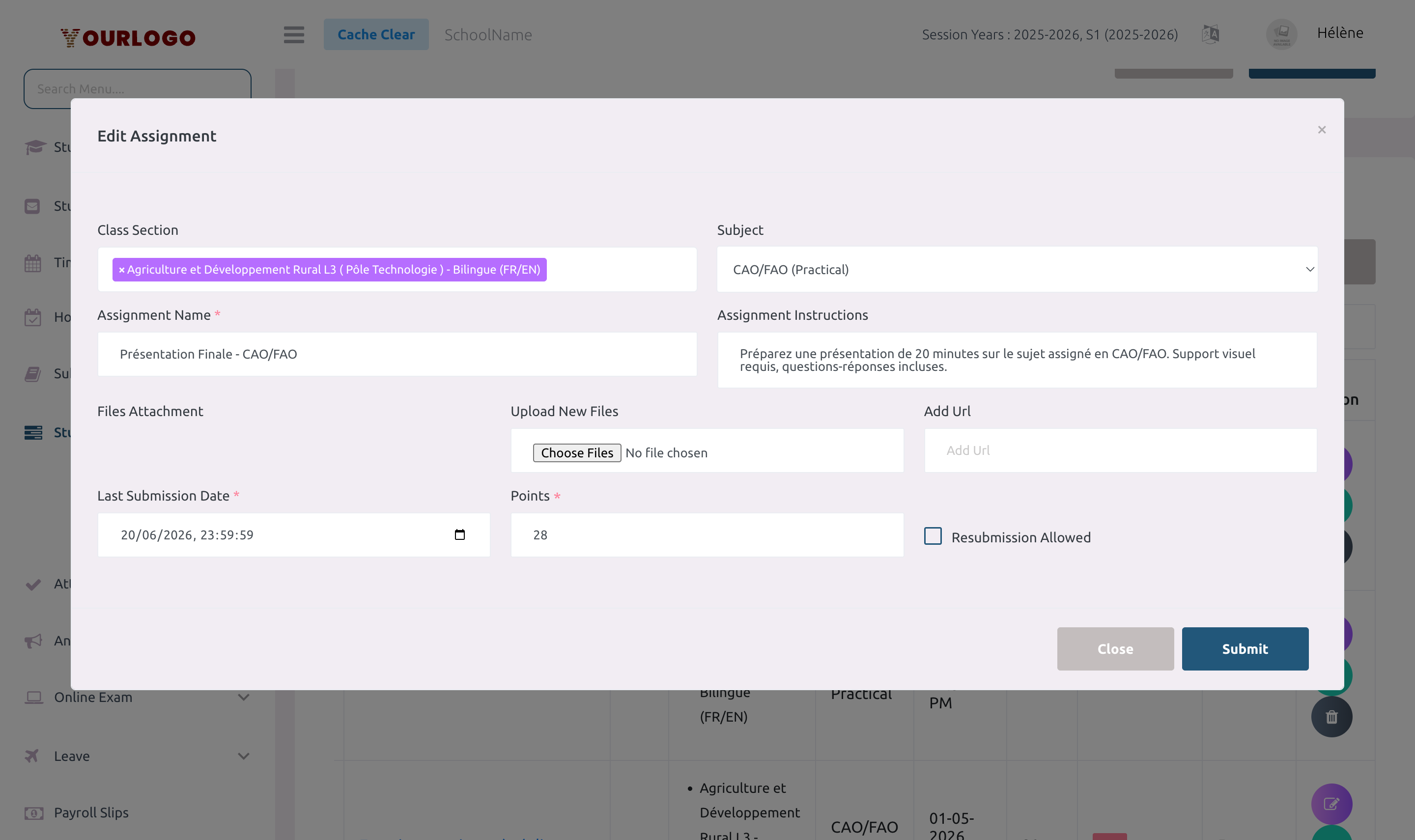
After an assignment is created, the Subject assignment cannot be changed. If you need to reassign an assignment to a different subject, delete it and create a new one.
Delete an Assignment
When you delete an assignment, all student submissions for that assignment are also deleted. Make sure you no longer need the submission data before deleting.
Restore a Deleted Assignment
Deleted assignments are soft-deleted and can be recovered:
- In the assignment list, switch to the Trash view
- Click Restore next to the deleted assignment
- The assignment and its submissions return to the active list
To permanently remove an assignment, use Force Delete from the Trash view.
Staff App (Teacher View)
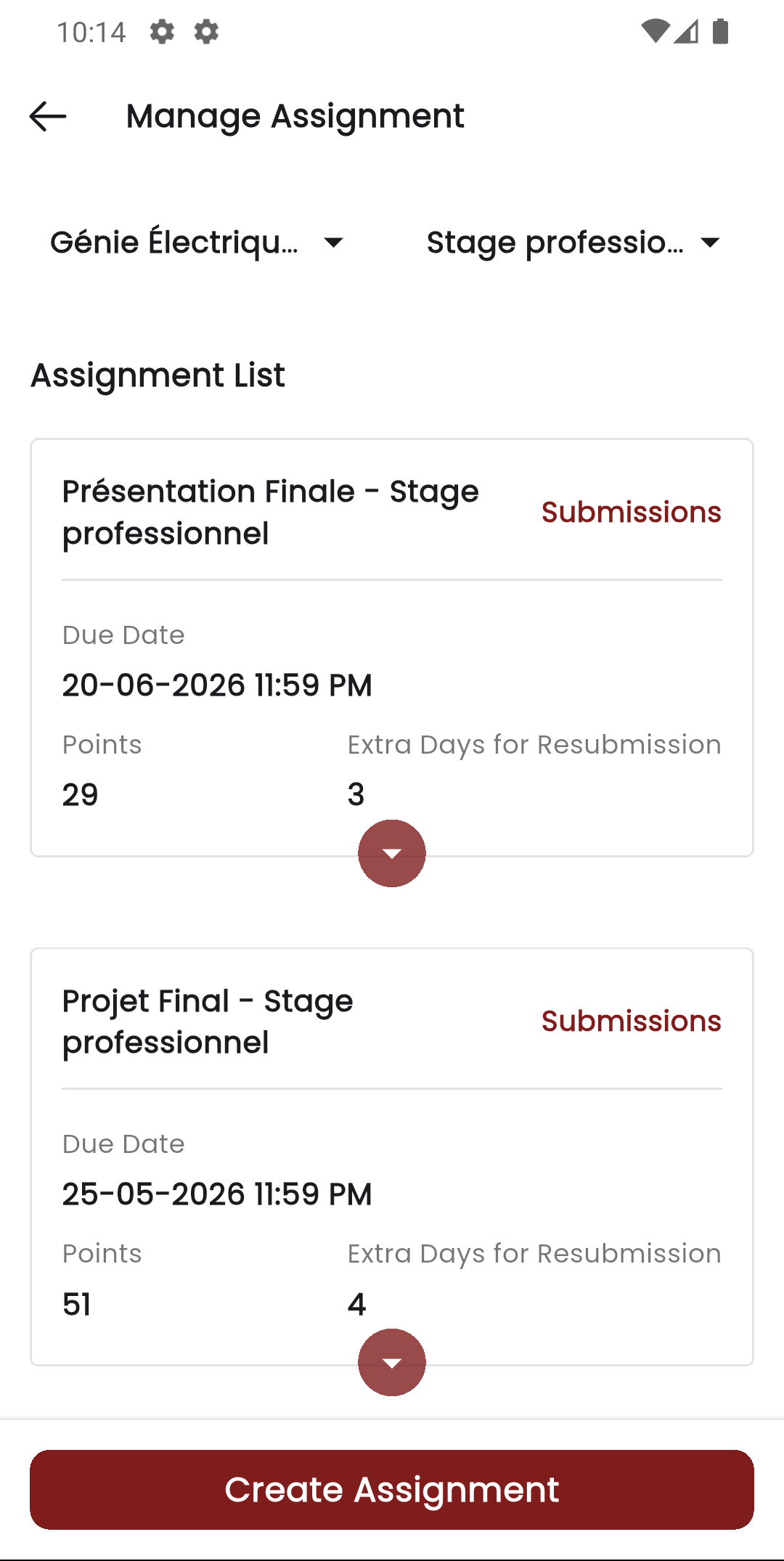
You can also manage assignments from the Stunov+ Staff App on your mobile device. The app provides full assignment management: create, edit, delete, and view assignments per subject.
Mobile Workflow
- Open the Staff app and navigate to Manage Assignment
- Select the class section and subject
- Tap + to create a new assignment
- Fill in the assignment name, instructions, due date, and points
- Tap Submit to save
Permissions Required
| Action | Permission | Role |
|---|---|---|
| View assignments | assignment-list | Teacher |
| Create assignment | assignment-create | Teacher |
| Edit assignment | assignment-edit | Teacher |
| Delete assignment | assignment-delete | Teacher |
Assignment management is a teacher-only feature. School Admins configure the school structure (subjects, class sections, teacher assignments) but do not create or manage individual assignments.
Related Pages
- Assignment Submission — Review and grade student submissions
- Create Lesson — Manage subject lessons
- Create Topic — Add detailed content within lessons