Create Topic
A Topic is a sub-unit of a Lesson. Topics break down a lesson into smaller, focused sections — each with its own name, description, and file attachments. Students see topics listed under their parent lesson in the mobile app.
Subject → Lesson → Topic — You must create a Lesson first before adding Topics to it. See Create Lesson to get started.
Overview
The Topic page follows the same layout as the Lesson page: a create form at the top and a list table below. The key difference is an additional Lesson dropdown that cascades from the selected Class Section and Subject.
Create a Topic
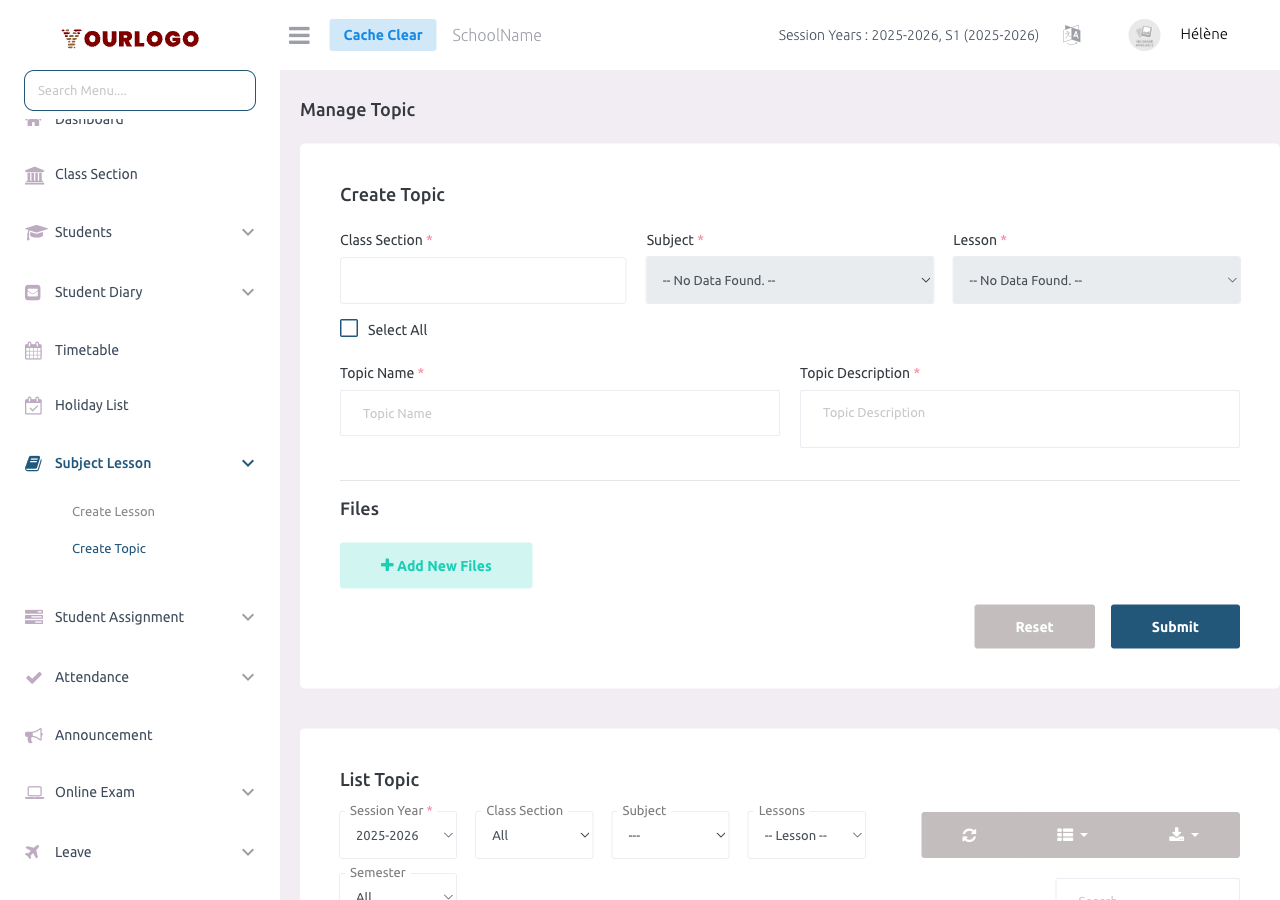
Form Fields
| Field | Type | Required | Description |
|---|---|---|---|
| Class Section | Multi-select dropdown | Required | One or more class sections. Used to filter available subjects and lessons. Includes a "Select All" checkbox. Only shows your assigned class sections. |
| Subject | Dropdown | Required | The subject this topic belongs to. Disabled until a class section is selected. Only shows your assigned subjects for the selected sections. |
| Lesson | Dropdown | Required | The parent lesson this topic belongs to. Disabled until both class section and subject are selected. Only shows lessons that exist for the chosen combination. |
| Topic Name | Text | Required | The name of the topic (max 128 characters). Must be unique within the selected lesson. |
| Topic Description | Textarea | Required | A description of the topic content (max 1024 characters). |
File Attachment Fields
File attachments for topics work identically to lesson attachments:
| Field | Type | Required | Description |
|---|---|---|---|
| Type | Dropdown | Required | The type of attachment: **File Upload** (documents, PDFs, images), **YouTube Link**, **Video Upload**, or **Other Link**. |
| File Name | Text | Required | A descriptive name for the attachment (displayed to students). |
| Thumbnail | Image upload | Optional | A preview thumbnail image. Required for YouTube Link, Video Upload, and Other Link types. |
| File | File upload | Optional | The file to upload. Required for File Upload and Video Upload types. |
| Link | URL | Optional | The URL for YouTube links or other links. Required for YouTube Link and Other Link types. |
The Subject dropdown is disabled until you select a Class Section. The Lesson dropdown is disabled until you select both a Class Section and a Subject. If no lessons exist for the selected combination, you will need to create a lesson first.
View Topics
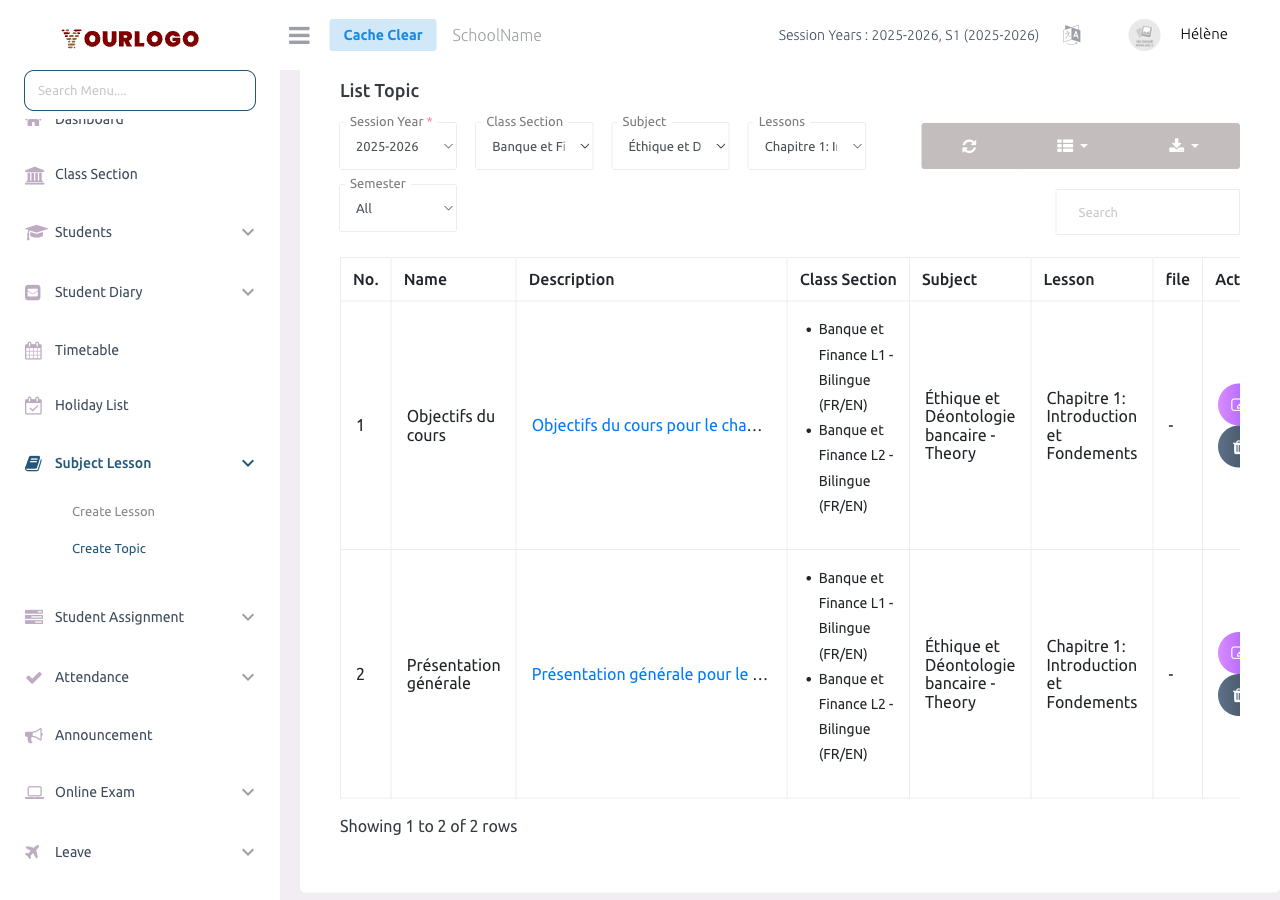
The topic list table appears below the create form. To avoid long loading times, select a Class Section and Subject in the filter bar first.
Select a Class Section and Subject right away so the list loads only the relevant topics. You can also filter by a specific Lesson to narrow results further.
Filter Options
| Filter | Description |
|---|---|
| Session Year | Filter topics by academic session year (required) |
| Class Section | Filter by class section (recommended — select to reduce load time) |
| Subject | Filter by subject (recommended — works with class section filter) |
| Lessons | Filter by parent lesson (narrows results within a subject) |
| Semester | Filter by semester (only appears if semesters are enabled for your school) |
Table Columns
| Column | Description |
|---|---|
| No. | Row number |
| Name | Topic name |
| Description | Topic description (click to expand) |
| Class Section | Assigned class section(s) with medium |
| Subject | Subject name with type (Theory/Practical) |
| Lesson | Parent lesson name |
| File | Attached files (click to view/download), or "-" if none |
| Action | Edit (pencil icon) and Delete (trash icon) buttons |
Additional toolbar features:
- Search bar — find topics by name or description
- Refresh button — reload the table data
- Columns button — show/hide table columns
- Export button — download the list as a file
Edit a Topic
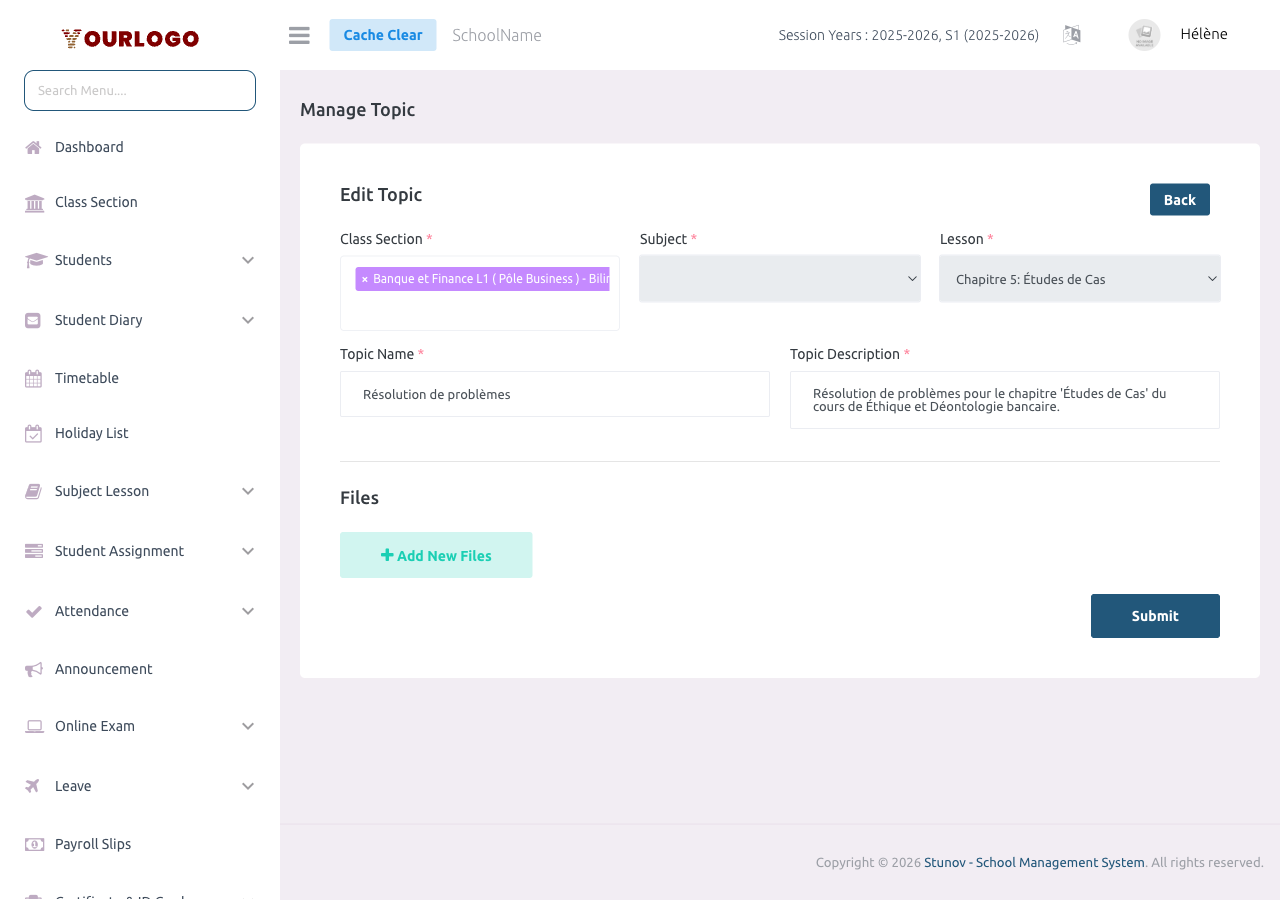
After a topic is created, its parent assignments cannot be changed. To move a topic to a different lesson, delete it and recreate it under the correct lesson.
Delete a Topic
Restore a Deleted Topic
Deleted topics are soft-deleted and can be recovered:
- In the topic list, switch to the Trash view
- Click Restore next to the deleted topic
- The topic returns to the active list
To permanently remove a topic, use Force Delete from the Trash view.
Staff App (Teacher View)
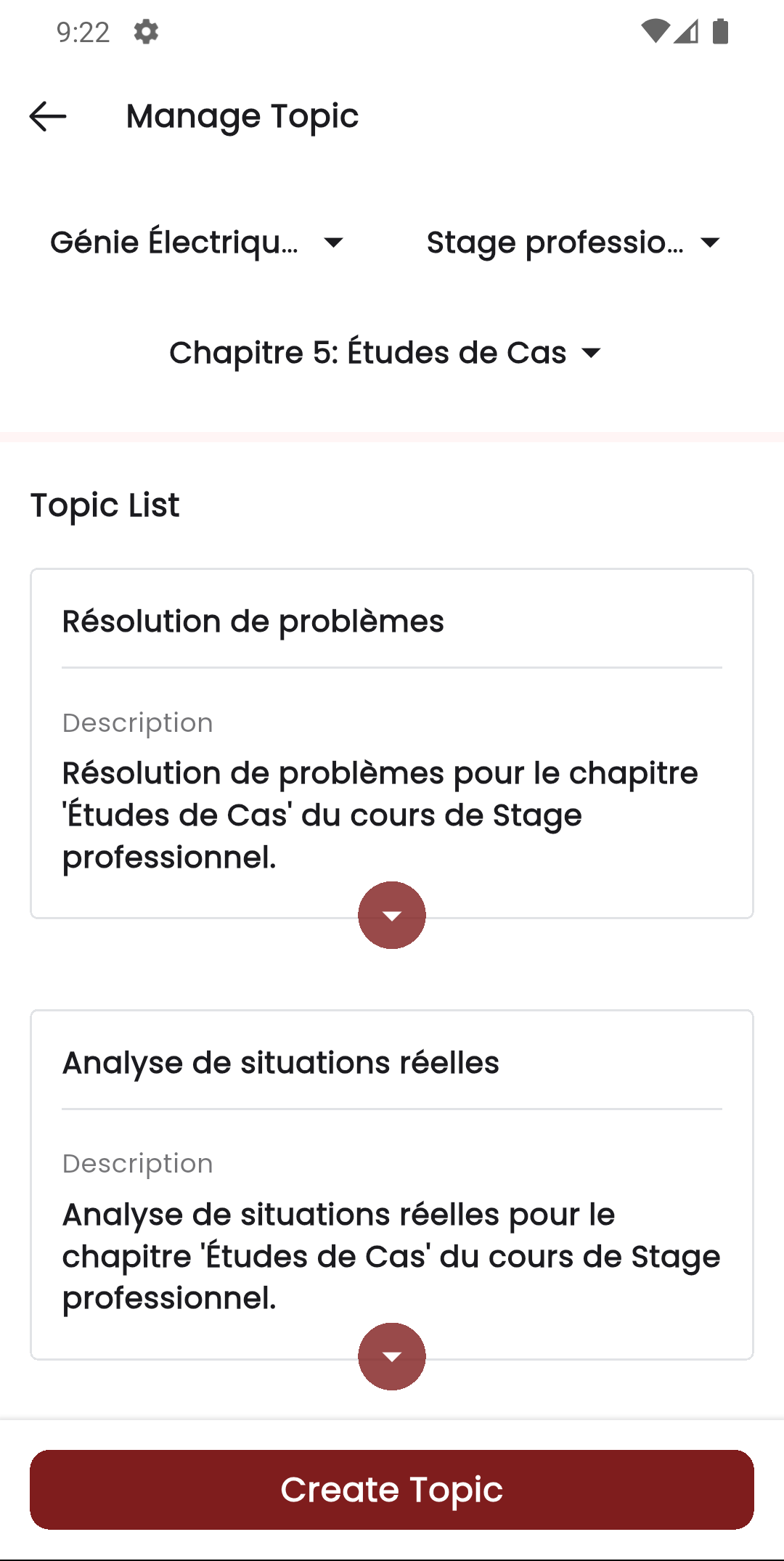
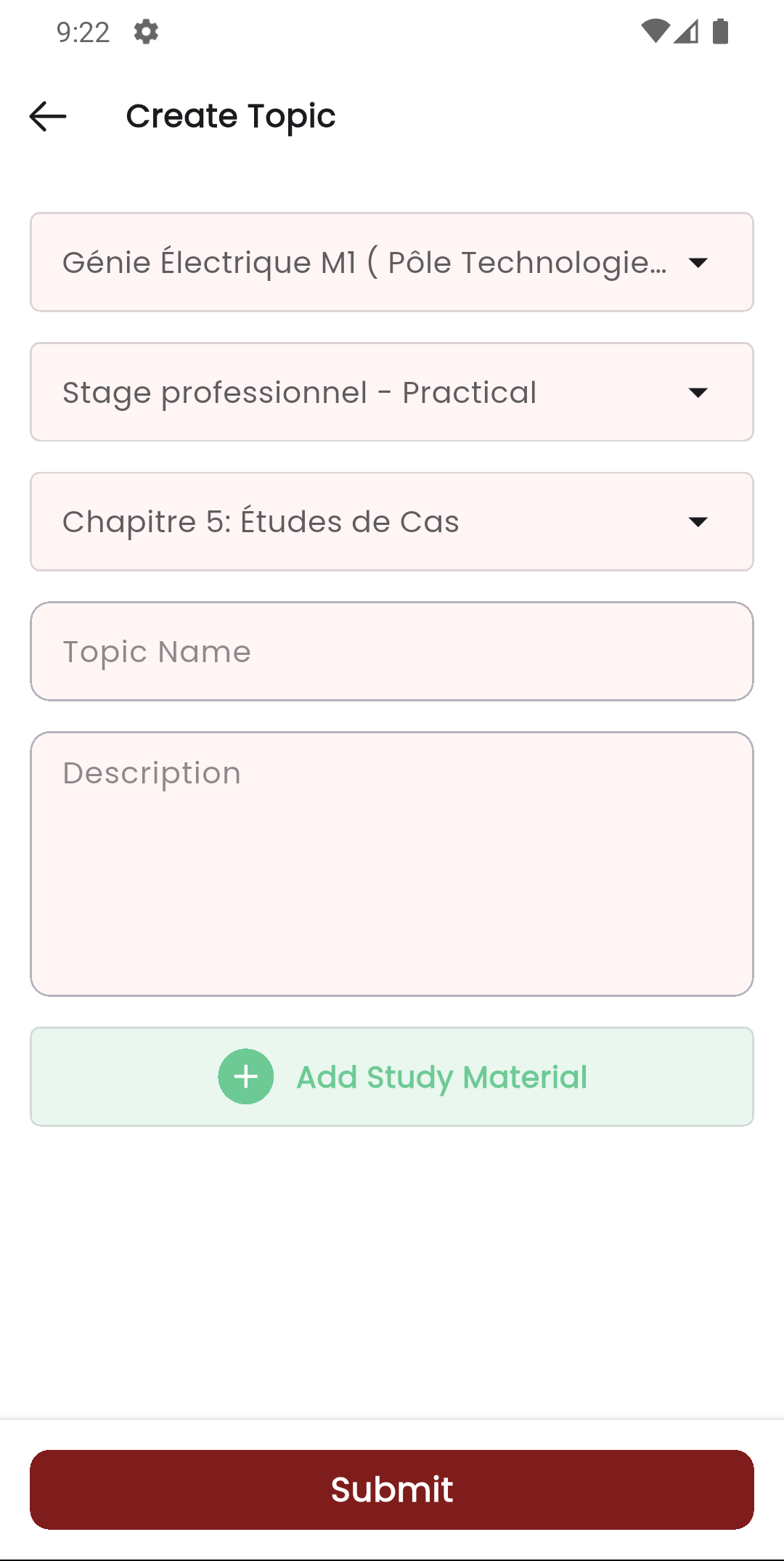
You can also manage topics from the Stunov+ Staff App by navigating to a lesson and tapping to manage its topics. The app provides full CRUD (create, read, update, delete) for topics.
Mobile Workflow
- Open the Staff app and navigate to Manage Lesson
- Select the class section and subject, then tap on a lesson
- Tap + Add Topic to create a new topic
- Fill in the topic name, description, and optionally attach files
- Tap Submit to save
Permissions Required
| Action | Permission | Role |
|---|---|---|
| View topics | topic-list | Teacher |
| Create topic | topic-create | Teacher |
| Edit topic | topic-edit | Teacher |
| Delete topic | topic-delete | Teacher |
Topic management is a teacher-only feature. School Admins configure the school structure (subjects, class sections, teacher assignments) but do not create or manage individual topics.
Related Pages
- Create Lesson — Create lessons that topics belong to
- Subject — Manage subjects for the academic structure
- Student Assignment — Create assignments linked to subjects
- Timetable — View class timetables with subject schedules