Student Fees
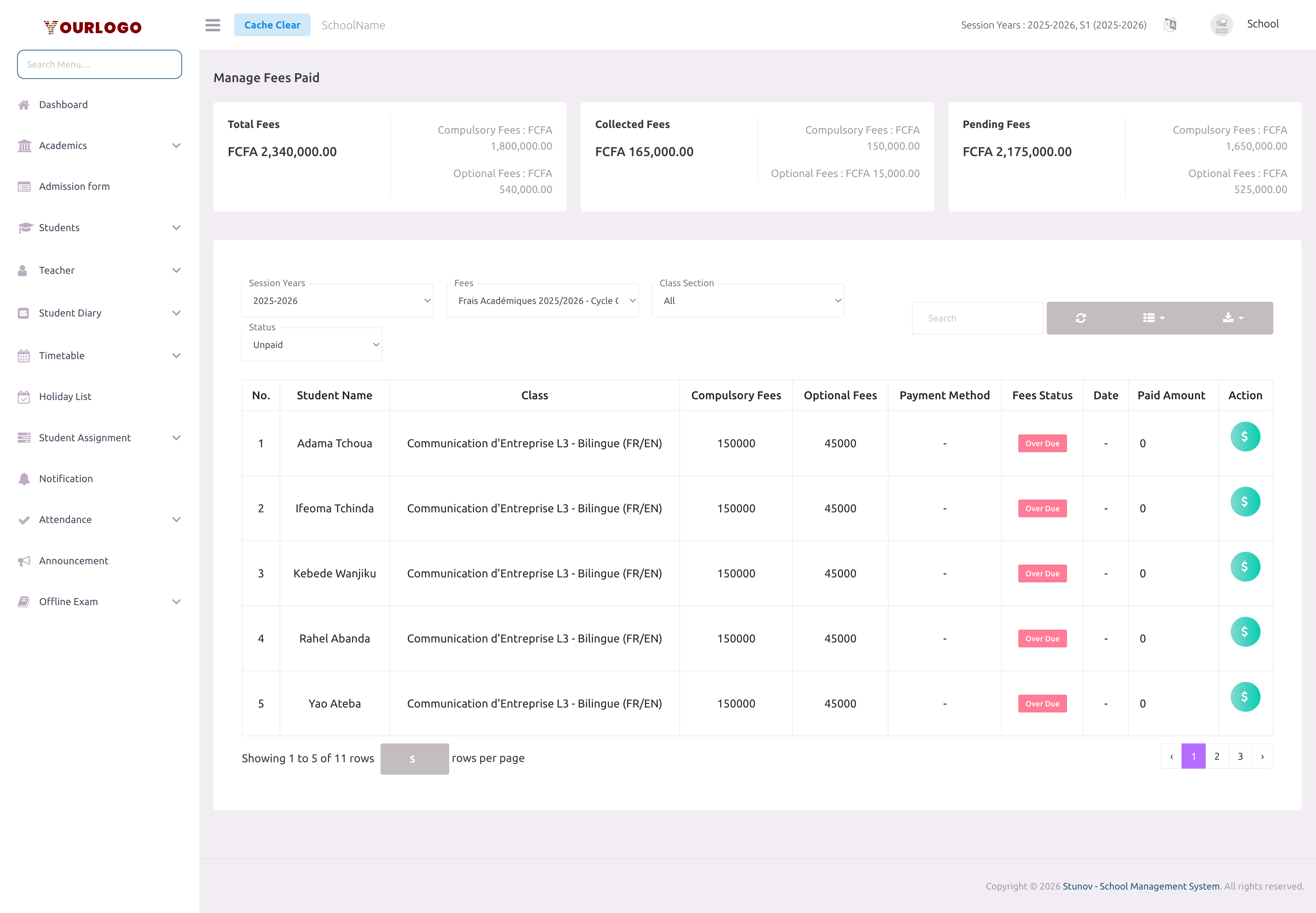
The Student Fees page is the payment hub where you view each student's fee status and collect payments. It shows summary cards with total, collected, and pending amounts, and lets you filter students by class, fee, and payment status. From here you can pay compulsory fees (full or by installment), pay optional fees, and generate PDF receipts.
- Configure fees under Manage Fee first
- Come here to view student payment status
- Click on a student's action menu to collect compulsory or optional payments
- Generate PDF receipts for paid fees
Fee Summary Cards
At the top of the page, three summary cards display real-time totals for Total Fees, Collected Fees, and Pending Fees. Each card shows the compulsory and optional breakdowns separately.
Filter Students
Use the filter bar to narrow down the student list by Session Year, Fees, Class Section, Status, Month, and Payment Mode.
Student List
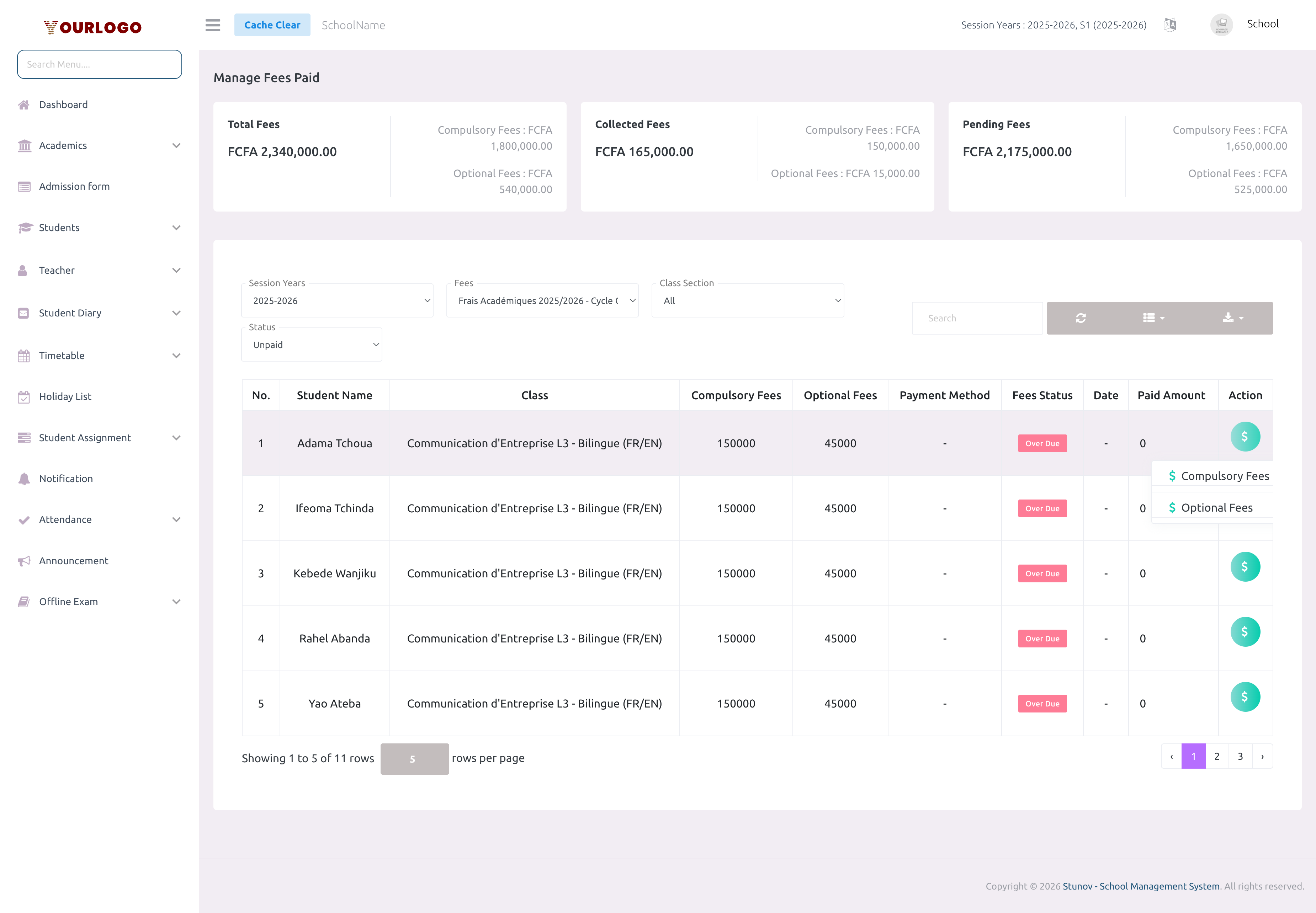
The student list table shows each student's compulsory fees, optional fees, payment status, and paid amount. The Action dropdown per student includes:
- Pay Compulsory Fees — Open the compulsory payment form
- Pay Optional Fees — Open the optional payment form (if optional fees exist)
- Generate PDF Receipt — Download a PDF receipt of all payments
Pay Compulsory Fees
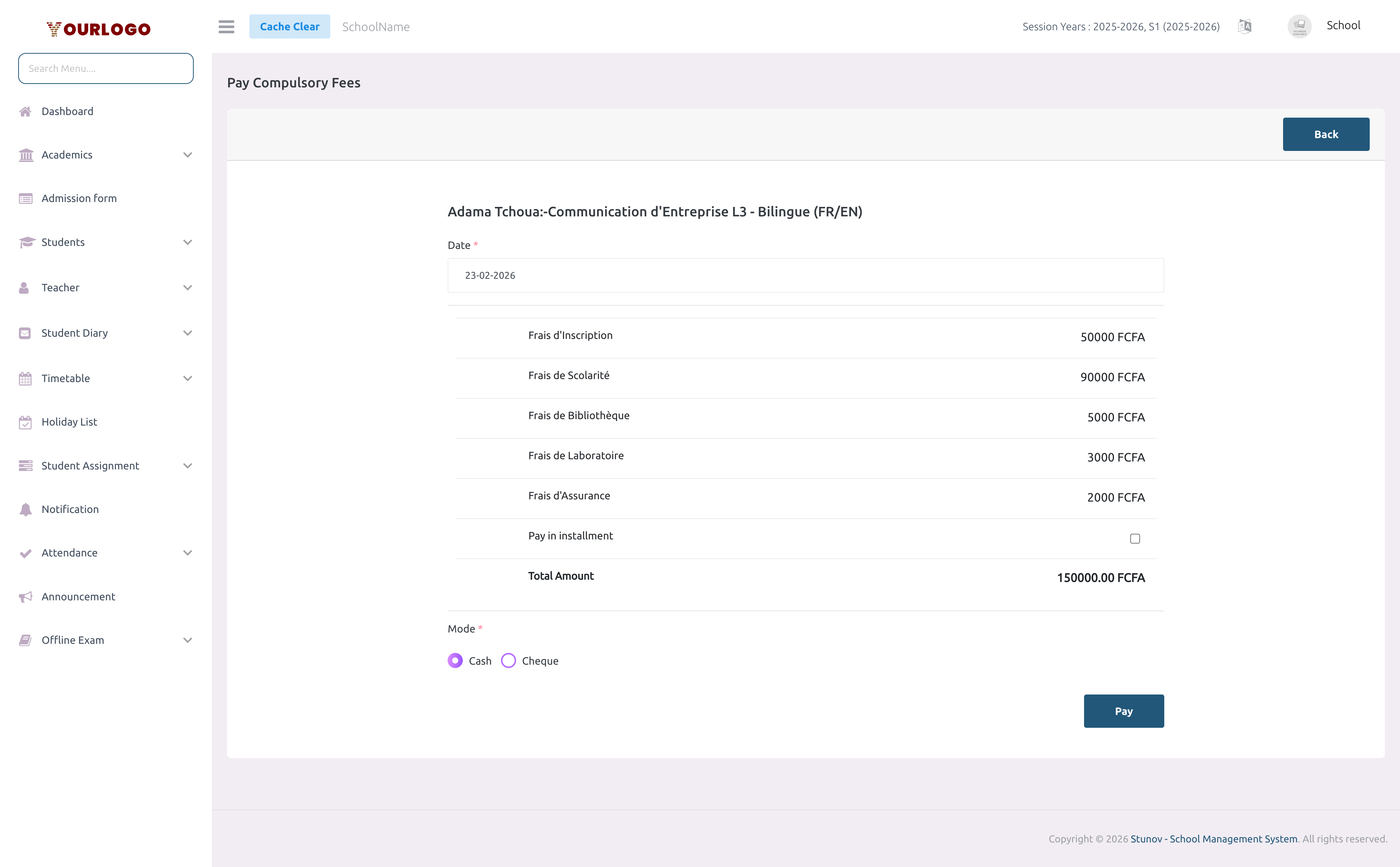
If the payment is made after the due date, late charges (percentage + fixed amount) are automatically calculated and added. Each installment also has its own due date and charges.
Pay Optional Fees
Generate PDF Receipt
- Click Action → Generate PDF Receipt on any student who has made payments
- A PDF is generated containing:
- School logo, name, and address
- Student name and class
- Compulsory fees breakdown
- Optional fees breakdown
- Installment details (if applicable)
- Total amounts
- The PDF opens for download or printing
Staff App View
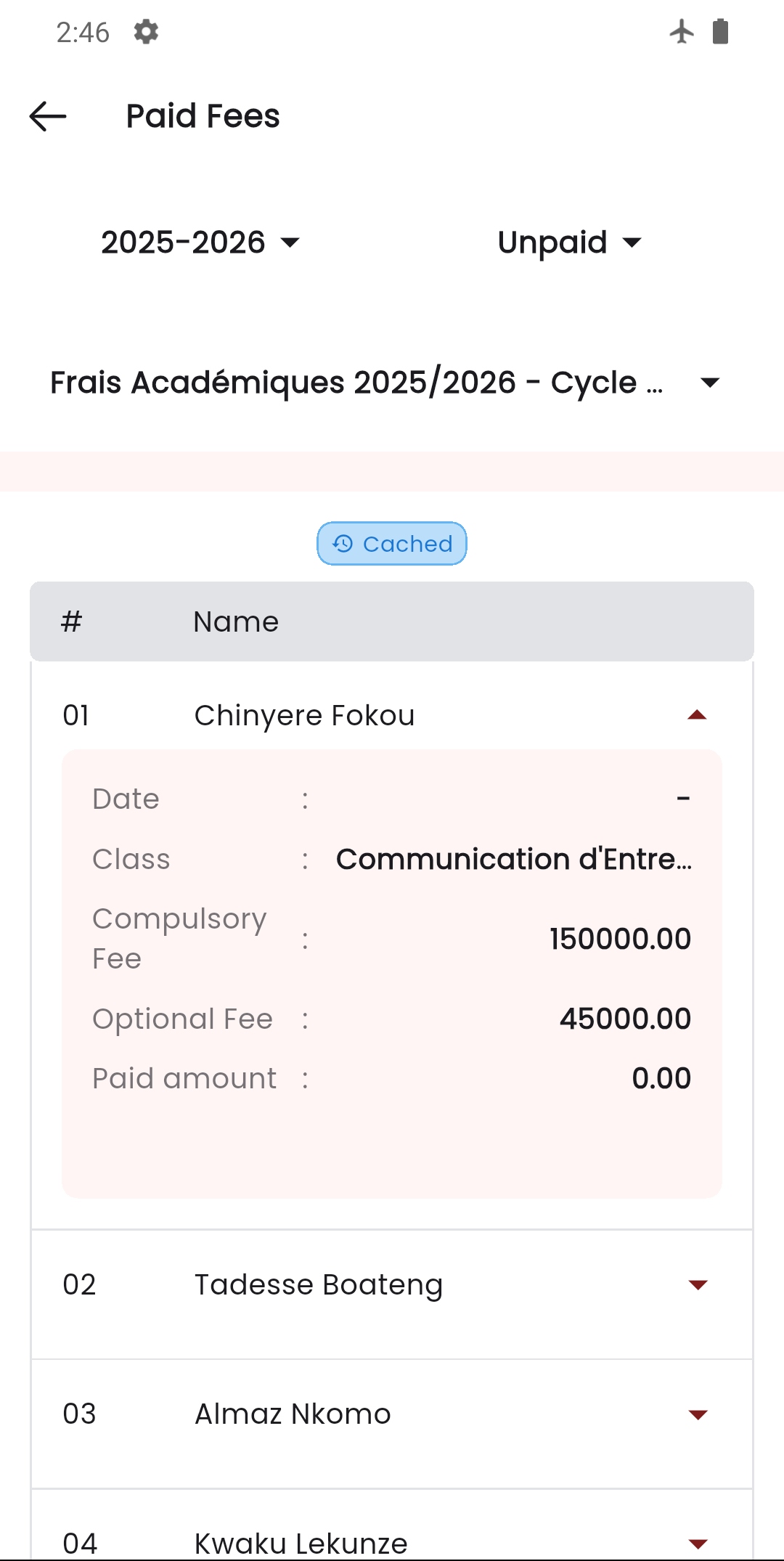
In the Stunov+ Staff app, school administrators can view fee collection summaries and student payment status. The app shows unpaid student lists with filtering options.
Related Pages
- Manage Fee — Configure fee structures before collecting payments
- Fees Type — Create fee categories
- Optional Fee — Dedicated view for optional fee payments
- Fees Transaction Logs — Track online payment transactions