Exam Grade
Exam Grades define the percentage ranges that map to letter grades (e.g., A+, A, B, C, D, F). When exam results are published, the system automatically assigns grades to each student based on their percentage and these configured ranges.
Set up grades first
Grade ranges should be configured before publishing any exam results. Without grades, published results will display empty grade fields.
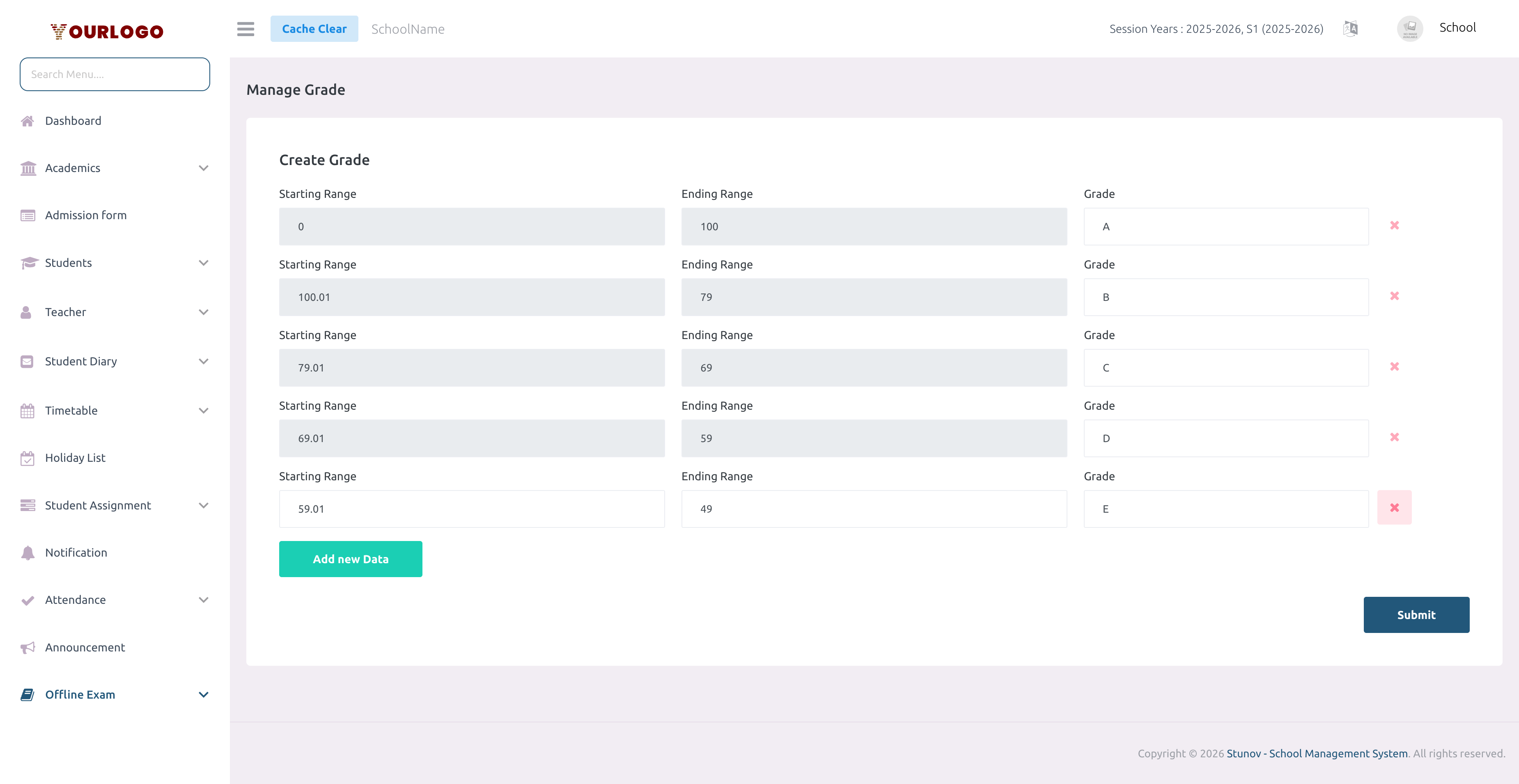
Exam Grade — define percentage ranges for each letter grade
Configure Grade Ranges
1
Navigate to Exam & Assessment → Offline Exam → Exam Grade
From the sidebar, expand **Exam & Assessment → Offline Exam** and click **Exam Grade**.
2
Define grade rows
Each row represents a grade range. Enter the **Starting Range** (percentage), **Ending Range** (percentage), and **Grade** (letter) for each level.
3
Add more grades
Click **Add New Data** to add another grade row. Define as many grades as your school's grading policy requires.
4
Submit
Click **Submit** to save all grade ranges. These apply to all future exam result publications.
Grade Form Fields (per row)
| Field | Type | Required | Description |
|---|---|---|---|
| Starting Range | Number (0-100) | Required | The lower bound percentage for this grade (inclusive). For example, 90 for an A+ grade. |
| Ending Range | Number (0-100) | Required | The upper bound percentage for this grade (inclusive). Must be greater than or equal to Starting Range. |
| Grade | Text | Required | The letter grade label (e.g., "A+", "A", "B+", "B", "C", "D", "F"). |
Example Grade Configuration
| Starting Range | Ending Range | Grade |
|---|---|---|
| 90 | 100 | A+ |
| 80 | 89 | A |
| 70 | 79 | B+ |
| 60 | 69 | B |
| 50 | 59 | C |
| 40 | 49 | D |
| 0 | 39 | F |
No overlapping ranges
Ensure ranges do not overlap and all percentages from 0 to 100 are covered. Gaps in ranges may result in students receiving no grade.
Edit or Remove a Grade
- To edit a grade, simply change the values in the form and click Submit
- To remove a grade row, click the Remove button next to the row and submit
- To delete a saved grade, use the delete action next to it in the list
How Grades Are Applied
When exam results are published, the system:
- Calculates each student's overall percentage (total obtained / total marks × 100)
- Matches the percentage against the configured grade ranges
- Assigns the corresponding letter grade to the result record
- Grades appear in the Exam Result table and on student result PDFs
Related Pages
- Exam Result — View results with assigned grades
- Manage Exam — Publish results to trigger grade assignment
- Timetable — Define total and passing marks per subject