Exam Result
The Exam Result page displays published exam results with student-wise totals, percentages, and grades. Administrators can edit marks, view detailed per-subject breakdowns, and download individual student result PDFs.
Teacher access
Teachers can view exam results for their assigned classes but cannot edit marks or publish/unpublish results through the result page.
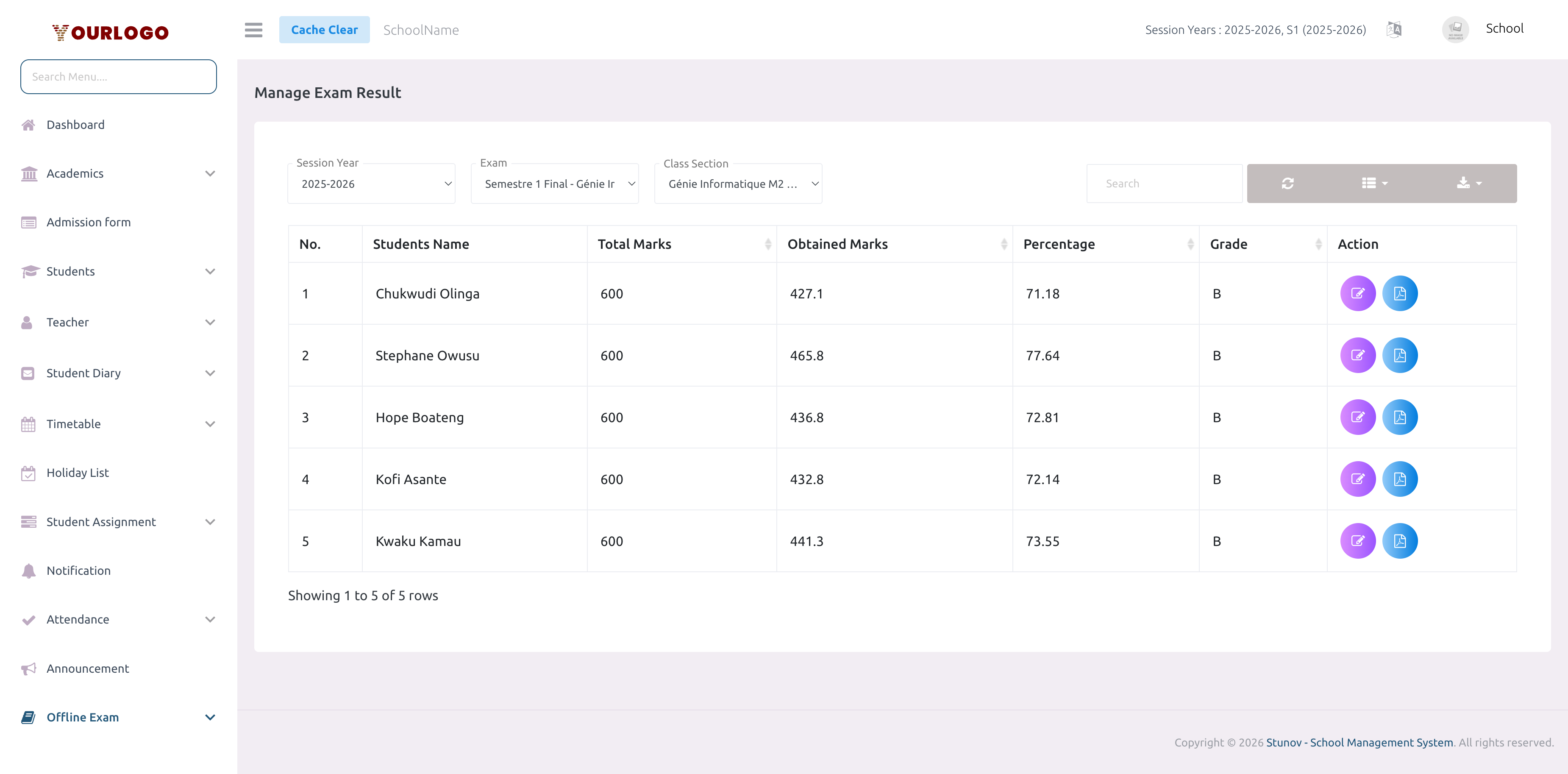
Exam Result — filter by session year, exam, and class section to view student results
View Exam Results
1
Navigate to Exam & Assessment → Offline Exam → Exam Result
From the sidebar, expand **Exam & Assessment → Offline Exam** and click **Exam Result**.
2
Select Session Year
Choose the **Session Year** from the dropdown.
3
Select Exam
Choose an **Exam** from the dropdown. Only published exams appear in this list.
4
Select Class Section
Choose the **Class Section** to view results for that specific group of students.
5
Review results
The results table loads showing each student with their total marks, obtained marks, percentage, and grade.
Filter Fields
| Field | Type | Required | Description |
|---|---|---|---|
| Session Year | Select | Required | Filter results by session year. |
| Exam | Select | Required | The published exam to view results for. Includes exam name, class, and class section. |
| Class Section | Select | Required | The specific class section to view student results. |
Result Table Columns
| Column | Description |
|---|---|
| No. | Row number |
| Students Name | Full name of the student |
| Total Marks | Sum of total marks across all subjects |
| Obtained Marks | Sum of marks the student obtained |
| Percentage | Calculated percentage (obtained / total × 100) |
| Grade | Grade assigned based on grade ranges |
| Action | Edit marks (pencil icon) and View PDF (document icon) |
Use the search bar to find specific students, and the Export button to download the results.
Edit Student Marks
1
Click the Edit button
In the Action column, click the **Edit** (pencil) button for the student whose marks you want to modify.
2
Review per-subject marks
A modal opens showing all subjects with their **Total Marks**, **Passing Marks**, and the student's **Obtained Marks** for each subject.
3
Modify obtained marks
Change the obtained marks for any subject as needed.
4
Save changes
Click **Submit** to save. The result table updates with recalculated totals, percentage, and grade.
Marks editing caution
Editing marks from the result page directly updates the student's record. The percentage and grade are recalculated automatically based on grade ranges.
Download Result PDF
To download an individual student's result card:
- Click the PDF (document) icon in the Action column
- A detailed result card opens in a new tab with:
- Student information (name, class, roll number)
- Subject-wise marks table (total, obtained, passing status)
- Overall total, percentage, and grade
- Pass/Fail status
- Use the browser's print function to save as PDF
Staff App View
In the Stunov+ Staff app, teachers and students can view exam results with detailed marks breakdown.
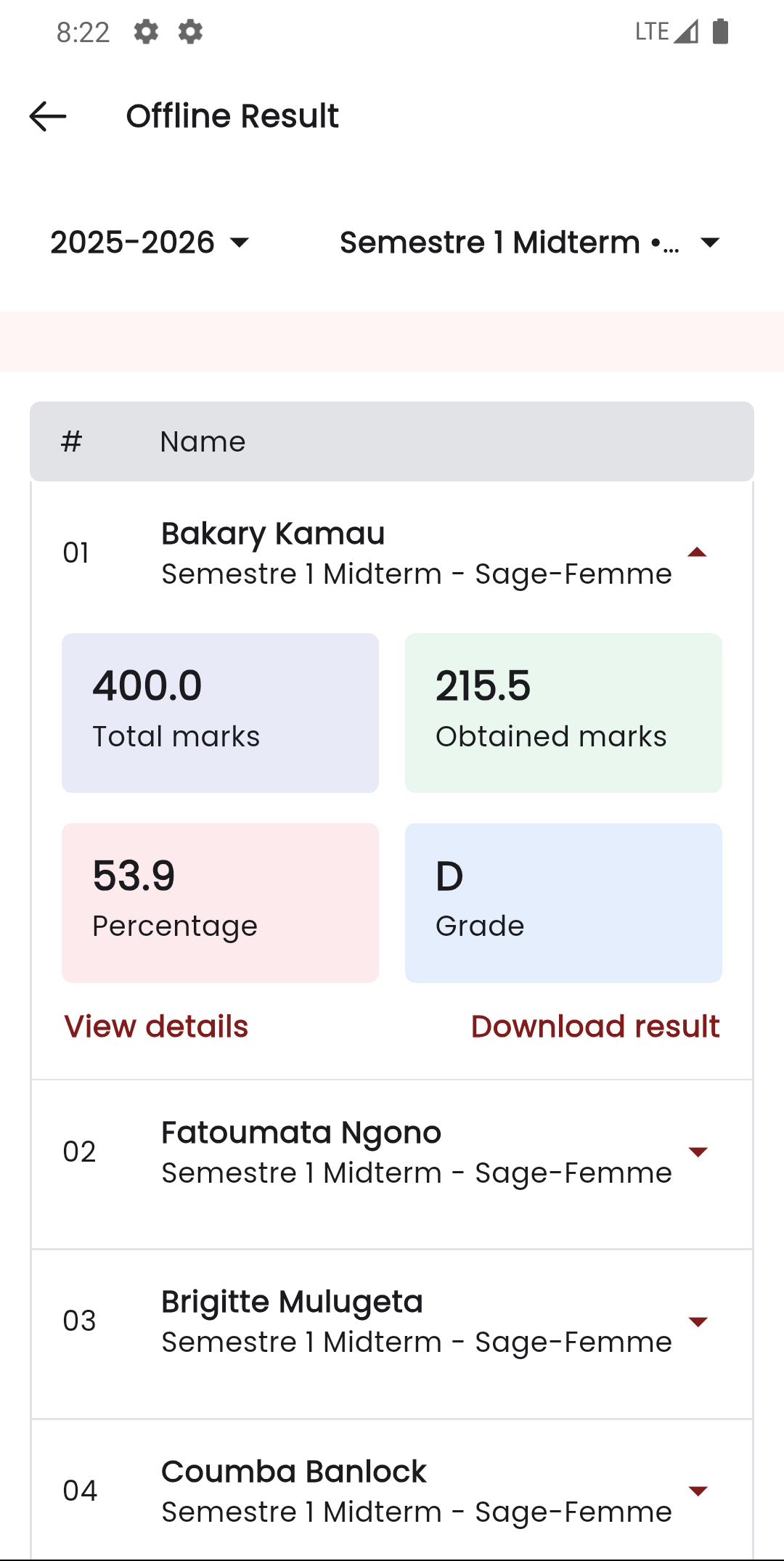
Exam results — Web panel (left) and Staff app result view (right)
Related Pages
- Manage Exam — Publish or unpublish exam results
- Upload Exam Marks — Enter marks before publishing
- Exam Grade — Configure grade ranges used in results
- Track Exam Marks — Verify all marks are submitted before publishing
- Timetable — View total and passing marks per subject