Track Exam Marks
The Track Exam Marks page provides administrators with a bird's-eye view of marks submission progress across all exams. For each exam, you can see which class sections have submitted marks and which are still pending — broken down by subject.
When to use this page
After an exam is completed and teachers are entering marks, use this page to monitor progress and follow up with teachers who have not yet submitted their marks.
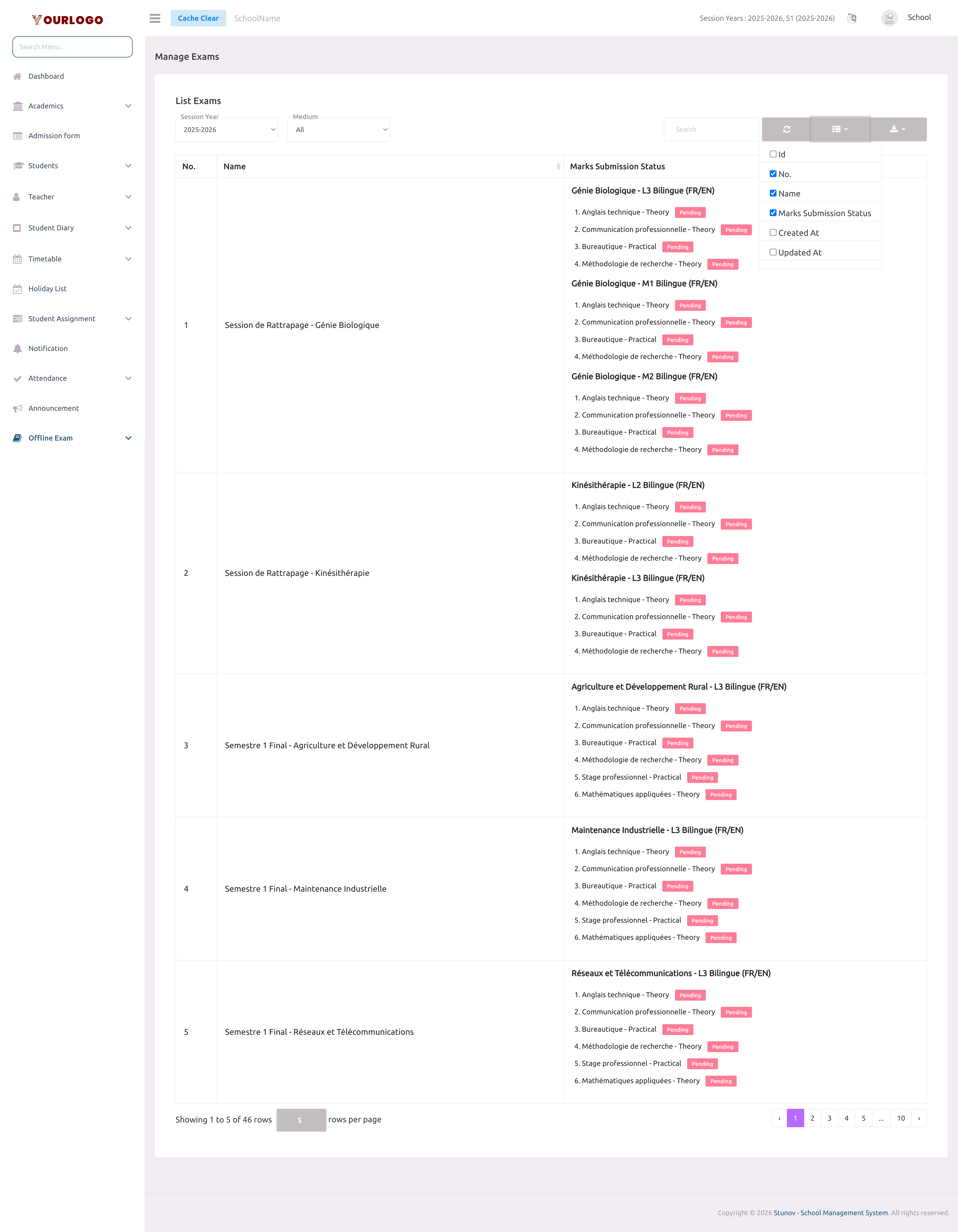
Track Exam Marks — monitor marks submission status per exam, class, and subject
View Marks Submission Status
1
Navigate to Exam & Assessment → Offline Exam → Track Exam Marks
From the sidebar, expand **Exam & Assessment → Offline Exam** and click **Track Exam Marks**.
2
Filter by Session Year
Select the **Session Year** to view exams from that period.
3
Filter by Medium (optional)
Use the **Medium** filter to narrow results to a specific medium of instruction.
4
Review submission status
The table shows each exam with per-section, per-subject status: **Submitted** (green) or **Pending** (red). Follow up with teachers whose subjects show Pending.
Table Columns
| Column | Description |
|---|---|
| No. | Row number |
| Name | Exam name |
| Marks Submission Status | Per class-section breakdown showing each subject as Submitted or Pending |
Filters:
- Session Year — filter by session year
- Medium — filter by medium of instruction
Understanding Status Indicators
| Status | Meaning |
|---|---|
| Submitted | All student marks for this subject have been entered |
| Pending | Marks have not yet been entered for this subject |
When all subjects across all sections show Submitted, the exam is ready to have its results published.
Related Pages
- Upload Exam Marks — Enter marks for individual subjects
- Manage Exam — Create exams and publish results
- Exam Result — View published results