Exam Timetable
The Exam Timetable section covers two aspects: viewing timetables (read-only list filtered by class and exam) and editing timetables (setting subjects, dates, times, and marks for each exam).
An exam must be created first on the Manage Exam page before you can set up or view its timetable.
View Exam Timetable
The timetable list page shows a read-only view of the exam schedule for a specific class and exam.
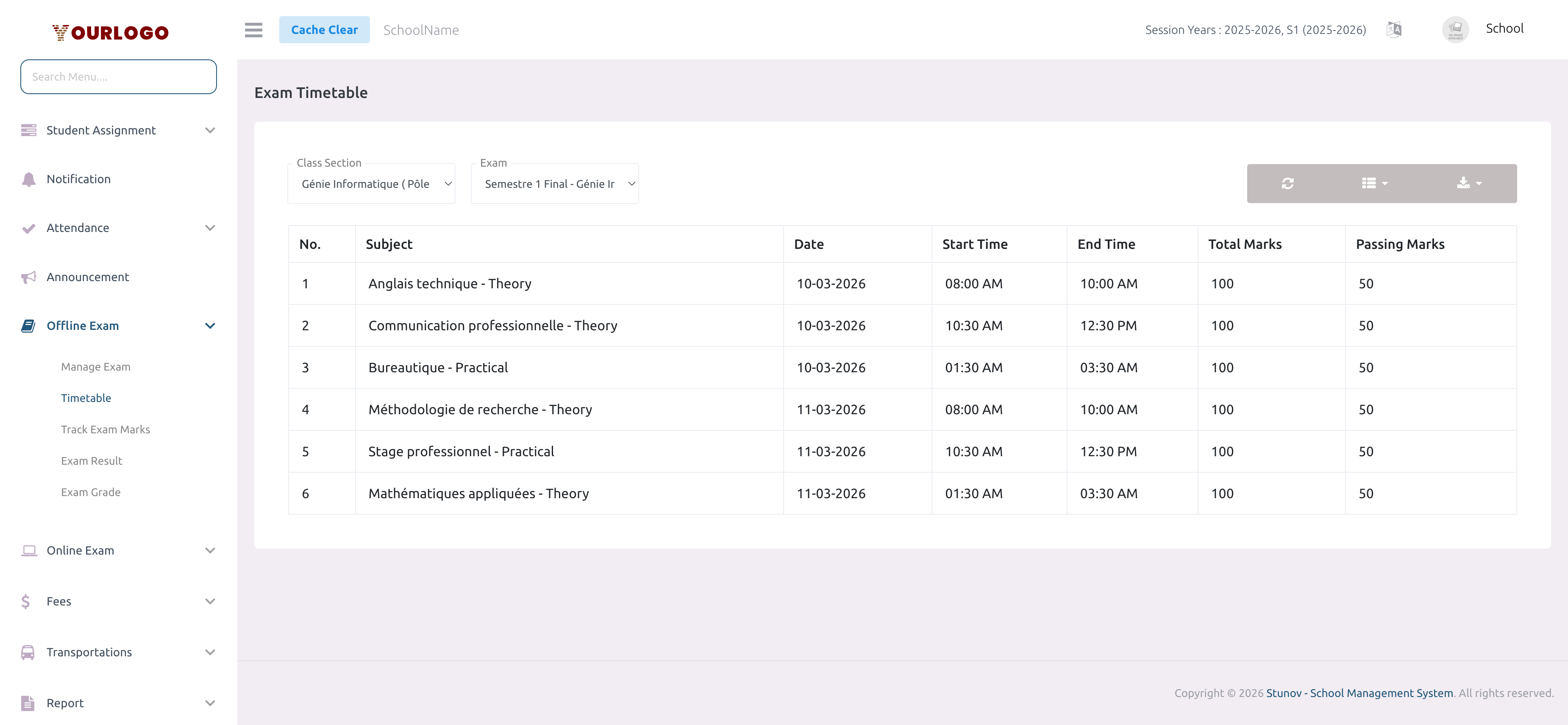
Timetable List Columns
| Column | Description |
|---|---|
| No. | Row number |
| Subject | The subject name for the exam |
| Date | Exam date for this subject |
| Start Time | When the exam begins |
| End Time | When the exam ends |
| Total Marks | Maximum marks for this subject |
| Passing Marks | Minimum marks required to pass |
Use the Export button to download the timetable as a file.
Create / Edit Exam Timetable
The timetable editor is accessed from the Manage Exam page by clicking Timetable in the exam's Action dropdown.
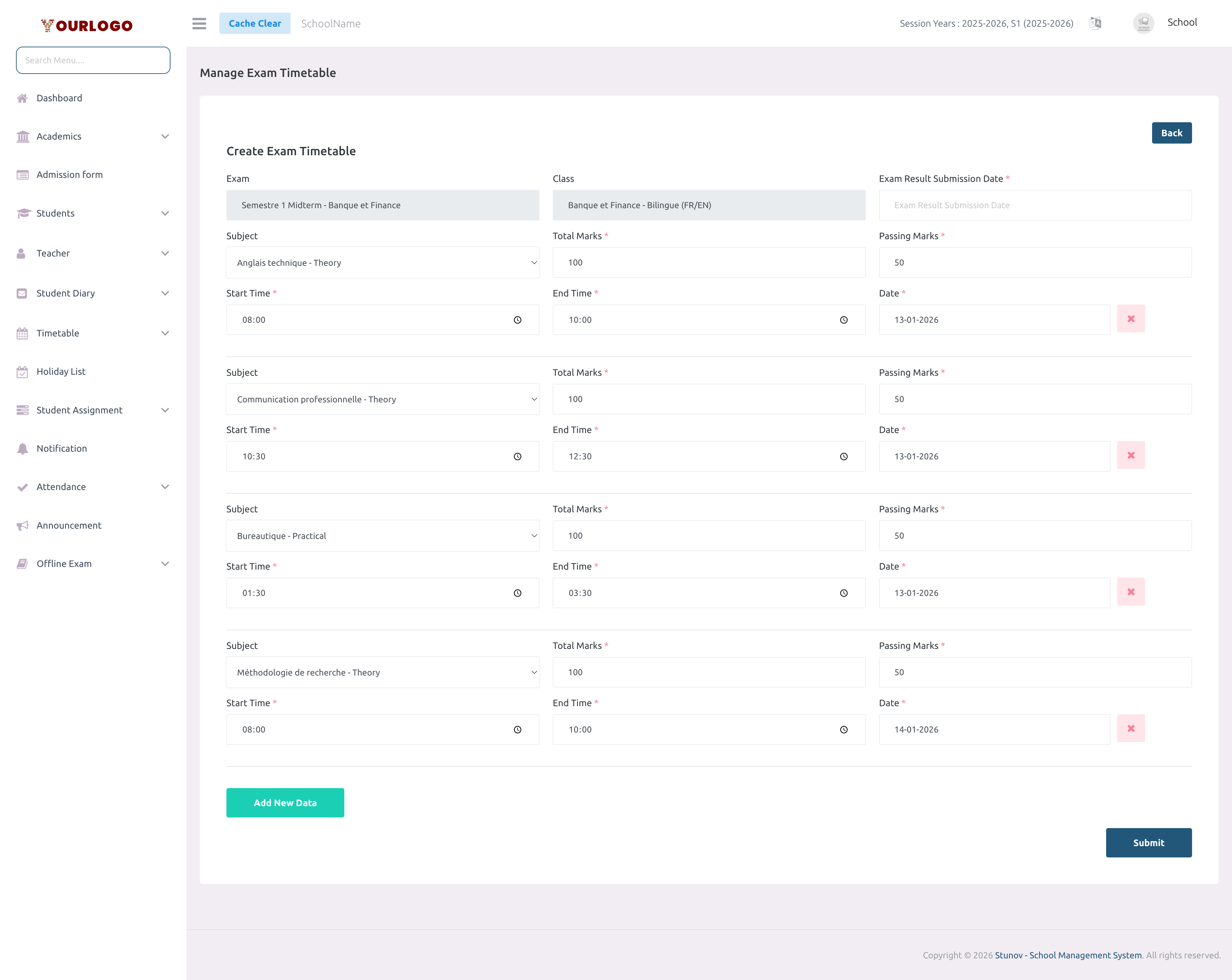
Timetable Form Fields (per subject)
| Field | Type | Required | Description |
|---|---|---|---|
| Exam Result Submission Date | Date picker | Required | Deadline for teachers to submit marks for this exam. Shared across all subjects. |
| Subject | Select | Required | The subject from the class curriculum. Only subjects assigned to this class are shown. |
| Total Marks | Number | Required | Maximum marks for this subject exam. |
| Passing Marks | Number | Required | Minimum marks to pass. Must be less than or equal to Total Marks. |
| Start Time | Time picker | Required | The start time of the exam for this subject. |
| End Time | Time picker | Required | The end time. Must be after Start Time. |
| Date | Date picker | Required | The date of the exam for this subject. Must fall within the session year. |
You can update an existing timetable at any time. Changes to dates and times will trigger a notification update to students and parents. Be cautious about changing marks allocation after marks have been submitted.
Delete a Timetable Entry
To remove a specific subject from the exam timetable:
- Open the timetable editor for the exam
- Click the Remove button next to the subject row
- Click Submit to save the changes
Staff App View
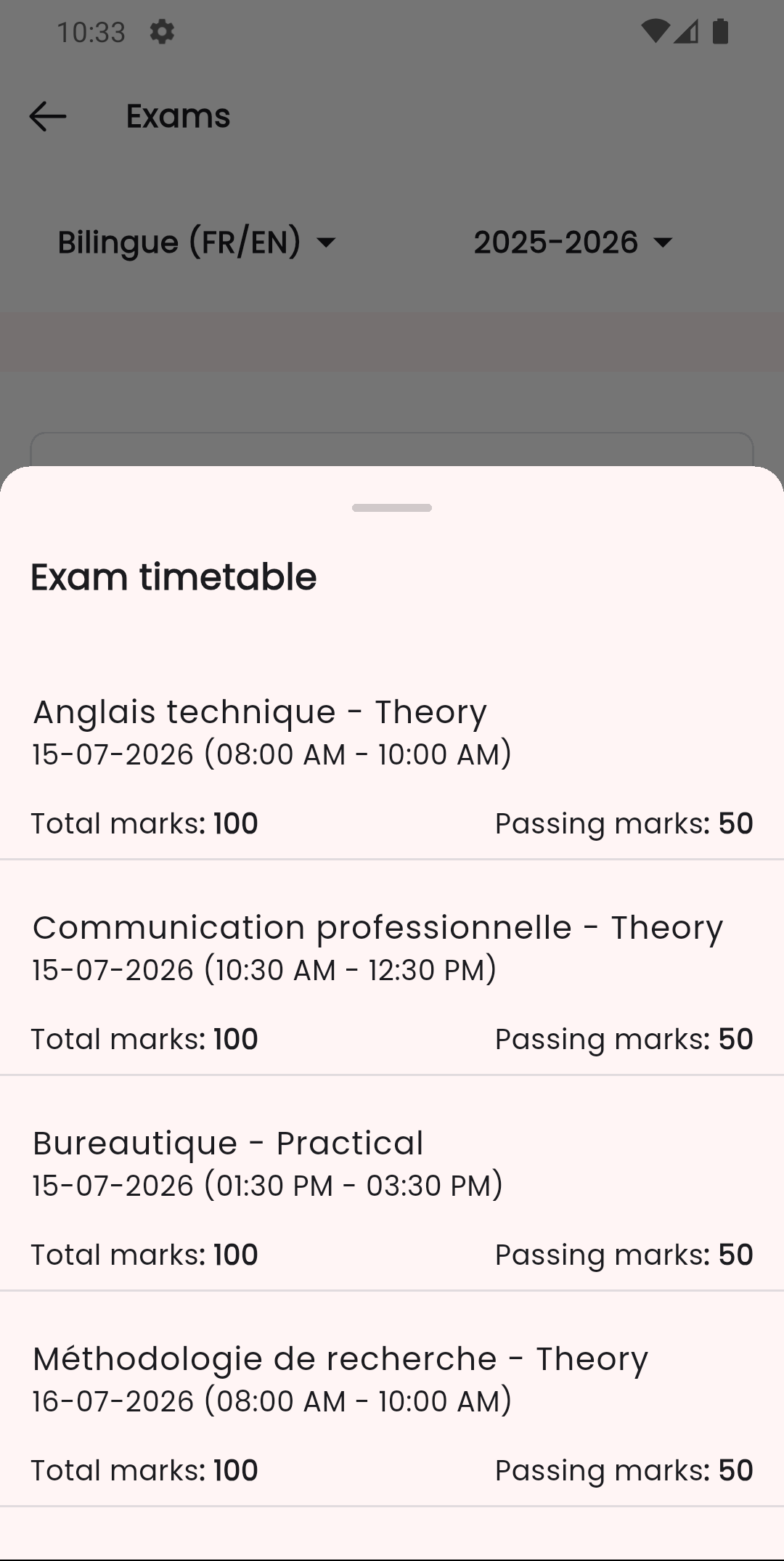
In the Stunov+ Staff app, students and teachers can view the exam timetable with subject-wise schedules.
Related Pages
- Manage Exam — Create exams before setting timetables
- Upload Exam Marks — Enter marks after exams are completed
- Track Exam Marks — Monitor marks submission status
- Exam Result — View results after publishing