Student Reports
The Student Reports module gives you a consolidated view of every student's data in one place — personal details, attendance history, exam results, and fee payment status. Select a class section, browse the student list, and click any student to open their full report profile with four dedicated tabs.
Use the Export button to download the student list as PDF, CSV, Excel, JSON, XML, DOC, TXT, or SQL — perfect for external analysis or printing records.
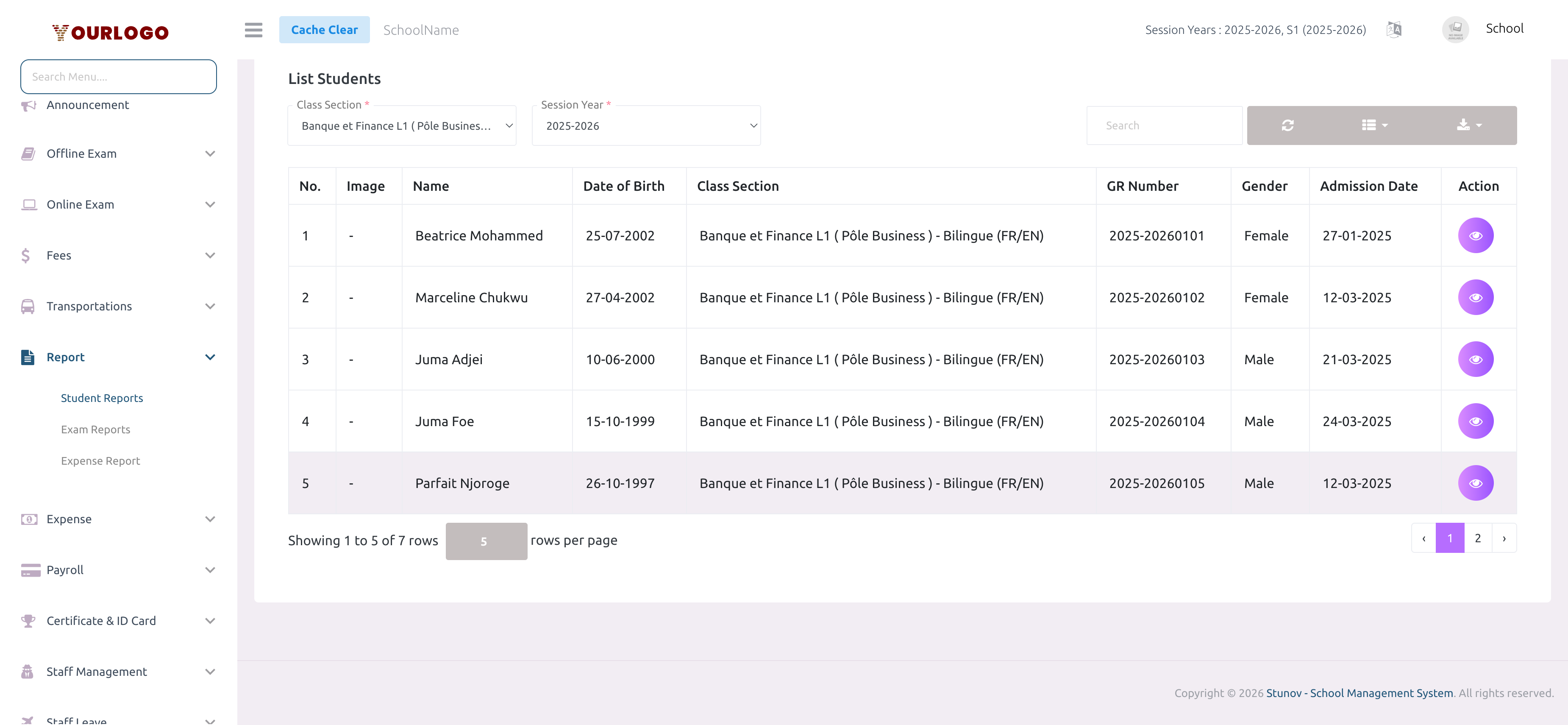
Generate a Student Report
Student Profile Report
When you click the View button for a student, a comprehensive profile opens with four tabs: Profile, Attendance, Exam, and Fees.
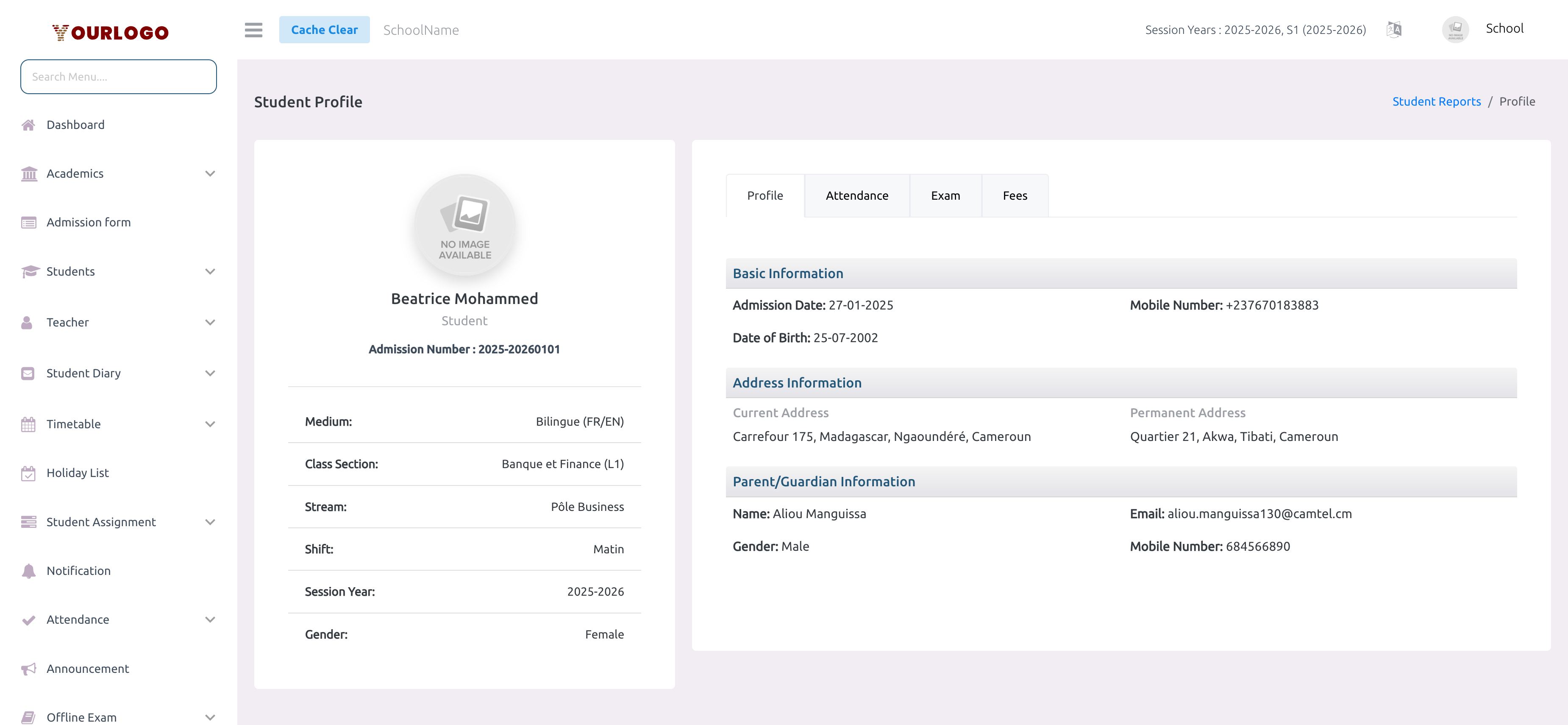
Profile Tab
Displays all student information in organized sections:
- Header: Photo, name, admission number, medium, class section, stream, shift, session year, and gender
- Basic Information: Admission date, date of birth, mobile number
- Address Information: Current address and permanent address
- Parent/Guardian Information: Name, gender, email, and mobile number
Attendance Tab
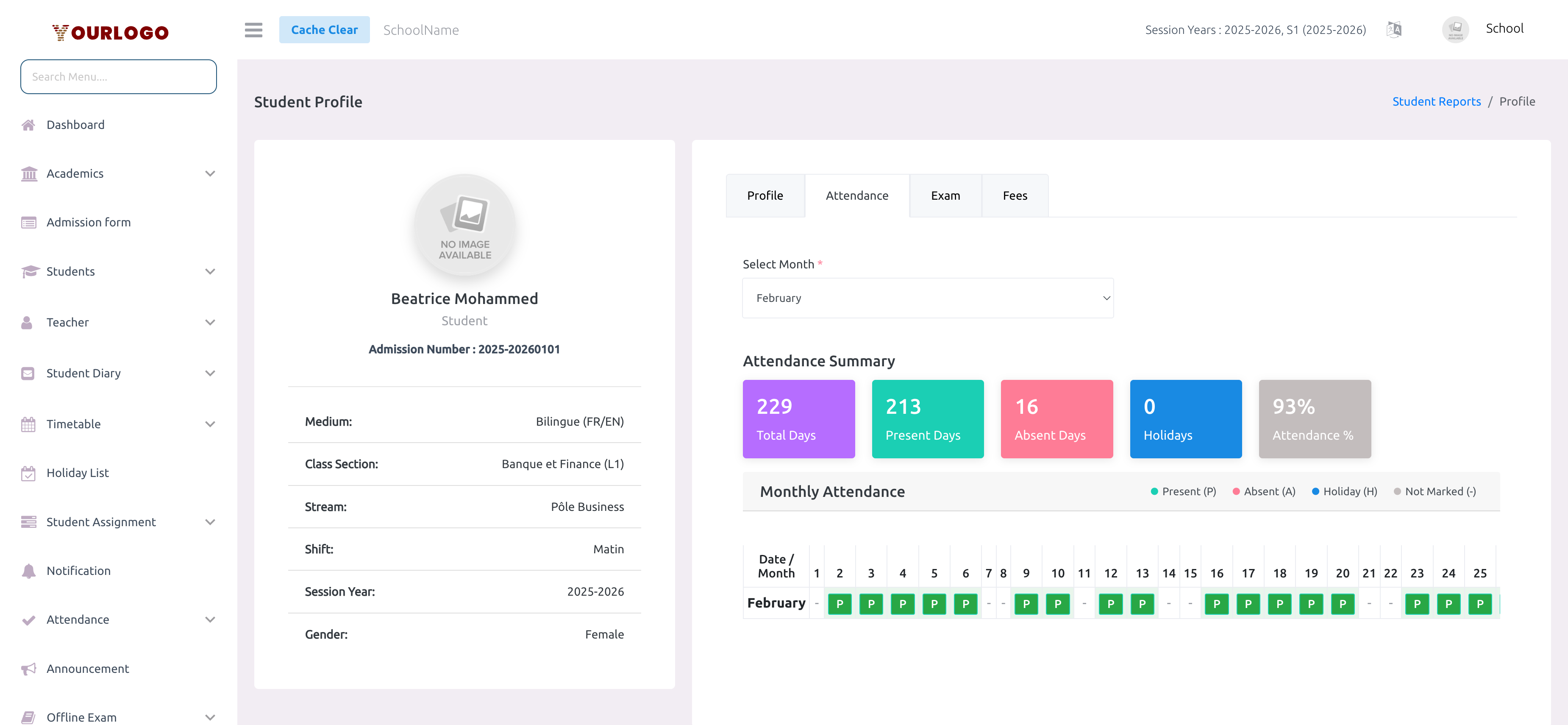
Filter by month to see a detailed attendance calendar:
- Summary cards: Total Days, Present, Absent, Holidays, Attendance %
- Calendar grid: 31-column grid showing daily status (Present / Absent / Holiday) for the selected month
- Select different months from the dropdown to compare attendance across the year
Exam Tab
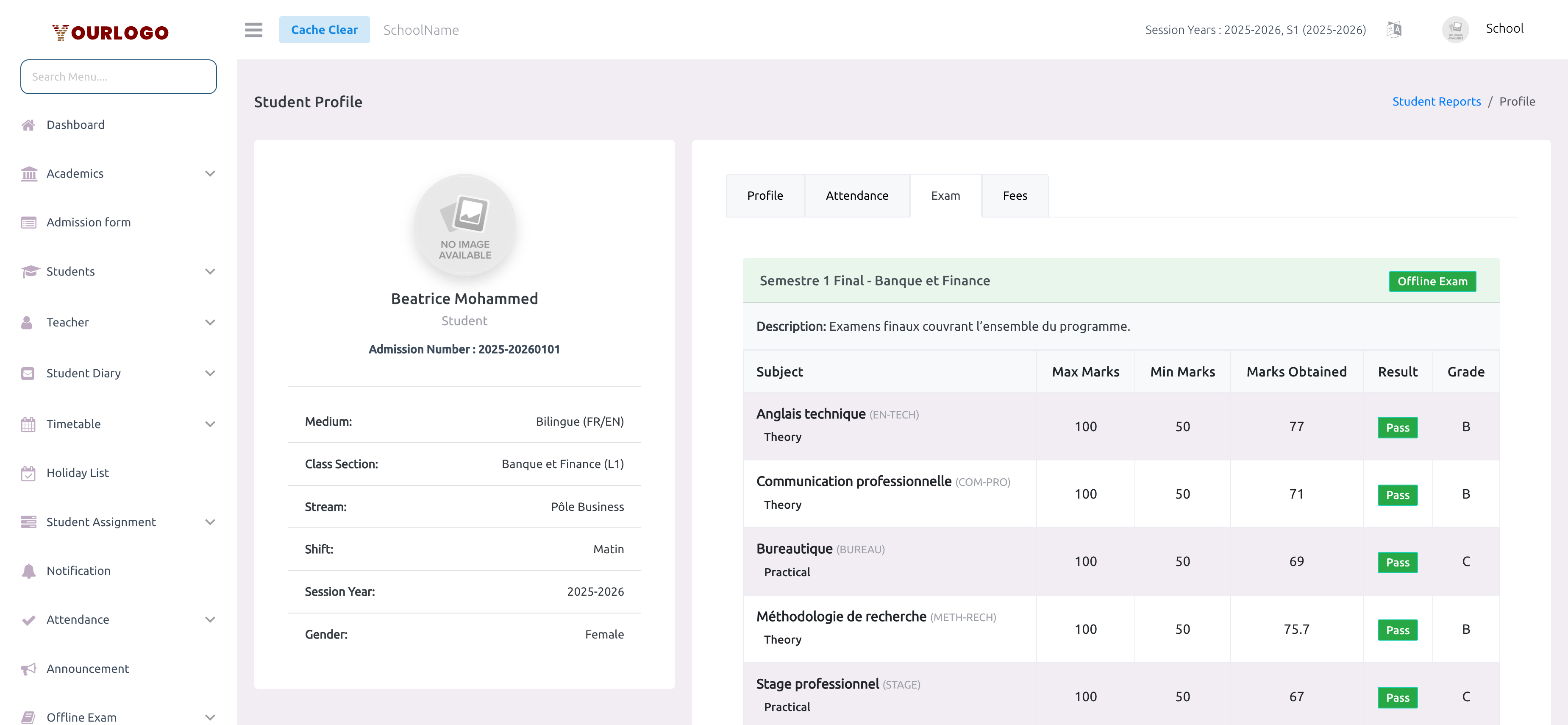
Displays the student's performance across all exams:
- Offline exam results: Subject-wise marks, total, percentage, grade, rank, and pass/fail status
- Online exam results: Online quiz and test scores
- Each exam is displayed with its timetable and the student's obtained marks vs total marks
Fees Tab
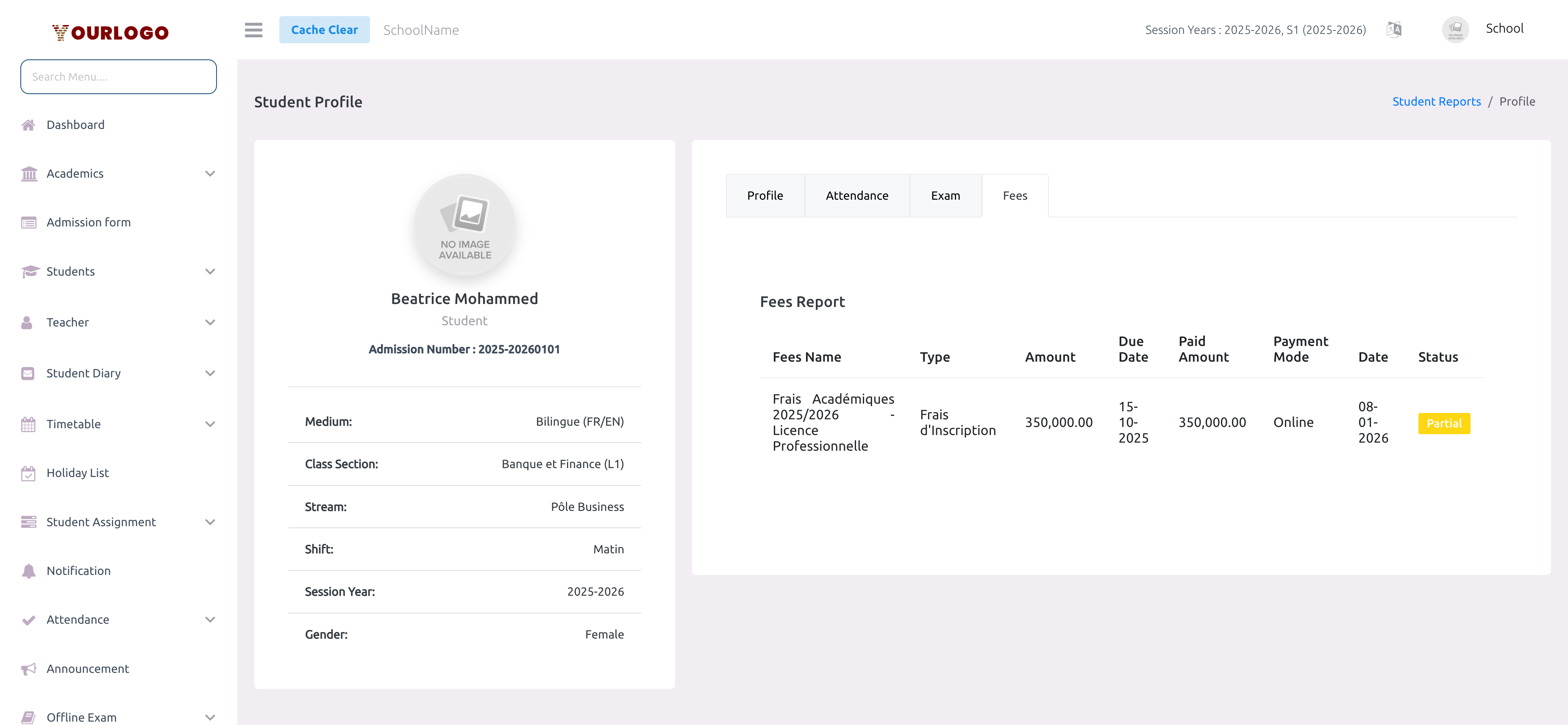
Overview of the student's financial standing — fee assignments, amounts due, payment status, and overdue indicators are all displayed in a clear table.
Export Options
The Student Reports list supports multiple export formats via the Export button:
| Format | Use Case |
|---|---|
| Print-ready formatted student list | |
| CSV | Spreadsheet analysis, bulk import |
| Excel | Advanced data manipulation |
| JSON | API integration, programmatic use |
| XML | Structured data exchange |
| DOC | Word document for sharing |
| TXT | Plain text backup |
| SQL | Database import scripts |
Related Pages
- Student Details — View and manage complete student records
- Exam Reports — Class-level exam results and rankings
- Expense Report — Financial expense tracking