Leave Report
The Leave Report displays a month-by-month breakdown of a staff member's leave balance for a given session year. It shows how many leaves were allocated each month, how many were used (split between Casual Leave and Leave Without Pay), and the remaining balance.
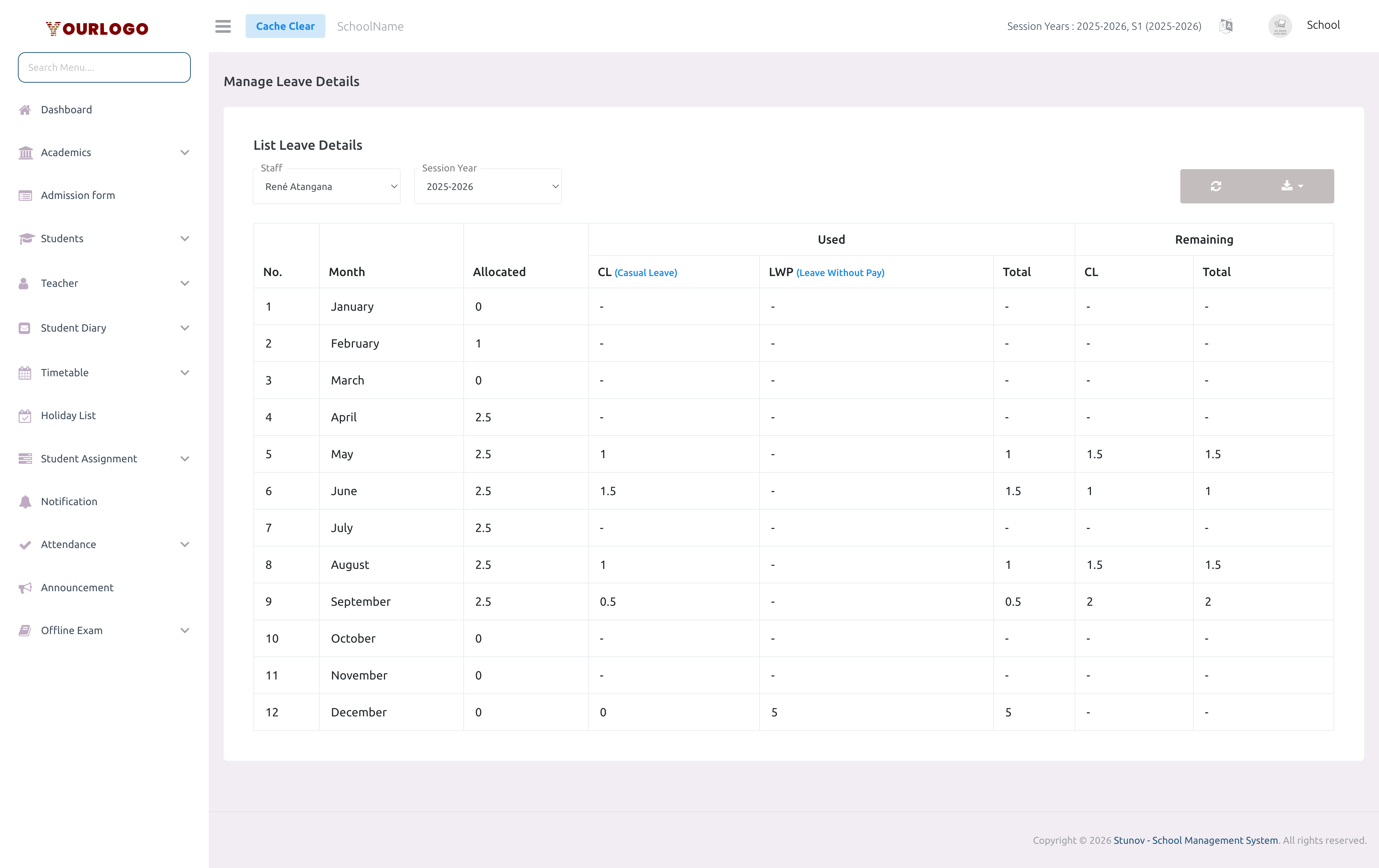
Leave Report for a selected staff member — monthly allocation, usage, and remaining balance
View a Staff Member's Leave Report
1
Navigate to Staff & HR → Staff Leave → Leave Report
From the sidebar, expand **Staff & HR → Staff Leave** and click **Leave Report**. The report page loads with an empty table and filter dropdowns.
2
Select a staff member
Open the **Staff** dropdown and choose the staff member whose leave balance you want to review.
3
Select the session year
Choose the relevant **Session Year** to view the leave data for that academic period. The default is the current session year.
4
Review the report
The table updates automatically to show 12 rows — one for each month. Review the allocated, used, and remaining leave data.
Understanding the Report Columns
The report table has seven data columns grouped into three sections:
Allocation
| Column | Description |
|---|---|
| Allocated | Number of casual leaves allocated for that month. Set globally in Leave Settings and can be overridden per staff member in the payroll "Paid Leaves" field. |
Used
| Column | Description |
|---|---|
| CL (Casual Leave) | Approved leave days consumed within the monthly allocation |
| LWP (Leave Without Pay) | Approved leave days that exceed the monthly allocation — these are unpaid |
| Total | Sum of CL + LWP for the month |
Remaining
| Column | Description |
|---|---|
| CL | Unused casual leaves for the month (Allocated − Used CL) |
| Total | Overall remaining balance for the month |
How leave types are calculated
There is no separate leave type selection when applying for leave. The system automatically classifies approved leaves as CL (within the monthly allocation) or LWP (exceeding the allocation). For example, if a staff member has 2.5 allocated leaves for May and uses 3 days, 2.5 are counted as CL and 0.5 as LWP.
Export the Report
- Click the Export button (download icon in the top-right action bar) to download the leave report data
- The export includes all 12 months with the same column structure
Related Pages
- Staff Leave — Approve or reject individual leave requests
- Leave (Personal) — How staff submit their own leave requests
- System Settings — Leave Settings — Configure monthly leave allocation and holiday days
- Payroll — Paid leaves override per staff member