Staff Certificate
Generate certificates for staff members using the Staff-type templates created in Certificate Template. Select a template, choose one or more staff members from the list, and generate their certificates in a single batch. All staff-related placeholders are automatically filled in.
Prerequisites
At least one Staff-type Certificate Template must exist with a designed layout before you can generate staff certificates.
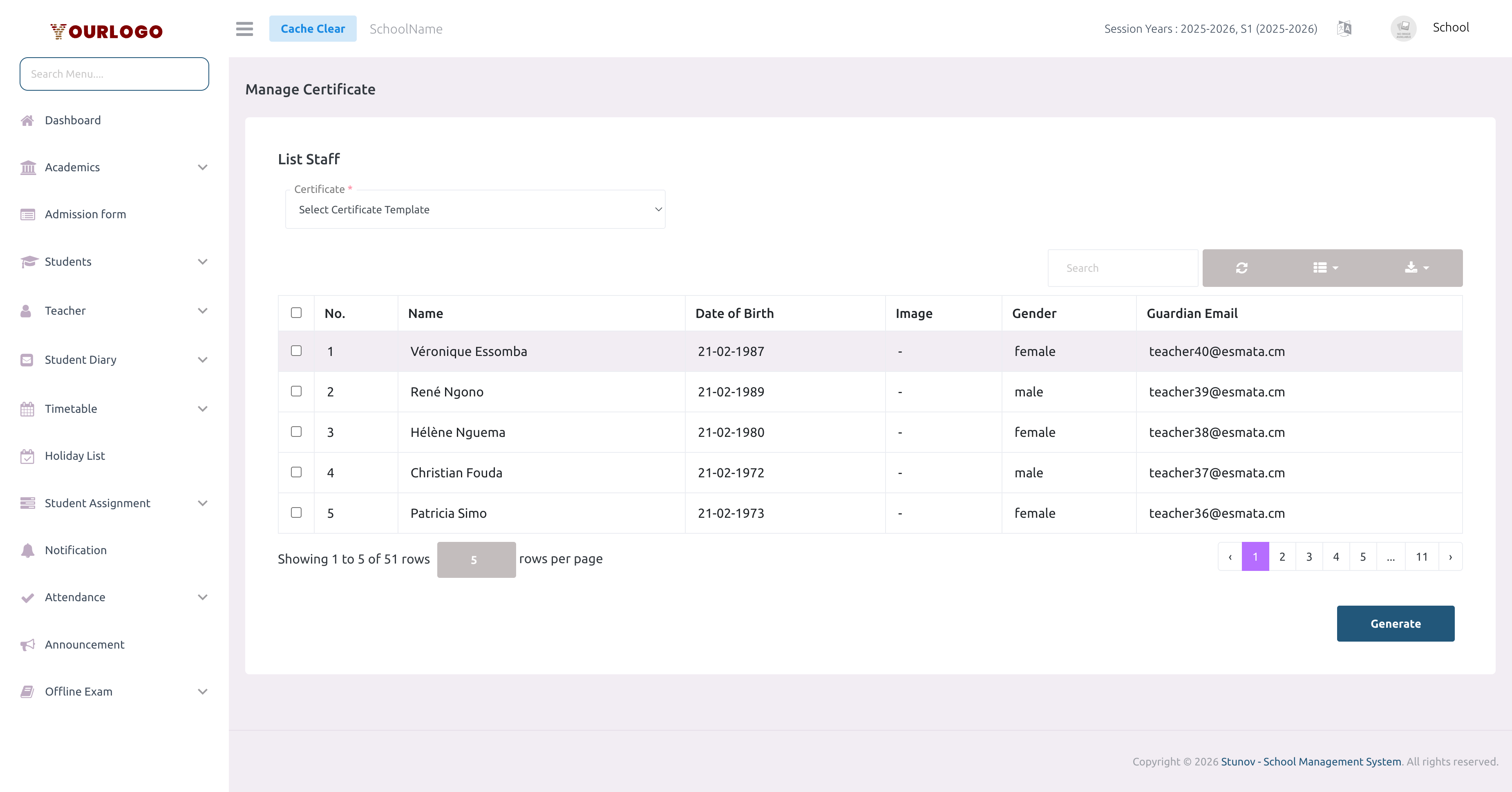
Staff Certificate page — select a template and check staff members to generate certificates
Generate Staff Certificates
1
Navigate to Certificate & ID Card → Staff Certificate
From the sidebar, expand **Certificate & ID Card** and click **Staff Certificate**.
2
Select a Certificate Template
Choose a **Staff-type** template from the dropdown. Only templates with type "Staff" appear here.
3
Select staff members
Use the checkboxes to select individual staff members, or use the **header checkbox** to select all.
4
Click Generate
Click **Submit** to generate certificates. A new page opens with printable certificate previews for each selected staff member.
Certificate Output Examples
Below are examples of generated staff certificates:
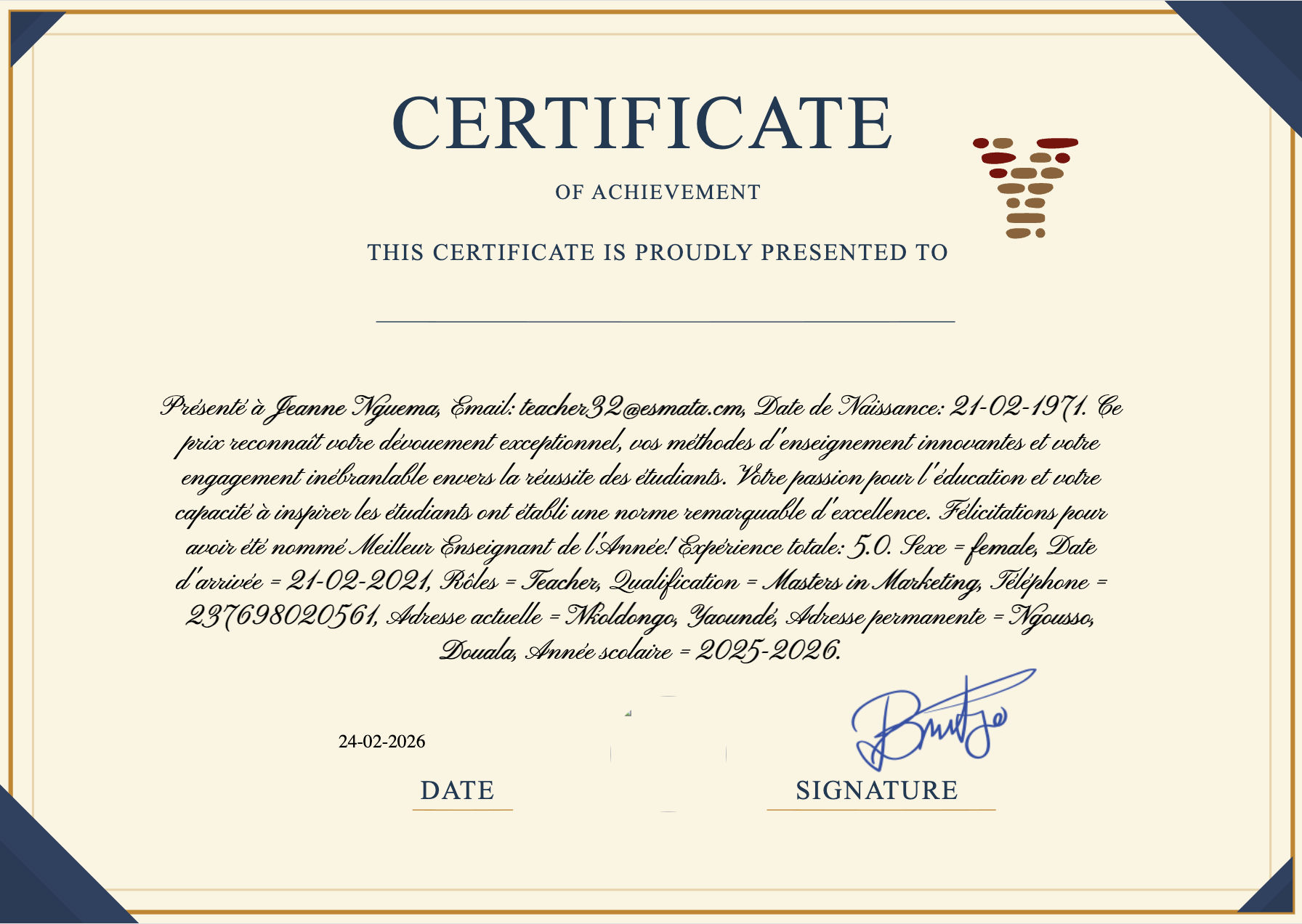
Best Teacher of the Year — landscape certificate with school logo and signature
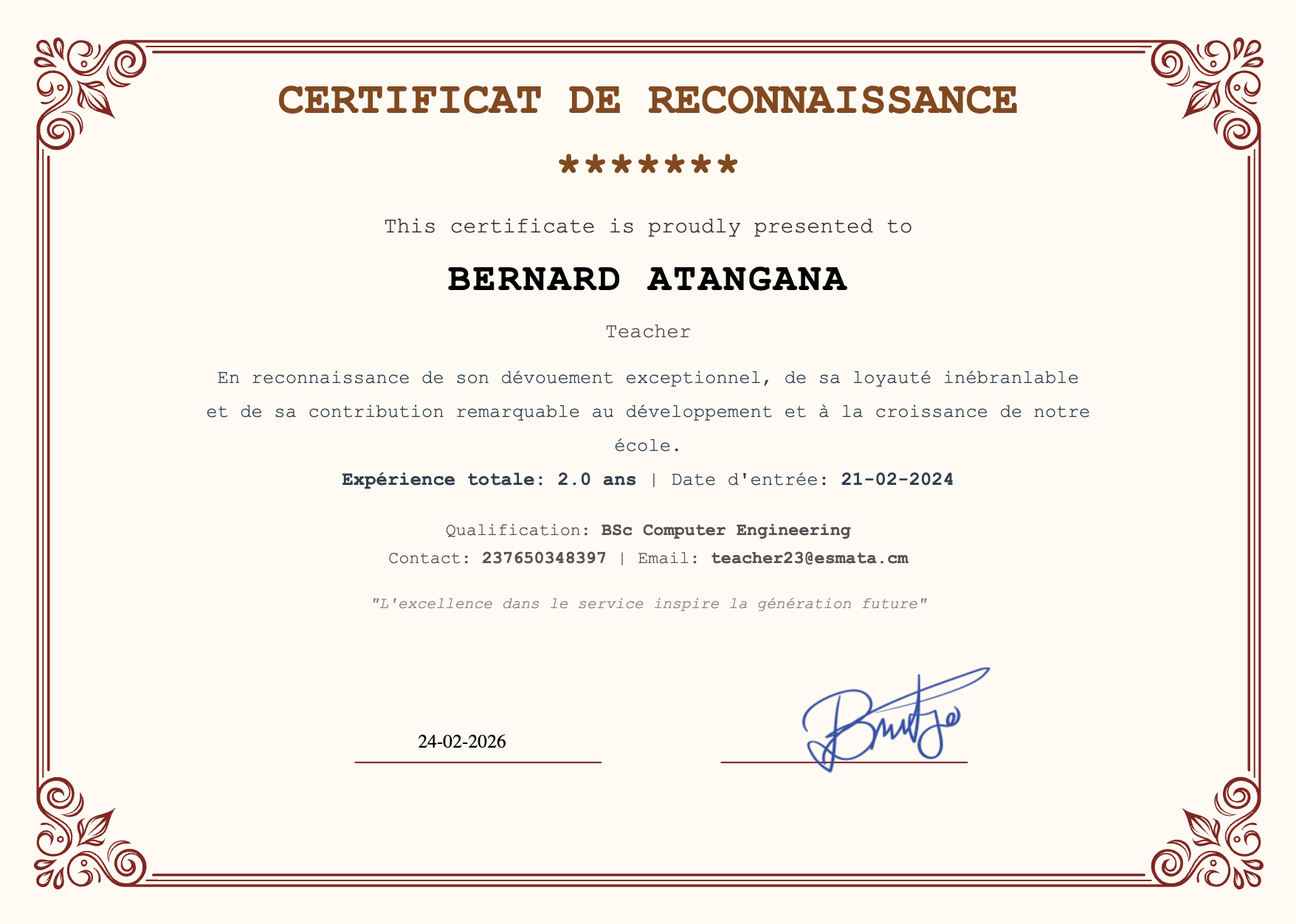
Service Recognition Certificate — landscape layout acknowledging staff contribution
Print / Download
Once certificates are generated, the output opens in a new browser tab:
- Use Ctrl+P (or Cmd+P on Mac) to open the browser print dialog
- Set the paper size to match the template layout (A4 Landscape or Portrait)
- Enable Background graphics in print settings to include the background image
- Print directly or save as PDF
Background graphics
Most browsers do not print background images by default. Enable "Background graphics" (Chrome) or "Print backgrounds" (Firefox) in the print settings.
Staff List Columns
The staff selection table shows the following columns:
| Column | Checkbox | No. | Name | Role | Mobile | Date of Birth | Qualification | |
|---|---|---|---|---|---|---|---|---|
| Description | Select/deselect a staff member | Row number | Staff member's full name | Assigned role (e.g., Teacher, Accountant) | Phone number | Email address | Staff member's DOB | Qualification details |
- Use the search bar to find staff by name
- Click Export to download the staff list
Related Pages
- Certificate Template — Create and design certificate templates
- Student Certificate — Generate certificates for students