Assign Certificate
The Assign Certificate page lets you issue a certificate template to many students or staff at once and keep a permanent record of each issuance. Unlike the Student Certificate and Staff Certificate pages — which generate a single PDF on demand — assigning a certificate creates a tracked record showing who received which certificate and when. You can re-download any assigned certificate later from the history table.
This page requires the ID Card – Certificate Generation feature in your subscription plan, plus certificate templates that have already been designed. See Certificate Template to create one.
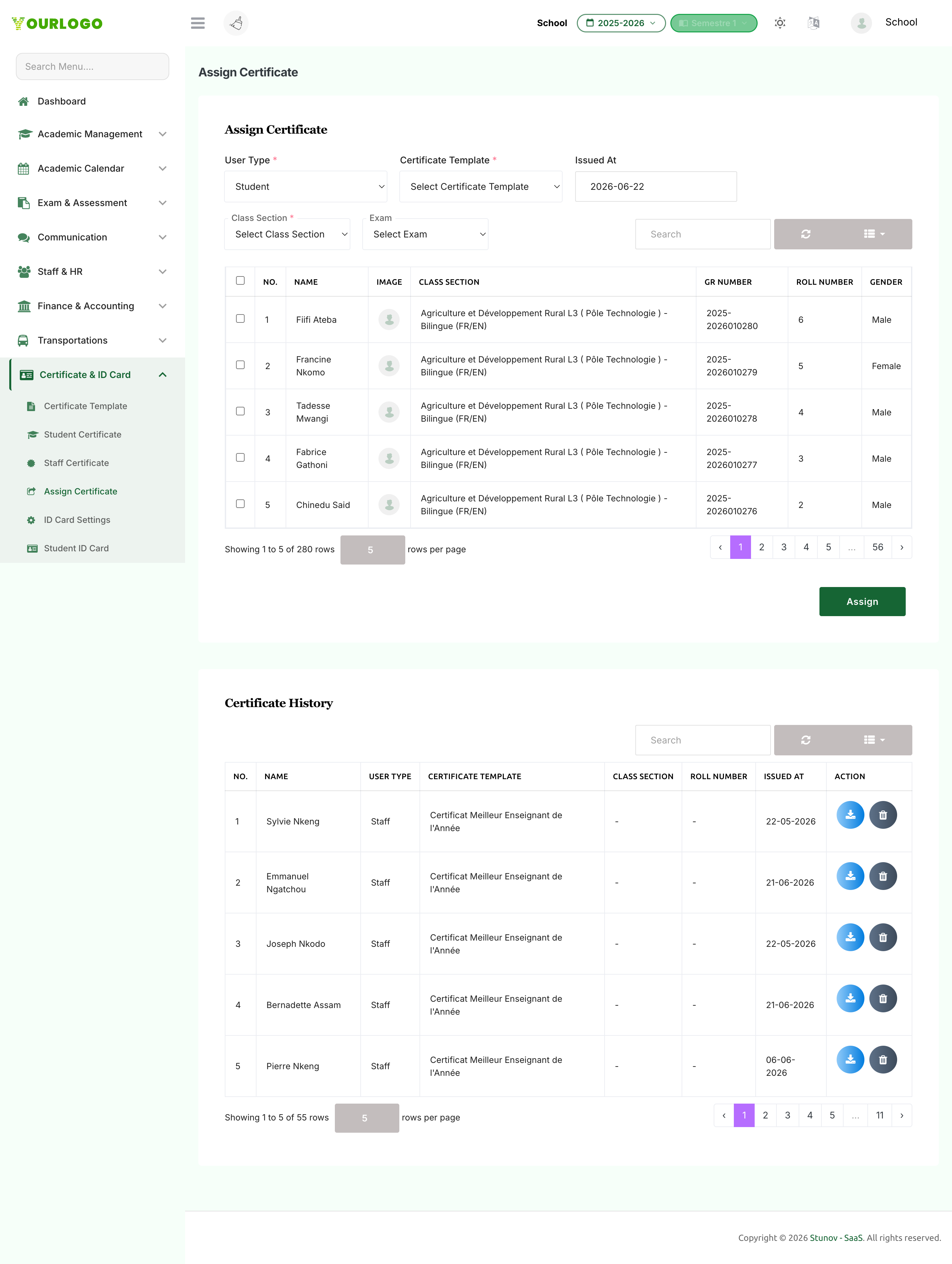
Assign a Certificate
Form Fields
| Field | Type | Required | Description |
|---|---|---|---|
| User Type | Dropdown (Student / Staff) | Required | Whether you are assigning to students or to staff. Determines the template list and the recipient table. |
| Certificate Template | Dropdown | Required | A designed certificate template matching the selected audience. Only saved/styled templates appear. |
| Issued At | Date | Optional | The issue date stored on each assignment. Defaults to today. |
| Class Section | Dropdown | Optional | Students only — loads the roster for the chosen class section. Required to populate the student list. |
| Exam | Dropdown | Optional | Students only — optionally links a published exam so result context is available when the certificate is generated. |
| Recipients | Checkbox selection | Required | One or more students/staff selected in the table below. At least one is required. |
Certificate History
Every assignment is listed in the history table below the form, with the most recent first.
| Column | Description |
|---|---|
| No. | Row number |
| Name | Recipient's full name |
| User Type | Student or Staff |
| Template | The certificate template that was assigned |
| Class Section | The recipient's class section (students only) |
| Roll No | The recipient's roll number (students only) |
| Issued At | The issue date |
| Action | Download the certificate PDF, or delete the assignment record |
- Use the Search bar to find an assignment by recipient name or email.
- Click Download to open the generated certificate PDF in a new tab.
- Click Delete to revoke an assignment record (requires the certificate delete permission). Previously downloaded PDFs are not affected.
A given template can only be assigned to the same recipient once. Recipients who already have that certificate are skipped automatically, and the assignment message reports the skipped count.
Related Pages
- Certificate Template — Design the templates you assign
- Student Certificate — Generate a single student certificate on demand
- Staff Certificate — Generate a single staff certificate on demand