Staff ID Card
Generate and print ID cards for staff members. Select individual staff or all at once, then generate their ID cards as a printable PDF. The cards use the layout, colours, fields, and dimensions configured in ID Card Settings (Staff tab).
Prerequisites
Configure your ID Card Settings (Staff tab) before generating staff ID cards. Ensure the correct fields are selected and dimensions match your printing format.
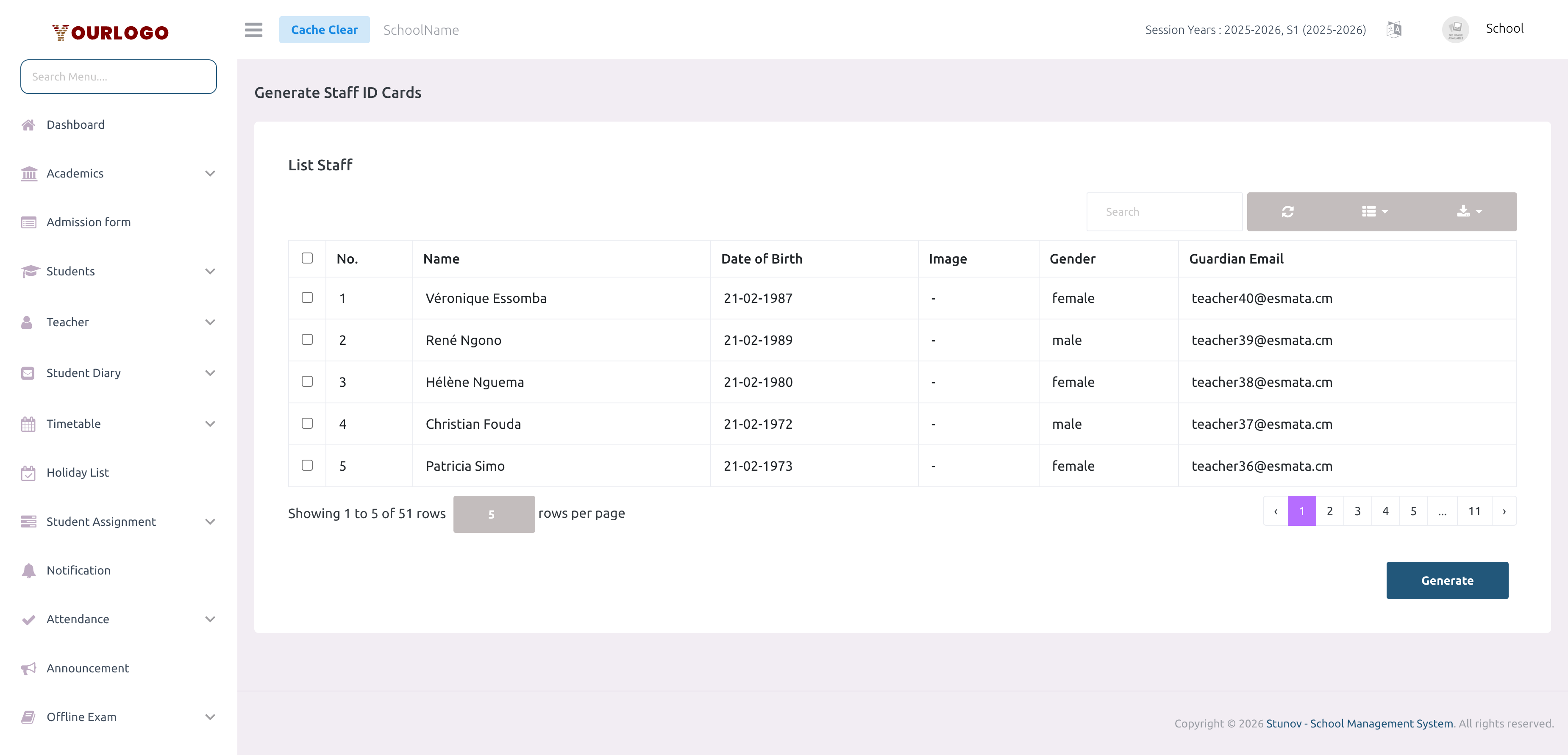
Staff ID Card page — select staff members and generate their ID cards
Generate Staff ID Cards
1
Navigate to Certificate & ID Card → Staff ID Card
From the sidebar, expand **Certificate & ID Card** and click **Staff ID Card**.
2
Select staff members
Use the checkboxes to select individual staff members from the list, or use the **header checkbox** to select all.
3
Click Generate
Click **Submit** to generate ID cards. A PDF opens in a new tab with all selected staff ID cards ready to print.
ID Card Output Example
Below is an example of a generated staff ID card:
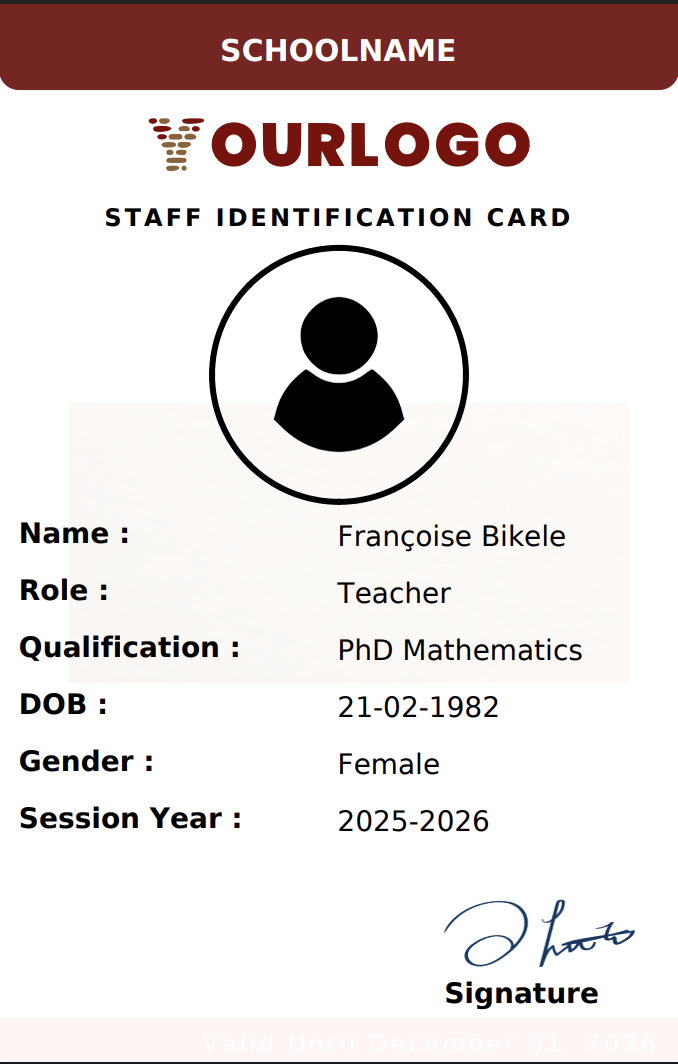
Staff ID Card — displays the staff member's photo, name, role, and selected fields
Print / Download
The generated ID cards open as a PDF in a new browser tab:
- Use Ctrl+P (or Cmd+P on Mac) to open the print dialog
- The paper size is auto-configured from the page dimensions in ID Card Settings
- Print directly or save as PDF
Custom paper size
The PDF uses the exact width and height configured in ID Card Settings (Staff tab). Use a printer that supports custom paper sizes or trim standard paper to size.
Staff List Columns
| Column | Checkbox | No. | Name | Role | Mobile | Date of Birth | Joining Date | |
|---|---|---|---|---|---|---|---|---|
| Description | Select/deselect a staff member | Row number | Staff member's full name | Assigned role | Phone number | Email address | Staff member's DOB | Employment start date |
- Use the search bar to filter staff by name
- Click Export to download the staff list
Related Pages
- ID Card Settings — Configure the ID card design and fields
- Student ID Card — Generate ID cards for students