Student Certificate
Generate certificates for students using the templates created in Certificate Template. Select a template, filter students by class section, session year, and exam, then generate certificates for one or multiple students at once. The generated certificates open as a printable page with all placeholder data filled in.
- At least one Student-type Certificate Template must exist with a designed layout
- Students must be enrolled in the selected class section
- For exam-related placeholders (
{exam},{total_marks},{obtain_marks},{grade}), select the appropriate exam
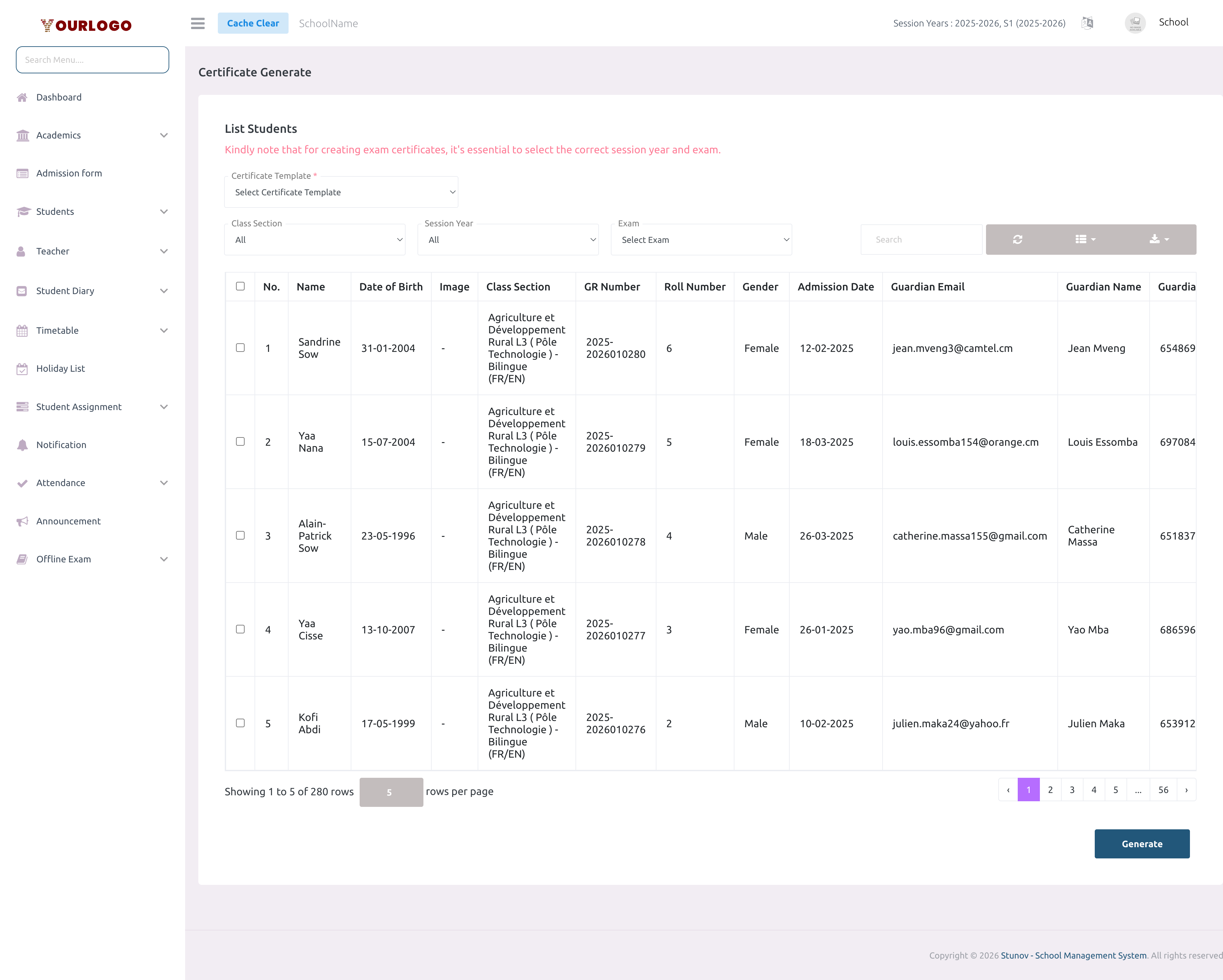
Generate Student Certificates
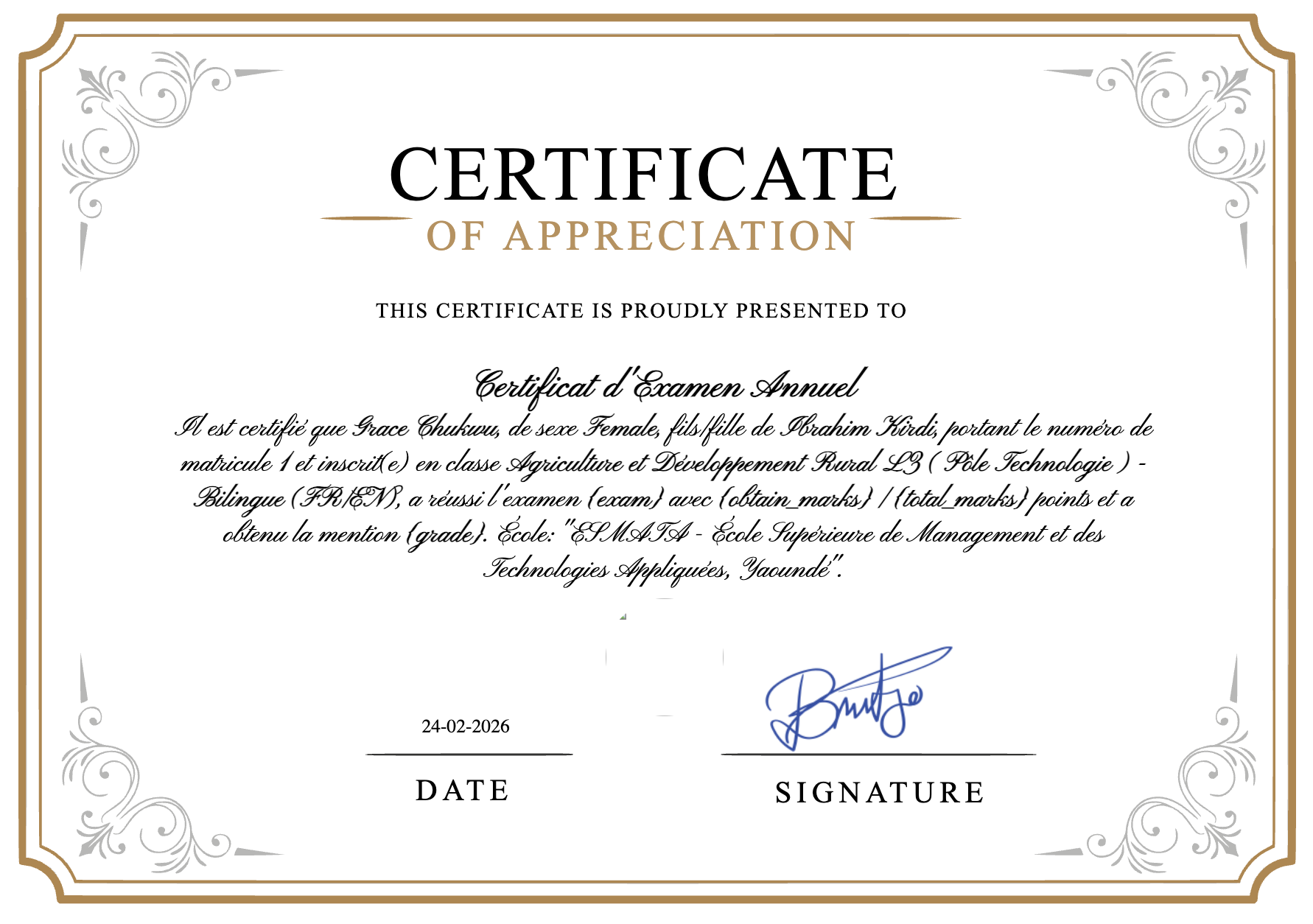
For creating exam certificates, it is essential to select the correct session year and exam. Without an exam selection, exam-related placeholders will appear blank on the generated certificate.
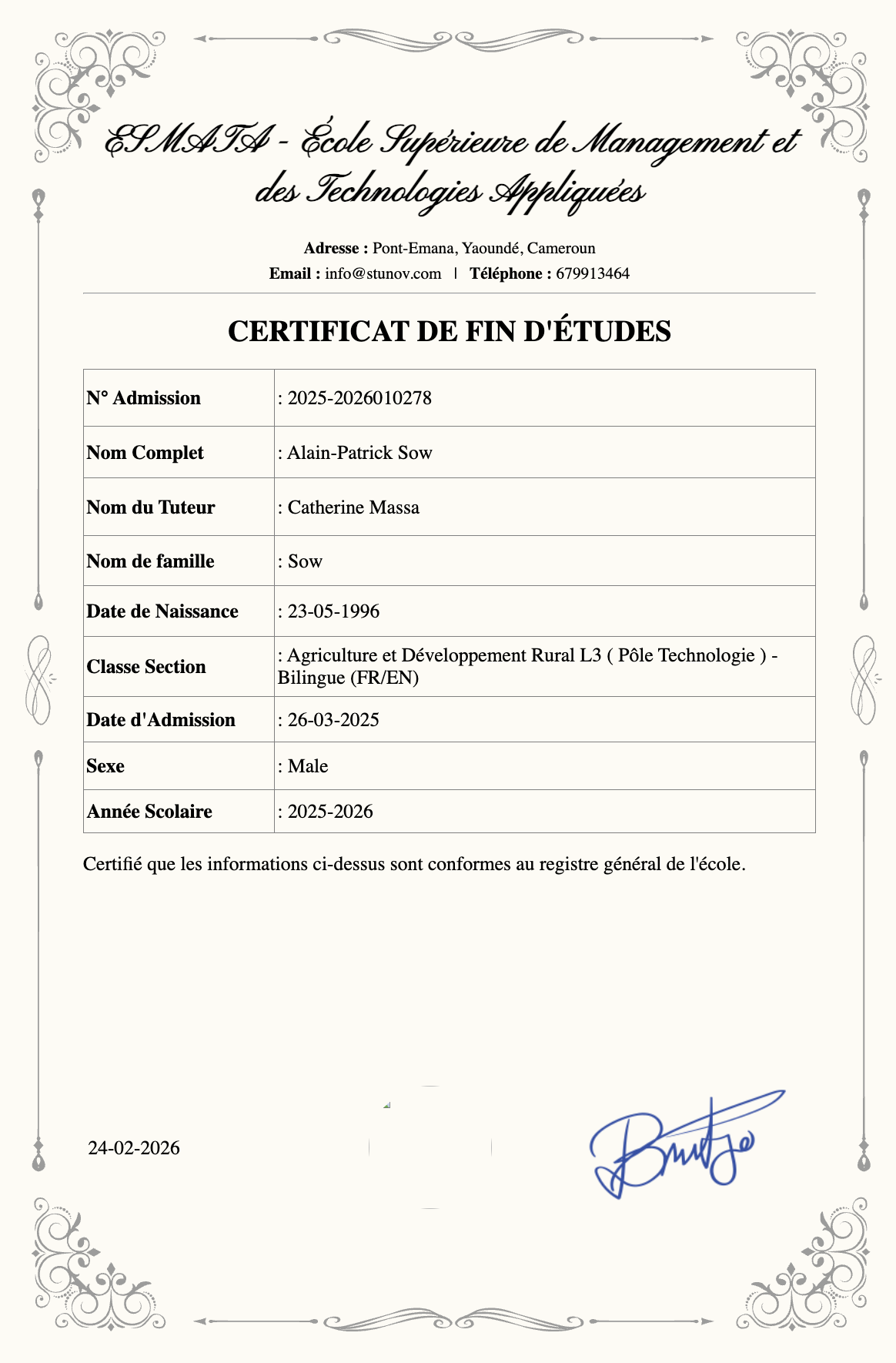
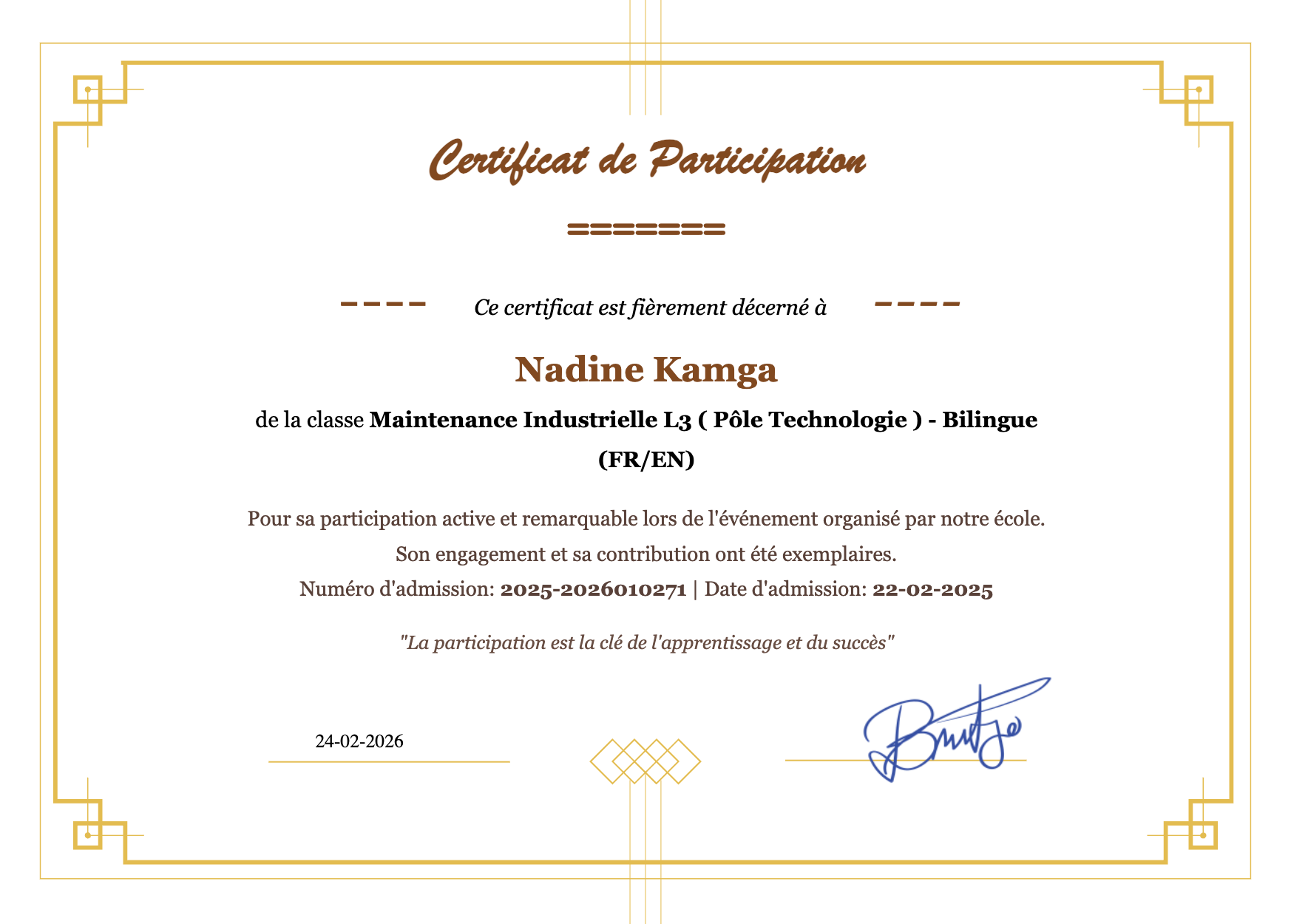
Certificate Output Examples
Below are examples of generated student certificates using different templates:
Print / Download
Once certificates are generated, the output opens in a new browser tab:
- Use Ctrl+P (or Cmd+P on Mac) to open the browser print dialog
- Set the paper size to match the template layout (A4 Landscape or Portrait)
- Enable Background graphics in print settings to include the background image
- Print directly or save as PDF
Most browsers do not print background images by default. Make sure to enable "Background graphics" (Chrome) or "Print backgrounds" (Firefox) in the print settings to get the full certificate design.
Student List Columns
The student selection table shows the following columns:
| Column | Checkbox | No. | Name | Date of Birth | Image | Class Section | GR Number | Roll Number | Gender | Admission Date | Guardian Email | Guardian Name | Guardian Mobile |
|---|---|---|---|---|---|---|---|---|---|---|---|---|---|
| Description | Select/deselect a student | Row number | Student's full name | Student's DOB | Student profile photo | Enrolled class and section | General register (admission) number | Assigned roll number | Student's gender | Date of admission | Guardian's email address | Guardian's name | Guardian's phone number |
- Use the search bar to find students by name
- Click Export to download the student list
- Click Columns to show/hide specific columns
Related Pages
- Certificate Template — Create and design certificate templates
- Staff Certificate — Generate certificates for staff members